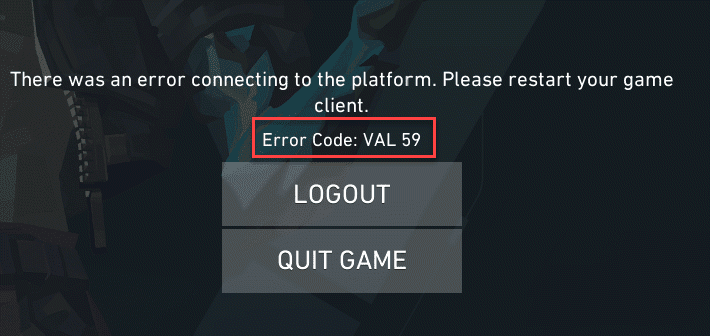
Getting the VAL 59 error code trying to launch the Valorant client on your machine? Some of the players have faced this error message, which goes like ‘There was an error connecting to the platform. Please restart your game client. Error Code: VAL 59‘. This is a login queue fetch token failure, that won’t allow you to play the game at all, and even normal system restart or the game client restart won’t help you either. Here are the perfect resolutions to counter this problem on your own.
NOTE – You have to execute the steps mentioned in Fix 1 to Fix 3 consecutively for the most effective solution. This means, after flushing the DNS cache, delete the log files of Valorant cache, and then uninstall the Riot Vanguard utility. Restart your computer, and you can enjoy the game without any error.
Fix 1 – Flush the DNS cache
Cleaning up the network DNS cache on your system should resolve this issue.
Step 1 – At first, write cmd in the search box.
Step 2 – Then, right-click the Command Prompt and tap Run as administrator.
Step 3 – In the terminal page, write these commands and hit Enter to flush the current DNS configuration.
ipconfig /release
ipconfig /renew
ipconfig /flushdns
ipconfig /registerdns
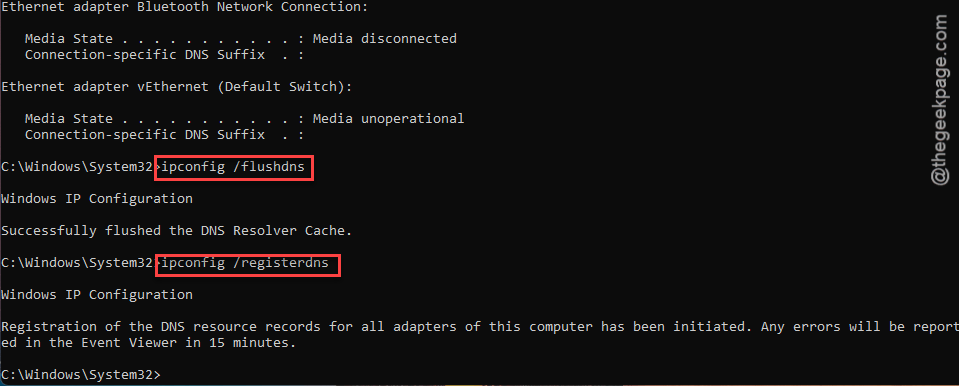
After executing these commands, close the terminal. Launch the Valorant client once and try to play the game.
Fix 2 – Clear the corrupted Valorant cache from local drive
If you are still getting the Error Code 59, probably the Valorant cache is corrupt. You may fix it following these steps.
Step 1 – At first, press the Win+R keys to pull up a Run box.
Step 2 – Type this term there. Click OK.
%localappdata%
Step 3 – When the Local tab loads up, go to this subfolder –
Valorant/Saved/Config
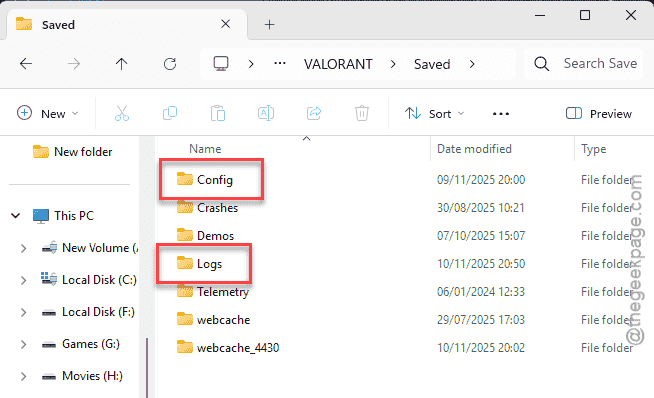
Step 4 – Now, delete everything from the Saved folder.
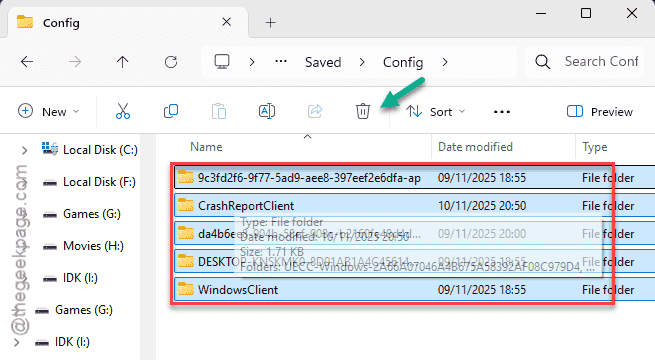
Step 5 – After this, go to this subdirectory –
Valorant/Saved/Logs
Step 6 – Empty the Logs folder.
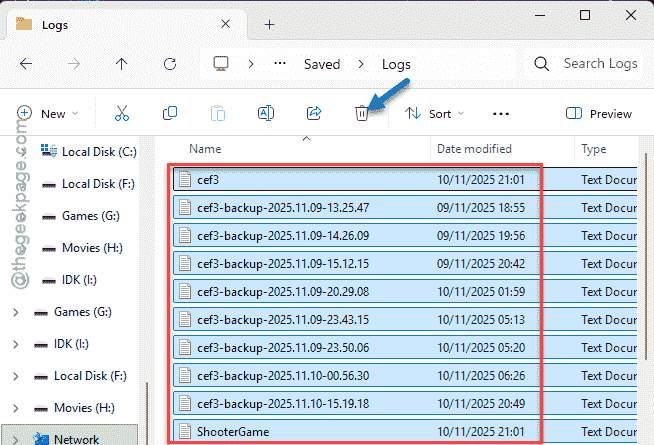
Step 7 – Now, get back to the Local folder from the address page and reach this address –
Local\Riot Games\Riot Client\Data
Step 8 – In the Data folder, find the RiotGamesPrivateSettings.yaml file.
Step 9 – You have to move this particular file to a different location. Just move it to Desktop.
NOTE – Don’t worry. Your setting in Valorant is completely safe and synced online. The game will automatically recreate this file whenever it boots up correctly.
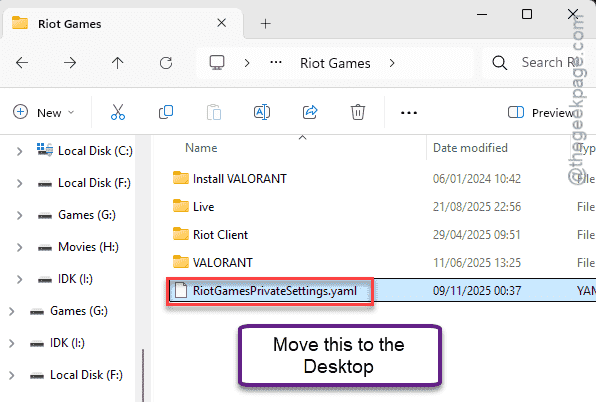
After moving the file, close the File Explorer. Check whether the issue has fixed or not.
Fix 3 – Uninstall Riot Vanguard
Corrupted Riot Vanguard initialization may also lead to such issues.
Step 1 – Start by opening up the Windows Settings. Go to the Apps tab.
Step 2 – Then, proceed to the Installed Apps section.
Step 3 – Find the Riot Vanguard software.
Step 4 – Then, tap the three-dot button next to the software, and tap Uninstall.
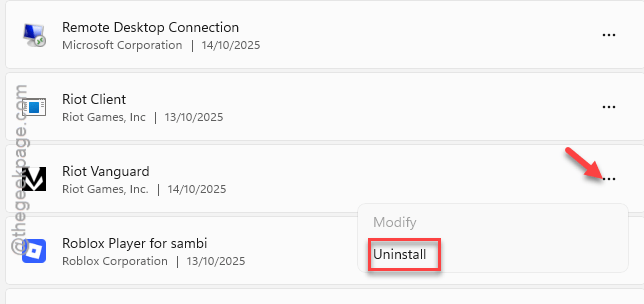
Step 5 – Tap Yes when you get a standard warning prompt.
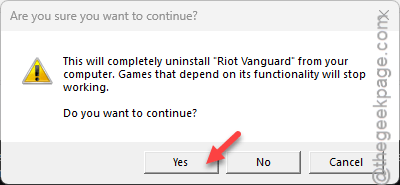
After uninstalling the tool, close the Settings console.
Step 6 – Finally, when you are done, relaunch the Riot client.
Step 7 – Tap Update for the Valorant client.
It will reinstall the Riot Vanguard package on your system. It won’t take more than a minute to do this.
Once you are done, restart your computer. The Riot Vanguard requires a system restart to initialize properly.
When have restarted the system, you can enjoy Valorant without the VAL 59 error.
Fix 4 – Rectify the Correct Date & Time Settings
The wrong date and time settings may contradict with the normal function of the Riot client, which does requires your device to have the correct date and time according to the location.
Step 1 – Open the Time & Language settings.
Step 2 – Next, load up the Date & time settings.
Step 3 – Get to the Additional settings section and use the Sync now button to synchronize the date and time settings.
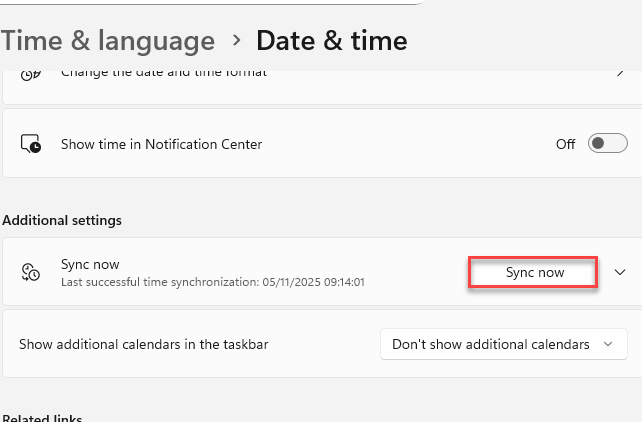
This way, Windows will retrieve the correct date and time settings.
After this, you can launch and play the game without any Error Code 59.
Fix 5 – Uninstall Valorant and reinstall it
If nothing so far has worked out, just uninstall the Valorant client, and perform a fresh reinstall to resolve the problem.
Step 1 – Go to the Windows Settings. Tap the Apps menu from the left dock. Open up the Installed Apps tab.
Step 2 – Find the Valorant game from there and tap the three dot button next to it, and finally, tap the Uninstall to uninstall the game.
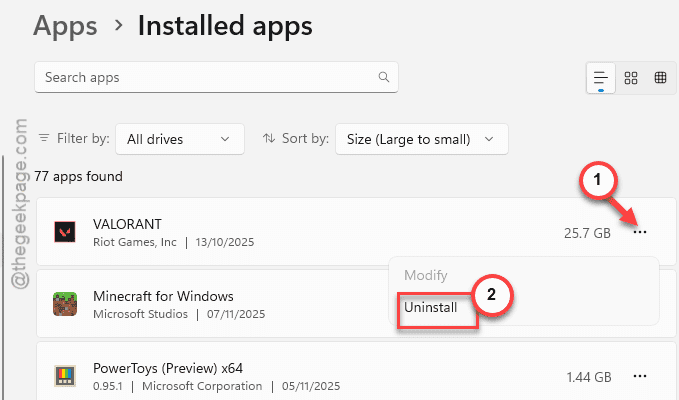
Step 3 – This will take you to the Riot Client page, where you have to follow the on-screen instructions to offload the Valorant from your computer.
Step 4 – Next, go to the Valorant webpage. Sign in with your Riot account to download the installer.
Step 5 – Install Valorant by running the Install Valorant utility.
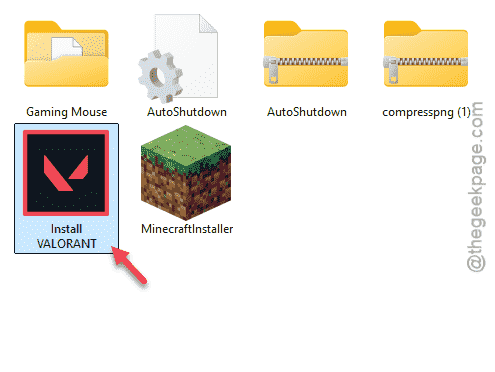
You can also install the Riot Client on your system and install the game from there as well.
Restart your system once, if it is necessary.
Later, you can enjoy Valorant without any more issues.
NOTE – A faulty CMOS battery is responsible for the wrong time and date settings on your computer. You can manually replace the CMOS battery on the motherboard, and adjust the time settings from the BIOS page. This way, you don’t have to worry about the time and date settings.