While trying to play a game that you have purchased on Steam, your action may get halted due to this error message – ‘An error occurred while launching this game – no licenses‘. This error has been reported by many gamers in multiple forums. There is a very easy fix to this issue, so without wasting any more time, proceed to the main part of the solution.
Fix 1 – Use the Steam Beta for family
Putting your Steam client to beta channel to fix this issue.
Step 1 – At first, open up the Steam client on your machine.
Step 2 – Next, tap the Steam option on the menu bar. Later, tap the Settings from the same context menu to load it up.
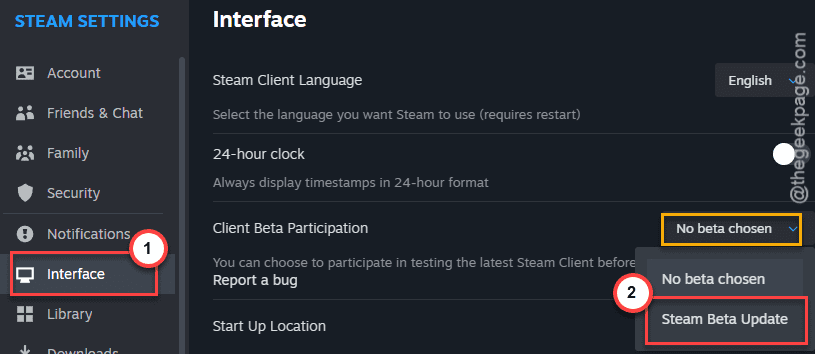
Step 3 – In the Steam Settings console, go to the Interface tab.
Step 4 – On the right-hand side, try to find the Client Beta Participation section. Set this to Steam Families Beta condition from the drop-down.
Step 5 – You will get a prompt to restart the Steam to apply those changes in the client. So, tap the Restart button there.
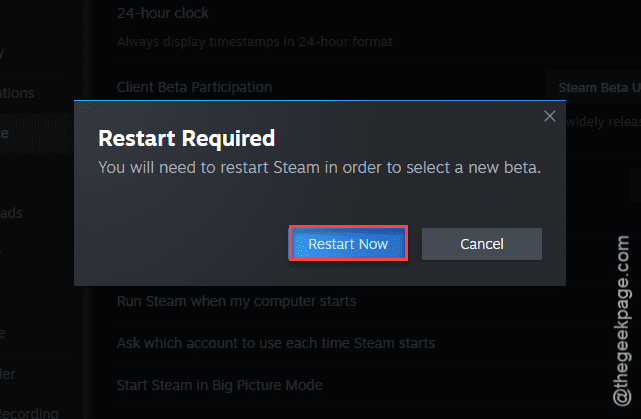
Once you have applied the changes, your Steam game won’t give you license issues again.
Fix 2 – Verify the game files
The corruption in the installed game files on your local drive mainly to this issue. Missing or corrupted Steam dll files cause this issue.
Step 1 – Go to your Steam client and open up the Library section.
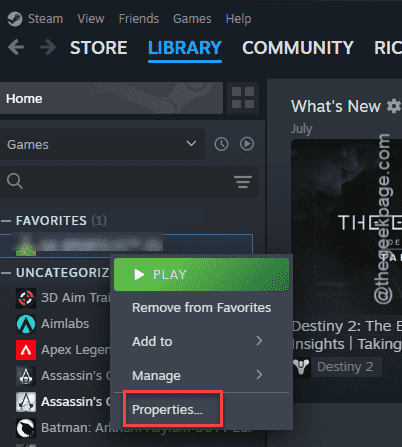
Step 2 – Then locate the game that is giving you this problem. Right-click on the game from the left-hand side, and tap Properties to open the game properties window.
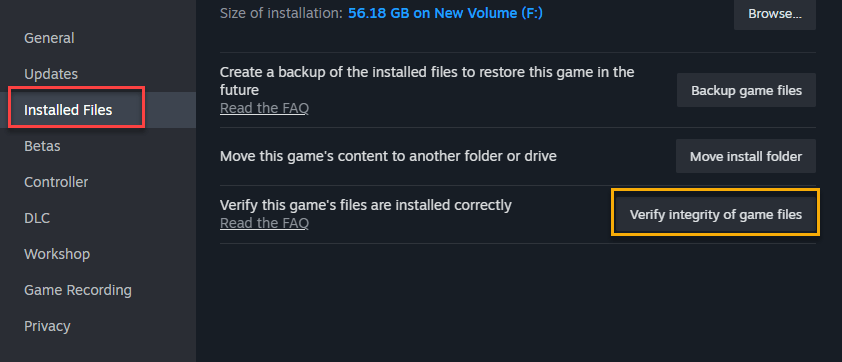
Step 3 – Reach the Installed files tab on the left pane.
Step 4 – Tap the Verify game files for integrity button to initiate a file integrity check on all the locally installed game files.
Depending upon the size of the game and the drive where it is installed, it may take some time to check all the game files on your system.
Try to play the game one more time.
Fix 3 – Verify the game license
The games without valid license can show up this license error. This is more evident if this is not one of your purchased games. Like, if you have got the game as a gift from someone else. The license issue arises from there and stops you from accessing the game.
If that is the case with the game, you can’t do anything officially.
Fix 4 – Update the GPU driver
It seems that some of these reports has been linked to obsolete GPU drivers installed on your machine.
Step 1 – Open the NVIDIA app on the AMD Adrenaline app.
Step 2 – Once it loads up, go to the Drivers tab. Give it a few seconds and the latest graphics driver update should be ready for you to download.
Step 3 – Tap the Download button to download and install the update.
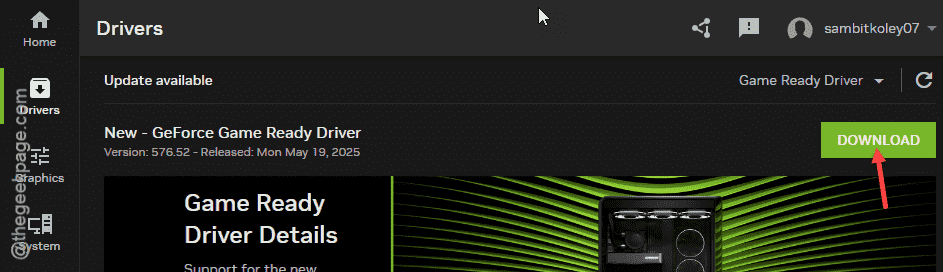
Once you’ve installed the update., give the game another try.
Fix 5 – Clean install the game
The problem with license that you are having on this game can be fixed with a simple and clean installation of it.
Step 1 – Load up the Steam client, if it is minimized on your system.
Step 2 – Reach the Library section and locate the game there.
Step 3 – Then, right-click the game from there and click Manage button and choose Uninstall option.
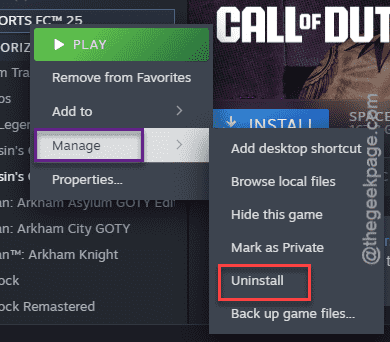
Follow the on-screen instructions to completely remove the game from your system.
Step 4 – After you have uninstalled it, reinstall the game from the same place in Steam.
The license problem will be fixed once you reinstall the game. See if this issue has resolved or not.