Does the Recent Call History is showing up blank on your new iPhone? When you transfer your data to a new iPhone, the recent call history also gets synced to the new iPhone via iCloud. While the majority of the users have experienced this issue after switching to a new iPhone, it clearly indicates a possible problem with the iCloud backup and synchronization process. This article will help you in any case of blank or no calls in the Recent page of the Phone app.
Fix 1 – Force Restart the iPhone
A force-restart of the iPhone should fix any temporary glitch or bug that is causing the blank screen in the Recent page.
Step 1 – At first, you have to press and release the Volume Up button on the iPhone.
Step 2 – Then, do that same with the Volume Down button on the device.
Step 3 – At the final step of the process, hold the Power button on the iPhone until the iPhone switches off and restarts, and the Apple logo shows up on the device.
After the iPhone restarts successfully, check the Recent call panel in the Phone app. It will solve the issue for most of the users.
Fix 2 – Refresh the iCloud Sync for Phone app
The call list on your Apple device does get synced via iCloud. Refreshing the synchronization in the iPhone settings should restore the Recent call history back.
Step 1 – Proceed to the Settings page on your iPhone. Tap the Apple ID banner at the top.
Step 2 – Next, tap the iCloud option there.
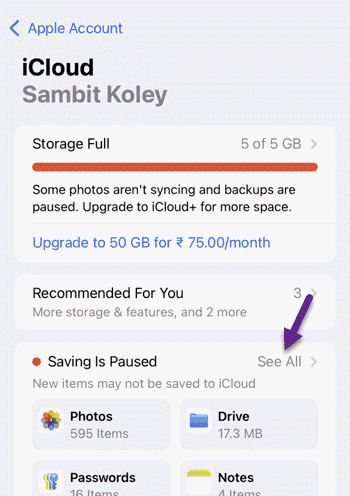
Step 3 – Find the Saved to icloud settings section, tap the See all option.
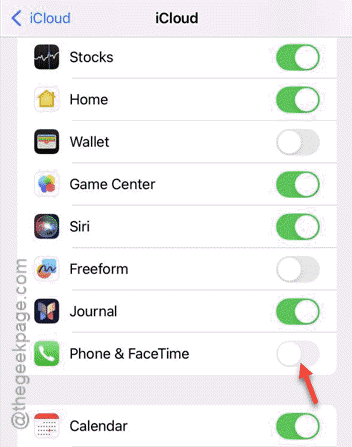
Step 4 – Disable the Phone and FaceTime feature.
Step 5 – Wait for a few seconds. Finally, turn on the Phone and FaceTime feature.
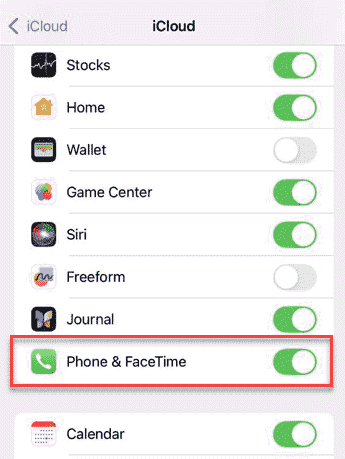
After refreshing the Phone app in the iCloud settings, check the Recent page in the Phone app
Fix 3 – Reset the Network Settings
Resetting the network connection does eliminate any temporary glitch that is causing the Recent call page to go blank.
Step 1 – Tap the ⚙button to load up the Settings console.
Step 2 – Next, proceed to the Reset section –
General ⇾ Transfer or reset iPhone
Step 3 – Tap the Reset option there.
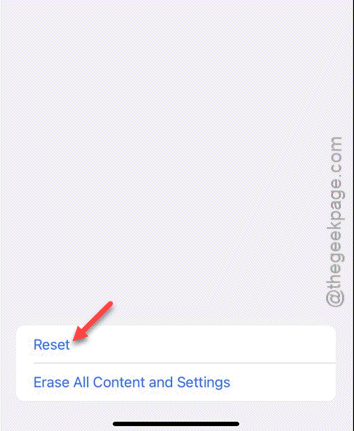
Step 4 – Use the Reset Network Settings option there.
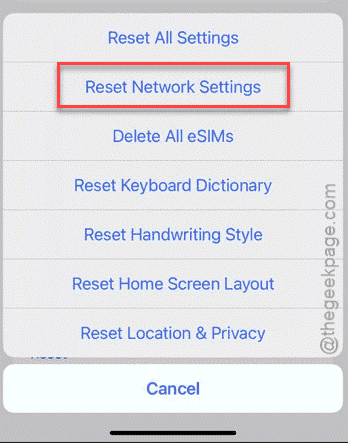
You must input the iPhone passcode to confirm resetting the network settings. The iPhone may restart once during the process.
Once the network settings are all reset, see if this has helped or not.
Fix 4 – Turn off Beta Updates for iOS
The beta version of the iOS 26 does come with some glitches like this one. To avoid this predicament, stick to the stable build of the iOS.
Step 1 – Load up the iPhone’s Settings window.
Step 2 – Next, open up the Software Update option in the General section.
Step 3 – Then, proceed to the Beta Updates option.
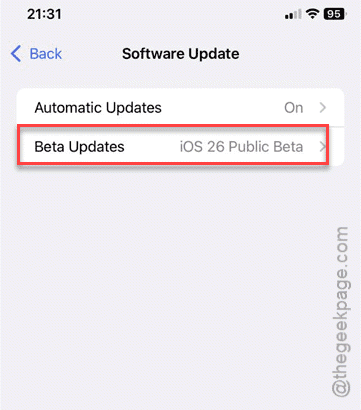
Step 4 – Open it and set it to Off mode.
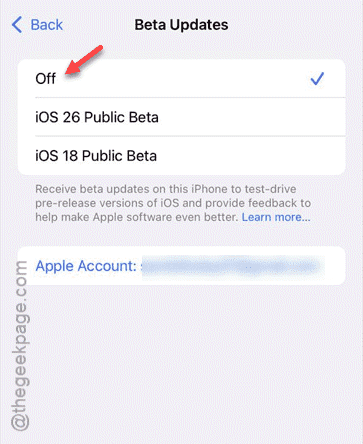
As soon as you have turned it off, you will see the update notification trigger to install the latest stable build of iOS.
After getting the stable build of iOS, the recent call history page should work normally.
Additional Tips –
1. The ‘Recent’ call page may appear blank on the new iPhone. In most of the cases, you can just ignore it and continue to use the device. The calls you make or receive will appear in the Recent portal normally.
2. If you still can’t view the Recent call history after switching to the new device, the iCloud backup is corrupted. Continue to use the new device and it will be fixed automatically.
Final Word
Only a fraction of the iPhone users experience this weird bug on their new iPhone. In the most of the cases, a normal restart should be enough to take care of the problem.