You launch a game. The screen freezes for a second. Then — blue screen. PAGE_FAULT_IN_NONPAGED_AREA.
And it only seems to happen with games that use anti-cheat. Valorant, Fortnite, an EA title, whatever. The crash points at memory. But the trigger? Often a driver fight you didn’t know was happening. Let’s sort out which one.
Why This Happens
Basically? This stop code means Windows asked for data in memory that wasn’t there. Something it expected to be loaded just… wasn’t.
Anti-cheat tools like Easy Anti-Cheat and Riot Vanguard run deep in the system — kernel level (the most protected layer of Windows). And down there, they don’t play nice with every other driver.
So when an RGB app, a tuning utility, or a leftover debugging tool loads its own kernel driver, the two can clash over the same memory. And Windows panics. Blue screen.
There’s another sneaky cause. If you ever turned on Driver Verifier — a built-in stress tool for drivers — it can flag the anti-cheat as unstable and crash on purpose. People forget they enabled it. Annoying. And of course, genuinely bad RAM throws this code too. So we’ll rule out each one.
Fix 1 – Turn Off Driver Verifier
Start here. This one quietly fixes a surprising number of these crashes, and most people don’t even remember switching it on. Driver Verifier stress-tests drivers and will bug-check the moment it dislikes one — including your anti-cheat.
1 – Press Windows + R to open the Run box.
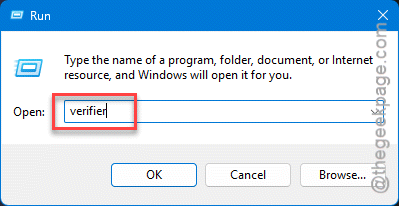
2 – Type verifier and press Enter. The Driver Verifier Manager window opens.
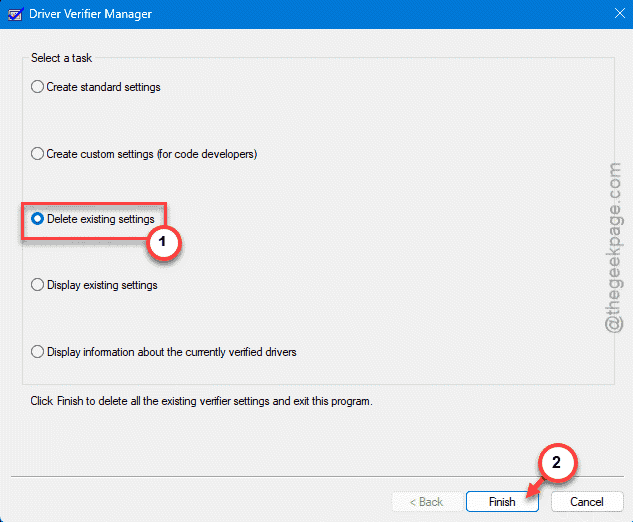
3 – Select Delete existing settings.
4 – Click Finish, then click Yes on the prompts.
5 – Restart your PC for it to take effect.
And that’s often the whole fix. If the blue screens stop after this, you never had a hardware problem at all — just Verifier picking a fight.
Fix 2 – Repair or Reinstall the Anti-Cheat
The anti-cheat install itself can rot. A half-broken copy is a classic source of these crashes. The repair steps differ depending on which one your game uses.
For Easy Anti-Cheat:
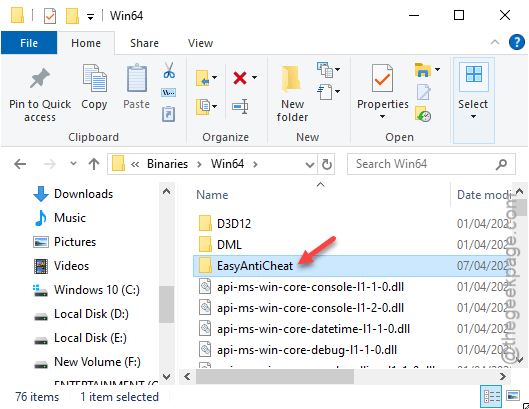
1 – Open the game’s install folder. It’s usually under Program Files (x86) in an Easy Anti-Cheat subfolder.
2 – Right-click EasyAntiCheat_Setup.exe and choose Run as administrator.
3 – Pick your game from the dropdown.
4 – Click Repair (or Uninstall, then install again if Repair doesn’t help).
For Riot Vanguard (Valorant):
1 – Press Windows + I to open Settings, then go to Apps.
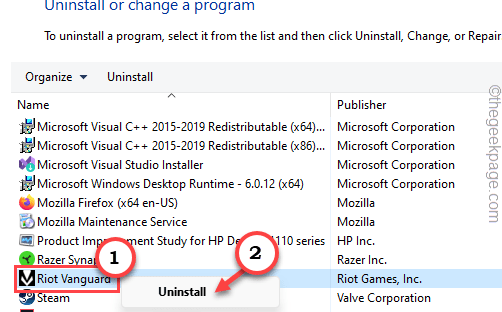
2 – Find Riot Vanguard in the list and click Uninstall.
3 – Restart your computer.
4 – Launch the Riot Client. It reinstalls Vanguard on its own.
Vanguard won’t run again until you reboot, so don’t skip the restart. Then test the game.
Fix 3 – Get Rid of Conflicting RGB and Tuning Software
Here’s a big one. A lot of RGB and overclocking apps load a low-level driver called inpoutx64.sys. And Vanguard in particular hates it.
The usual suspects: ZenTimings, MSI Center, and various RGB lighting controllers. Any of them can trigger the clash.
1 – Press Windows + I, go to Apps, and scroll the list.
2 – Look for RGB controllers, fan/tuning utilities, and timing readers like the ones above.
3 – Uninstall them one at a time, or at least close them fully before launching your game.
4 – Restart and test.
If the crashes stop, add one app back at a time to find the guilty one.
Fix 4 – Test Your RAM With Windows Memory Diagnostic
Still crashing? Time to rule out the memory itself. Windows has a free built-in tester.
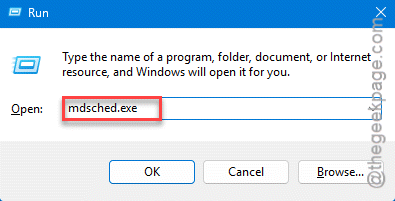
1 – Press Windows + R, type mdsched.exe, and press Enter.
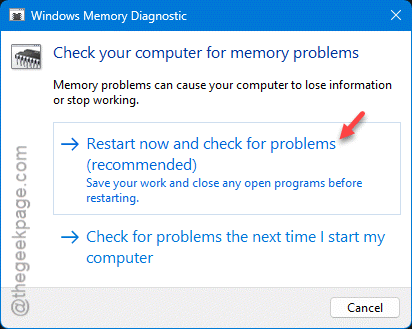
2 – Click Restart now and check for problems. Save your work first — it reboots immediately.
3 – When the test screen appears, press F1 and switch it to Extended mode for a deeper scan.
4 – Let it run fully. This takes a while, so grab a coffee.
One thing to watch: if the test hangs around 21% and won’t budge, that’s a memory error too, not just a slow scan. Either way, errors here mean a RAM stick is failing or loose.
Fix 5 – Turn Off XMP and Check Your RAM Settings
If the memory test threw errors, don’t rush to buy new sticks. Bad timing settings cause the same crashes, and they’re free to fix.
XMP is a one-click profile that runs your RAM faster than its default speed. Great for performance. But if your board is fussy, it makes memory unstable.
1 – Restart and tap Delete or F2 as the PC powers on to enter the BIOS (the key flashes on screen — it varies by motherboard).
2 – Find the XMP (or DOCP on AMD boards) setting and turn it Off.
3 – Save and exit, usually with F10.
4 – Boot into Windows and test the game again.
Also worth a look: your motherboard’s QVL — the maker’s list of RAM it’s tested with. If your voltage, frequency, or timings don’t match what the QVL recommends, that mismatch alone can throw this stop code.
How to Prevent This
– Never leave Driver Verifier running once you’re done testing a driver. It crashes anti-cheats on purpose. Turn it off.
– Be picky about RGB and tuning apps. The fewer kernel-level utilities you run, the fewer fights with anti-cheat. Trust me.
– Keep your anti-cheat and GPU drivers current. Most known conflicts get patched within a few updates.
– Only enable XMP if your RAM is on the motherboard’s QVL. Matching parts stay stable.
People Also Ask
How do I fix stop code PAGE_FAULT_IN_NONPAGED_AREA?
Start by turning off Driver Verifier — press Windows + R, type verifier, choose Delete existing settings, and reboot. If that doesn’t do it, repair your anti-cheat, remove conflicting RGB or tuning software, and test your RAM with Windows Memory Diagnostic.
What does PAGE_FAULT_IN_NONPAGED_AREA mean?
It means Windows looked for data in memory that should have been there but wasn’t. The trigger is usually a driver conflict or failing RAM. With games, kernel-level anti-cheat clashing with another low-level driver — like an RGB or tuning utility — is a very common cause of this blue screen.