Three people editing the same spreadsheet. Changes taking forever to appear. Cells jumping around. Someone overwrites your work. The co-authoring experience in Excel is rough.
Real-time collaboration in Excel is supposed to work like Google Sheets. It does not. Not even close. But there are ways to make it less painful.
Why This Happens
The real-time collborative approach in Microsoft Excel that you and me enjoy so much depends upon so many exteranal factors. When multiple people edit the same sheet in real-time, Excel does sync every users’ changes through OneDrive or SharePoint. This synchronization can take a hit if you are on a wobbly internet connection. This lag only goes up as the file size goes up. And add the colloborative approach of mulitple people working on the same cells at the same time, this internal conflicts stacks up. It can cause your Excel sheet freeze up, even when there is no hardware fault at all. This happens because Excel needs a while to figure out whose change actually wins. So sometimes it is not even a performance issue. It is just turned off.
Fix 1 – Make Sure Everyone Is on Microsoft 365
The co-authoring functions the best when all of your team members are on the latest version of Microsoft 365 desktop. Older versions cause sync problems.
1 – Open Excel. Click File > Account.
2 – Check the product information on the right. It should say Microsoft 365.
3 – Click Update Options > Update Now to make sure you are on the latest build.
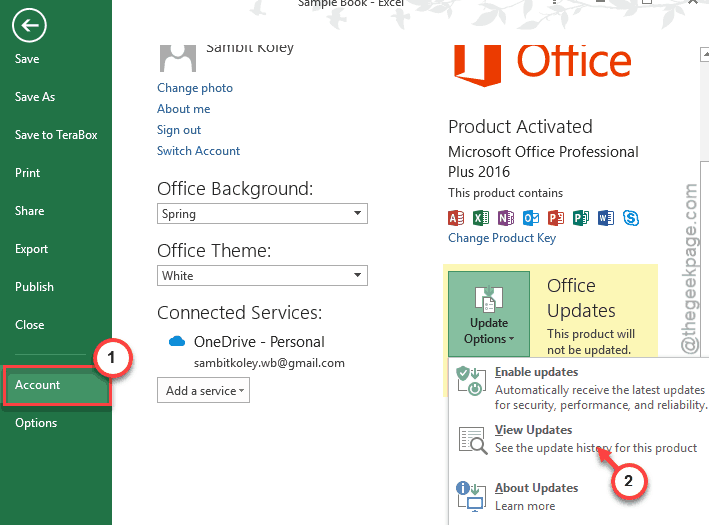
4 – Have every collaborator do the same on their machine.
If even any of the co-authors are currently running Excel 2019 or older, it can push down the entire co-authoring session for all the other team members.
Fix 2 – Store the File on OneDrive or SharePoint
The primary criteria for you to co-author a file is to store it on the OneDrive or SharePoint.
1 – Open the Excel file.
2 – Then, click the File > Save As.
3 – Choose OneDrive or SharePoint as the save location.
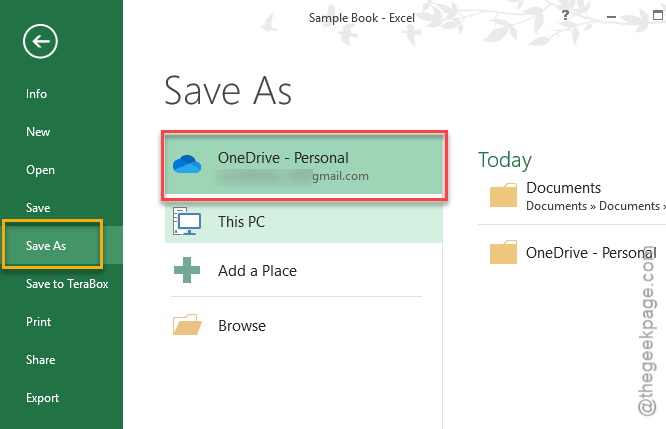
4 – Share the file link with your collaborators.
Are you already on OneDrive? Do check whether that AutoSave is turned on (you will find in at the top-left corner of the Excel window).
Fix 3 – Use the Legacy Shared Workbook Feature
If cloud co-authoring freezes up too much, you should shift to the legacy shared workbook feature. It is clunkier but sometimes more reliable on local networks.
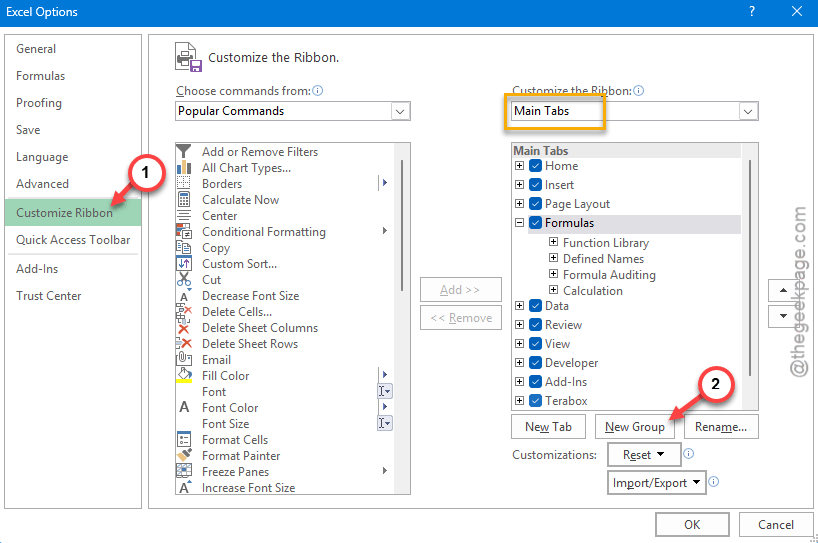
1 – Open Excel. Click File > Options.
2 – Click Customize Ribbon on the left.
3 – Under Main Tabs on the right, click to expand the Home tab. Tap the New Group to create a custom group.
4 – On the left dropdown, select All Commands. Then, go down to find Share Workbook (Legacy) or Share Workbook option. Then, click Add to move it into your custom group.
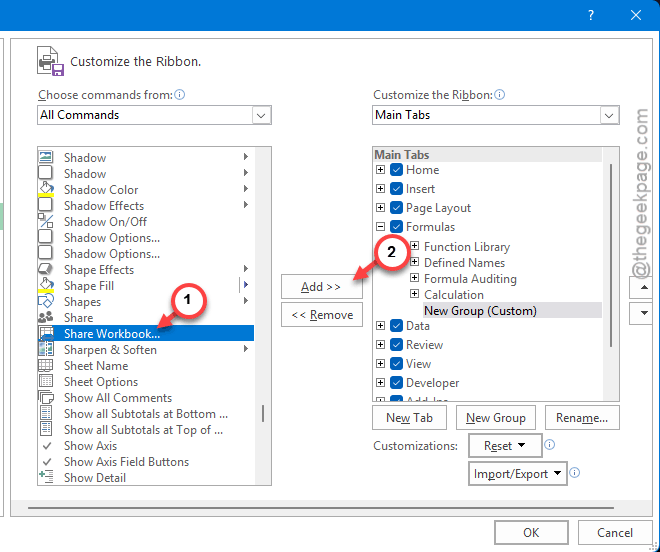
5 – Click OK. Proceed to the Home tab and click Share Workbook (Legacy) or Share Workbook.
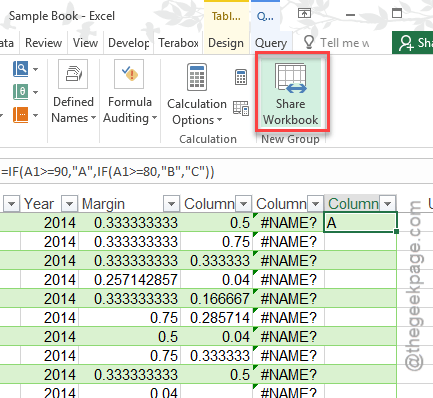
6 – You have to tick mark the box that says Use the old shared workbooks feature instead of the new co-authoring experience or “Allow changes by more than one user at the same time” feature, whichever is available.
7 – Click OK. Save the file to a local shared network folder.
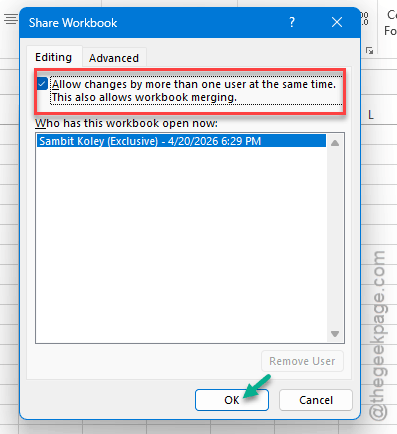
Old method. But it avoids the cloud sync issues entirely.
Fix 4 – Reduce File Size and Complexity
Big files lag more during co-authoring. Simple as that.
1 – Delete unused sheets and empty rows or columns at the bottom of your data.
2 – Remove heavy formatting. Conditional formatting on thousands of cells slows things down.
3 – Replace volatile functions like NOW(), TODAY(), and INDIRECT() where possible. They force constant recalculation.
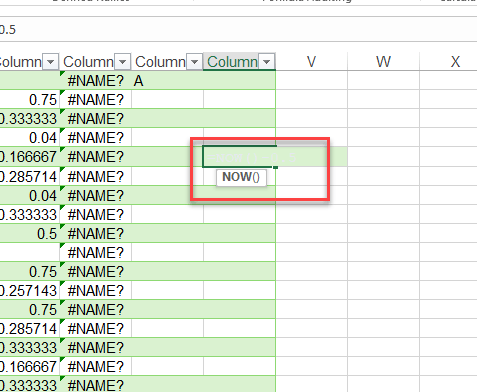
4 – If the file size>10 MB, just split it into multiple smaller files.
Fix 5 – Check Group Policy Settings
If co-authoring is not working at all (not just laggy), a group policy might be blocking it. This happens in corporate environments.
1 – Ask your IT admin to check for these policies: Disable Automerge Client Policy, Disable Co-Authoring Server Policy, and Disable Co-Authoring Client Policy.
2 – If any of those are enabled, they need to be turned off for co-authoring to function.
Nothing you can fix yourself if this is the cause. But at least you will know it is not your fault.
Fix 6 – Assign People to Different Sheets
Honestly? The best fix for co-authoring lag is to avoid editing the same cells at the same time.
1 – Give each person their own sheet or section of the workbook.
2 – Use a master sheet with formulas that pull data from individual sheets.
3 – Only one person should touch the master sheet.
Not a technical fix. More of a workflow fix. But it eliminates 90% of the lag and conflict issues.
How to Prevent This
– Just make sure that every one who is working has the latest Microsoft 365 version. The version conflict can cause this co-authoring issues.
– You should keep Excel file sizes under 5 MB, that is the ideal mark for smooth co-authoring.
– Avoid editing the same cells simultaneously. Assign sections to individuals.
People Also Ask
Can multiple users edit an Excel file at the same time?
Yes. But, you have to upload the shared file to OneDrive or SharePoint server. And everyone needs Microsoft 365.
Can multiple users edit the same document in real-time in OneDrive?
Yes. Just upload file to OneDrive and share the link with the authors. Make sure AutoSave is on. Then, everyone can edit the file at the same time. There is a chance of some lag if the file is large (>5 MB) or you are on on a slow network connnection.
Can two people edit the same workbook at the same time if it is saved to the cloud?
Absolutely. Just make sure that everyone working is on Microsoft 365 desktop and has the OneDrive and SharePoint access. The web version works; but it oferrs fewer features. And avoid editing the exact same cells. That is where conflicts happen.