You restored a Hyper-V VM from backup. Should just work, right? Nope. It sits there refusing to start, throwing errors about saved states or network adapters. The backup was fine. The restore “worked”. And yet — nothing boots.
This one’s fixable. Usually in a few minutes.
Why This Happens
Basically? The restored VM is looking for things that no longer exist. It was saved on one machine with a specific network switch, a specific hardware layout, a specific running state. Then you moved it. And the new host doesn’t match.
The biggest offender is the virtual switch. The VM remembers a switch name from the old host. New host has a different one? The VM refuses to start. Just like that.
Saved state files cause the rest. The restore brings over a frozen memory snapshot tied to the old hardware. The new host can’t load it. So Hyper-V gives up instead of just discarding the stale state. Annoying design, honestly.
Oh, and sometimes your antivirus is the problem. It locks the VM files mid-scan. (More common than you’d think.)
Fix 1 – Point the VM at a Working Virtual Switch
The restored VM is probably bound to a switch that doesn’t exist on this host. Rebind it.
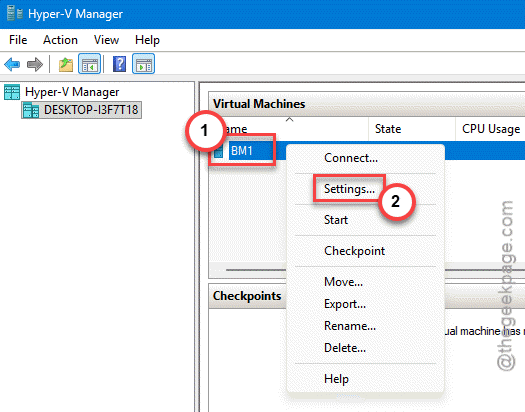
1 – Open Hyper-V Manager.
2 – Right-click the virtual machine and select Settings.
3 – Click Network Adapter in the left pane.
4 – Under Virtual switch, pick a switch that actually exists on this host — Default Switch works, or an external switch if you have one set up.
5 – Click OK.
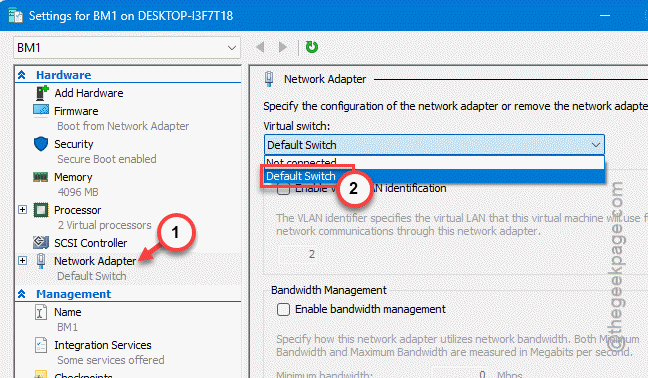
6 – Try starting the VM.
For most restored VMs, this is the whole fix. Done.
Fix 2 – Match the Network Adapter Name to the New Host
If the VM came from a different machine, the network naming might not line up.
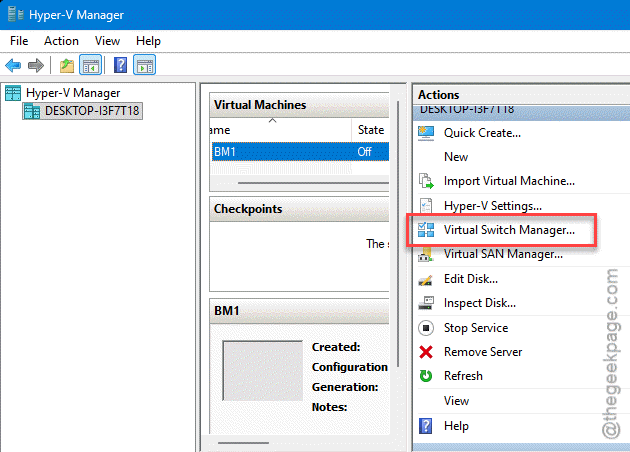
1 – Open the Hyper-V Management Console.
2 – Open Virtual Switch Manager — it’s in the pane on the right side.
3 – Rename the network adapter to the same name used on the new host.
4 – Try starting the VM again.
Same idea as Fix 1, different angle. The VM stops looking for a network that is not there.
Fix 3 – Delete the Saved State
Still failing? The VM is probably choking on a stale saved state from the old machine.
1 – In Hyper-V Manager, right-click the virtual machine.
2 – Select Delete Saved State… from the menu.
3 – Start the VM.
And if that menu option doesn’t do the trick, go manual:
1 – Open File Explorer and go to your virtual machines folder.
2 – Find the GUID folder for this VM (the one with the long string of letters and numbers).
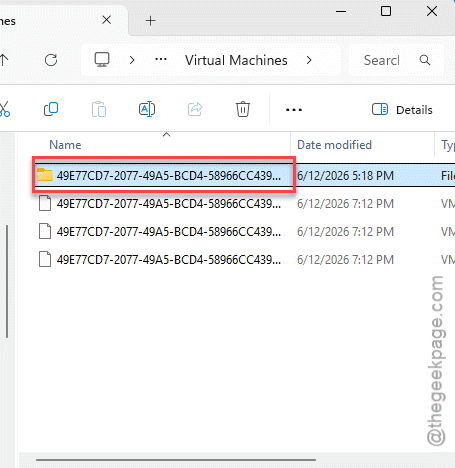
3 – Delete the .bin and .vsv files inside.
4 – Start the VM again.
You’ll lose the frozen session — the VM boots fresh, like it was shut down properly. No data loss, just the “paused” moment is gone.
Fix 4 – Delete the VM and Re-Import From the VHD
When the configuration itself is mangled, stop fighting it. Rebuild the VM around the disk file. The disk is what matters anyway.
1 – Make sure the machine is shut down.
2 – Restore from backup if you haven’t already.
3 – Delete the VM in the hypervisor. Just the VM entry — not the disk files.
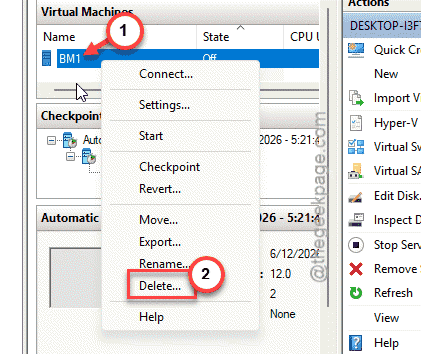
4 – Create a new VM and import it using the VHD(X) in question.
5 – Start the machine.
Fresh configuration, same disk, same data. Works when nothing else does.
Fix 5 – Add Antivirus Exclusions for VM Files
A long shot, but it’s bitten plenty of admins. Real-time antivirus scanning can lock Hyper-V VM files right when the hypervisor tries to read them. Locked file means no boot.
Add exclusions in your antivirus for the folders where VM files are stored — both the configuration folder and wherever your VHDX files live. Then try starting the VM again.
And do not skip this on a new host. The old host probably had these exclusions already. The new one? Probably not. That’s exactly the kind of detail that gets lost in a migration.
How to Prevent This
- Note your virtual switch names before migrating. Matching them on the new host saves you the whole adapter dance.
- Shut VMs down properly before backing up. Saved states do not travel well between machines. At all.
- Set up antivirus exclusions on the new host before restoring, not after the first failed boot.
- Keep the VHDX files separate in your head from the VM config. Worst case, the disk alone is enough to rebuild everything.
People Also Ask
Why is my Hyper-V virtual machine not starting?
Most often it’s a configuration mismatch — the VM references a virtual switch or saved state that doesn’t exist on the current host. Check the network adapter settings first, then delete the saved state. Antivirus locking the VM files is another sneaky cause.
Why does my Hyper-V VM not start automatically?
Check the VM’s Automatic Start Action under Settings. If it’s set to nothing, the VM waits for you. But after a restore, a stale saved state can also block auto-start — Hyper-V tries to resume a session that can’t load and just gives up.
Why is my VM not starting after a restore?
Because the restore brought along baggage from the old host. A saved state tied to old hardware, a network switch that doesn’t exist here, file locks from antivirus. Clear the saved state, rebind the switch, and it usually boots. Worst case? Re-import from the VHDX.