Your Storage Spaces pool says “Reduced resiliency.” But every drive checks out fine. No failures. No warnings. And Windows keeps acting like a disk died anyway.
Why This Happens
Short version? Windows lost track of one of your drives. Maybe for a second. Maybe during a reboot.
Storage Spaces mirrors your data across disks. And when one drive blips offline (even briefly), the pool marks itself as degraded. The drive comes back. The error doesn’t. Annoying, right?
Sometimes it’s a loose cable. Sometimes a drive went to sleep at the wrong moment. And sometimes Windows just never kicked off the repair it was supposed to run on its own. So the pool sits there. “Reduced resiliency.” Forever.
Fix 1 – Check What the Drives Actually Report
Windows might be hiding the real story here. The Storage Spaces control panel says one thing. PowerShell says another. Trust PowerShell.
1 – Right-click Start and click Terminal (Admin). On older builds it’s called Windows PowerShell (Admin).
2 – Type Get-PhysicalDisk and press Enter.
3 – Look at the HealthStatus column. Every drive should say Healthy.
4 – Check the OperationalStatus column too. You want OK — not Lost Communication, not Degraded.
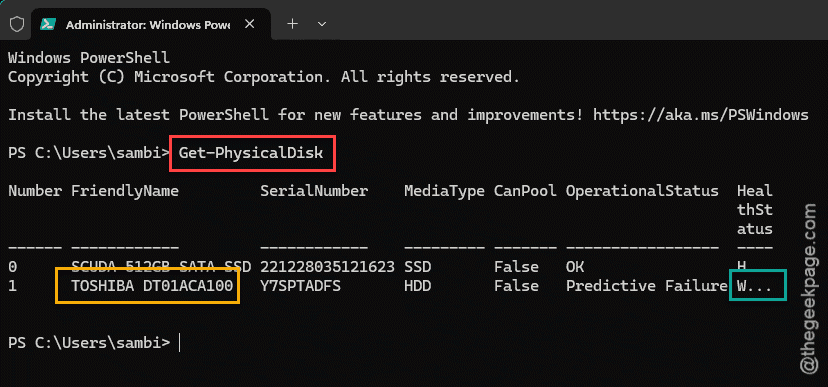
If one drive shows an error here? That drive is your problem, even if it looks fine everywhere else. Consider replacing it before doing anything fancy.
Fix 2 – Repair the Virtual Disk With PowerShell
This is the one that usually works. Storage Spaces is supposed to rebuild degraded data automatically. But it does not always bother. So you kick it off yourself.
1 – Open Terminal (Admin) again.
2 – Type Get-VirtualDisk and press Enter. Note the FriendlyName of your virtual disk — you’ll need it in a second.
3 – Type Repair-VirtualDisk -FriendlyName “MyVirtualDisk” and press Enter. Swap in your actual disk name (keep the quotes).
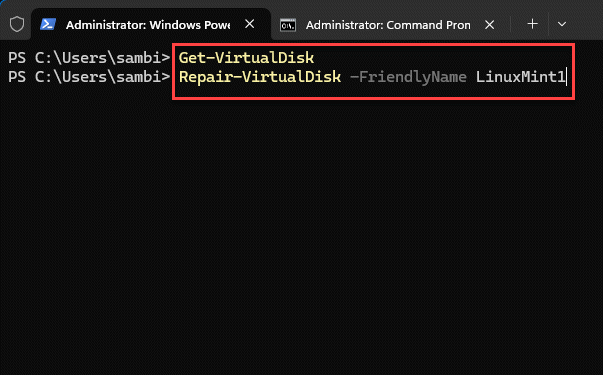
4 – Wait for it to finish. Big pools take a while (yes, sometimes hours). Takes forever, but worth it.
Don’t reboot while it’s running. Interrupting a repair puts you right back where you started.
Fix 3 – Repair the Whole Storage Pool
Virtual disk repair didn’t take? Go one level up and repair the pool itself.
1 – In the same admin window, type Repair-StoragePool -FriendlyName “MyStoragePool” and press Enter. Use your pool’s actual name, in quotes.
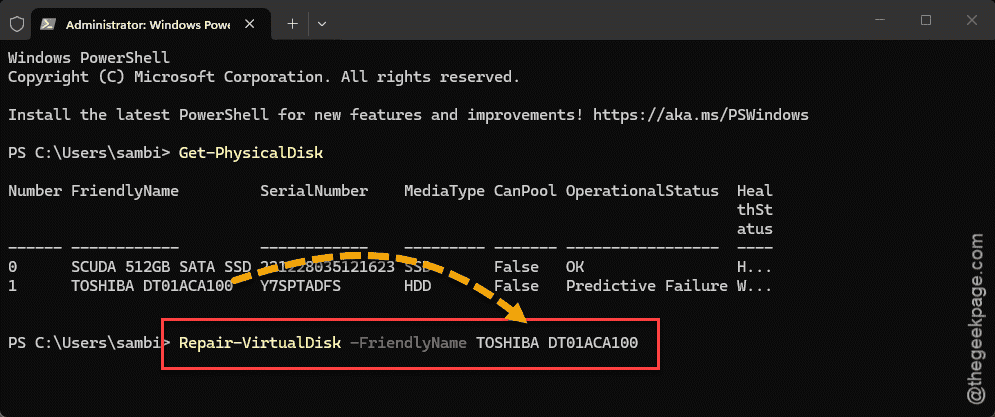
2 – Let it run. Same deal as before — no rebooting mid-repair.
And if PowerShell says the cmdlet doesn’t exist? On Windows Server you can add it by typing Install-WindowsFeature -Name Storage-Services and pressing Enter. On a regular Windows 11 PC, just move on to the next fix.
Fix 4 – Reactivate the Disk in Disk Management
Quick one. Sometimes a drive shows as Missing or Offline even though it’s plugged in and spinning.
1 – Press Windows + X and click Disk Management.
2 – Look through the disk list at the bottom for one marked Missing or Offline.
3 – Right-click it and select Reactivate Disk.
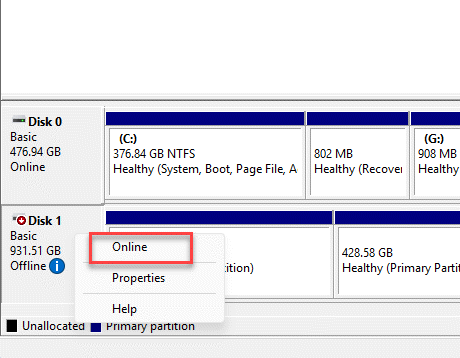
The disk should flip back to Online. And once it does, the pool usually starts repairing itself without any more nagging from you.
Fix 5 – Force the Disk Online With Diskpart
Old-school method. Works when Disk Management won’t cooperate.
1 – Press Windows + R, type cmd, and press Ctrl + Shift + Enter (that key combo is what makes it run as admin).
2 – Type diskpart and press Enter.
3 – Type list disk and press Enter. Every disk shows up with a number next to it.
4 – Type select disk 2 and press Enter — but use the number of the offline disk, obviously.
5 – Type online and press Enter.
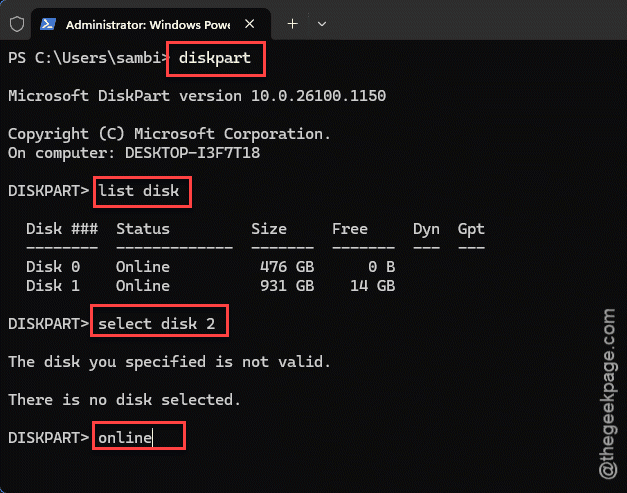
Done. Check the Storage Spaces page again and see if the warning cleared.
How to Prevent This
- Reseat your SATA and power cables any time you move or open the PC. Loose cables cause half of these errors. Seriously.
- Let repairs finish before rebooting. Interrupting one drops the pool straight back into degraded mode.
- Run Get-PhysicalDisk once a month. Takes ten seconds. Catches a dying drive before Storage Spaces starts panicking.
- And keep a backup anyway. A mirror protects you from one dead drive. Not from two.
People Also Ask
How do I fix a degraded storage pool in Synology?
Different system, same idea. Open Storage Manager, check which drive dropped out, and run a repair from the pool’s Action menu. Synology rebuilds onto a healthy drive. And if a disk actually failed? Swap it first — the rebuild won’t start without enough working disks.
How do I fix a low disk space error?
Free up room or grow the pool. Delete what you don’t need, empty the Recycle Bin, run Disk Cleanup. With Storage Spaces? Just add another physical drive to the pool. That’s the whole point of pools — they expand. No repartitioning drama.
Which type of storage space provides no resiliency?
Simple spaces. They stripe data across drives for speed but keep zero extra copies. One drive dies and everything on that pool goes with it. Fast, sure. But use simple spaces only for stuff you can afford to lose — caches, scratch files, temp projects.