While sending or forwarding an email, users may face the ‘The operation failed’ error message on Microsoft Outlook, which eventually stalls the send/receive function of the emails. The possible reasons behind this issue can be anything from a corrupted add-in or a misguided outgoing rule can inflict this error. However, solving this problem won’t take much time.
Fix 1 – Turn on the Cached Exchange Mode
MS Outlook may struggle to read or sync mailbox, if the cached exchange mode if turned off.
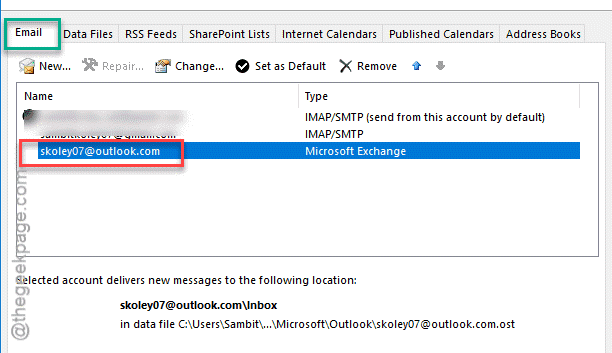
Step 1 – At first, go to the File menu. Then, tap the Account settings and choose Account Settings from the drop-down.

Step 2 – Now, double-tap the email address you are having this problem with.
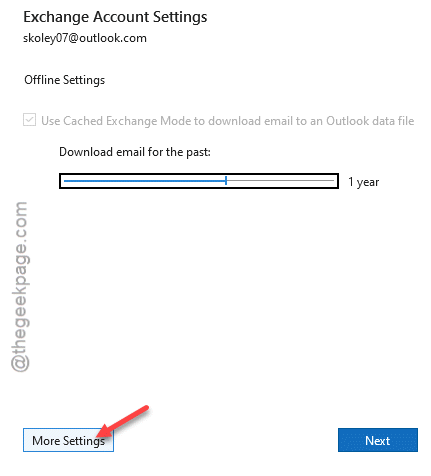
Step 3 – Next, tap the More Settings option.
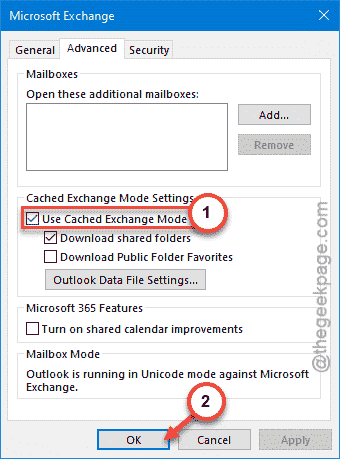
Step 4 – Go to the Advanced tab.
Step 5 – Make sure to check the Use Cached Exchange Mode button.
Step 6 – Finally, to save the changes, use the Apply and OK buttons together.
This should have fixed the operation failed error. See if you can send or receive email messages again.
Fix 2 – Recreate the Outlook OST file
Sometimes a corrupted Outlook OST file can run you in to this type of predicament.
Step 1 – Close the Microsoft Outlook. Now, go to the File Explorer.
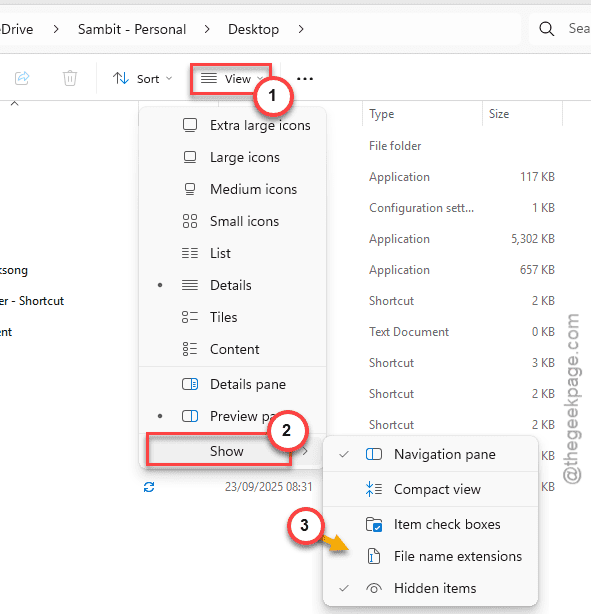
Step 2 – In the View tab, tap the drop-down, and tap the Show option, and check the File name extensions box.
Step 3 – Then, press Win+R buttons to call up the Run box.
Step 4 – Paste this address here and hit Enter to reach the location of the Outlook Data file.
%homepath%\appdata\local\microsoft\outlook
You will see separate Outlook Data Files associated to the email inboxes you have on the MS Outlook.
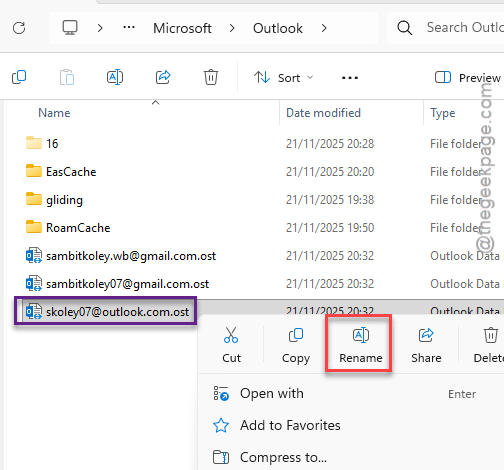
Step 5 – Now, find the problematic data file there. Right-click it and tap Rename.
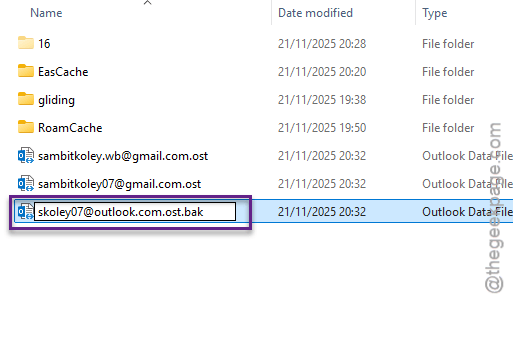
Step 6 – Add .bak or .old extension at the end (after the .ost term in the name) to rename it.
Step 7 – Finally, launch the Microsoft Outlook.
Outlook will now re-create the data file from scratch, which may take some time.
So, wait patiently, and once that process is complete, there won’t be any further issues with like ‘Operation has failed’ message again.
Fix 3 – Disable Add-ins from Outlook
Some external third-party add-ins can cause this problem. Disable each and every add-in on Outlook and test.
Step 1 – On the MS Outlook app, go this way –
File ⇾ Options
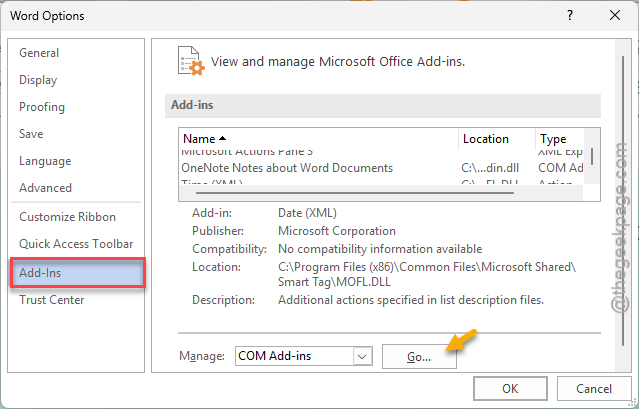
Step 2 – Next, proceed to the Add-ins tab.
Step 3 – Fix the Manage button to ‘COM Add-ins‘ and tap Go.
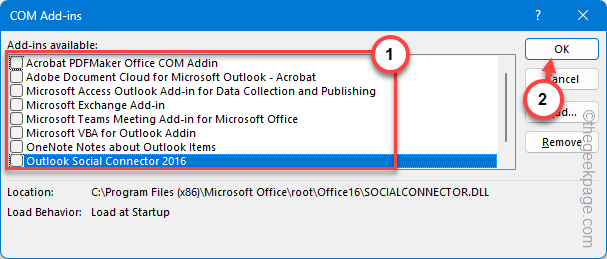
Now, you can see the list of COM Add-ins you have for the Outlook app.
Step 4 – Uncheck all the Add-ins one-by-one and click OK.
After disabling these Add-ins, retry sending that email. Check whether this helps.
Fix 4 – Delete Any Corrupted Incoming or Outgoing Rules
It seems that some of the incoming or outgoing rules associated to the account has resulted into this error.
Step 1 – On the Outlook client, go to the File menu.
Step 2 – Next, tap the Manage Rules & Alerts option on the right-hand pane.
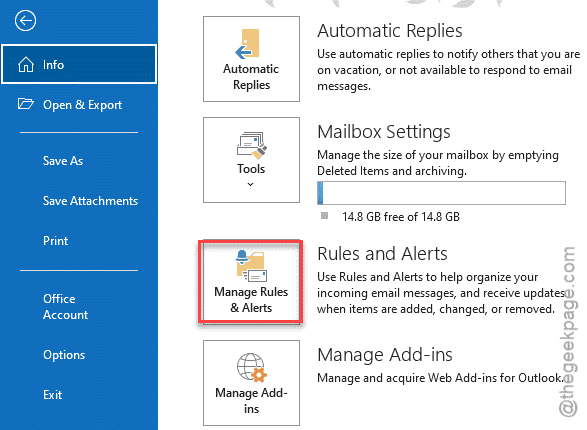
Step 3 – Now you will see the list of rules applied on your account. Either uncheck all the rules there, or, just select each of them and use the Delete function to remove the rule from the Outlook client.
Step 4 – Tap the OK function to save the change.
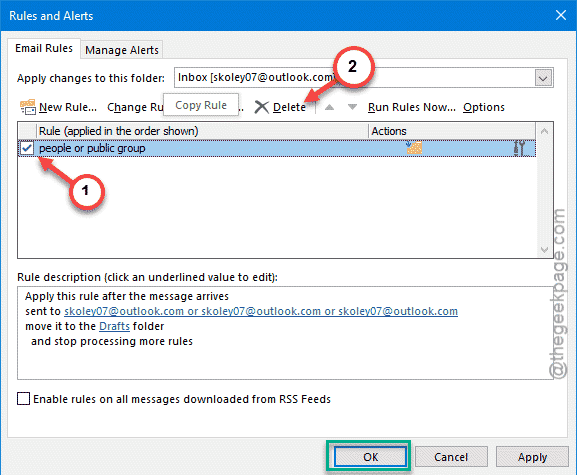
After revoking the email rules, close and relaunch the MS Outlook client. Test whether this helps or not.
Fix 5 – Create a new Outlook profile
There is a slim chance that the Outlook profile that you are using has got corrupted. You can create a new Outlook profile and use it.
Step 1 – On the MS Outlook client, tap the File menu button, and follow this way –
Account Settings ⇾ Manage Profiles
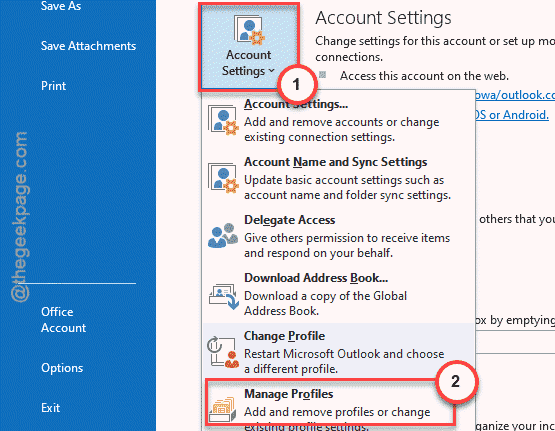
Step 2 – In the Mail Setup page, tap the Show Profiles button.
Step 3 – Click Add to add a new profile.
Step 4 – Give the profile a new name, and click OK.
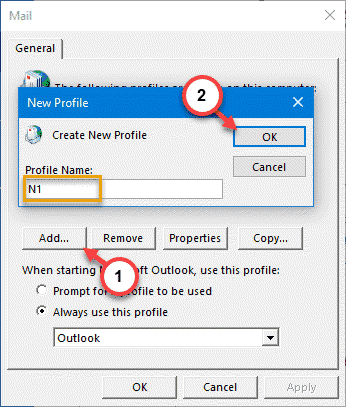
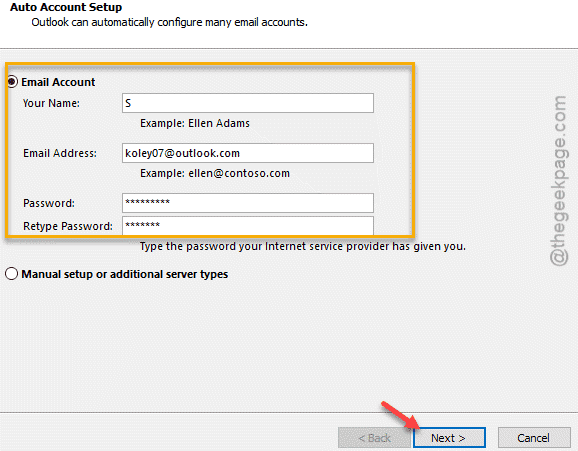
Step 5 – In the next step, you must configure the email setup from the scratch. Like, input your email address, password, etc. Additionally, you can configure the email setup manually.
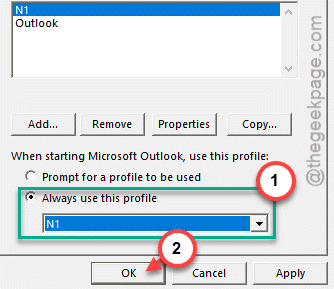
Step 6 – Finally, once you have configured the email setup, make sure the Always use this profile is set to the new profile you have created. Click OK to save the changes.
Go ahead and close the Outlook client and relaunch it.
Fix 6 – Use the Outlook on Web
Outlook can easily be accessed from the browser of your choice. It offers the similar experience like the Outlook app client on your system.
Step 1 – You can just load up the Outlook on web on a browser of your choice.
Step 2 – Log in with your Outlook credentials.
Step 3 – Now, you can access your Outlook account directly from there and do what is necessary, without any further issues.
You can also use the new version of Outlook app from MS Store to perform basic tasks. This can also provide a quick relief from this problem.
Fix 7 – Repair the Office package (including Outlook)
Corruption in the core files of the Outlook app package may cause such issues. So, repair the Office package to fix the issue.
Step 1 – Hit the Win+R buttons together.
Step 2 – Type appwiz.cpl and, click OK.
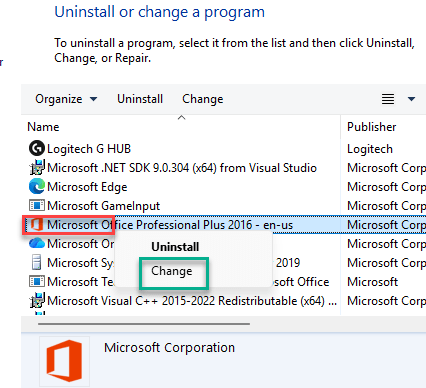
Step 3 – Next, find the Office package there. Then, right-click it and, tap the Change button.
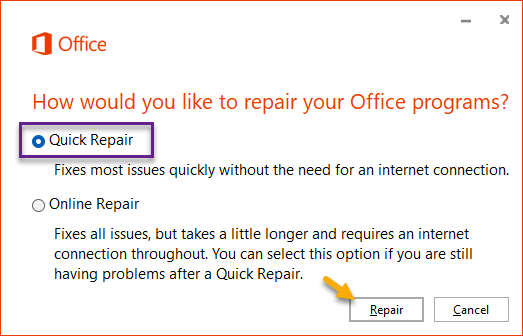
Step 4 – Now, choose the Quick Repair option and tap Repair to perform a quick repair to fix any corruption in the Office package files.
Once the entire process is complete, check again.
These fixes or workarounds should have taken care of this issue at your end.