Got the MS Teams app stuck on loading screen? Microsoft Teams is extremely lightweight and should not get stuck on the loading screen, even on an entry level device. So, there must be a problem with the stored MS Teams cache, or missing core file of the MS Teams package. However, the lack of administrative privileges can also halt the MS Teams startup in the middle, leaving the user in a state of sudden confusion. Here are some fixes should help you fix this issue.
Fix 1 – Reset the Microsoft Teams Cache
Clear out the existing Microsoft Teams cache on your system. Corruption in those files may lead to such problems.
Step 1 – Close the MS Teams instance from your system.
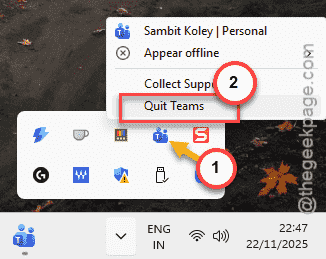
Step 2 – Tap the arrow button in the system tray and locate the MS Teams app. Right-click the MS Teams app, and tap Quit Teams.
Step 3 – Next, open the Run box, using Win+R buttons.
Step 4 – Paste this address there and click OK.
%appdata%\Microsoft\Teams
Step 5 – Clean up the entire Teams folder.
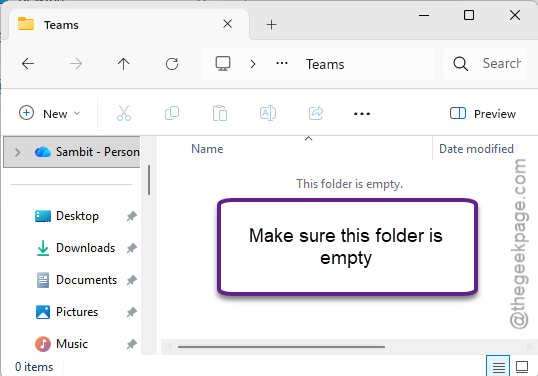
Step 6 – After emptying up the folder, relaunch the Microsoft Teams app.
It will be relaunched without any issues.
Fix 2 – Uninstall Teams and Perform a Clean Reinstall
If you can’t load up the Microsoft Teams app at all, you should uninstall the MS Teams app, clean up the existing cache from your local folders, reinstall the app.
Step 1 – Open the Settings window. Next, go to the Apps tab.
Step 2 – Then, load up the Installed Apps section.
Step 3 – Search for the teams app and locate the Microsoft Teams app.
Step 4 – Tap the three-dot button, and tap Uninstall to uninstall the Teams app.
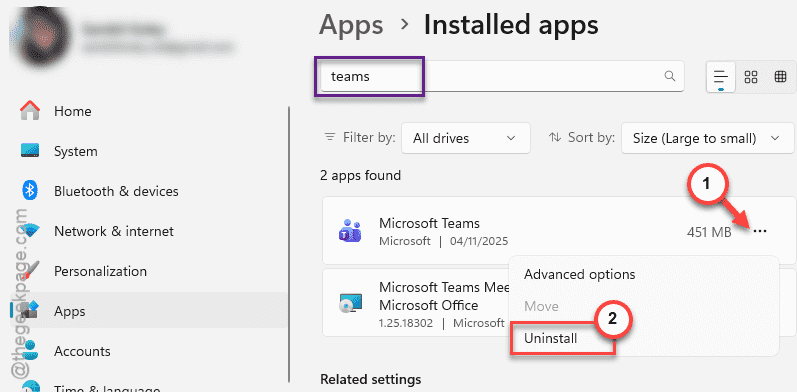
Now, once you have uninstalled the MS Teams app, you should remove the leftover Teams cache.
Step 5 – Open the Run box. Paste this %appdata%\Microsoft\Teams and click OK.
Step 6 – Empty the Teams folder there.
Step 7 – Now, open another Run box and use this %localappdata%\Microsoft in the Run box to load up the Microsoft folder.
Step 8 – Find these two folders there, and delete them.
Teams
IdentityCache
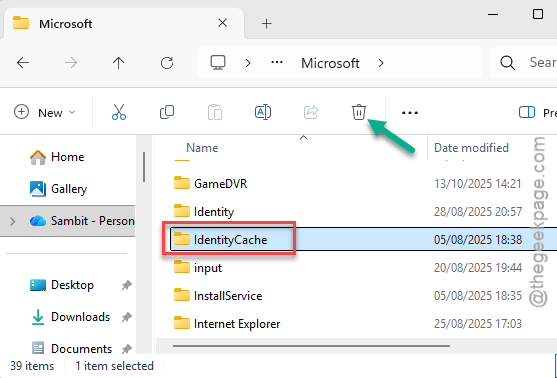
Step 9 – After deleting them, run the MS Teams installer. Follow the on-screen steps to install the Microsoft Teams on your system.
This time, there won’t be any more issue with the MS Teams app getting stuck in the loading screen.
Fix 3 – Launch the Microsoft Teams app as An Administrator
The lack of administrative rights may cause issues with the MS Teams app startup process.
Simply, search for the teams app. Next, right-click the Microsoft Teams app, and tap the Run as administrator.
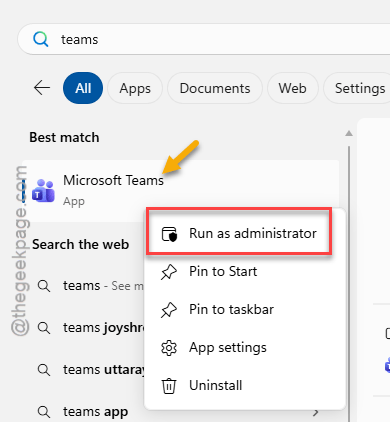
Once you have launched the Teams app properly, with the administrative rights, this issue will be resolved.