Facing problems with the installation of the Microsoft Teams on your computer? Some users have seen the ‘Installation has failed‘ message on their screen, while trying to install the application on their machines. The installation of the Microsoft Teams is one of the easiest tasks that you can do on any powerful machine. So, if you are indeed having some problem installing teams on your computer, this guide will help you out of it.
Fix 1 – Delete the Teams local folder and restart
The basic solution that you can implement is to remove the Teams’ folder from your local directory and restart your device.
Step 1 – At first, call up a simple Run box. Use the Win+R shortcut keys together.
Step 2 – Then, input this there and click OK.
%localappdata%/Microsoft/
Step 3 – Delete the Teams folder in there.
Step 4 – Thereafter, open up another Run box.
Step 5 – Paste this there and tap OK.
%appdata%/
Step 5 – Locate the Microsoft Teams folder and delete that from there.
Once you have done this, close everything and restart your computer.
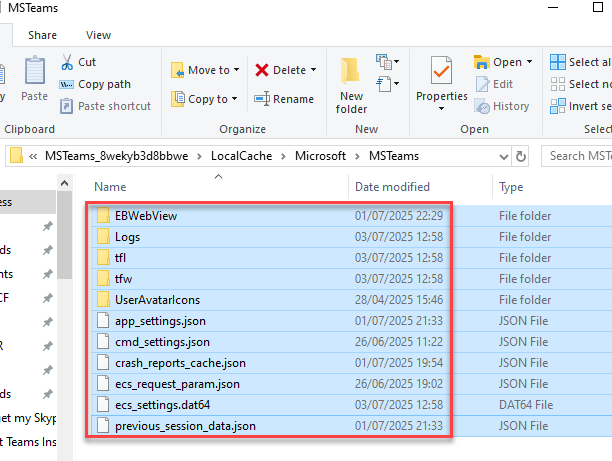
NOTE – You may not be able to found the Teams folder or Microsoft Teams folders in any of the specified locations. There is a reason behind that. It seems that the new version of Microsoft Teams stores the app data in a separate location. The new location is—
%LocalAppData%\Packages\MSTeams_8wekyb3d8bbwe\LocalCache\Microsoft\MSTeams
Use the Run box to reach this location and delete the Teams-related info from there.
Restart the system and retry installing the MS Teams program.
Fix 2 – Clear the Teams cache and retry
Existing Microsoft Teams cache on your local machine can cause this problem. So clear out the teams cache, and retry.
Step 1 – To do this, you have to close the current instance of the Microsoft Teams application on your system.
Step 2 – Later, click the small arrow icon on the taskbar. Now, you can see the apps hidden but running on your system.
Step 3 – There, you will find the Microsoft Teams app icon. Simply, right click Microsoft Teams, and use the Quit Teams option to close the Microsoft Teams completely.
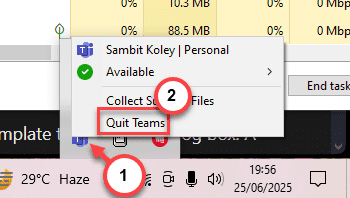
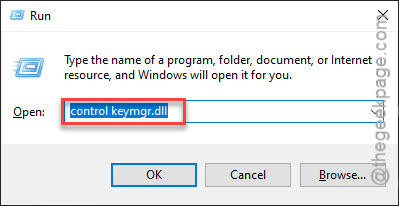
Step 4 – After ending the Microsoft Teams process, open up a Run box. Use the Windows key+R key to do that.
Step 5 – Then, input this there and hit Enter.
control keymgr.dll
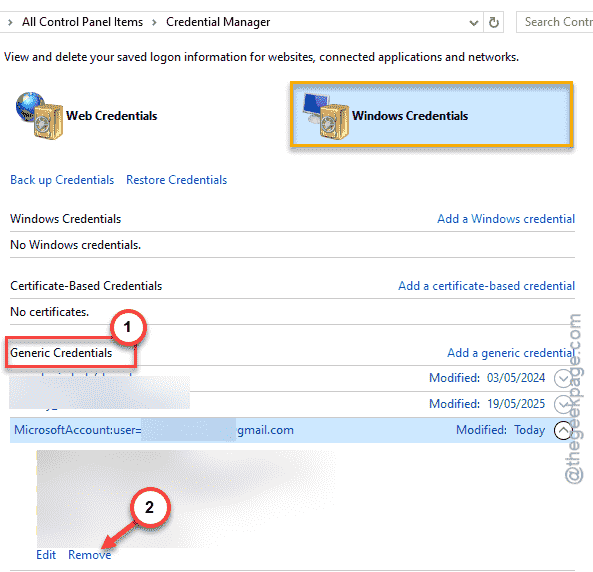
Step 6 – In the Credentials Manager page, go this way –
Windows Credentials > Generic Credentials
Step 7 – Look for any credentials related to the Microsoft Teams program and Remove them from there.
Step 8 – Now, search for the Microsoft Teams application from search box and uninstall it.
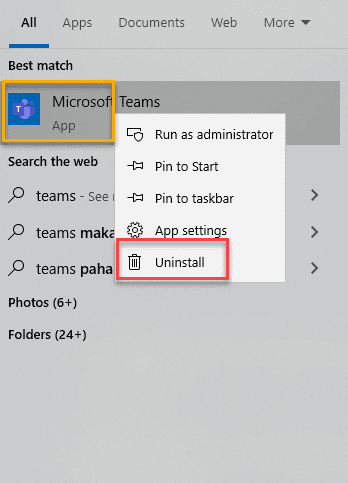
Step 9 – Next, open up another Run box. Paste this there and tap OK.
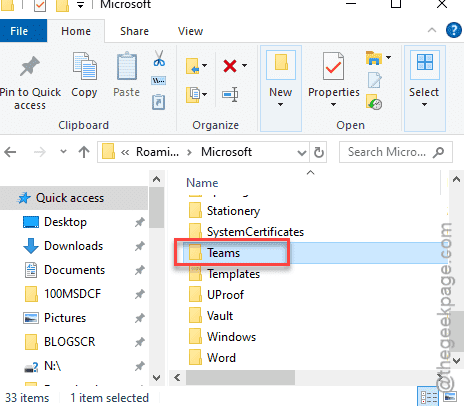
%appdata%\Microsoft\
Step 10 – Delete the Teams folder from this location.
Step 11 – After this, you have to reboot your device once.
Finally, locate the MS Teams Setup file there on your device and then, you must run it with administrative rights.
After this, you can easily install Microsoft Teams successfully, without any more issues.
Fix 3 – Run the MS Teams installer as an administrator
This problem arises when a standard user tries to install Microsoft Teams. The only different solution to this issue is to use an administrative level account to install the teams app.
Right Click on Installer and run as admin.
Now, you can run the setup with elevated privileges and install Microsoft Teams.
Fix 4 – Uinstall any Leftover Installation
1 – Uninstall any old Teams
2 – Remove classic Teams and the Teams Machine-Wide Installer (if present).
3 – Delete leftovers (for both classic & new Teams)
Go to these location from run. Press Windows + R to open run. copy paste the path below top go to these locations.
Classic cache: %AppData%\Microsoft\Teams and %LocalAppData%\Microsoft\Teams (if they exist).
New Teams cache: %LocalAppData%\Packages\MSTeams_8wekyb3d8bbwe\LocalCache\Microsoft\MSTeams.
4 – Install new Teams from the official website.
Fix 5 – MS Teams has a minimum requirement
Like all the other apps, there are certain requirements to use Microsoft Teams on your device. We have presented the list of minimum requirements of hardware to run MS Teams without any issues.
Processor – Dual core processor with 1.1 GHz or faster and better
Graphics hardware – DirectX9 or later with WDDM 2.0 or higher
Memory – 4GB
Free Space – More than 5GB of free space
Display – 1024*768
Though the actual specifications are very low compared to today’s hardware standards, it should not be a problem for you to install and run Microsoft Teams on your local machine.
Fix 5 – Install MS Teams from Store or use Teams on web
If you’re still having problem installing Microsoft Teams from the setup file, you can directly install teams via Microsoft Store.
Step 1 – Open up the Microsoft Store on your system. Then, search for Microsoft Teams from the search box.
Step 2 – Then, install Microsoft Teams application on the machine from there.
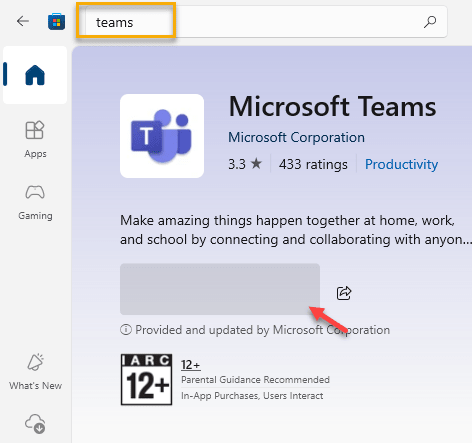
This way, you can get the Microsoft Teams on your system without using the setup file.
If you don’t want to get into the hassle of installing the teams from the store, you should try out the Microsoft Teams on web. All you have to do is to log in with the proper Microsoft account, and you can enjoy teams directly from your browser.