Can’t see or input reactions in Teams meetings on the Microsoft Teams app? Reactions in a conversation represents much more than words. Using a single reaction, users can express their intent or discontent on several topics during a team meeting. The possible corruption of the MS Teams cache leads to such issue. Users may try to clean up the Teams app cache, repair the MS Teams client, or just sign out and sign in to the Teams client to resolve this issue.
Fix 1 – Clear the MS Teams Cache
Possible corruption of the Microsoft Team may have led to this issue.
Step 1 – Quit the MS Teams client completely. Go to the taskbar, and right-click the Teams client, and tap Quit Teams to close it.
Step 2 – Then, press the Windows+R keys together to load up the Run box.
Step 3 – Next, paste this address, and click OK to reach this specific Teams cache location.
%localappdata%\Packages\MSTeams_8wekyb3d8bbwe\LocalCache\Microsoft\MSTeams
Step 4 – Delete all the files and folders from that Teams folder.

After clearing the Teams cache, restart the client. It will automatically rebuild the Teams app cache there.
Fix 2 – Repair the Microsoft Teams App
If clearing the Teams cache does not fix the Teams app issue, repairing the same may help you resolve the issue.
Step 1 – At first, load up the Win+I key together to load up the Settings window.
Step 2 – Next, go to the Apps tab. Proceed to the Installed Apps tab, next.
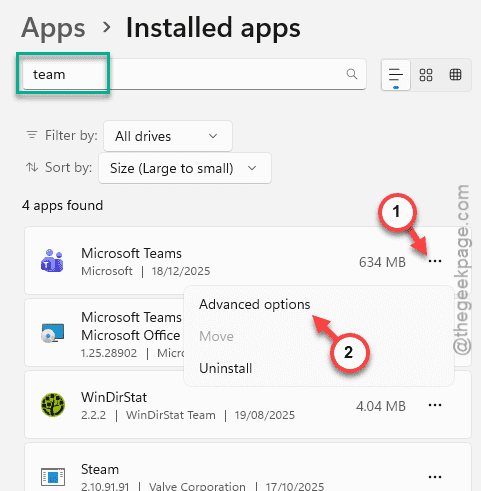
Step 3 – Later, search for teams app. Then, tap the three-dot button next to the Microsoft Teams app, and tap Advanced Options.
Step 4 – Next, tap the Repair button there to repair the MS Teams app.
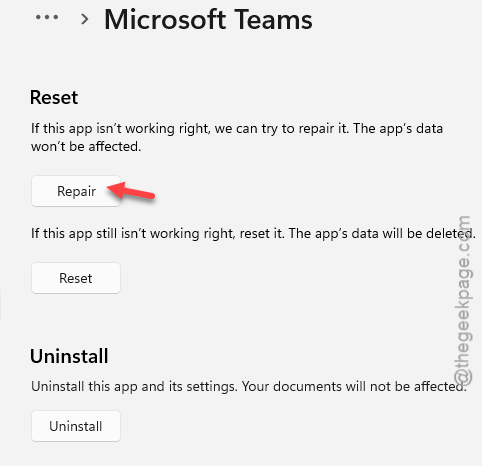
After repairing the MS Teams app, check whether this works.
Fix 3 – Switch to the Gallery Mode
Are the reactions disappearing randomly from the Teams client? Switching to the Gallery Mode from Together mode does that.
Step 1 – Start the meeting or join the meeting again where you are having this issue.
Step 2 – Tap the View button at the top toolbar. Check whether you are in Together Mode or Large Gallery mode.
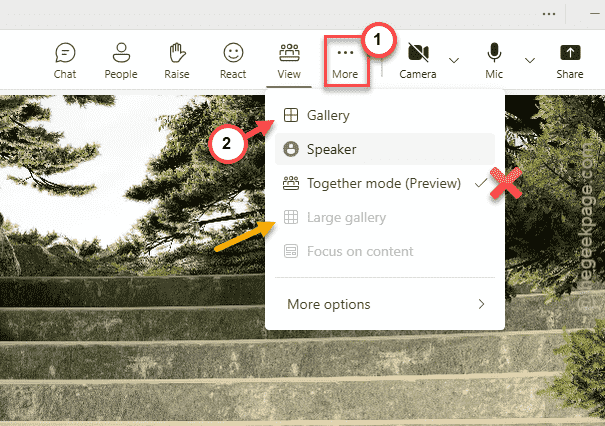
Step 3 – Use the Gallery mode in Teams, as Microsoft Teams often limits the Live Reactions or hide them in the Together Mode.
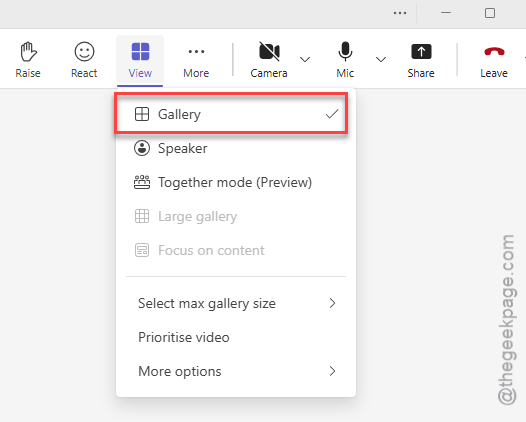
NOTE – Ask the meeting Organizer or host to Enable Live Reactions in the Teams Meetings settings.
1. Go to the More > Settings after starting the meeting.
2. Turn on the Enable Reactions feature there.
This option is only visible to the meeting organizer. So, ask the concern IT administrator, if these are not available.
Fix 4 – Sign out and Sign in to MS Teams
Sign out of the MS Teams client, and delete the credentials stored in your local system, and sign in to the Teams app.
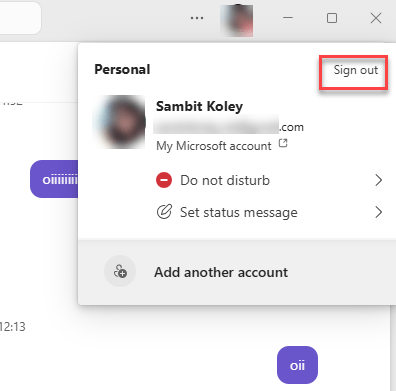
Step 1 – Click the profile picture in the top-right of the MS Teams client. Tap the Sign out button there to sign out of the Teams client.
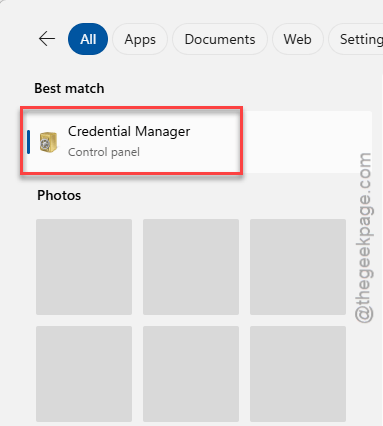
Step 2 – Search for Credentials and open up the Credentials Managers utility.
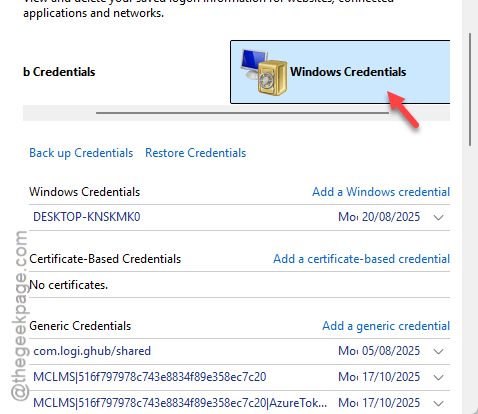
Step 3 – Reach the Windows Credentials tab.
Step 4 – Find these items that start with the msteams_adals_SSO or Microsoft.Teams parameter and delete them.
Step 5 – Later, restart your computer.
Step 6 – Relaunch the Teams client and sign in to it.
This will enforce a handshake with the Microsoft servers and refresh them.