iPhone users are not new to the bugs after upgrading to the iOS 26. The iPhone users have reported multiple bugs and glitches with the Camera app after getting the iOS 26 update. Even after the latest patch of iOS 26.0.1, the camera app has shown signs of glitches, like suddenly freezing or turning black, grey, etc. Here are some proven fixes that have helped out users to fix this camera issue on their devices.
Fix 1 – Turn off the Lock Screen Swipe for Camera
It seems that some users have fixed this occasional glitch by disabling the lock screen swipe feature for the Camera on your iPhone.
Step 1 – Open the iPhone Settings.
Step 2 – Next, go to the Camera app.
Step 3 – Next, turn off the Lock Screen Swipe to Open Camera feature.
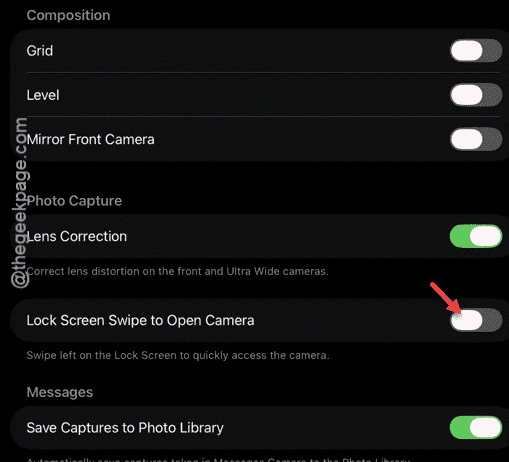
After disabling this feature, restart your iPhone once. Once you have restarted the device, the camera glitch will be fixed.
Fix 2 – Force Restart the iPhone
The bugs and glitches in the iOS 26 can be temporarily fixed simply by force-restarting the iPhone.
Step 1 – At first, press the Volume Up button on the iPhone once and release it.
Step 2 – Then, press the Volume Down button briefly and release it.
Step 3 – Next, press-hold the Power button of the iPhone. Do press and hold the button till the device completely shuts down, and it restarts. When the Apple logo shows up, you may let go off the power button after this.
After force restarting the device, try to check the camera on your iPhone. Check whether this works or not.
Fix 3 – Ensure the Camera Permissions for Apps
If the camera is showing black or grey while using the camera on any apps, there must be some issue with the camera permission for that particular app.
Step 1 – Load up the iPhone Settings.
Step 2 – Next, go to the Apps panel. Find out the app where you are facing this issue. Open it up.
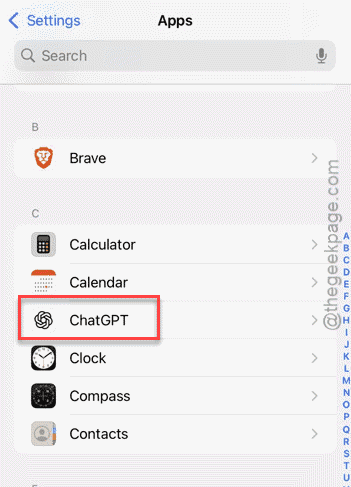
Step 3 – Next, make sure the Camera permission is turned on for this particular app.
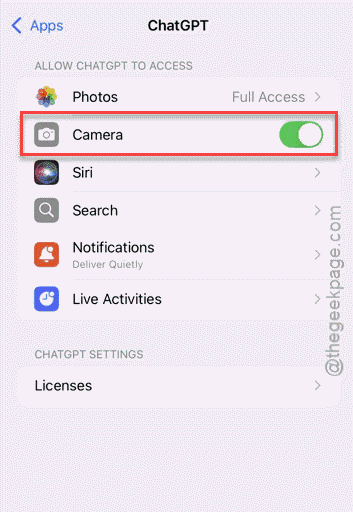
Now, try to open the same app and check the functionality of the camera utility.
Fix 4 – Update the iOS
Apple is already working on patches to fix these camera glitches in the iOS 26. Install the latest update of the iOS to fix the problem.
Step 1 – In the iPhone Settings page, go to the General settings.
Step 2 – Proceed to the Software Update panel.
Step 3 – Install the latest software patch from there. Follow the on-screen steps, like agreeing to the terms and conditions of the update package, and complete the update process.
After updating the iPhone, this problem will be resolved.
Additional Fix – If the portrait mode is missing from the iPhone’s camera after upgrading to the iOS 26, you can execute these steps to retrieve it-
1. Open the Camera app.
2. Go to the Video/Picture mode and hold it. Drag it to the right or left side and you will get the Portrait mode.
This way, you can take portrait photos directly with the iPhone.