You’re on a Teams call. Background noise everywhere. Dog barking. Keyboard clacking. Kid screaming. And noise suppression? Doing nothing. Toggle says it’s on. But the other side can hear every sound in the room.
Why This Happens
Here’s the deal. Teams noise suppression has been overhauled twice in the last year. The old Low / Medium / High dropdown is gone in newer builds. That’s reason number one.
Reason two? Cached settings. Teams stores a lot of audio config locally. When that cache rots, features like noise suppression silently fail to load. The toggle works. The feature doesn’t.
And then there’s the third one. Windows audio enhancements. Realtek and Intel drivers ship with their own audio “effects” that fight Teams for control of the mic. Both layers run. Both lose. Background noise comes through anyway.
Fix 1 – Make Sure Noise Suppression Is Actually On
Obvious, but worth checking. The new Teams moved this setting around.
1 – Open the Microsoft Teams app.
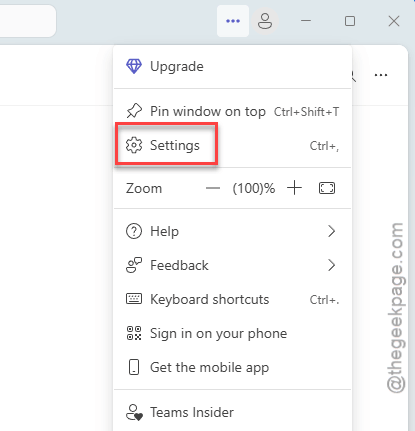
2 – Click the three dots (⋯) at the top right next to your profile picture.
3 – Click Settings.
4 – Click Devices on the left sidebar.
5 – Scroll down to Noise suppression.
6 – Make sure the toggle is On.
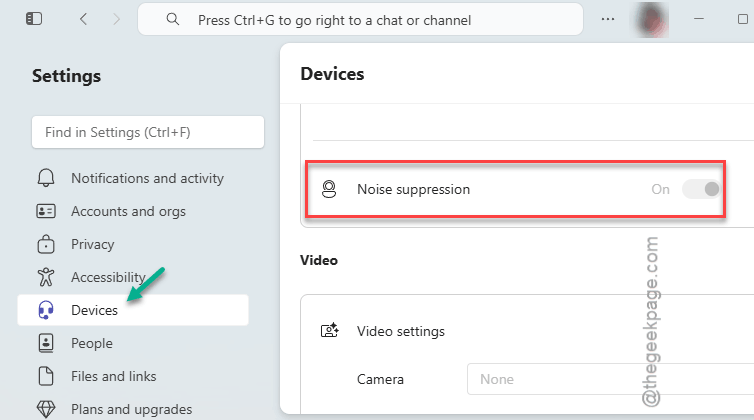
New Teams shows a single toggle. Older versions still have Auto / Low / High / Off — pick Auto or High. And if you don’t see noise suppression at all? Your Teams build is too old. Update it from the Microsoft Store.
Fix 2 – Clear the Teams Cache
This fixes more weird Teams bugs than anything else. Worth a shot.
1 – Quit Teams completely. Right-click the Teams icon in the system tray (bottom right) and click Quit.
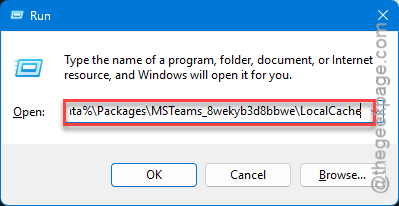
2 – Press Windows + R to open Run.
3 – Paste %localappdata%\Packages\MSTeams_8wekyb3d8bbwe and press Enter.
4 – Inside, open these folders one by one and delete everything inside. Don’t delete the folders themselves — just the files inside.
-
application cache\cache
-
blob_storage
-
Cache
-
databases
-
GPUcache
-
IndexedDB
-
Local Storage
-
tmp
5 – Restart Teams. Sign in again. Re-enable noise suppression.
Your chats and account stay intact. Only the cached junk goes. And honestly? This should be Microsoft’s default fix recommendation.
Fix 3 – Turn Off Windows Audio Enhancements
Driver-level audio effects mess with Teams suppression. Disable them and let Teams do its own thing.
1 – Press the Windows key and type control panel.
2 – Open Control Panel from the results.
3 – Click Hardware and Sound.
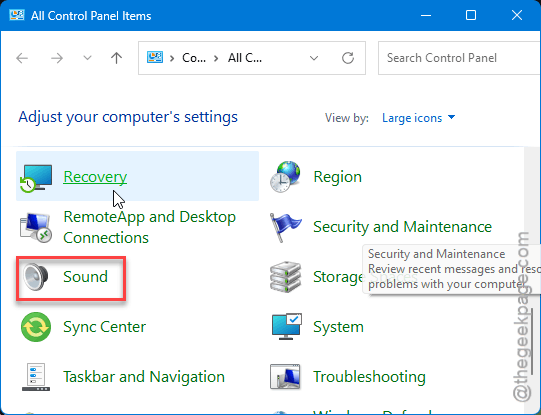
4 – Click Sound.
[Or, you can just use mmsys.cplfrom the Run panel to load up the Sound settings.]
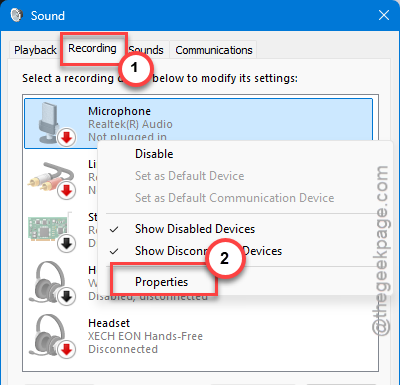
5 – Go to the Recording tab (not Playback — that’s a common mix-up).
6 – Right-click your default microphone. Click Properties.
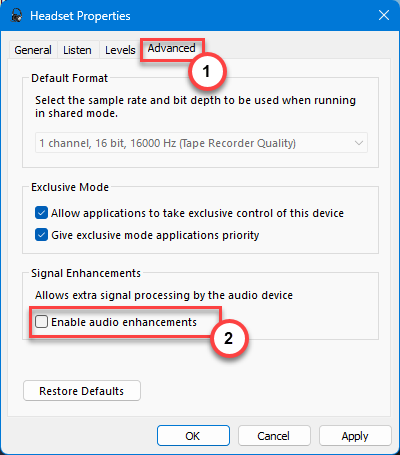
7 – Go to the Advanced tab.
8 – Uncheck Enable audio enhancements (or Enable sound effects — whichever you see).
9 – Click Apply, then OK.
After this, restart Teams and test on a real call.
Fix 4 – Switch to Voice Isolation
Microsoft Teams offers the Voice Isolation feature that can suppress other voices to amplify your voice input.
1 – Open Microsoft Teams.
2 – Tap the profile picture in the Teams app or the three dots (⋯) at the top.
3 – Click Settings.
4 – Tap the Recognition button on the left sidebar. Don’t see it? Your IT admin disabled the feature. You’ll need to ask them to enable voice profiles.
5 – Click Create voice profile.
6 – Choose your microphone from the dropdown.
7 – Click Start voice capture and read the on-screen text out loud.
8 – Click Stop voice capture when done. Click Close.
9 – Back on the Devices tab, turn on Voice isolation.
It takes a minute. But the difference on a noisy call? Huge.
Fix 5 – Update Teams (and Windows)
Old Teams = old noise suppression engine. Check if any update is pending for the Teams client.
1 – Open Teams.
2 – Tap the ⋯ button at the top.
3 – Click Check for updates. Or, you can tap the Update and restart Teams option, as well.
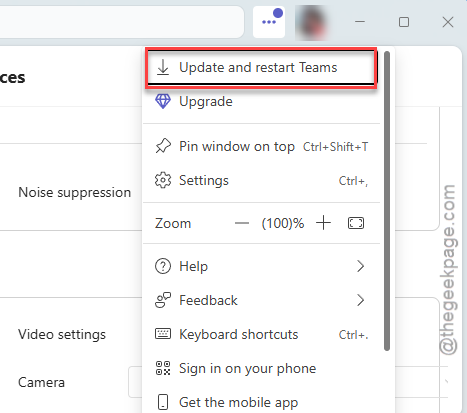
4 – Let it install. Teams will restart on its own.
Then update Windows too:
1 – Press Windows + I.
2 – Click Windows Update.
3 – Click Check for updates. Install anything pending.
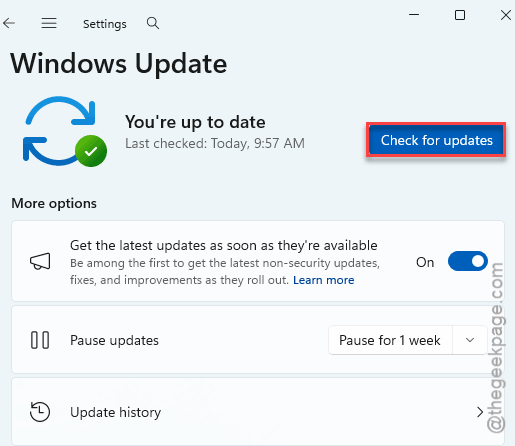
Restart your PC. Mic drivers often update in the background as part of this.
Fix 6 – Try a Different Microphone (or USB Port)
Last one. Quick test.
Some built-in laptop mics just don’t expose the right hooks for noise suppression. Plug in a separate headset or USB mic. Pick it as the default in Teams settings. See if suppression kicks in.
Also try a different USB port. USB hubs and front-panel ports introduce noise and sometimes confuse Windows about which device is the “real” mic. A direct rear-panel port usually works best.
How to Prevent This
- Keep Teams updated. Don’t postpone the prompts. The noise suppression model itself gets updated through these.
- Don’t stack multiple audio enhancement tools (Krisp, NVIDIA Broadcast, Realtek effects, Teams suppression — pick one).
- Clear the Teams cache every couple of months. Especially if you switch headsets often.
- If you’re on a managed work laptop, check with IT before assuming a setting is broken. Group policy hides half this stuff.
People Also Ask
How to enable noise suppression in Microsoft Teams?
To enable the Noise Suppression system in Teams app, open the Teams Settings. Go to the Devices. Scroll to Noise suppression and switch the toggle On. New Teams just has on/off. Older versions show Auto / Low / High — pick Auto or High. Don’t see the option? Your client needs updating.
Why are my headphones picking up background noise on Teams?
Make sure noise suppression is on in Teams settings. Disable Windows audio enhancements from Control Panel. And if you’re using a laptop mic, switch to a headset mic. Built-in laptop mics rarely sound clean even with suppression on.