The @ mentions stop working in Microsoft Teams if the Mentions Index is corrupt or the compose box is broken, or there is a conflict between the desktop app and the new MS Teams web engine. You apply some quick workarounds, like trying to input the @ mention in the separate box, clear any faulty mentions, or reset the MS Teams corrupt cache to fix this issue.
| Issue | Recommend Fix |
| Drop-down toggle is not showing up | Clear the Teams Cache (Fix 1) |
| @ works on Web client, not on the Desktop | Close and refresh the MS Teams app |
| No one gets notified | Change the Channel Settings to make sure Mentions are enabled (Fix 5) |
Fix 1 – Reset the Microsoft Teams
If the local cache of the MS Teams has gotten corrupted, the local database where Teams keeps the directory of names to use @ mentions shares the same fate.
Step 1 – Quit the Microsoft Teams client. Then, tap the arrow button on the taskbar. Locate the Teams app there. Then, right-click the Teams client, and tap Quit Teams to close it.
Step 2 – Press the Win+R buttons together. Paste this address and click OK to reach the Teams client local cache folder.
%LocalAppData%\Packages\MSTeams_8wekyb3d8bbwe\LocalCache\Microsoft\MSTeams
Step 3 – Delete all the contents in there.
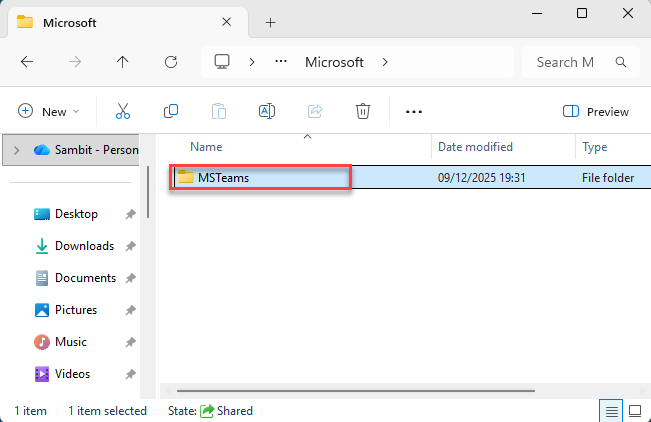
After deleting the Teams cache, reload the Microsoft Teams client. Teams will automatically rebuild these folders, fixing the @ mention issue.
Fix 2 – Pop out the Chat window
You can just pop out the chat window in the Microsoft Teams client and retry using the mention feature.
Step 1 – Hover over a chat on the sidebar on the Microsoft Teams client.
Step 2 – Next, tap the pop-out chat icon.
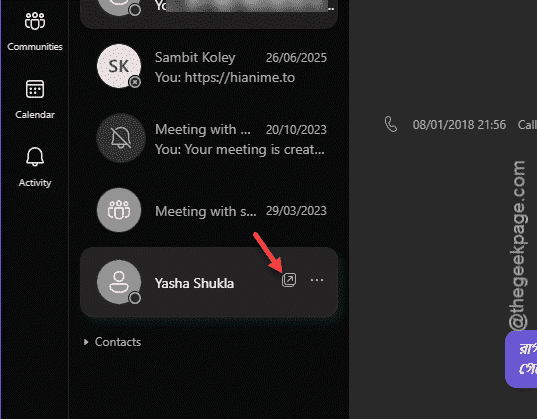
This will load up the chat in a separate chat window. Try to use the same @ mention feature.
Fix 3 – Check and format the mention
There are certain characters like (‘) that can break the formatting of the @mention style, which is not supported in the Teams client.
Step 1 – If you have used a backtick (‘) or a code block in the draft message.
Step 2 – Delete the current draft from there.
Step 3 – Tap another chat to load it up once. Then, return to your original chat.
You can use the @ mention again in Microsoft Teams chat.
Fix 4 – Turn on Suggest Names in Outlook
Microsoft Teams and Outlook client shares the people cache. So, turn on the Suggest names feature in the MS Outlook client.
Step 1 – Open the Microsoft Outlook client.
Step 2 – Then, go this way –
File > Options
Step 3 – Go to the Mail tab. On the right-hand pane, find the Send Messages section.
Step 4 – Check the Suggest names to mention when I use the @ symbol box. Click OK to save the changes.
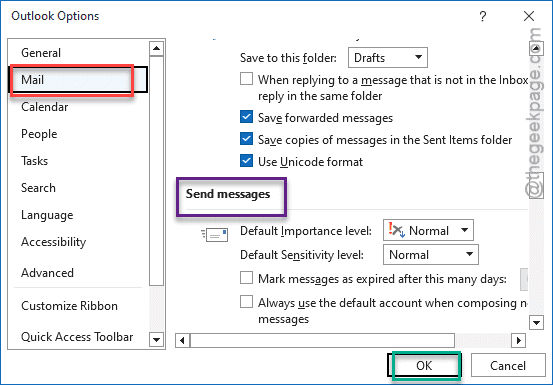
After saving this change in Outlook, the same feature will be activated for the Teams client as well.
Fix 5 – Enable the Mentions in Channel Settings
If the @ mention is working for individuals, but not for the groups, you should enable it from the Settings.
Step 1 – Locate the Team in the sidebar on the MS Teams client. Tap the … button next to the problematic team name, and tap Manage team.
Step 2 – Go to the Settings tab.
Step 3 – Locate the @mentions section. Check the Show members the option to @mention [team/channel] box. Save the changes there.
Afterwards, all the members of the said team can use the @mention functions correctly.