Can’t find your files in the Microsoft Teams app? Some users have faced some difficulty locating files from their MS Teams client. Usually, the lack of permission to the files or the indexing of the files may lead to such problem on the Teams client. If you can’t find any of your Teams files in MS Teams, here are some solutions that should resolve the issue.
Fix 1 – Reset the MS Teams Cache
You should reset the MS Teams cache to fix the issue.
Step 1 – Start by closing the MS Teams client.
Step 2 – Next, click the arrow button in the taskbar, and right-click the Microsoft Teams app there, and tap Quit Teams.
Step 3 – Next, hit Win+R buttons. Paste this address in the Run box, and hit Enter.
%localappdata%\Microsoft\Edge\UserData\Default
Step 4 – Find these folders and remove them from there.
Cache
Code Cache
IndexedDB
GPUCache
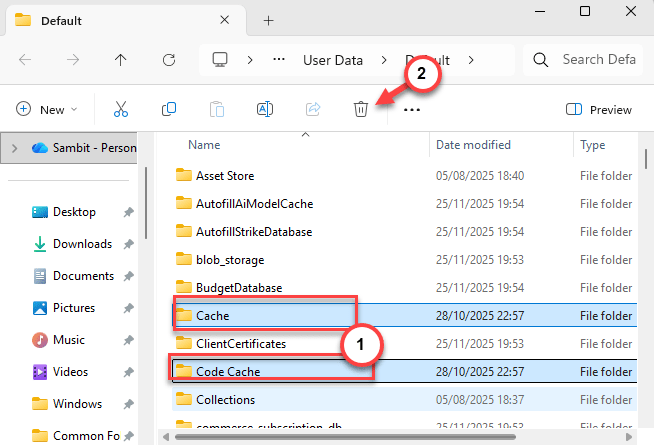
Step 4 – After this, relaunch MS Teams normally.
Once the Microsoft Teams relaunches, log in using proper account ID, password.
Fix 2 – Check MS Teams Search Permissions
If the MS Teams does not have proper permission to files, you should follow these steps.
Step 1 – In the MS Teams client, tap the three-dot button there, and tap Settings.
Step 2 – Next, go to the Privacy tab.
Step 3 – Finally, turn on the Allow access to files in Teams and Allow apps to read your Teams data.
These settings may vary according to your account level. Try to search for some files there.
Fix 3 – Rebuild the MS Teams Search Index
You should rebuild the search indexing for Windows entirely.
Step 1 – Press the Win+R keys together. Paste this code there, and click OK.
control /name Microsoft.IndexingOptions
Otherwise, you can proceed this way ⇾
Privacy & Security ⇾ Search ⇾ Advanced indexing options
Step 2 – Tap the Advanced option there.
Step 3 – In the Troubleshooting box, tap the Rebuild option.
After this, you can just delete and rebuild the entire index of your files on your Windows device.
Fix 4 – Turn off Work Offline mode in Outlook
If the Outlook is toggled to Work Offline mode, it may restrict you from searching for files in the Teams app.
Step 1 – Open up the Microsoft Outlook app.
Step 2 – Then, go to the Send/Receive panel. Turn off the Work Offline mode from there.
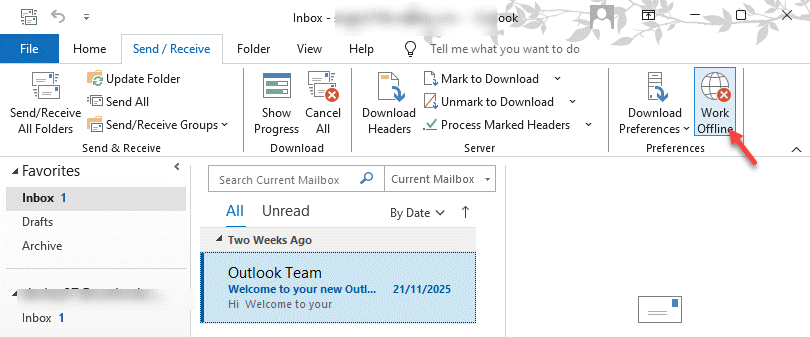
This will let you operate the MS Outlook client in online mode. Later, try to find the files in the Teams client once again. Check whether you can find the files there or not.
Fix 5 – Do a Sign out and Sign in Refresh in MS Teams
Sometimes just a simple sign out and sign in refresh can solve this type of issues.
Step 1 – Start by clicking once on the profile icon on your MS Teams client, and then, tap Sign out button to sign out of MS Teams.
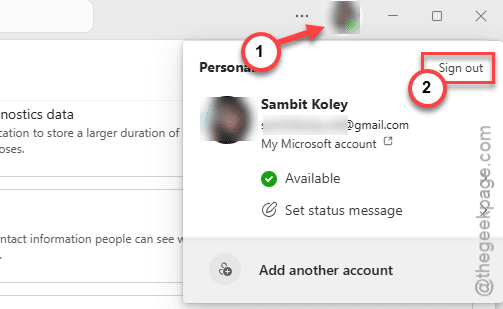
Step 2 – After this, close the MS Teams app from the system tray as well.
Step 3 – Next, hit the Ctrl+Shift+Esc keys together to launch the Task Manager.
Step 4 – Later, reach thg Details tab. Locate these two active components in there, and end them –
ms-teams-webview2.exe
ms-teams.exe
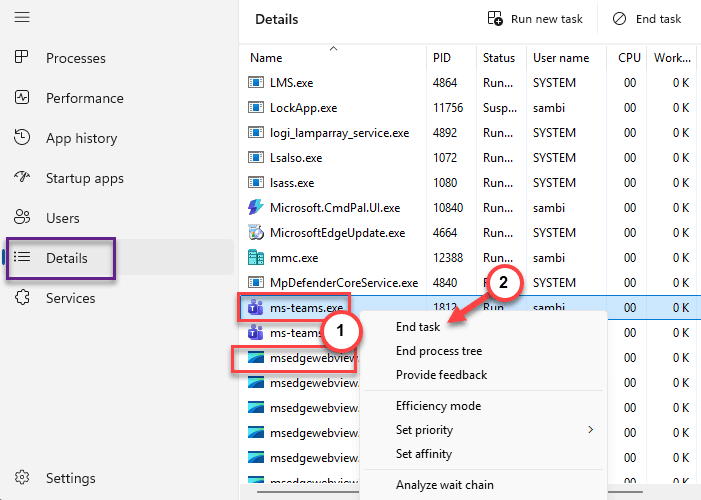
Finally, relaunch the Microsoft Teams client. Try to search the files in the Teams app, again.
Hope these fixes have helped you!