Background blur effect during a Microsoft Teams meeting has become the most popular video effect among the users. But, if the background blur is not working properly, don’t worry. The blur effect actually depends upon many external factors, such as GPU power, Microsoft Teams settings, etc. So, if any of these settings are misconfigured, the blur effect may not be up to the mark. Here are some solutions that should fix this problem for you.
Fix 1 – Set the MS Teams app to Run in High Power mode
You can configure the Microsoft Teams app to always run in high power mode.
Step 1 – Open the Windows Settings. Later, go to the System settings. Then, proceed to the Display settings.
Step 2 – Later, load up the Graphics settings.
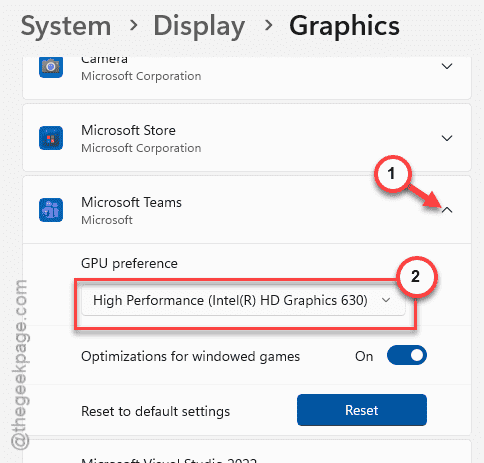
Step 3 – Now, look for the Teams app in the list of apps. Set the GPU Preference to High Power mode from the drop-down list.
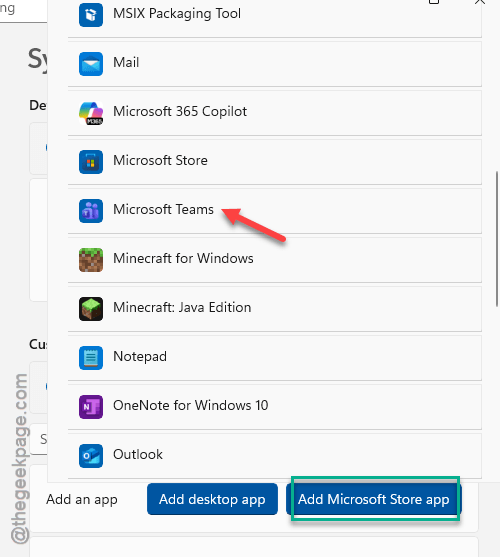
Step 4 – If you can’t find the Microsoft Teams app in the list, tap the Add Microsoft Store app and add the Teams app from there.
Step 5 – Later switch the GPU Preference following the steps mentioned above.
After modifying this preference, there won’t be any further issue with the background blur effect during Teams video calls.
Fix 2 – Clear WebView2 Cache to Reset Video Effects Engine
The corrupted webview2 cache can also be held responsible for this wrong blur effect on the Teams client.
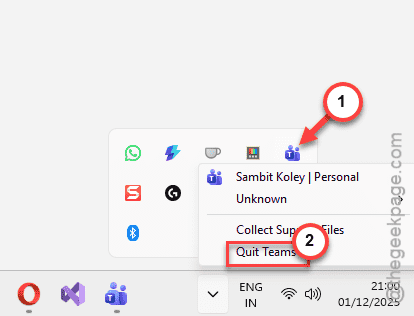
Step 1 – Close the MS Teams completely. Make sure to quit it from the taskbar, as well.
Step 2 – Then, open a Run box, and Enter this address directly there, and click OK.
C:\Users\sambi\AppData\Local\Packages\MSTeams_8wekyb3d8bbwe\LocalCache\Microsoft\MSTeams\EBWebView\Default
Step 3 – In the Default folder, delete these folders –
GPUCache
GraphicsCache
Code Cache
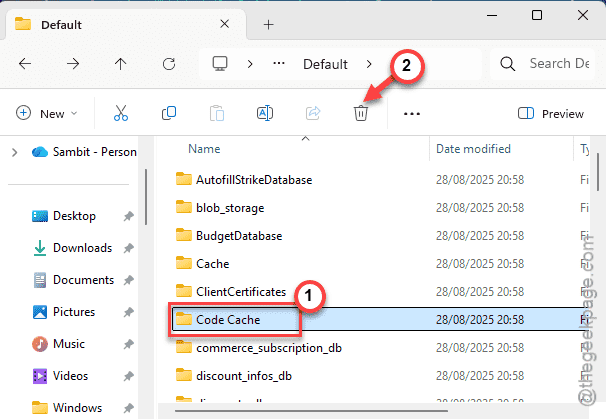
If you can’t find all of these folders, just delete the ones you can find, them there.
After this, relaunch the Teams client, and try to apply the blur in the meeting.
Fix 3 – Turn off Low Bandwidth Mode for Teams Meetings
You have to turn off the Low bandwidth mode and turn high fidelity meeting mode from the Teams settings.
Step 1 – Tap the ⋯ button in the Microsoft Teams and click Settings.
Step 2 – Go to the Meetings tab.
Step 3 – Next, turn off the Low bandwidth mode.
Step 4 – Now, turn on the High fidelity meeting mode (this setting is subject to availability and may not be available for your account).
Later, rejoin the meeting or start a new meeting. Check the blur effect again.
Fix 4 – Create a proper separation with the background
The blur effect in a Microsoft Teams meeting is completely software implied or artificial blur. So, here are some tips to improve the blur effect in Teams –
Tip 1 – Make sure you are in a well-lit environment and your face has enough light. The AI needs to identify the fiducial points to map and blur out the background.
Tip 2 – Start the meeting. Tap the Camera drop-down icon, and switch between Portrait and Standard blur effect in the camera feed.
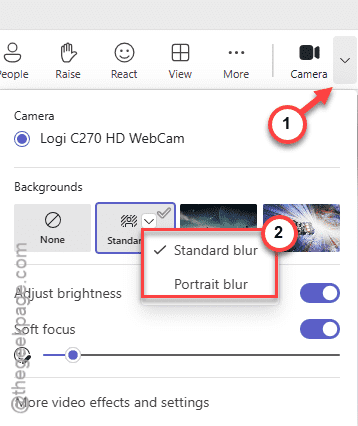
Tip 3 – Maintain a proper separation between the background and yourself. Keep the distance from the background wall and your position to get a proper blur.
Fix 5 – Update the Camera Drivers
Update the camera drivers to the latest version.
Step 1 – Right-click the Start button, and tap Device Manager.
Step 2 – Then, expand the Cameras section.
Step 3 – Next, right-click the camera device there, and tap Update driver.
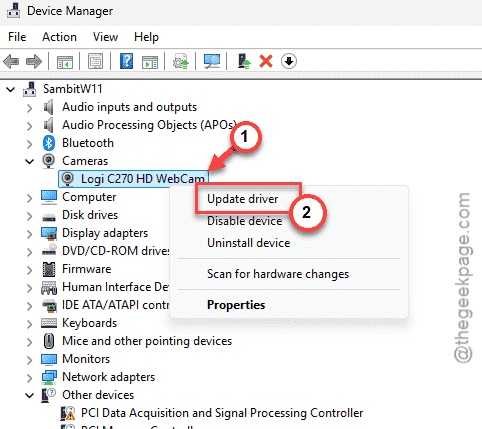
Step 4 – Then, choose the Search automatically for latest driver option.
This way, Windows will search for the latest camera driver, and install.
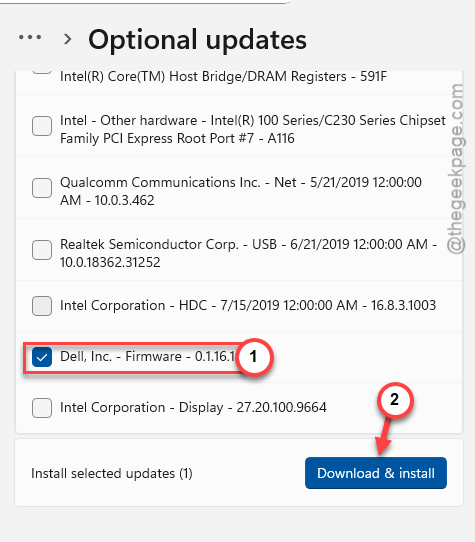
You can also look in the Windows Update for the latest camera driver and update from there –
Windows Update ⇾ Advanced Options ⇾ Optional Updates ⇾ Driver Updates ⇾ Download & Install
Hope these fixes have helped you solve this issue.