Some Microsoft Teams users have faced some issues with the captions in the Teams client. According to the user reports, the captions are either broken or completely missing from meetings on their MS Teams client. Usually, if Teams is configured to read a different language than the spoken one in a Teams meetings, it can’t show up the captions properly. Tweaking this language handshake should fix the issue. However, if that does not help, there are other resolutions you may apply.
Fix 1 – Change the Spoken Language in Teams Meetings
You have to manually change the Spoken Language settings from the meeting settings, after the meeting has commenced.
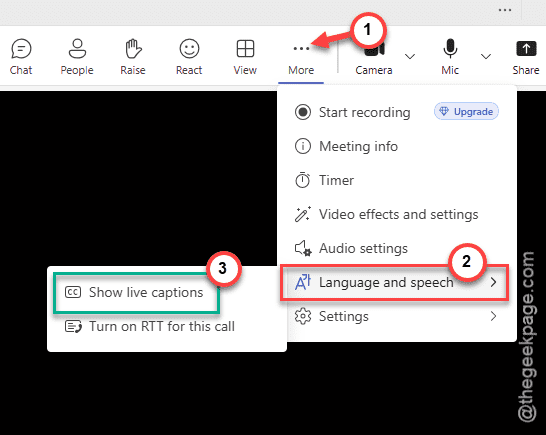
Step 1 – Tap the More (…) button in the meeting toolbar.
Step 2 – Go to the Language and speech settings. Enable Turn on live captions button.
Step 3 – Once the caption box shows up in the meeting page, tap another … button there.
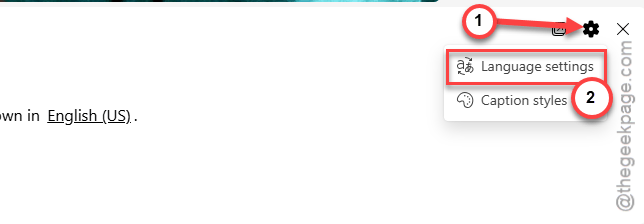
Step 4 – Select Change spoken language button. Choose the language that is being spoken in the meeting. Tap the Confirm button to save the changes.

After changing the spoken language, the captions should work properly.
Fix 2 – Force-reset the MS Teams Cache
Clearing out the Teams cache may help you resolve this issue.
Step 1 – Quit the MS Teams client completely. Go to the taskbar, and right-click the Teams client, and tap Quit Teams to close it.
Step 2 – Then, press the Windows+R keys together to load up the Run box.
Step 3 – Next, paste this address, and click OK to reach this specific Teams cache location.
%localappdata%\Packages\MSTeams_8wekyb3d8bbwe\LocalCache\Microsoft\MSTeams
Step 4 – Delete all the files and folders from that Teams folder.

After clearing the Teams cache, restart the client.
Fix 3 – Download-Install Windows Speech Pack
If you are getting ‘Captions are getting missed’ message, it is possibly due to the lack of the language package used by the speech engine.
Step 1 – Go to Settings. Reach the Time & Language tab. Go to the Language & region.
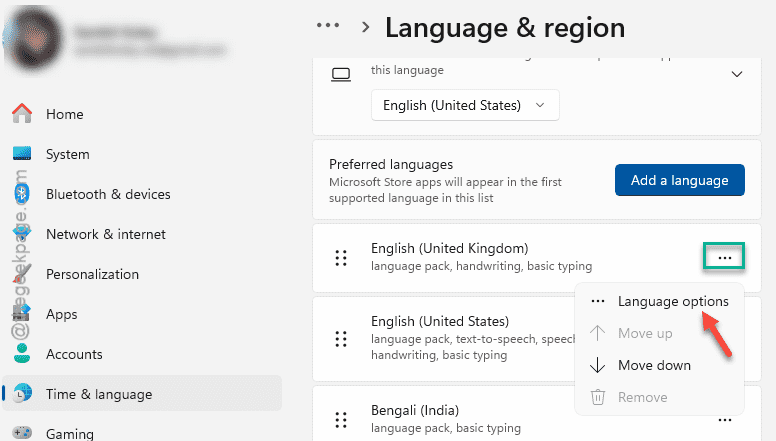
Step 2 – Find the language that you use to converse in the Teams meetings. Tap the … and, tap Language options.
Step 3 – Under the Speech section, tap Download/Install button to install that package.
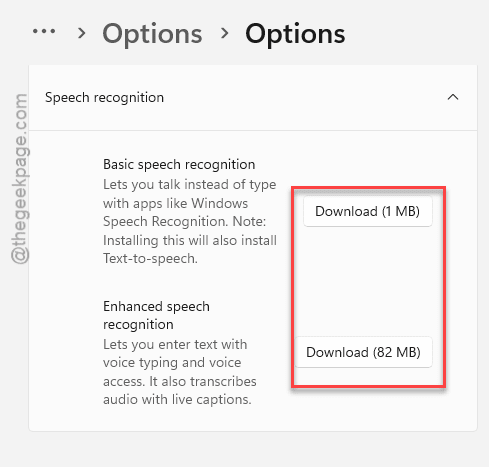
Step 4 – If such version of language pack is already installed, try installing a similar version of language pack.
After installing the language pack, the issue with the captions will be resolved.
Fix 4 – Disable the GPU Hardware Acceleration
The captions may fail due to media optimization glitches.
Step 1 – Load the Teams Settings.
Step 2 – Go to the Devices tab.
Step 3 – Find the GPU hardware acceleration feature to Off mode. Additionally, make sure set the Disable GPU hardware acceleration feature to Off mode.
Restart the Teams client once. Check if this works out for you!
Fix 5 – Ask IT Admin to Enable Live Captions
If the Captions option is completely greyed out in the Teams settings, it might be a policy issue applied by your system administrator.
Step 1 – Ask your IT Admin to log into the Teams Admin Center.
Step 2 – Go this way, next –
Meetings ⇾ Meeting Policies
Step 3 – Choose the policy type from there. Then, set the Live captions to Not enabled but user can override or Always enabled mode.
Step 4 – Check the Allow transcription option to On mode.
After this, captions problem will be resolved.