You send a PDF. Recipient clicks a link. Nothing. Just plain blue text doing nothing. Or you open your own PDF and the links you carefully added in Word are dead. Frustrating.
Why This Happens
Basically? Most dead-link PDFs are made the wrong way. When people “Print to PDF” instead of “Save As PDF”, every interactive element gets flattened. The file looks the same. But under the hood it’s basically a stack of images now. No links. No bookmarks. No form fields.
The other big cause is the viewer. Especially links to local files. Even external https links can act weird if the PDF wasn’t exported cleanly.
And then there’s the small stuff. Missing https:// in the URL. A protected PDF that locks down clicks. Or hyperlinks that exist but point to nowhere because the original Word document had broken refs to start with.
Fix 1 – Stop Using “Print to PDF”
Biggest mistake people make. Print to PDF flattens everything. Use Save As or Export instead.
In Word:
1 – Click File at the top left.
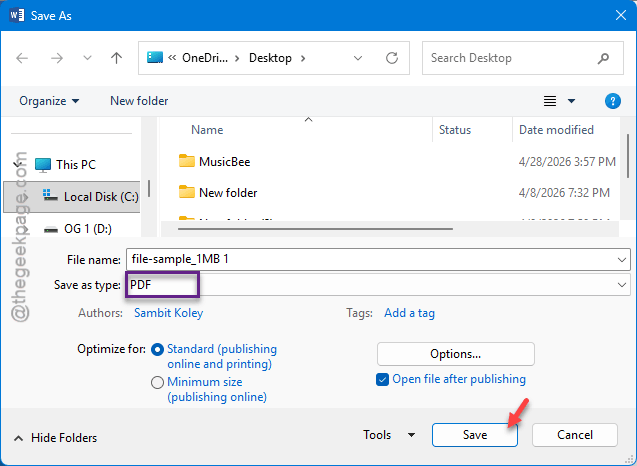
2 – Click Save As.
3 – Pick a location.
4 – Click the Save as type dropdown. Choose PDF.
5 – Click Save.
In Excel or PowerPoint:
1 – Click File.
2 – Click Export on the left sidebar.
3 – Click Create PDF/XPS Document.
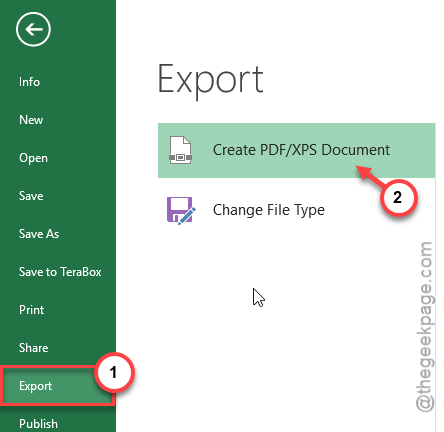
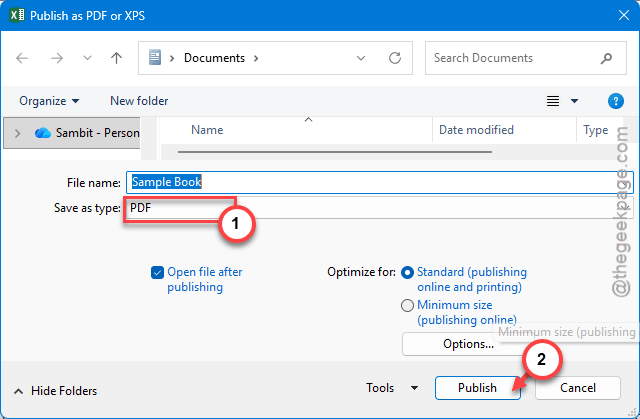
4 – Click Create PDF/XPS.
5 – Click Publish.
This preserves every hyperlink, bookmark, and form field. Quick test — the PDF will be slightly larger and the links will actually click.
Fix 2 – Open in a Real PDF Reader
Quick test. Use a dedicated PDF reader utility to read the file.
Download Adobe Acrobat Reader (free) or use the built-in Preview on macOS. Open the same PDF in that viewer. Click the link. Does it work?
If yes — your viewer was the problem all along. Browsers strip or block PDF link behavior in lots of cases. Especially Edge in newer Windows 11 builds.
For Adobe Acrobat Reader, also check this:
1 – Click Menu at the top.
2 – Click Preferences.
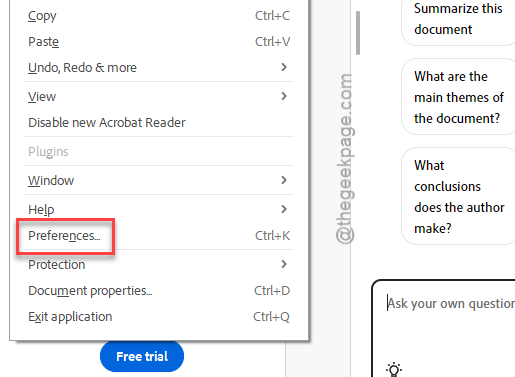
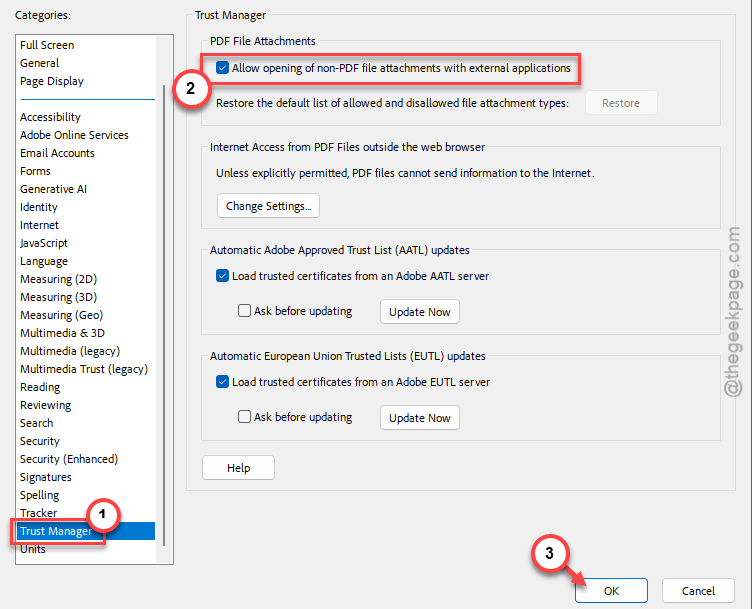
3 – Click Trust Manager on the left.
4 – Make sure Allow opening of non-PDF file attachments with external applications is checked.
5 – Click OK.
That one toggle fixes a surprising number of “link does nothing” issues.
Fix 3 – Check the URL Format
Obvious. Often overlooked.
Open your original Word or Excel file. Find the hyperlink.
A link that just says example.com with no protocol prefix? Dead in most PDFs. Same with email links — they need mailto: in front.
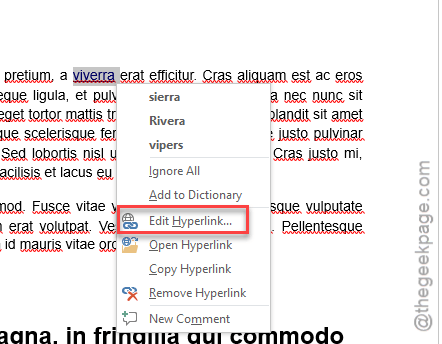
1 – In Word, right-click the link.
2 – Click Edit Hyperlink.
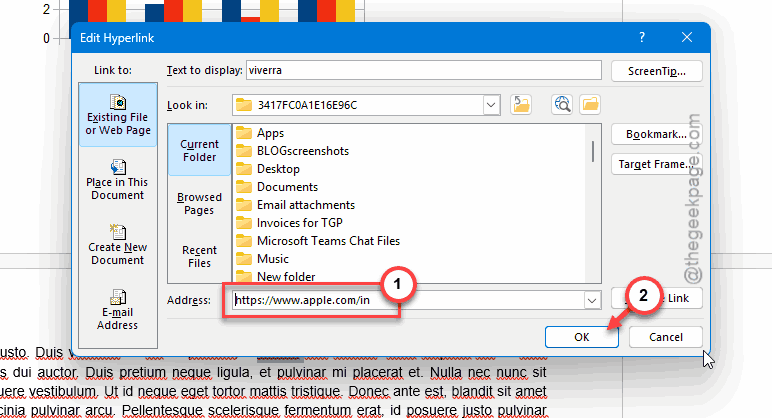
3 – In the Address field, make sure the URL starts with https:// (or mailto: for emails).
4 – Click OK.
5 – Re-export to PDF using Fix 1.
Quick fix. Saves a lot of head-scratching.
Fix 4 – Re-Export Instead of Editing the PDF
Trying to add or fix a link directly inside the PDF? Usually causes more pain than it’s worth.
Go back to the source file. Make the change in Word, Excel, Google Docs, InDesign — whatever produced the PDF. Then export fresh.
In Acrobat Pro:
1 – Open the PDF.
2 – Click Tools in the right panel.
3 – Click Edit PDF.
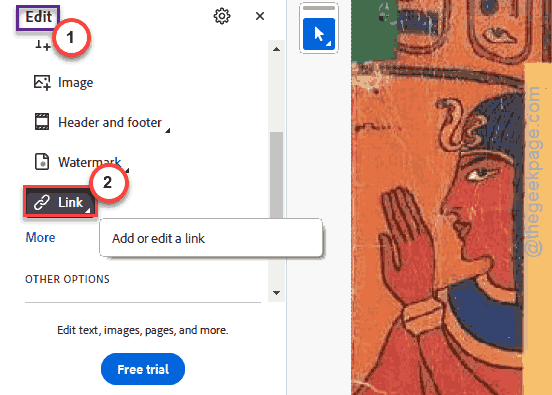
4 – Click Link at the top, then Add/Edit Web or Document Link.
5 – Drag a rectangle over the text you want to link.
6 – Enter the URL. Click OK.
7 – Save the PDF.
Done. Tedious but reliable.
Fix 5 – Check If the PDF Is Restricted
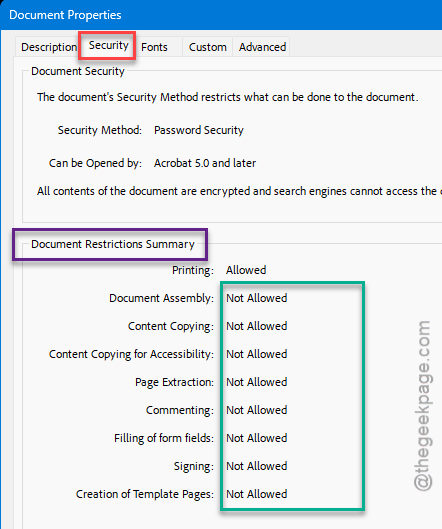
Some PDFs come with permissions locked down. The hyperlinks technically exist. Clicking them just does nothing because the security settings block it.
In Adobe Reader:
1 – Open the PDF.
2 – Click File > Properties. Or press Ctrl + D.
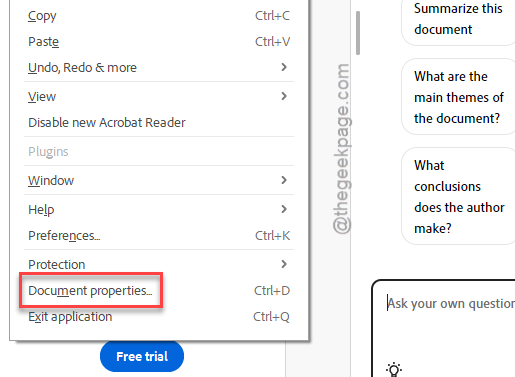
3 – Go to the Security tab.
4 – Look at the Document Restrictions Summary. If it says Not Allowed next to most options, the file is restricted.
You can use Unlock PDF services with permission. Don’t crack files that aren’t yours — obvious but worth saying.
Fix 6 – Update Your PDF Reader
Older Adobe Reader builds (especially anything before late 2023) have known link-handling bugs.
1 – Open Adobe Acrobat Reader.
2 – Click Help at the top.
3 – Click Check for Updates.
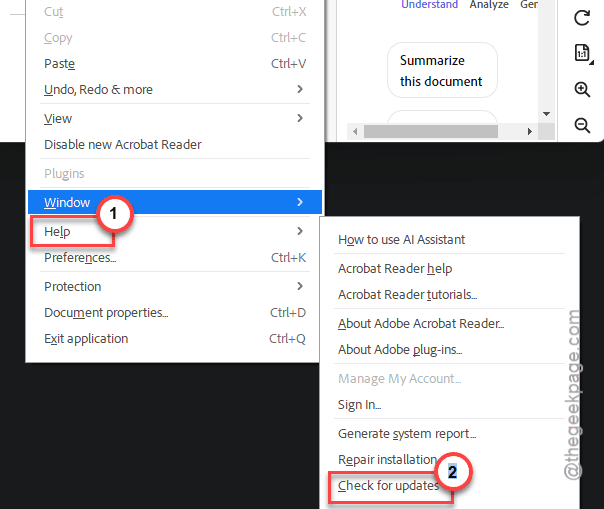
4 – Install whatever’s pending. Restart Acrobat.
For browsers: update Chrome, Edge, or Firefox the same way. Newer builds handle PDF links better. Especially for cross-domain links.
Fix 7 – Test the Link Outside the PDF
Last sanity check. Copy the broken link’s URL. Paste it into a browser address bar manually. Does it open?
If yes — the PDF link is fine, your viewer just isn’t following it. Use Fix 2.
If no — the URL itself is broken. The destination moved, was deleted, or had a typo to start with. Fix the source link, re-export the PDF.
The second case is way more common than people expect. PDFs get shared months after they’re made. Links rot. Not the PDF’s fault.
How to Prevent This
- Do use the Save As PDF or Export to PDF from Word, Excel, PowerPoint. Never Print to PDF if your doc has links.
- Test every PDF after exporting. Click the links yourself before sending. Takes thirty seconds.
- Keep URLs in source documents fully qualified — always https://, never just example.com.
People Also Ask
How do I enable hyperlinks in a PDF?
You don’t enable them after the fact, really. They have to be created during export. Open the source file (Word, Excel, etc.), make sure the hyperlinks work there, and use File > Save As > PDF. Don’t use Print to PDF — that flattens everything and kills your links. Re-export the file the right way.
Why are my hyperlinks not working?
Usually one of three things. The PDF was made with Print to PDF, which strips links. The viewer (especially browser-built-in PDF readers) is blocking them. Or the URLs are missing the https:// prefix. Test the same PDF in Adobe Reader. If it works there, your viewer is the issue.
Why is my hyperlink not working in Adobe?
Check Adobe’s Trust Manager. Go to Edit > Preferences > Trust Manager. Make sure Allow opening of non-PDF file attachments with external applications is checked. Also update Adobe Reader — older builds have hyperlink bugs that newer ones fixed. Restart Adobe after updating.