Does some of your messages are missing from Teams client across various devices? Some of the users have found out about this issue where the Teams client is not syncing the calls and messages properly across their various devices. In this article, we have looked upon the various fixes that you can apply to remediate this synchronization issue.
Fix 1 – Clear the Microsoft Teams Cache
Possible corruption of the Microsoft Teams local files can cause this synchronization issue.
Step 1 – Close the Microsoft Teams.
Step 2 – To permanently close the Teams client, tap the arrow button in the taskbar. Then, right-click the MS Teams, and tap Quit Teams.
Step 3 – Now, use the Win+R buttons together to call up the Run box.
Step 4 – Paste it there and click OK.
%appdata%\Microsoft\Teams\IndexDB
Step 5 – Delete the contents of the folder.
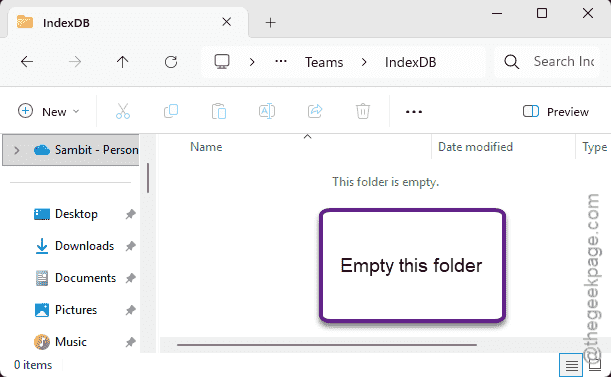
After cleaning it up, relaunch the Microsoft Teams client. It may a take while to load up properly. But, once it does, all the messages will be synced automatically.
Fix 2 – Log out of MS Teams from all devices and log in
Log out from the Microsoft Teams app from all the devices where you use it. Then, log back into them to retrieve the missing chats at their place.
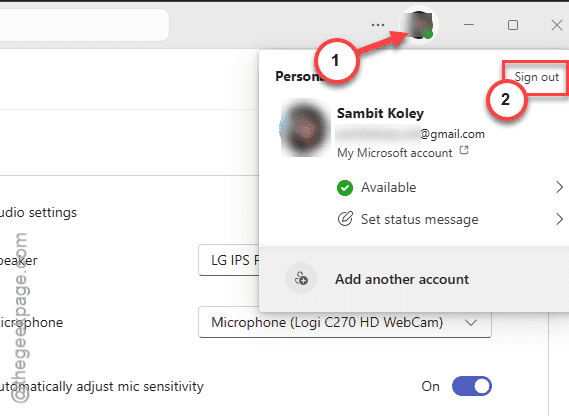
Step 1 – Launch the Microsoft Teams client on your machine. Then, tap the profile icon in the middle of, and, click sign out.
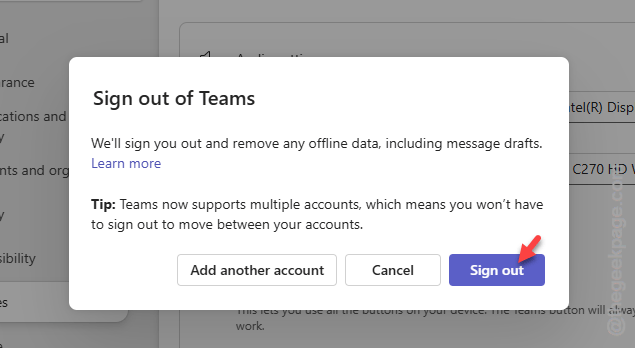
Step 2 – there will be a confirmation prompt. Tap Sign out to log out from your Microsoft Teams.
Step 3 – Now, do the same thing for all the Teams app where you are currently logged in.
Step 4 – Finally, just tap your saved account ID to sign in using your correct account credentials.
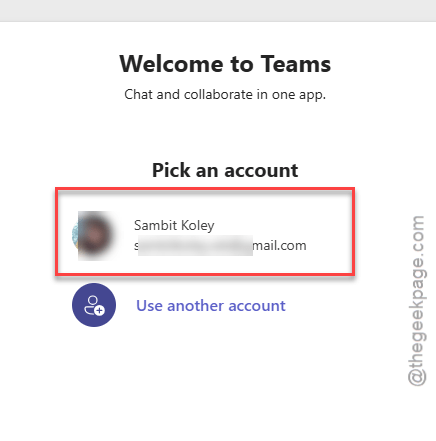
Once you have signed in properly, all the missing messages will be retrieved.
Fix 3 – Switch to the Microsoft Teams Web Client
If you still can’t find the chats there, a quick sign in to your Microsoft Teams account from the web may help you sort out this situation.
Step 1 – Open up Google Chrome or Microsoft Edge.
Step 2 – Load up the Teams.
Step 3 – Tap the Sign in button at the right-top corner.
Now, sign in using your own Microsoft Teams credentials. Once you have signed in, all the chat messages will be visible to you.
Fix 4 – Reset the MS Teams Account Token
Sometimes, corruption in the authentication tokens may pause the Teams app to pull new messages from the cloud.
Step 1 – In the Microsoft Teams app, tap the profile icon, and click Sign out to sign out of the Teams app.
Step 2 – It will ask you for confirmation. So, do tap the Sign out button there to sign out of the Teams app.
Step 3 – Now, close the Teams app.
Step 4 – Press the Ctrl+Shift+Esc buttons to load the Task Manager.
Step 5 – Find these tasks in there and kill them. Just right-click such tasks, and tap End task.
Teams.exe
ms-teams.exe
Teamshelper.exe
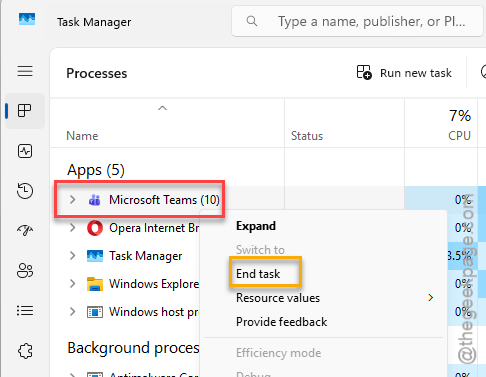
Step 6 – Now, right-click the Start button and tap Run to load up the Run box.
Step 7 – Then, paste this address in the Run box and hit Enter.
%localappdata%\Packages\MSTeams_8wekyb3d8bbwe
Step 8 – Delete all the contents from this folder.
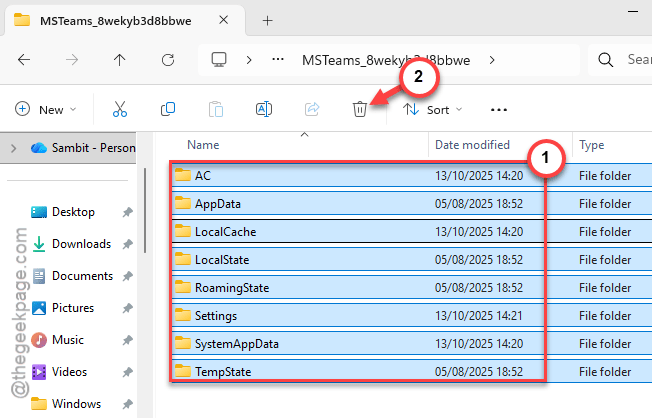
Step 9 – Now, relaunch the Microsoft Teams client.
It will take some time to build up the cache files. But, once it loads up, all your chats and messages will be synced correctly. There won’t be a single message missing from there.