Breakout room failures in the Teams app often stem from a synchronization fault at the role level, where the app fails to recognize the organizer’s permission level or due to a mismatch in the participant account type. These issues are often resolved by either clearing up the Teams cache or changing the policy settings in the Teams Admin Center. Here is a detailed guide on how to fix this issue.
Quick Fix Table ~
| Issue | Recommended Fix |
| “Create” button is grayed out | Fix #1: Verify Co-organizer status |
| Participants won’t move | Fix #3: Join as “Anonymous” Guest |
| Syncing takes forever | Fix #5: Restart via “Meet Now” refresh |
Fix 1 – Validate Organizer Roles & Meeting Type
Breakout rooms are exclusive to standard meetings and require the creator to have official Organizer credentials or Co-orginzer credentials.
Step 1 – Tap the ⋯ button during the meeting or a calendar invite, and click the Meeting options.
Step 2 – Verify that your account is listed as an Organizer or have a Co-organizer rights.
NOTE – Make sure the meeting has been scheduled in a Standard Channel or Private Calender Invite. The Breakout Rooms facility is not available in the specialized channel type.
Fix 2 – Clean up the Teams Cache
A corrupted Teams app cache can cotribute towards this issue by preventing the affected user acces the Breakout rooms in the app.
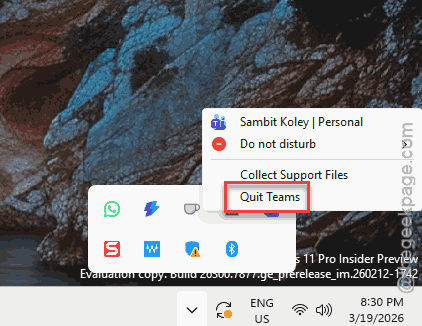
Step 1 – Fully quit the Teams client. Then, right-click the app in the taskbar and tap Quit.
Step 2 – Next, hit the Win+R buttons at once. Later, paste this address there, and click OK.
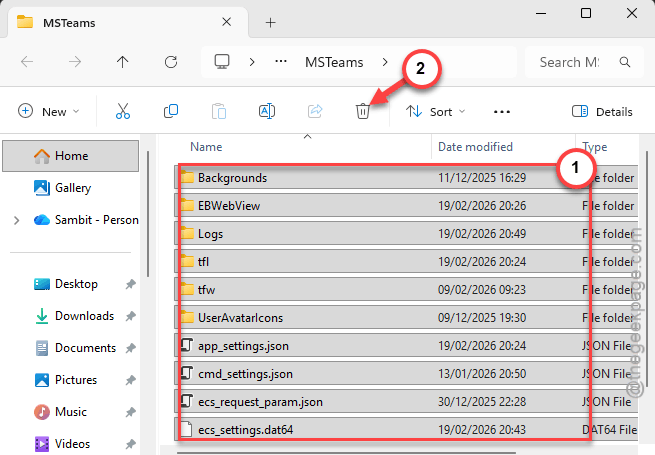
%localappdata%\Packages\MSTeams_8wekyb3d8bbwe\LocalCache\Microsoft\MSTeams
Step 3 – Select all the contents inside the folder and Delete them.
Then, relaunch the Teams client.
Wait a bit for the Teams app to re-sync the data on the client.
Fix 3 – Ask the participant to join as a guest
If the participants’ options are missing or greyed out or just won’t appear in the console, you can ask them to join as a ‘Guest’.
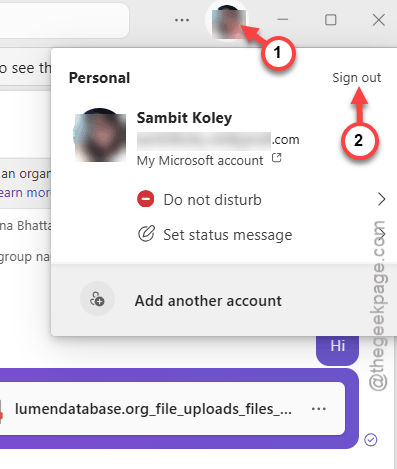
Step 1 – Ask the problematic participant to use the Sign out feature to log out of their Teams app.
Step 2 – Now, they have to click the meeting link and use Join on the web instead.
Step 3 – They must not sign in; instead ask them to use a alias name, and join as a guest.
Unverified guest access often easier to assign breakout rooms.
Fix 4 – Change the Administrative Policy and PowerShell Reset
If the icon is indeed missing for every meeting you host, there might be a problem with your account not having proper tenant privilege to do so.
[Steps to be performed by only an IT Administrator]
Step 1 – At first, load up the Teams Admin Center. Go to the Meeting Policies.
Step 2 – Make sure the Allow breakout rooms is turned ON and assigned to the concerned organizer or co-organizer account.
Step 3 – If you want to force-update the policy on the tenats, run use this shell command –
Set-CsTeamsMeetingPolicy -Identity "Global" -AllowBreakoutRooms $true
NOTE – Sometimes, the policy changes can take up to 24 hours to propagate across your clientele.
Fix 5 – Try the Meet Now UI Refresh
If the room fails to be created in the middle of a meeting, the UI may be stuck. You should try to refresh it quickly.
Step 1 – If the Rooms icon is frozen, tap the ⋯ button and tap Meeting Info.
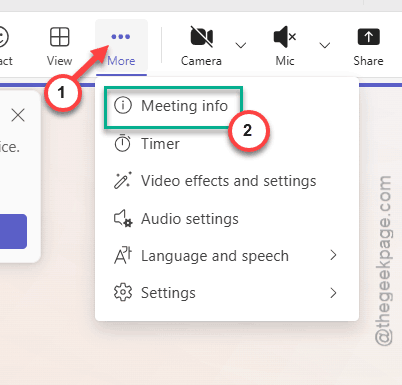
Step 2 – Copy Join Info from there and leave the meeting.
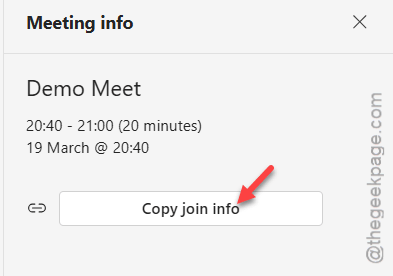
Step 3 – Tap the Meet Now button in the Teams Calendar to start a fresh meeting session.
Step 4 – Once the Rooms icon appears, close that session and re-join the meeting.
This should refresh this setting. Check if this works.