You add a note on your iPhone. It never shows up on your laptop. Or you edit something on Windows 11, and your iPad still shows the old version. Frustrating.
OneNote sync is supposed to be silent and automatic. When it breaks, you barely get any warning.
Why This Happens
Short version? OneNote syncs through OneDrive. And when OneDrive hiccups, OneNote goes with it.
A few things can break the chain. Bad internet on one device. A signed-out account on another. Or a corrupted local cache that won’t talk to the server. Each device can fail in its own little way.
And sometimes it’s Microsoft’s side. OneDrive outages, service health blips, weird backend stuff. No warning. Just notes that won’t move.
Fix 1 – Close OneNote Fully and Reopen It
Start simple. A full restart of the app clears most temporary sync glitches.
1 – Close OneNote on every device you’re signed in to. Phone, tablet, laptop — all of them.
2 – Wait around two minutes. Don’t skip this part.
3 – Reopen OneNote on your main device first — the one with the latest changes.
4 – Let it sit for a minute. Watch the notebook list refresh.
5 – Open OneNote on the other devices, one at a time.
Worked for a lot of people. Worth two minutes before doing anything heavier.
Fix 2 – Check if OneDrive Is Actually Down
OneNote syncs through OneDrive. So if OneDrive is having a bad day, your notes go nowhere. Easy to check.
1 – Open a browser.
2 – Go to Service Health. Microsoft posts live outage info there.
3 – Look for OneDrive or OneNote on the list. Any active incident?
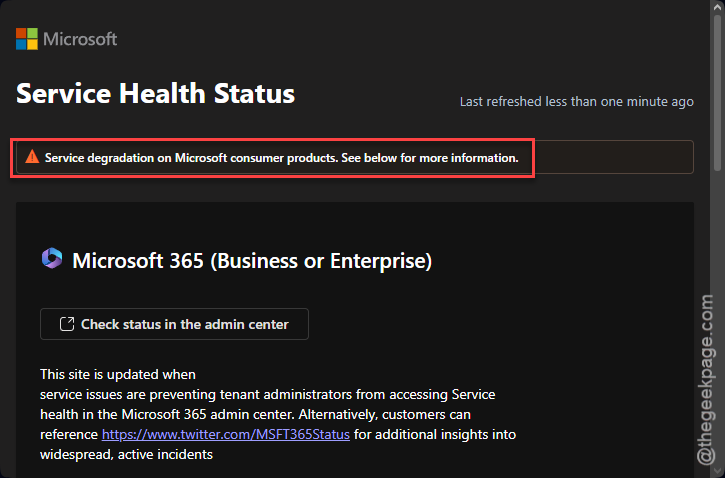
4 – If yes — you’re not the problem. Wait it out.
Annoying. But at least you know it’s not on your end.
Fix 3 – Open the Notebook in OneNote on the Web First
Sometimes the desktop app and the cloud get out of sync. Forcing the web version to load the latest version pokes the server awake.
1 – Close OneNote on every device.
2 – Open a browser and go to OneNote.

3 – Sign in with the same Microsoft account you use on your devices.
4 – Open the notebook that’s not syncing. Check that your latest changes are actually there.
5 – Reopen OneNote on your devices. Sync should kick in automatically.
This is the unofficial “poke the server” fix. Works more often than it should.
Fix 4 – Force a Manual Sync
OneNote has a manual sync button, but it’s tucked away. People miss it for years.
1 – Open OneNote on Windows.
2 – Click File in the top-left corner.
3 – Click Info in the left sidebar.
4 – Click View Sync Status. It’s usually near the top of the panel.
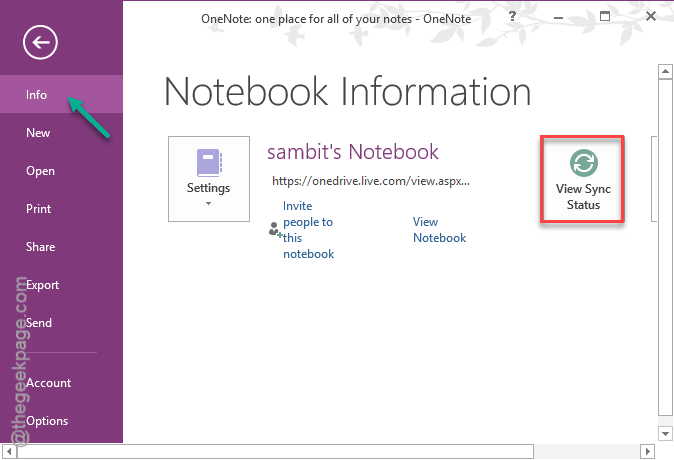
5 – Make sure Sync automatically whenever there are changes is selected. If it’s not, that explains a lot.
6 – Click Sync All.
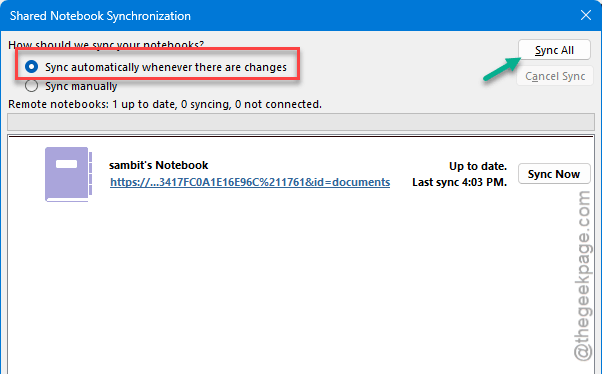
Watch for errors on individual notebooks. Sometimes one notebook is the problem child while the rest sync fine.
Fix 5 – Sign Out and Sign Back In
Stale account tokens are real. They expire silently and break sync without telling you. A fresh sign-in fixes it.
1 – Open OneNote (or any Office app — they share accounts).
2 – Click your profile picture in the top-right corner.
3 – Click Sign out.
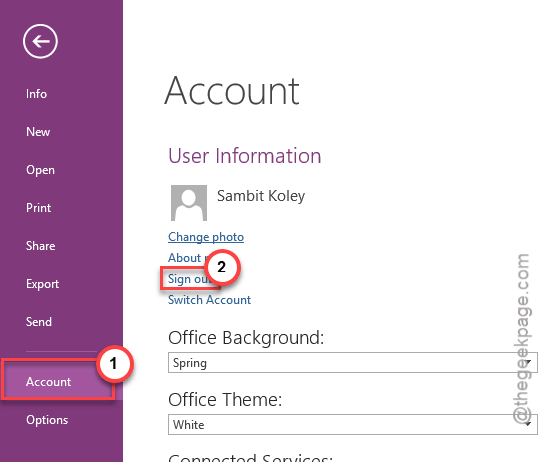
4 – Confirm if it asks. Yes, sign out of all Office apps. That’s the point.
5 – Close every Office app entirely.
6 – Reopen OneNote and sign back in with the same Microsoft account.
Now do this on each device that’s misbehaving. Tedious. But it works.
Fix 6 – Clear the OneNote Cache (Windows)
If sync still won’t work, the local cache is probably corrupted. Wiping it forces OneNote to redownload everything fresh from OneDrive.
Important — make sure your latest notes are in OneNote on the web first. Do Fix 3. Don’t skip it.
1 – Close OneNote completely.
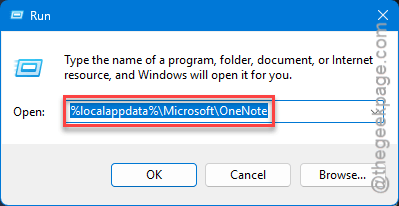
2 – Press Windows + R to open the Run window.
3 – Paste this into the box:
%localappdata%\Microsoft\OneNote
4 – Press Enter. File Explorer opens to OneNote’s local folder.
5 – Open the version folder inside (looks like 16.0 or similar).
6 – Find the cache folder. Delete everything inside it.
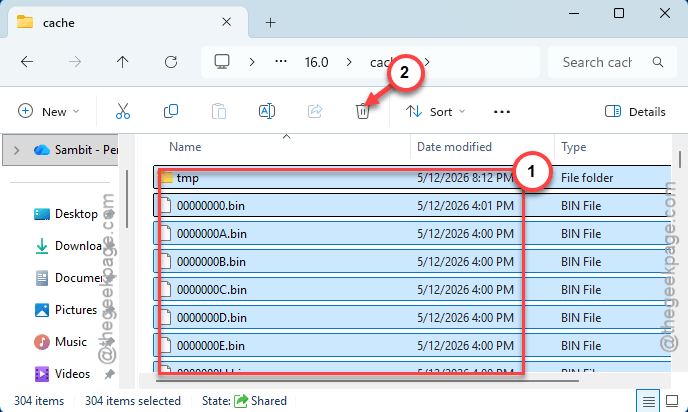
7 – Reopen OneNote. It’ll redownload notebooks from OneDrive. Might take a few minutes.
Nuclear option for cache. But it almost always works.
Fix 7 – Run the Microsoft OneNote Diagnostics Tool
Last resort. Microsoft has an official diagnostics tool that scans for sync problems and tries to fix them automatically.
1 – Search OneNote Diagnostics on Microsoft’s official support site. Don’t grab it from random download sites.
2 – Download the tool.
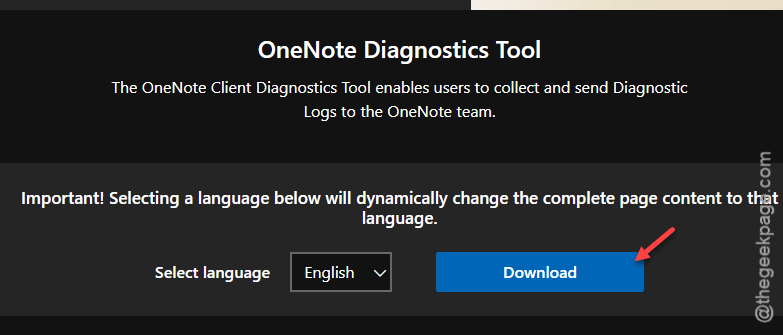
3 – Run it. Follow the prompts. It checks account, sync, and cache problems.
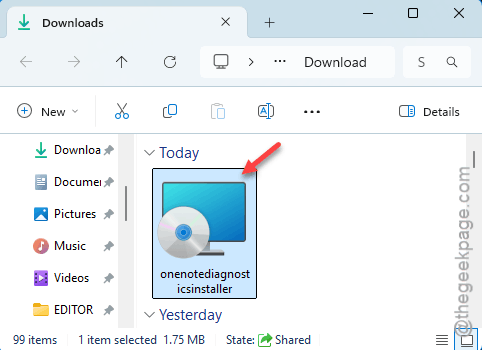
4 – If it finds something, let it fix it. If not, at least it generates logs you can send to Microsoft Support.
Honestly, if it gets to this point — open a ticket. There might be something stuck on Microsoft’s side.
How to Prevent This
- Keep Sync automatically turned on. Manual sync is asking for trouble.
- Don’t sign out of Microsoft on one device unless you have to. Each sign-out invalidates tokens elsewhere.
- Open onenote.com once a month. Just a quick sanity check that your notes are actually in the cloud. Period.
People Also Ask
Why are my OneNote notebooks not syncing across devices?
Almost always a OneDrive thing. The notebook is stored directly on your OneDrive account. You must be singed in with the same Microsoft account on all your devices to access the notes on the go.
How to sync OneNote between PC and iPhone?
Both devices need the same Microsoft account, and the notebook has to live in OneDrive (not a local file). On PC, click File > Info > View Sync Status to confirm. On iPhone, just open the app and let it pull. AutoSync handles the rest. No manual button needed.