If you are having issues with connecting MS Teams with cameras, microphones, or other specialized Teams Device Connectors for desk phones, it usually stems from the contradiction between the privacy settings and the MS Teams app. Sometimes, the device driver failure can contribute towards the same issue for which the Teams app will not be able to recognize the device properly. The following guide will be helpful in troubleshooting the device connector issue in the Teams client.
Quick Troubleshooting Chart –
| Issue | Recommended Fix |
| No devices found errors | Uninstall the faulty device from Device Manager (Fix 3) |
| Devices are None/Grayed out | Clear the MS Teams local cache (Fix 2) |
| Audio works, but Mic is dead | Check Devices settings in Teams client |
Fix 1 – Allow Teams to Access Camera
Even if the Teams app has the permission to access your system camera, refreshing that setting should help you fix this issue.
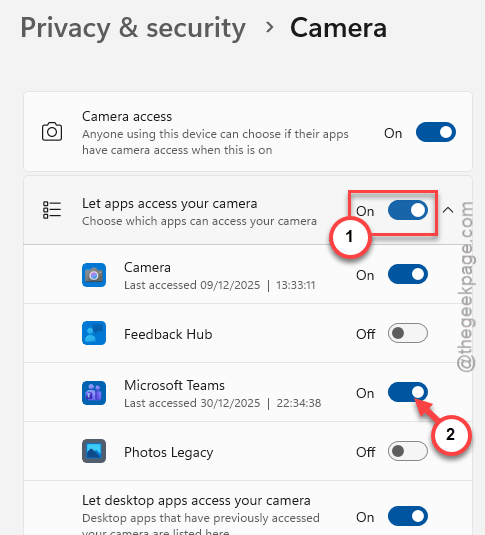
Step 1 – Hit the Win+I keys together. Then, go to the Privacy & Security tab.
Step 2 – Find the Camera tab.
Step 3 – Make sure the Let apps access your camera option is turned On. Find the Microsoft Teams app in the list. Turn it OFF and ON.
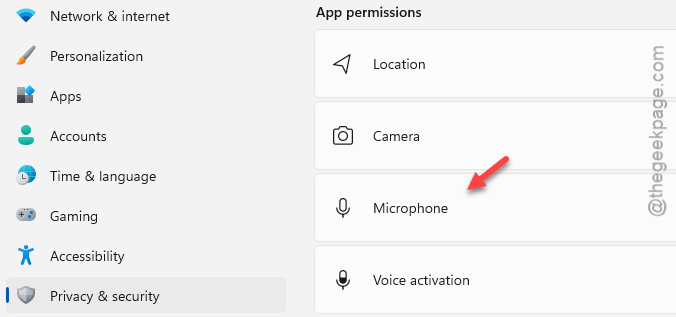
Step 4 – Now, proceed to the Microphone part of the Privacy settings.
Step 5 – Find the Microsoft Teams app toggle there. Turn it OFF and On to refresh the settings.
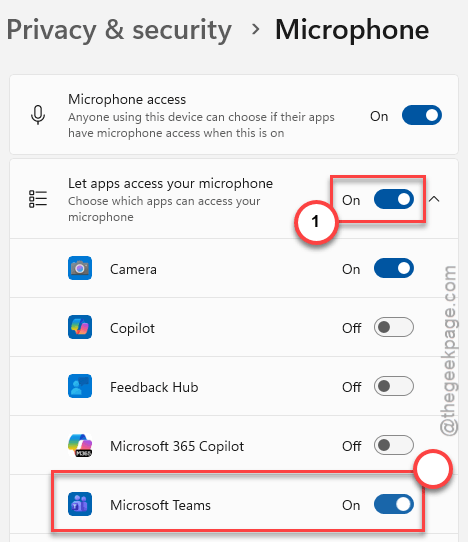
After refreshing the settings, relaunch the Teams client and check.
Fix 2 – Clear the MSTeams Local Cache
If the devices are not showing up on your system, the local cache is possibly corrupted. Clearing this corruption should help.
Step 1 – Close the Teams app. Go to the system tray and quit the Teams app from there as well.
Step 2 – Wait for 10-20 seconds. Then, open a Run box. Use this address to reach the MSTeams folder.
%localappdata%\Packages\MSTeams_8wekyb3d8bbwe\LocalCache\Microsoft\MSTeams
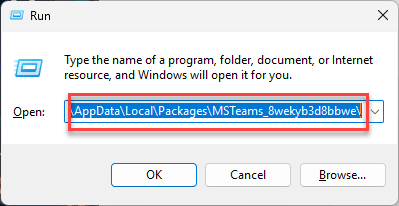
Step 3 – Delete all the contents inside this folder.
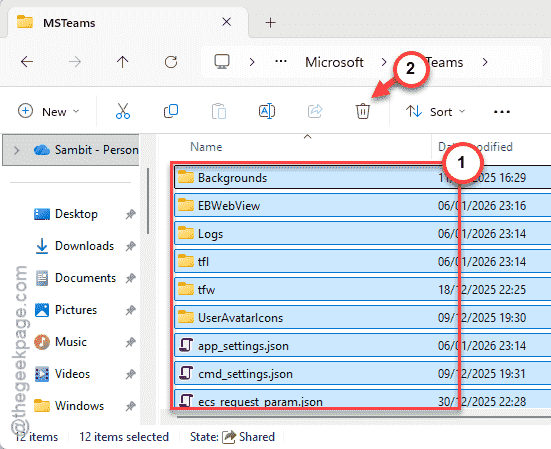
Restart the Teams client. Wait for 30-60 seconds for Microsoft Teams to synchronise everything on your Teams account.
Check whether Teams can detect the device or not.
Fix 3 – Reset the problematic device
If the device driver has failed due to any reason, MS Teams will fail to recognize it.
Step 1 – Press the Win+X buttons, and tap Device Manager.
Step 2 – Then, expand the Sound, video and game controllers tab or Camera tab.
Step 3 – Find the device that you are trying to connect to Teams there. Like – Logitech Brio or Realtek Audio.
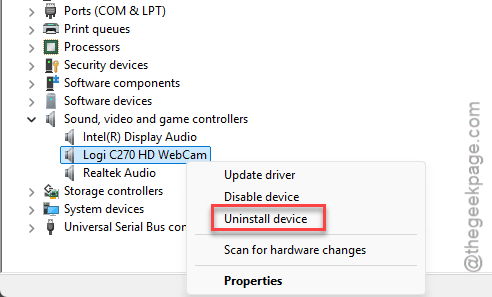
Step 4 – Right-click that device and tap Uninstall Device. Do not check the Delete the driver software for this device box.
Step 5 – Tap Action > Scan for hardware changes option to perform a scan for the uninstalled device.
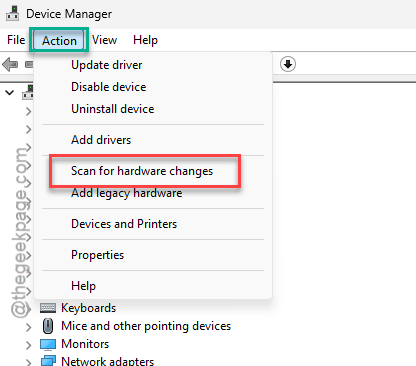
Windows will automatically re-install the missing device driver. Try to use it now in MS Teams.
Fix 4 – Turn off Media Optimization (Citrix, VDI users)
If you are a Citrix, VDI user operating on a remote desktop setup, you should disable the media optimization system.
Step 1 – Go to the Microsoft Teams. Tap the … button, and tap Settings.
Step 2 – Proceed to the Devices tab. Find the GPU Hardware Acceleration toggle and turn it Off.
This should fix the device connector error that you are having.
NOTE – Some users have recommended disabling the WebRTC Redirector Service to fix the issue.
Fix 5 – Do a cold boot on your system
If the Microsoft Teams client still fails to recognized the device, you should perform a cold boot of your system.
Step 1 – Unplug the USB/USB-C cable from your machine.
Step 2 – Unplug the power cord from the Docking Station as well.
Step 3 – Then, waiit for 30 seconds.
Step 4 – Plug the dock to power and turn it On. Then, reconnect it to your laptop.
Now check whether the device is working or not from the Teams settings page. You can use the Make a test call button to confirm that it is functional.
Hope these fixes have worked out for you!