After the watchOS 26 update, some Apple Watch users have complained that the fitness rings are not syncing between their devices with the Apple Watch. Usually, this means that the fitness data is stored safely on the Apple Watch, but they are not appearing properly on the other devices due to a synchronization problem. If the fitness rings appear to be closed in the Apple Watch but not on your iPhone, here are the steps you can implement to fix the problem.
Fix 1 – Reset the Sync Data on Apple Watch
Resetting the synchronized data from your Apple Watch will omit any cache that may cause such issues.
Step 1 – Load up the Watch app on your iPhone.
Step 2 – Go to the General tab. Then, proceed to the Reset section.
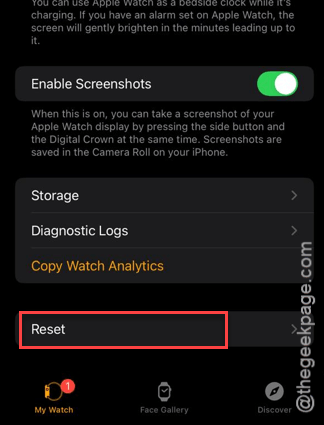
Step 3 – Tap the Reset Sync Data feature.
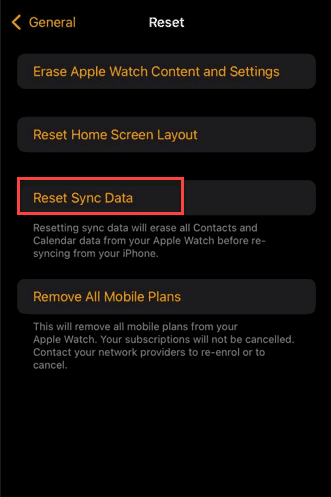
Now, wait for 5-10 minutes for the Apple Watch to re-sync the health data. The fitness rings should show up properly on the iPhone and any other devices.
Fix 2 – Prioritize Data Sources in Health
The fitness rings portray the fitness information collected directly from the Health app. But what if the origin is the wrong device?
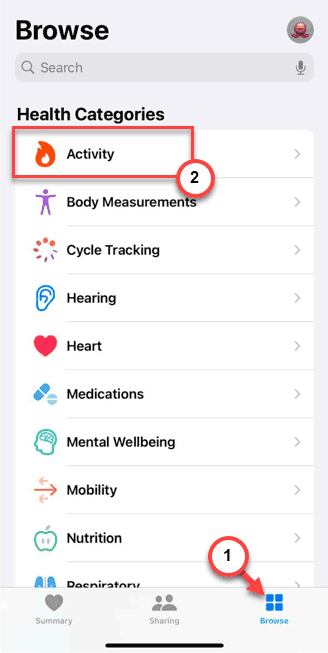
Step 1 – Open up the Health app on the iPhone. Load up the Browse tab. Go to the Activity section.
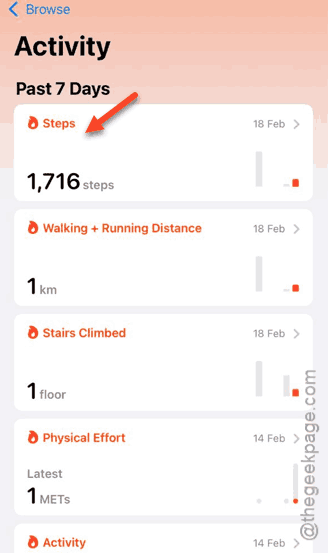
Step 2 – Tap a fitness ring category like Steps or Active Energy there.
Step 3 – Scroll to the bottom and tap the Data Sources & Access tab.
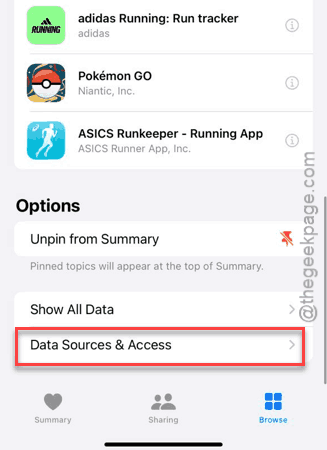
Step 4 – Then, tap Edit at the top-right corner, and drag your Apple Watch to top of the list.
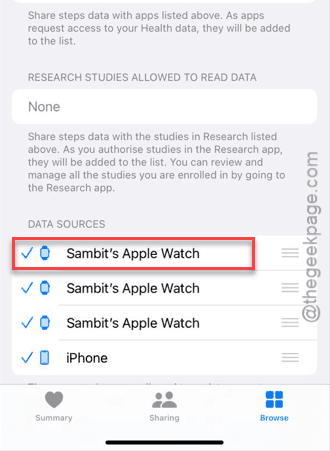
Step 5 – Do this for all the ring categories you find there.
This will restore the sync rings properly in other devices.
Fix 3 – Toggle iCloud Health Sync
A sudden break in the synchronization chain between the devices can cause this issue.
Step 1 – Open the iPhone Settings. Then, tap the iCloud banner. Next, tap the iCloud settings.
Step 2 – Then, tap the Show All button, and find the Health tab.
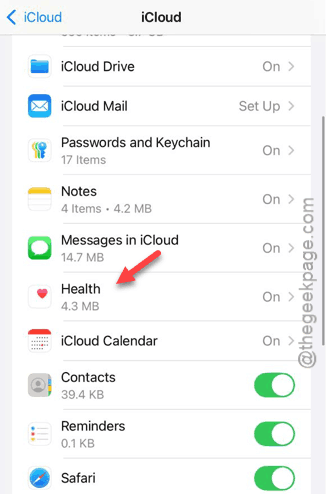
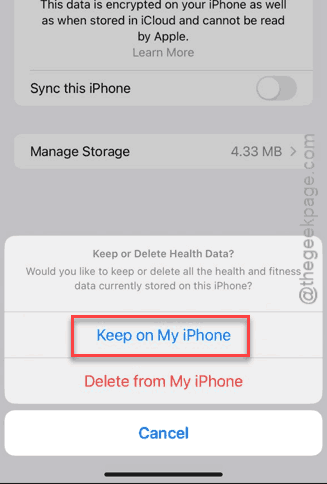
Step 3 – Toggle it to OFF mode. Select the Keep on My iPhone option. Then, wait for 30 seconds in that state.
Step 4 – Then, turn it back ON.
Step 5 – Now, follow this path to iPhone Settings –
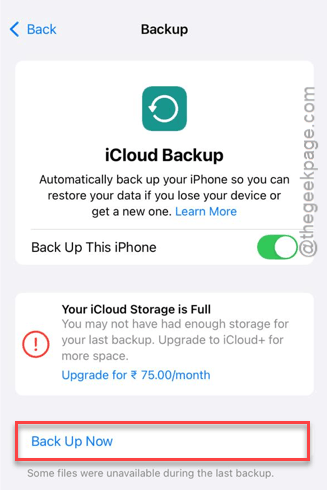
Settings > Apple ID name banner > iCloud > iCloud Backup
Step 6 – Tap the Back Up Now button to force a fresh re-sync.
Now check the fitness rings on your Apple Watch.
Fix 4 – Perform the AirPlane Mode Refresh
Some users have suggested that using the Airplane mode refresh can re-sync the fitness rings in the Apple Watch.
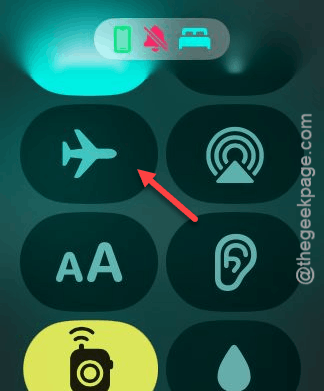
Step 1 – Put your Apple Watch and iPhone in Airplane mode.
Step 2 – Wait for 1 minute.
Step 3 – Then, turn the Airplane mode to OFF on Apple Watch and iPhone.
Load up the Fitness app on the iPhone, and check the Summary tab there.
Fix 5 – Unpair and Re-Pair the Apple Watch Refresh
If none of the above-mentioned steps work, simply unpair the Apple Watch and re-pair it afresh with your iPhone.
Step 1 – Open the Watch app on the iPhone. Go to the All Watches tab.
Step 2 – Tap the i button next to the watch, and tap Unpair Apple Watch.
Step 3 – Once you have unpaired it, hold the Apple Watch near the iPhone to pair it up again.
Step 4 – Use the Restore from Backup to get all the data back.
This should restore the fitness ring synced back across the devices. Check whether this works or not.