Microsoft Teams messages can get delayed or sent out of order to the participants—don’t worry. This is quite common during a Microsoft 365 outage, which may affect an entire region or even continent. Here are some tips and alternative tips you can apply to fix the problem yourself.
| Error Message / Issue | Recommended Action |
| Join Button Does Nothing | Fix #1 – Sync the Windows Time |
| Stuck on ‘Setting Up…’ | Fix #2 – Delete LocalCache folder |
| ‘Meeting Not Found’ error | Fix #3 – Join with Meeting ID |
Fix 1 – Force Windows Time Synchronization
Microsoft Teams relies on the system time to sequence the messages. If your PC clock is offset by even a few minutes compared to the Teams server, incoming messages may get ‘delayed’ or appear to be such.
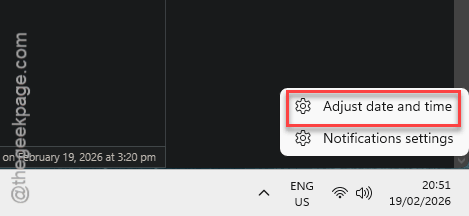
Step 1 – At first, right-click the time/date icon on the taskbar, and select the Adjust date and time option.
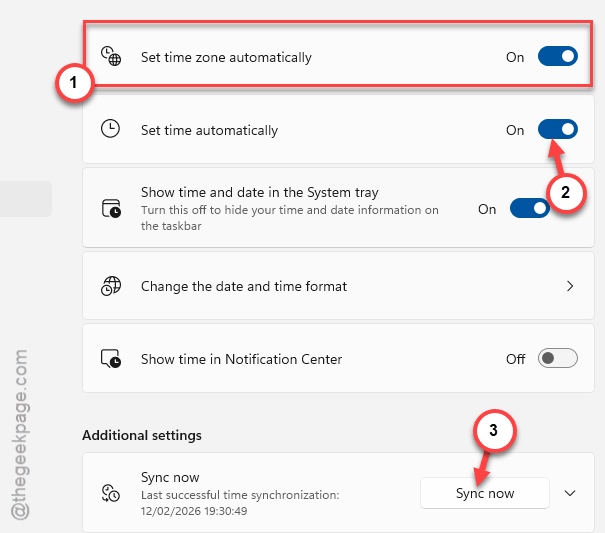
Step 2 – Under the Additional settings category, tap the Sync now button.
Step 3 – Make sure the Set time automatically and Set time zone automatically settings are both toggled to ON.
Step 4 – Then, completely restart the Microsoft Teams app.
Once the date and time issue is fixed, Microsoft Teams messages will appear in proper order.
Fix 2 – Clear up the Teams Local Cache
Cleaning up the local Teams cache should remove any residual parts of the previous version of the MS Teams app.
Step 1 – Fully quit the Microsoft Teams app. Then, right-click the Microsoft Teams app in the taskbar, and tap Quit Teams feature.
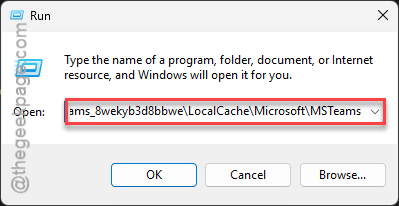
Step 2 – Then, hit the Win+R buttons and put this there, and click OK.
%localappdata%\Packages\MSTeams_8wekyb3d8bbwe\LocalCache\Microsoft\MSTeams
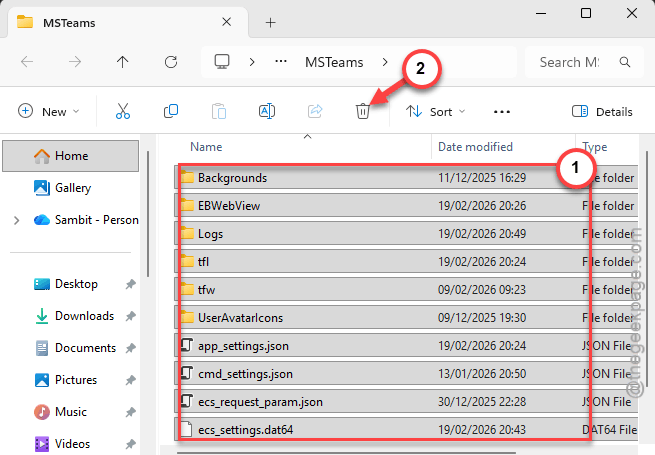
Step 3 – Delete everything inside this folder.
Step 4 – Then, go and relaunch the Teams client.
This is the main process of clearing the Microsoft Teams cache. Later return to the Microsoft Teams app and check whether it works or not.
Fix 3 – Switch to the Teams Web Client
During an active Microsoft 365 outage, which may have affected your region, you should use the web version, which does not depend on local cache or files.
Step 1 – Open Google Chrome. Then, press the Ctrl+Shift+N buttons together to load up an incognito tab.
Step 2 – Then, go to the teams.microsoft.com.
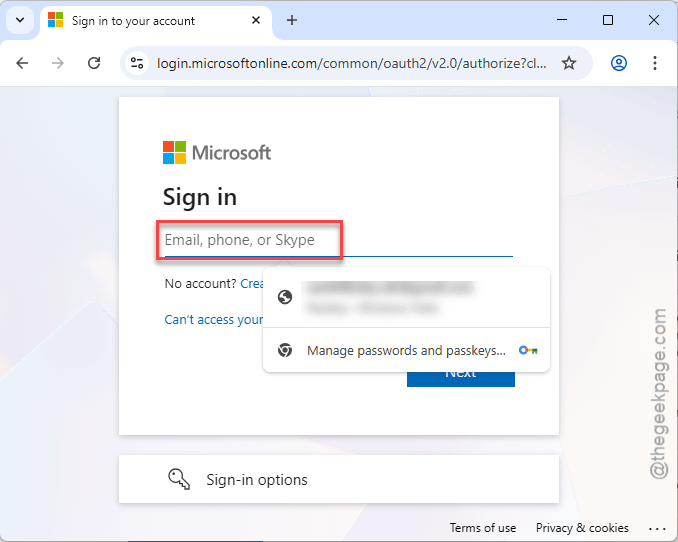
Step 3 – Use the Sign in button and sign in using your work/school account to complete the signing-in process.
Continue using the Teams there, if it is operational.
Fix 4 – Launch and Use Teams in Power Saving Mode
Sometimes it is just a hardware issue, rather than being a network problem. Configure Microsoft Teams to be run in power-saving mode to fix that problem.
Step 1 – Open the Windows Settings. Then, open up the System settings. Then, go to the Display sub-settings.
Step 2 – Load up the Graphics settings.
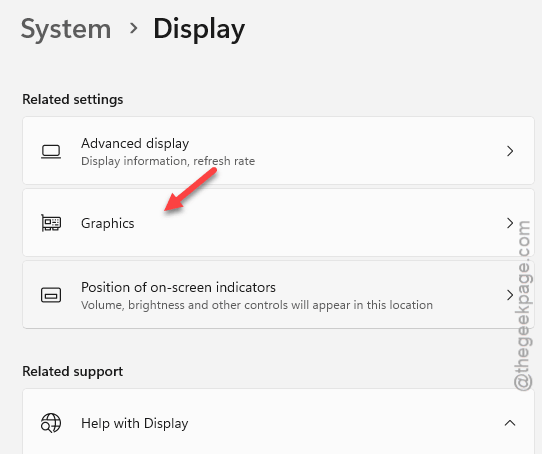
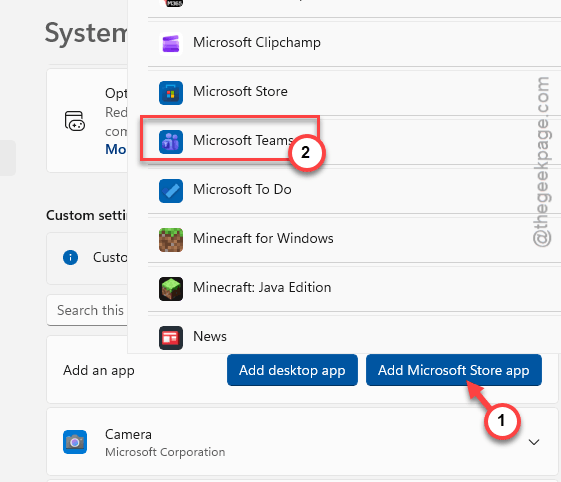
Step 3 – Now, you have to find the Microsoft Teams app there. If you can’t find it there, tap the Add Microsoft Store app, and select the Microsoft Teams app.
Step 4 – Then, expand it and set the GPU Preference of the app to Power Saving mode.
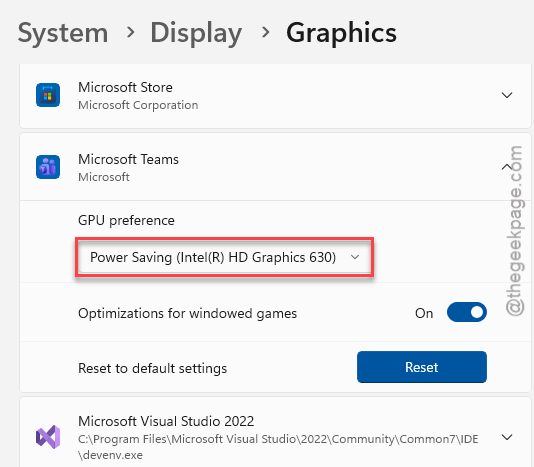
Now, try to run the MS Teams app and check the messages there.
Fix 5 – Try the View Switch (UI Refresh)
If the messages are appearing to be correct but in the wrong order, you should refresh the Microsoft Store app to fix that issue.
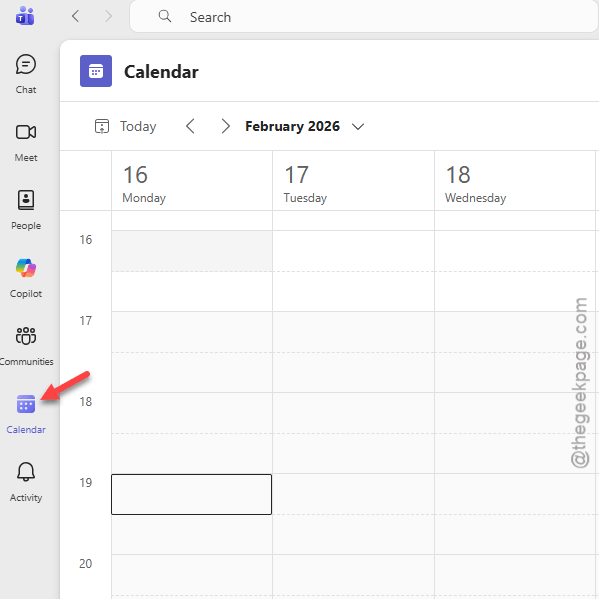
Step 1 – Open up another chat except for the one where you are experiencing the issue, or go to the Calendar tab.
Step 2 – Now, wait for 2 seconds.
Step 3 – Return to your original chat.
This should fix the Microsoft Teams issue that you were experiencing.