Does the chat messages are not delivering to others that you’re sending from your Microsoft Teams desktop client? This is a weird problem that some users have noticed at their end. This is clearly a case of the Teams chat service gone wrong, when the Teams client can’t deliver your messages to other users. Here are some solutions that you can implement to fix the issue.
Fix 1 – Force Refresh the Teams Chat Service
It seems that there is a problem with the Teams Chat Service component. So, you should force-restart the Teams chat service in the MS Teams app.
Step 1 – Load up the Microsoft Teams client, if you have not closed it yet.
Step 2 – While you are in the Teams client, press the Ctrl+Shift+R buttons together to force-reboot the Teams Chat Service.
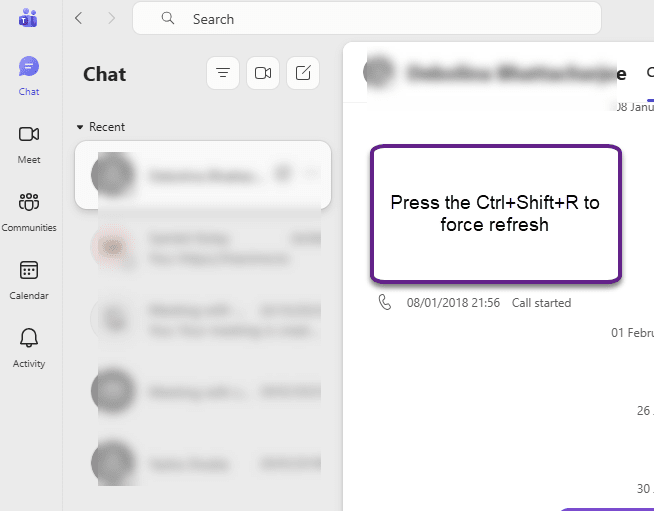
Once you have force-restarted that chat service, send a demo message and test. Check whether the pending messages have delivered or not.
Fix 2 – Reset the Microsoft Teams app data
Sometimes, corruption in the Teams app data can lead to synchronization issues for the messages in the Teams app.
Step 1 – You can’t clear out the Teams app data, unless you have closed the Teams client, first. So, close the Teams app.
Step 2 – Next, tap the arrow button on the taskbar, and locate the Microsoft Teams app there. Next, right-tap the Teams app there, and click Quit Teams to completely close the Teams client.
Step 3 – Right-click the Windows button, and tap Run in the context menu.
Step 4 – Paste the address of the Teams appdata in the Run box and hit Enter to reach there directly.
%localappdata%\Packages\MSTeams_8wekyb3d8bbwe
Step 4 – Delete every file and folder from this folder.
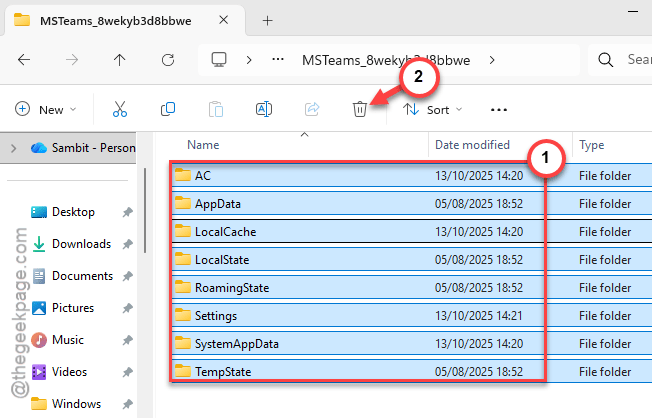
After deleting the folder, relaunch the MS Teams client. You may have to sign in to your account. Allow awhile for the app to reconstruct the MS Teams app data, and it will become available in no time.
Fix 3 – Sign out and sign in to the MS Teams
Signing out of the Teams client and logging back to it should fix the issue.
Step 1 – Load up the MS Teams client. Then, tap the profile icon in the Teams client, and click the Sign out option.
Step 2 – Then, tap the Sign out option once again to sign out of your Teams account.
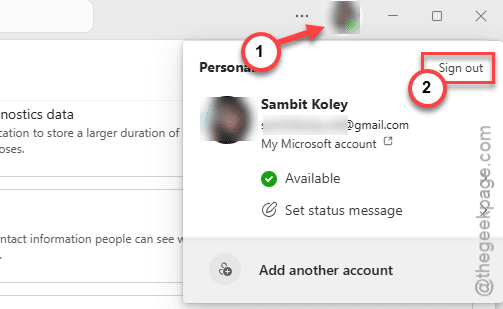
This will return you to the default Teams client page.
Step 3 – Then, tap the account there and sign in to your account.
Check the status of the messages again.
Fix 4 – Set the DNS settings to Cloudflare
Instead of using the default Google DNS address (8.8.8.8), you can set it to Cloudflare address (1.1.1.1).
Step 1 – At first, hit the Win+R key combination. Then, write the ncpa.cpl in the Run box. Hit Enter later to load up the Network & Sharing Center.
Step 2 – Here, find out which network adapter that you are using there. Right-click that adapter and tap Properties.
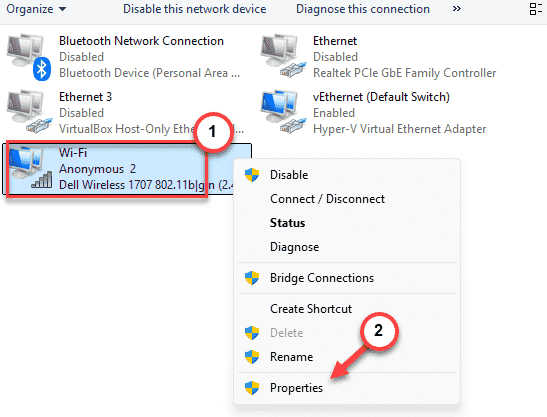
Step 3 – Then, find the Internet Protocol Version 4 (TCP/IPv4) policy to edit.
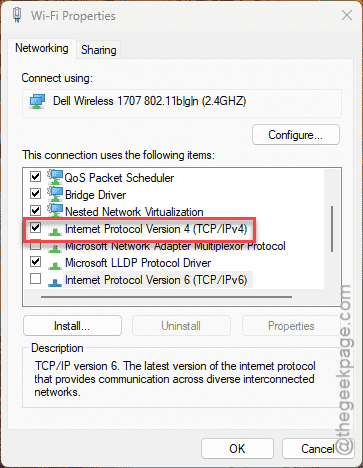
Step 4 – You have to change the DNS address there. So, toggle the Use the following DNS server addresses: option.
Step 5 – Set the DNS address following this –
Preferred DNS Server: 1.1.1.1
Alternate DNS Server: 1.0.0.1
Step 6 – Click OK to save the changes.
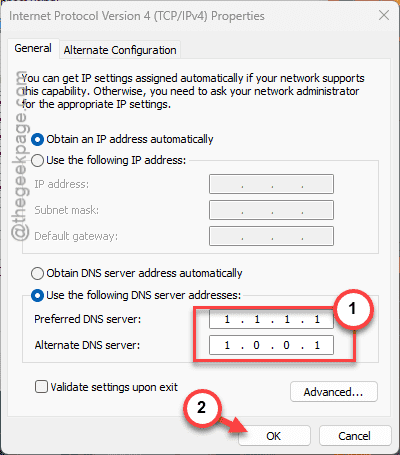
After saving these changes, relaunch the Teams client. Check the status of the messages again.