Can’t find the recording button on the Microsoft Teams? Some of the Teams users can’t see the recording button at the usual place to start recording a meeting. There are other reports where the recording button seems to be missing. Here are some resolutions that will definitively fix the problem at your end.
Fix 1 – Ask IT Admin to enable Recording policy
Recording meetings in Microsoft Teams is a facility that is available for corporate users, only if the recording policy for that user. Not everyone in a meeting, irrespective of the host or guest member, has the privilege to record a meeting.
Step 1 – Open the Teams client, tap the three-dot button there, and tap Settings.
Step 2 – Go to the Privacy section. Load up the Meeting Policies.
It will launch in a browser webpage.
Step 3 – Make sure to turn on these settings –
Allow cloud recording
Allow transcription
Step 4 – Close and relaunch the Teams client.
Now, check whether you can see the record button or not.
Alternative steps for the Administrators –
Step 1 – Go to the Microsoft Teams Admin Center.
Step 2 – Next, reach the Meetings tab and proceed to the Meeting Policies.
Step 3 – Turn on Allow cloud recording policy. Make sure this policy is assigned to your Teams account.
If you are having further issues, contact the IT administrator. Contact your Microsoft 365 administrator can run a further diagnostics tools to check whether such meeting recording policy is active for your account.
They can fix the issue at their end, and apply the policy changes. You can record any meetings in the future.
Fix 2 – Check for OneDrive/Stream enabled plan
Check whether your account is eligible for recording teams meetings.
Step 1 – In the Microsoft Teams client, tap the profile picture once.
Step 2 – Look for the Business Basic, Standard, E1, E3 or E5 category license information. If it says Personal or Microsoft 365 Family, your Microsoft Teams account is not eligible to record meetings.
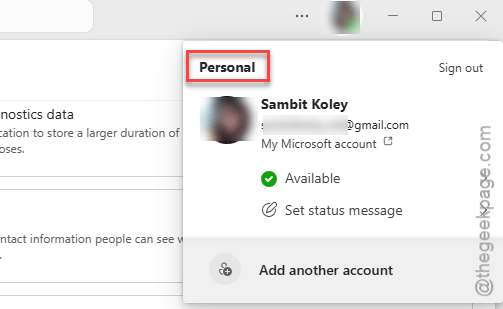
Step 3 – You can also log into your Microsoft account and check the validity of your license.
NOTE – Only Microsoft 365 Business account users can record meetings in Microsoft Teams. The MS 365 Business, E1-E5, can record meetings.
Fix 3 – Sign out of MS Teams and sign in
Logging out of the Microsoft Teams account, and logging back to it should resolve the issue.
Step 1 – You have to sign out of your Microsoft Teams account. To do that, tap the profile icon there, and tap Sign out.
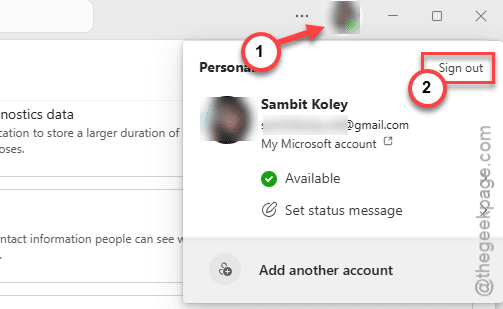
Step 2 – It will show you the standard warning prompt. So, tap Sign out to sign out of the account.
Step 3 – After signing out from the Microsoft Teams account, close the app.
Step 4 – Tap the arrow button in the taskbar. Then, find the Microsoft Teams app there. Right-click that and tap Quit Teams.
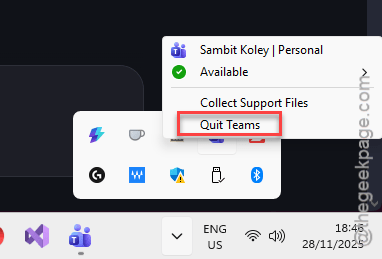
Step 5 – Next, relaunch the Microsoft Teams client once again. Log in using proper credentials.
Once you have logged in, start a demo call. You will see the Recording function there.
Fix 4 – Recording is not available for instant meetings
The recording feature is generally available for the meetings that are pre-scheduled. It is not available for the ad-hoc meetings or 1–1 meetings in a corporate environment, unless explicitly enabled by the IT administrator.