Do the meetings are not loading or getting stuck on your Microsoft Teams client? Some users have recently pointed out this issue where the meetings console is getting stalled at the meeting startup. Don’t worry. There is nothing wrong with your system. Clearing up the Microsoft Teams cache should solve the issue for you.
Fix 1 – Clean up the Teams app cache
If there is corruption in the Microsoft Teams app data, it can cause the app to hang or stall at the meeting startup.
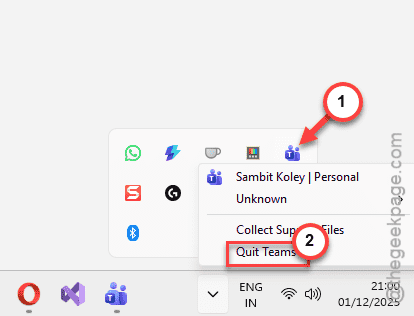
Step 1 – You have to close the Microsoft Teams client. Then, tap the arrow button on the taskbar, and find the Microsoft Teams client.
Step 2 – Next, right-click the Teams app there, and tap Quit Teams.
Step 3 – Then, hit the Win+R buttons together. Write this in the Run box and hit Enter.
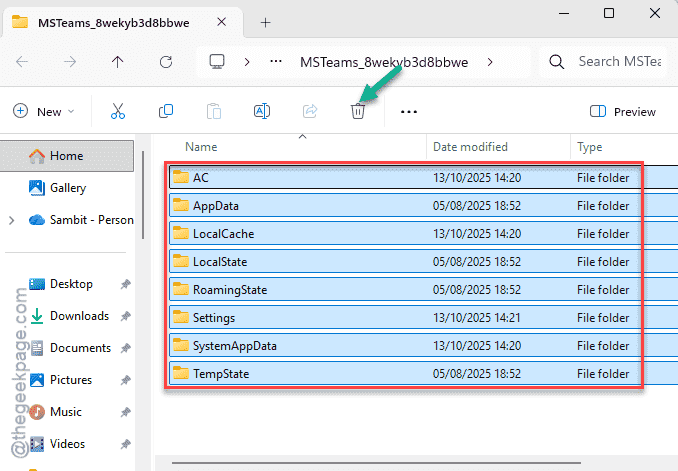
%localappdata%\Packages\MSTeams_8wekyb3d8bbwe
Step 4 – Clear up all the contents in this folder.
Step 5 – Finally, relaunch the MS Teams client.
After clearing up the Teams local cache, you may have to log in afresh.
Fix 2 – Perform a Network Reset
Not having a stable Wi-Fi connection can buffer calls during meetings. So, just reset the network on your PC and reconnect to the Wi-Fi.
NOTE – Resetting the network details on your computer will essentially delete them from your Windows. So, note down or recall the Wi-Fi password before you perform a network reset.
Step 1 – Proceed to the Windows Settings console.
Step 2 – Then, go to the Network & Internet settings.
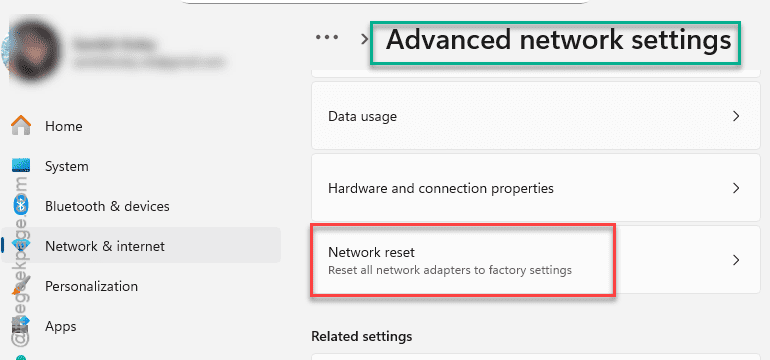
Step 3 – Next, reach the Advanced network settings page. In that page, tap the Network reset option.
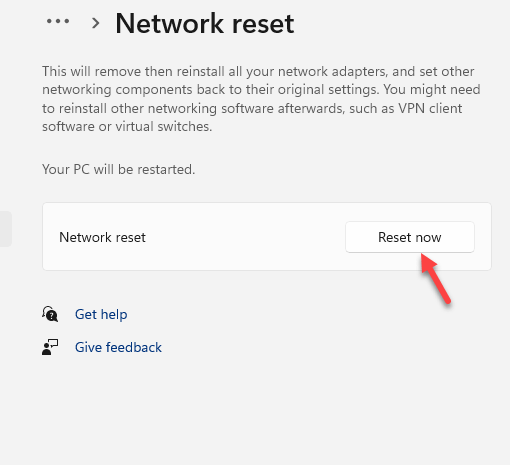
Step 4 – Finally, tap the Reset now button there to start resetting the network credentials.
After resetting the device network, reconnect to the same Wi-Fi network. Try to start a demo meeting and check again.
Fix 3 – Turn off the IPv6 feature
Disabling the IPv6 feature has shown positive results on some of the users.
Step 1 – Just right-click the Start icon and tap the Run box.
Step 2 – Then, put this short code in the Run box and hit Enter.
ncpa.cpl
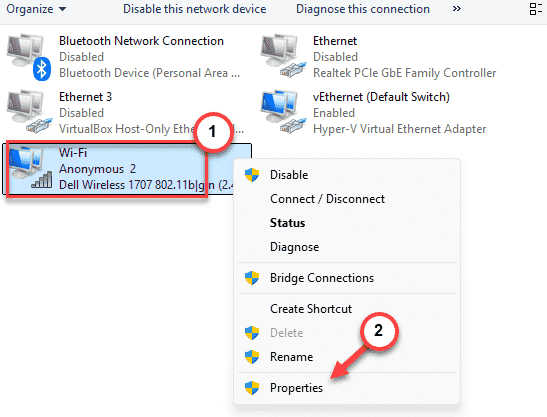
Step 3 – This will take you to Networking & Sharing Center. So, look for the Wi-Fi or other network adapter that you are currently using.
Step 4 – Right-click that adapter, and tap Properties.
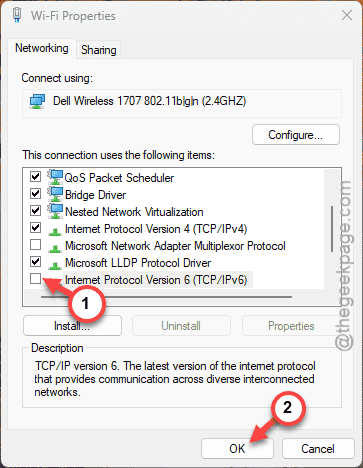
Step 5 – Uncheck the Internet Protocol Version 6 (TCP/IPv6) there. Click OK to save this.
After this, close everything and restart the system. There won’t be any further issues with the team meetings getting stuck.
Fix 4 – Use the MS Teams Web Client
If the meetings are getting stuck in the Teams desktop client, you should use the
Step 1 – Open up the Microsoft Teams web client on a browser of your choice.
Step 2 – Next, tap the Sign in button there.
Step 3 – Sign in using the account ID, password in the Microsoft Teams client on the web browser.

It offers the similar UI experience to the Teams desktop client. Attend the meeting directly from the web client.
Additional Fixes –
If you are still having some issues with the Teams app not loading meeting or the meeting consoles getting stalled, you can just use the Teams client on any other devices, such as your phone or tablet to attend the meeting. Teams client on other devices are usually don’t have such issues.