After upgrading to iOS 26, many users are reporting about the Siri not responding or producing incorrect responses. This particular issue often stems from the Apple Intelligence indexing delays and the bad voice recognition model issue. Here are some proven solutions that users have applied to solve this problem.
Fix 1 – Refresh the Dictation feature for Siri
Turning off and on the Dictation system will refresh up the Siri.
Step 1 – Proceed to the iPhone Settings. Next, go to the General tab.
Step 2 – Next, open up the Keyboard settings.
Step 3 – Scroll down to the bottom of the keyboard settings, and turn off Enable Dictation. Tap Turn Off to confirm it.
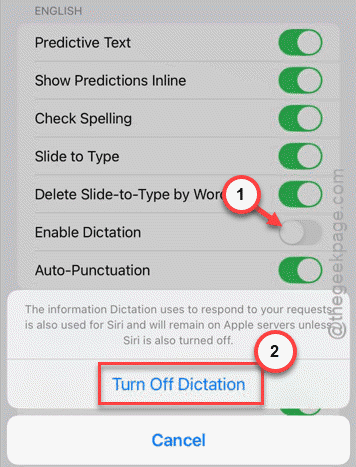
Step 4 – Hold for 10 seconds. Then, restart your iPhone.
Step 5 – After the device restarts, turn on the Enable Dictation feature in the same keyboard settings page.
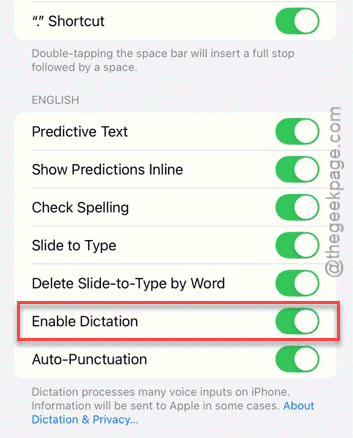
After refreshing the dictation feature, Siri should function normally.
Fix 2 – Force redownload the Siri Assets
Changing the voice system of Apple Intelligence back and forth to different languages will re-download the voice assets, fixing any corrupted pack.
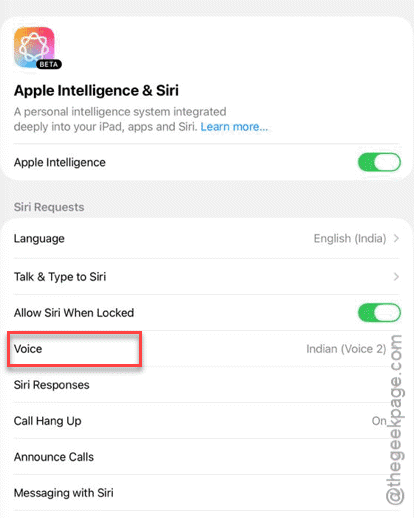
Step 1 – Proceed to the Settings tab. Then, go to the Apple Intelligence & Siri section.
Step 2 – Tap the Voice.
Step 3 – Select a completely different variety of Siri voice (like if you are using English US, switch to English UK or India). This is just a brief change.
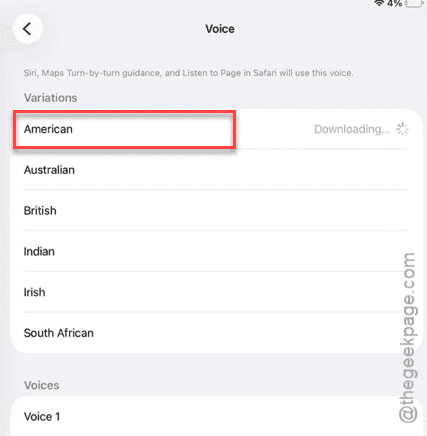
Wait for Siri to download the voice package file.
Step 4 – Once it is done, simply revert back to your original Siri voice.
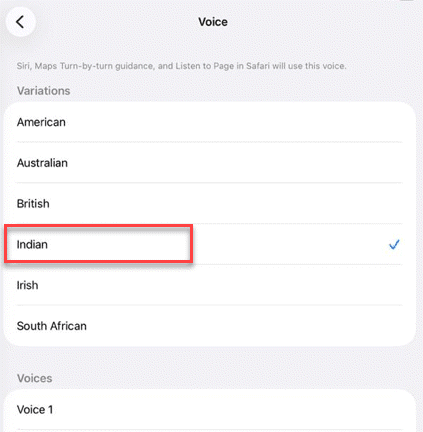
This otherwise simple voice pack switch should refresh the Siri assets.
Fix 3 – Enable Spoken Responses When Silent Mode Toggle
Force the Siri Responses to prefer the spoken responses system to fix this issue.
Step 1 – Proceed to the Apple Intelligence & Siri tab in the iPhone Settings.
Step 2 – Next, load up the Siri Responses tab.
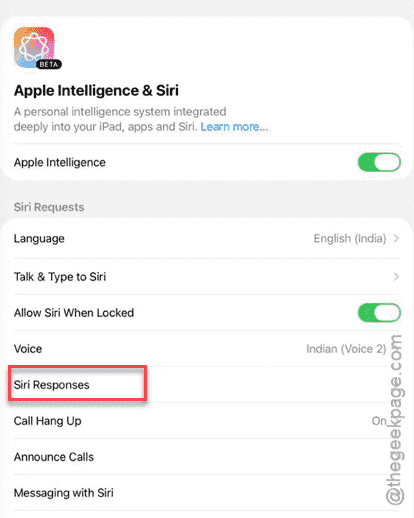
Step 3 – Choose the Prefer Spoken Responses selection. Ensure the Responses When Silent Mode Is Off is also enabled, if it is available.
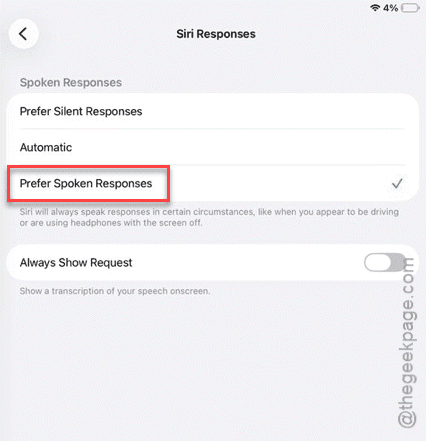
Test the Siri responses again.
Fix 4 – Restart the Voice Recognition System
A corrupted voice recognition system can also contribute to this problem. Create a fresh system of voice recognition system with Siri to fix it.
Step 1 – Open up the Apple Intelligence & Siri settings.
Step 2 – Open the Talk & Type to Siri option.
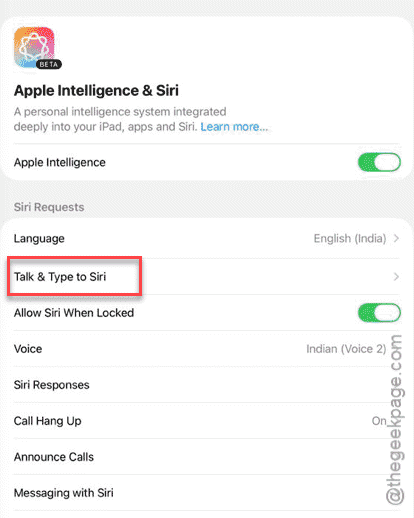
Step 3 – Wait for a few seconds. Then, choose Hey Siri.
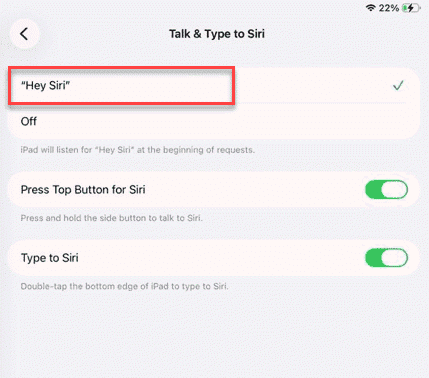
Step 4 – Follow the on-screen steps to set up the Siri voice recognition feature.
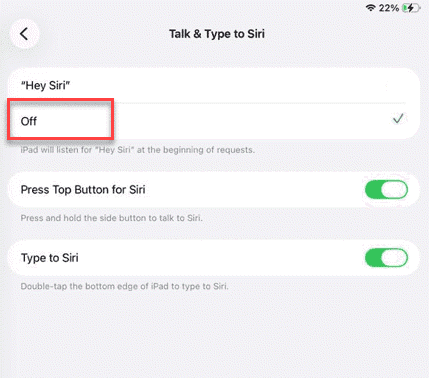
Once it is done, you can just use Siri properly.
Fix 5 – Reset the Siri & Search Indexing
If Siri is ignoring or hallucinating false results with a particular app, do reset the indexing of that app.
Step 1 – Go to the Settings and open up the Siri & Search settings.
Step 2 – Then, find that particular app that is not Siri is not interacting with (such as Contacts, Music or any other third-party app).
Step 3 – Set the Learn from this App and Show in Search settings to Off mode.

Step 4 – Reboot the iPhone once. Then, toggle those two settings to On mode.
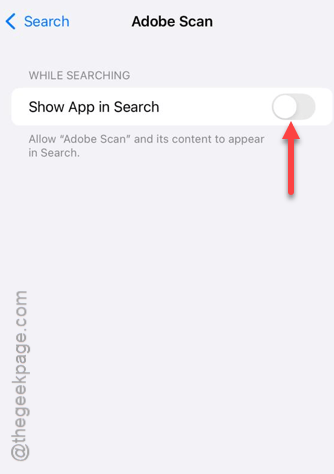
This way, Siri can learn from those apps and show them in the search results.