After the gradual rollout of iOS 26 to all the eligible devices, there are several reports about the iPhone GPS not working, location drifts, or slow location updates. The conflict between the new location-sharing architecture and the legacy SIM card or restricted background refresh settings may cause this problem.
Fix 1 – Use an eSIM to avoid conflict in iOS 26
Some users have fixed this problem by using an e-SIM instead of the physical SIM that caused this issue in the first place.
Step 1 – Go to the Mobile Services tab in iPhone Settings.
Step 2 – Next, tap the Convert to eSIM option. You may have to contact your carrier to do this. Usually, this can be done through the designated app or website.
Step 3 – Remove the physical SIM from the iPhone afterwards.
Step 4 – Restart the iPhone once.
Try using the GPS again.
Fix 2 – Clean up Location System Services Components
Turning off several location-related system components may fix the GPS-related issues.
Step 1 – In the iPhone Settings, proceed to the Privacy & Security tab.
Step 2 – Then, load up the Location Services. Go to the System Services.
Step 3 – Find the Product Improvement section and turn off these three settings –
iPhone Analytics
Routing & Traffic
Popular Near Me
Step 4 – Turn off the Alerts & Shortcuts and Suggestions toggle as well.
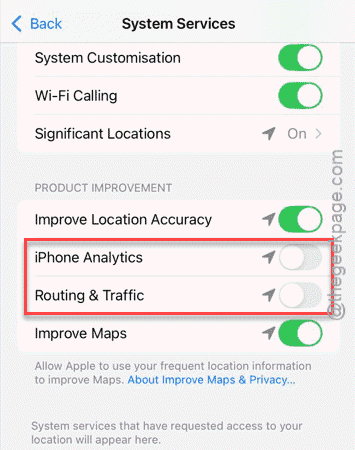
After turning these off, track the GPS location accuracy again.
Fix 3 – Use Dual-Maps to Navigate Properly
There is a nice workaround that uses the high-accuracy mode for the Apple Maps and let you correctly use the GPS properly.
Step 1 – Don’t open Waze or Google Maps first. Instead, load up the Maps on your iPhone.
Step 2 – Start a dummy navigation there.
Step 3 – Then, swipe up to reach the home screen. Then, start the Waze or Google Maps. Do not close the Maps in the background.
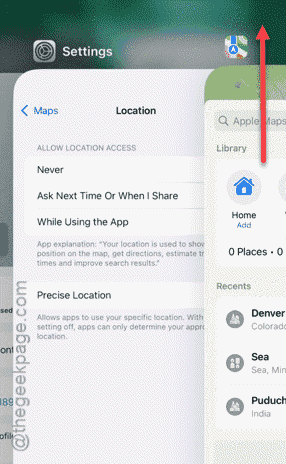
This way, you can use the high-accuracy mode to correctly use the GPS of your iPhone.
Fix 4 – Turn Off Navigation Widgets
Sometimes the navigation widgets can conflict with the GPS system when separate navigation systems are involved.
Step 1 – Locate any navigation widgets on your iPhone. Tap and hold the screen of the iPhone to go into the editing mode.
Step 2 – Tap the ➖ button next to any map widgets to delete any of such widgets from the iPhone.
Step 3 – Tap the Remove button to confirm the removal.
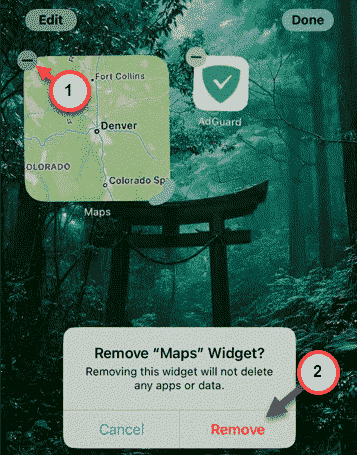
Step 4 – This way, remove every such navigation-related widget from the iPhone.
The GPS won’t drift or get slow location updates again.
Fix 5 – Reset the Location & Privacy Permissions
If you are still having the same issue, reset the location and privacy settings on the iPhone.
Step 1 – Get to the iPhone Settings. Proceed this way –
General > Transfer or rest iPhone
Step 2 – Then, tap the Reset button, next.
Step 3 – Finally, use the Reset Location & Privacy settings to reset the location data on the iPhone.
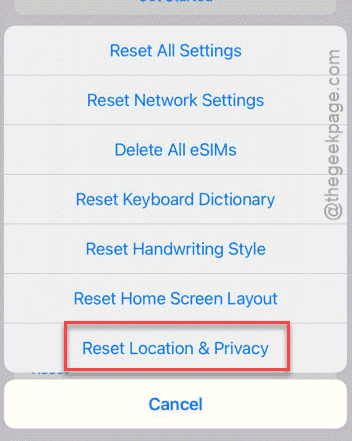
Once you have reset the location data on the iPhone, restart the iPhone. Check whether this is resolved or not.