After updating to the Windows 11 24H2 from Windows 10, some of the users have experienced sound issues on Microsoft Teams app. According to these affected set of users, the sound system is crashing at the startup of a video/voice meet of the Microsoft Teams. This error can be triggered either from the Bluetooth driver or the Teams cache. These are some proven solutions that should be helpful in troubleshooting the issue.
Fix 1 – Update the Bluetooth device driver
The main reason for this issue is the incompatibility of the current Bluetooth driver.
Method 1 –
Step 1 – At first, right-click the Windows button, and tap Device Manager.
Step 2 – Next, expand the Bluetooth panel. Right-click the Bluetooth adapter and tap Update driver.
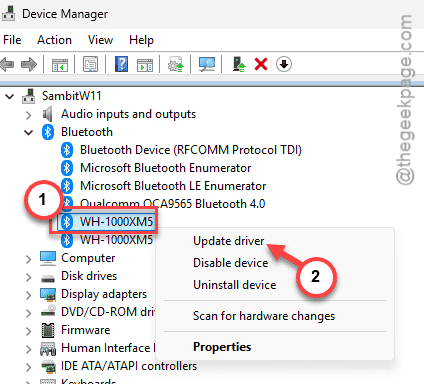
Step 3 – Opt for the Search automatically for drivers module.
Windows will automatically search for the pending update and install it on your machine.
Close the Device Manager. See if the issue still persists.
NOTE – The best and fastest way to get the latest version of Bluetooth driver is from the laptop/PC manufacturer’s website.
- Go to your laptop/PC manufacturer’s Driver centre.
HP
Dell
Asus
Lenovo - Then, input the model number or let it detect your product.

- Next, download the driver update package for Windows 11 and install it.
When the driver update package is installed on your machine, try to use the Microsoft Teams again.
Method 2 –
After upgrading to Windows 11, there should be a pending Bluetooth driver update on your machine.
Step 1 – In the Windows Settings utility, go this way –
Windows Update > Advanced options > Optional updates
Step 2 – Expand the Driver updates section.
Step 3 – Check all the driver updates there. It will include your Bluetooth driver update as well. Tap Download & install to download and install the driver updates.
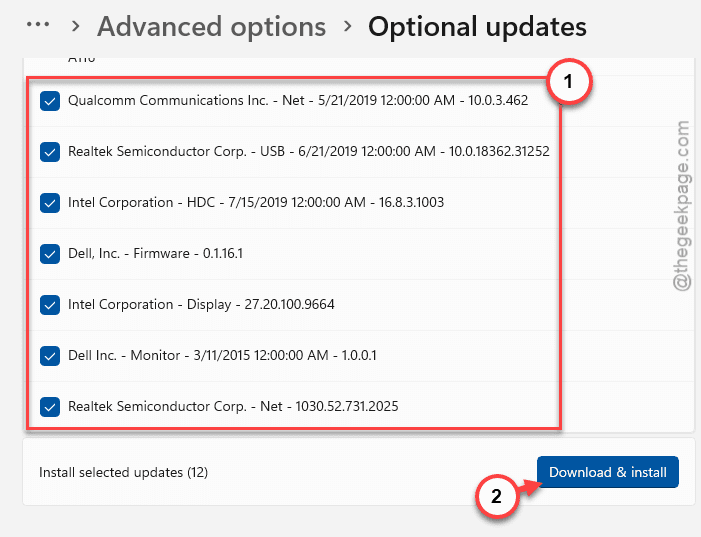
Sometimes, a system restart is necessary following this installation.
Fix 2 – Use the Microsoft Teams on browser
If you want a precise, fast workaround for this issue, you should switch to the Microsoft Teams on web.
Step 1 – Load up the Microsoft Teams on web.
Step 2 – Tap the Sign in option there.

Step 3 – Now, sign in using your Microsoft Teams credentials (your Microsoft Office credentials) to log in there.
You will get a similar layout that you have seen on the Microsoft Teams desktop client. Try to make a demo call to any one of your contacts and check whether the audio system is working.
Fix 3 – Turn off the Hands-Free Telephony for the device
The Hands-free telephony service of the Bluetooth device can cause the crash issue.
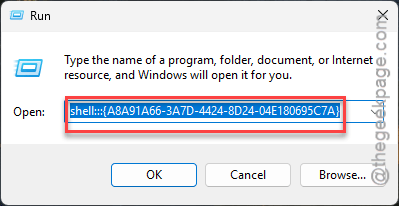
Step 1 – Load up a Run dialogue box using Win+R buttons together.
Step 2 – Paste this and click OK.
shell:::{A8A91A66-3A7D-4424-8D24-04E180695C7A}
[ Or, you can just follow this path –
Bluetooth & Devices > Devices > More devices and printer settings
]
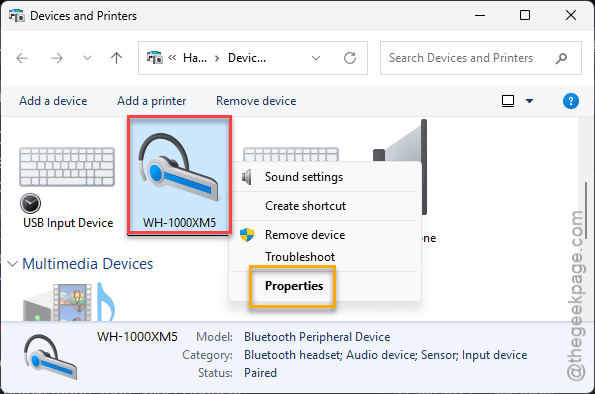
Step 3 – Find the Bluetooth device and tap Properties.
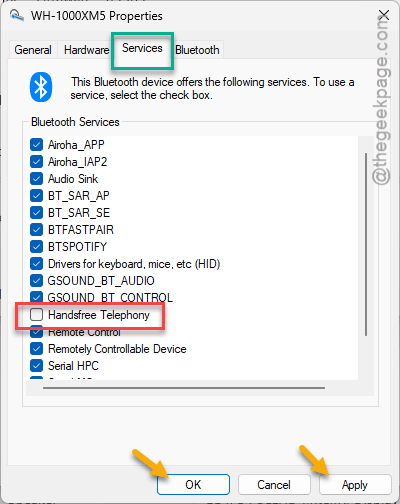
Step 4 – In the Services tab, uncheck the Handsfree Telephony service.
Step 5 – Save the changes using Apply and OK button consecutively.
After applying these changes, retry the Microsoft Teams. It won’t crash the audio system again.
Fix 4 – Run Audio Troubleshooter and Bluetooth troubleshooter
Use the Bluetooth troubleshooter, along with the audio troubleshooter, to detect and fix this sudden crash issue.
Step 1 – In the Windows Settings, open up the System settings. Then, go this way –
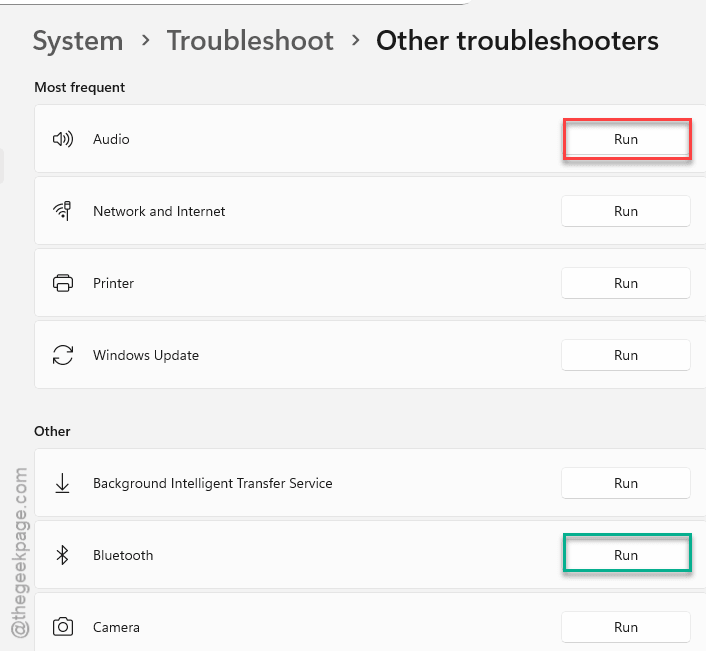
System → Troubleshoot → Other troubleshooters
Step 2 – Find the Audio troubleshooter. Tap the Run option to run the audio troubleshooter.
Continue the audio troubleshooting process on your screen.
If this rectifies the audio system crash issue that you are having with MS Teams, no need to proceed any further.
Step 3 – But, if the problem still sticks, run the Bluetooth troubleshooter as well.
There won’t be any further audio crash issues with Microsoft Teams again.
Fix 5 – Use other sound device in Teams app
The problem may be linked to the Bluetooth device that you are using. So, consider using another device on Microsoft Teams.
Step 1 – Load up the Microsoft Teams desktop client.
Step 2 – Then, tap the three-dot button and tap the Settings.
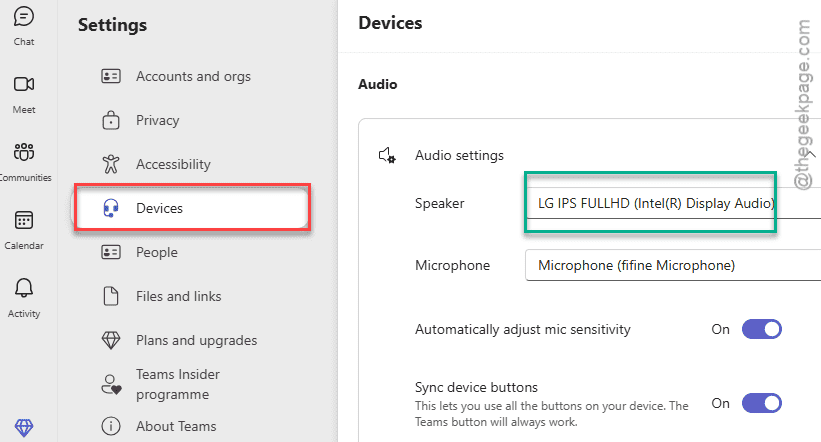
Step 3 – Go to the Devices tab. In the Audio tab, switch to any other sound system other than the problematic one (usually the Bluetooth device).
After switching devices in MS Teams app, try again.
Your issue with the MS Teams crashing sound system will be fixed for sure. Hope this works out for you!