You upgraded to Windows 11. Now OneNote drags. Pages load slow, typing lags, and every so often the whole thing just closes.
No warning. No error. Gone. And it was fine before the upgrade. Painfully frustrating when you’re mid-note. Here’s how to settle it down.
Why This Happens
Short version: the upgrade left OneNote out of step with the rest of the system.
The app didn’t change. The ground under it did.
And graphics acceleration is a big one here. OneNote tries to use your GPU for smoother scrolling. But after the upgrade, that handoff gets buggy. Result? Lag. Sometimes a hard crash.
Then there’s the usual suspects. A corrupted cache. A misbehaving add-in. A half-broken Office install from the upgrade itself. Different causes, same headache.
Fix 1 – Update OneNote and Office First
This fixes it more often than anything else. An outdated Office build on fresh Windows 11 is the classic crash combo. Update it and a lot of this just goes away.
1 – Open OneNote.
2 – Click File in the top-left corner.
3 – Click Account in the left sidebar.
4 – Click Update Options on the right.
5 – Click Update Now.
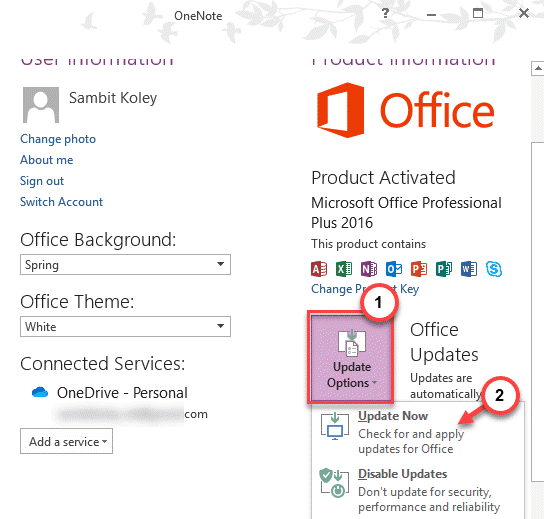
6 – Let it finish, then restart OneNote.
Don’t see Update Options? Your Office might be managed by your work or school. In that case, ask IT — or just run a Windows Update, which sometimes pulls it in.
Fix 2 – Repair Office
If the upgrade scrambled the Office install, a repair puts it back together. Try the quick one first — it’s offline and fast. The online one is the heavier hammer.
1 – Press Windows + I to open Settings.
2 – Go to the Apps part, and open up the Installed apps.
3 – Search for Microsoft 365 (or Microsoft Office) to find it in the list.
4 – Click the three dots (⋯) next to it. Click Modify.
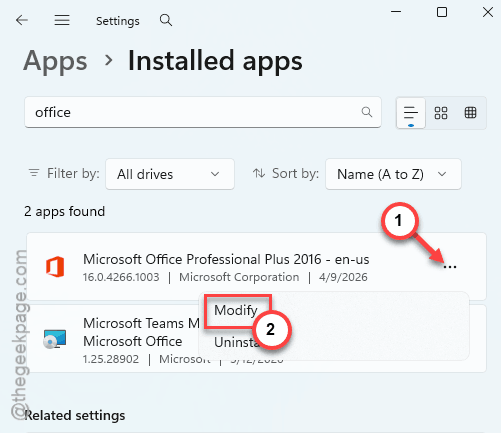
5 – Choose Quick Repair. Click Repair.
6 – Still crashing after that? Go back and choose Online Repair instead. It’s slower but more thorough.
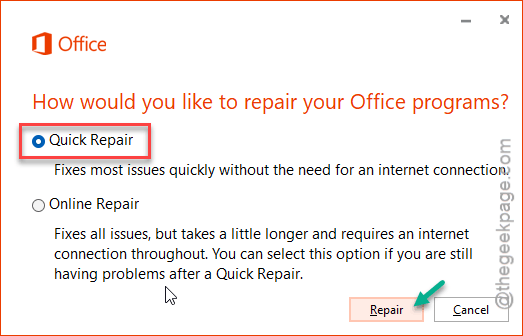
Heads up — Online Repair needs an internet connection and basically reinstalls Office. Your notes are safe, but set aside 20 minutes for it.
Fix 3 – Clear the OneNote Cache
A bloated or corrupted cache makes OneNote crawl. Clearing it forces fresh copies from the cloud. Your notes live online, so this won’t delete anything real.
1 – Close OneNote completely.
2 – Press Windows + R to open the Run box.
3 – Type this and press Enter:
%LocalAppData%\Microsoft\OneNote\16.0\cache
4 – Select everything inside the cache folder. Delete the contents — keep the folder.
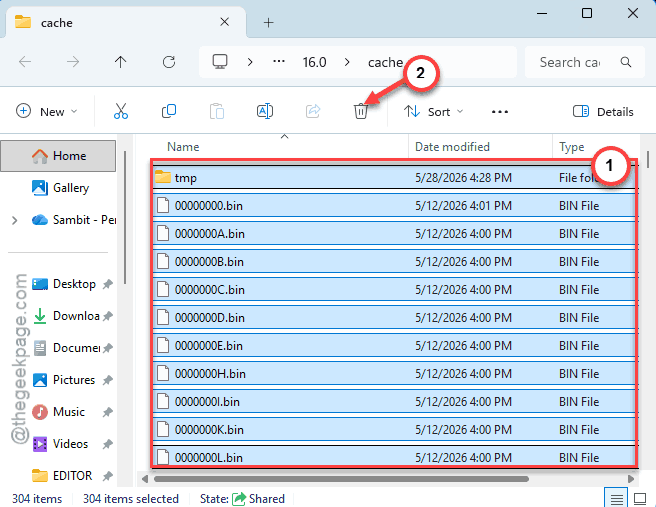
5 – Reopen OneNote and let every notebook resync fully.
It’ll feel slow during the resync.
Fix 4 – Disable Add-ins
A bad add-in is a top cause of random crashes.
1 – In OneNote, click File, then Options.
2 – Click Add-ins in the left sidebar.
3 – At the bottom, set the Manage drop-down to COM Add-ins. Click Go.
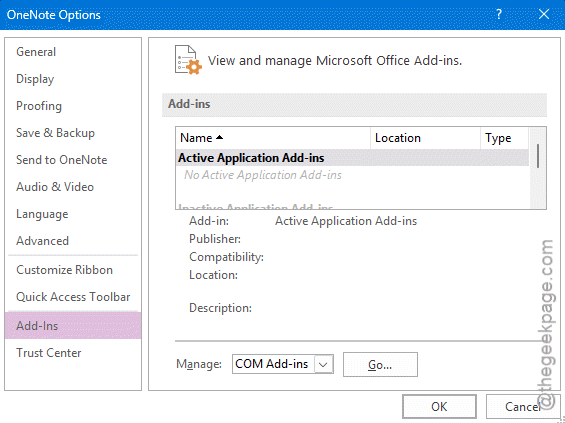
4 – Uncheck every add-in in the list.
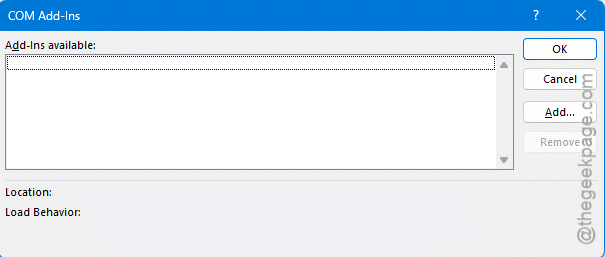
5 – Click OK and restart OneNote.
No more crashes? Leave it off.
Fix 5 – Stop OneNote From Using the GPU
Graphics acceleration causes a lot of the post-upgrade lag and crashing. Telling Windows to run OneNote in power-saving mode sidesteps the buggy GPU handoff.
1 – Press Windows + I to open Settings.
2 – Click System, then Display.
3 – Scroll down and click Graphics.
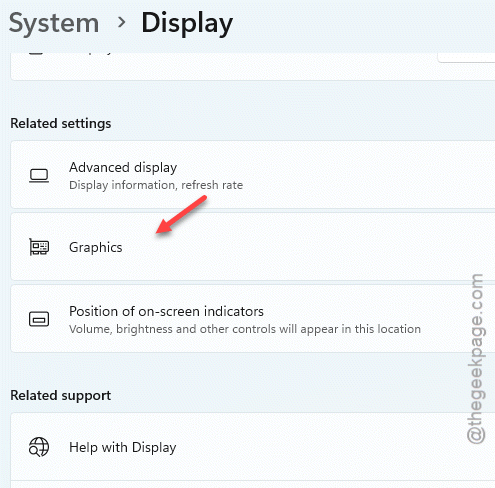
4 – Click Add desktop app, then browse to OneNote and add it. You can find the executable file in this location –
"C:\Program Files (x86)\Microsoft Office\root\Office16\ONENOTE.EXE"
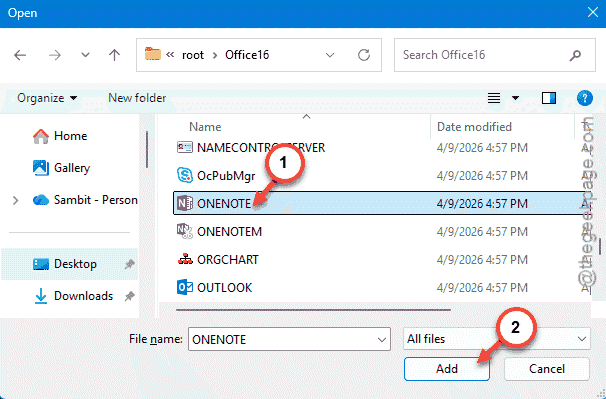
5 – Click OneNote in the list, click Options, and choose Power saving.
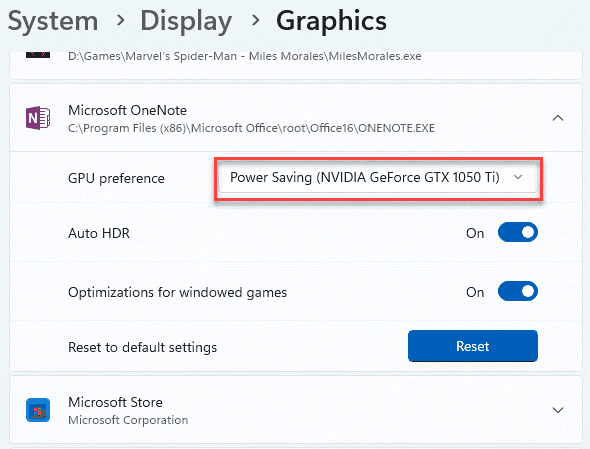
6 – Click Save and restart OneNote.
This forces it onto the integrated graphics — steadier than the flaky high-performance path after an upgrade.
Fix 6 – Trim Down Bloated Notebooks
Got a giant notebook stuffed with screenshots, PDFs, and embedded files? That alone can make OneNote crawl.
Move huge attachments out into regular files and just link to them. Split one massive notebook into a few smaller ones. And delete sections you haven’t touched in years. Smaller notebooks load faster and crash less. Not glamorous advice — but it works, especially on older hardware.
How to Prevent This
– Keep Office updated through File > Account. Most post-upgrade crashes trace back to a stale build.
– Be picky about add-ins. Each one is another thing that can crash OneNote out of nowhere.
– Don’t let a single notebook balloon to thousands of pages with heavy media. Split it before it gets unwieldy.
– After any big Windows update, clear the OneNote cache once. Stops corruption from carrying over.
People Also Ask
Why is OneNote so slow after upgrading to Windows 11?
Update Office through File > Account > Update Options first. If it’s still sluggish, force OneNote into power-saving mode in the Windows Graphics settings to dodge the buggy GPU acceleration.
Will clearing the OneNote cache delete my notes?
No. Your notes live in the cloud on OneDrive, so the cache is just a local copy. Clearing it makes OneNote download fresh copies, which often fixes slowdowns and sync glitches. Just let every notebook finish resyncing before you start working again.