You click OneNote. It bounces. Then nothing. Or it opens for two seconds and dies. Or it loads, you click a notebook, and the whole thing freezes. Painful when you need that note now.
Why This Happens
Basically? OneNote on Windows 11 has three weak spots. Add-ins. Cache. And the print spooler. Sounds random — but one stuck print job can absolutely take down OneNote. So can a third-party add-in installed years ago and forgotten about.
There’s also a bigger one. After Microsoft Office updates, the OneNote install file paths can get mismatched. The app launches, looks for a file it expects, doesn’t find it, crashes. No error. Just gone.
And handwriting recognition? Annoying truth — it’s a frequent crash trigger on tablets and 2-in-1s. Even if you’ve never used the pen.
Fix 1 – Launch OneNote in Safe Mode
Start here. Safe mode disables every add-in. If OneNote opens fine in safe mode? You’ve found your culprit.
1 – Right-click the Start button.
2 – Click Run. Or press Windows + R.
3 – Type onenote /safe (note the space before the slash).
4 – Click OK.
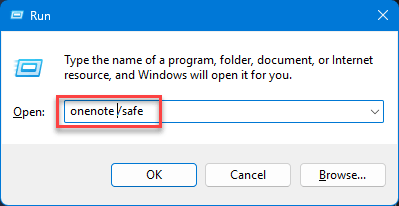
OneNote should open without any add-ins loaded. If it does:
1 – Click File > Options > Add-ins.
2 – At the bottom, find the Manage dropdown. Set it to COM Add-ins.
3 – Click Go.
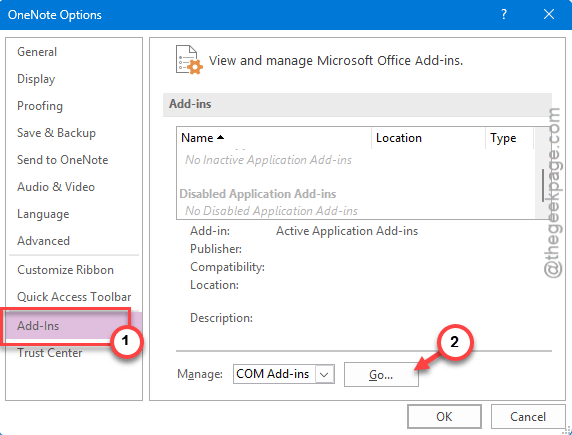
4 – Uncheck every add-in in the list. Or click Remove to fully delete them.
5 – Click OK and restart OneNote normally.
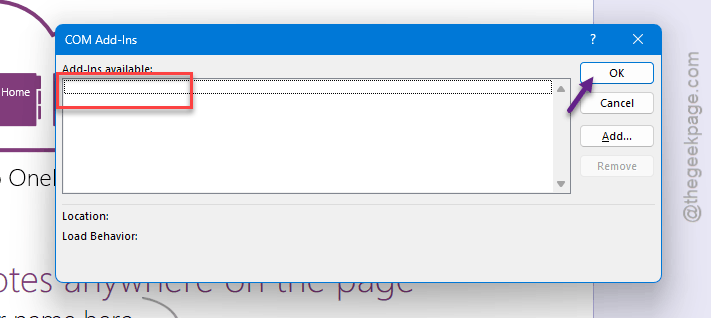
Worked? Re-enable add-ins one at a time to find the bad one. Tedious but worth it.
Fix 2 – Disable Handwriting Recognition
While you’re in safe mode, kill this too. It crashes OneNote way more often than it should.
1 – With OneNote still in safe mode, click File > Options.
2 – Click Advanced in the sidebar.
3 – Scroll down to the Pen section.
4 – Uncheck Enable automatic handwriting recognition.
5 – Click OK.
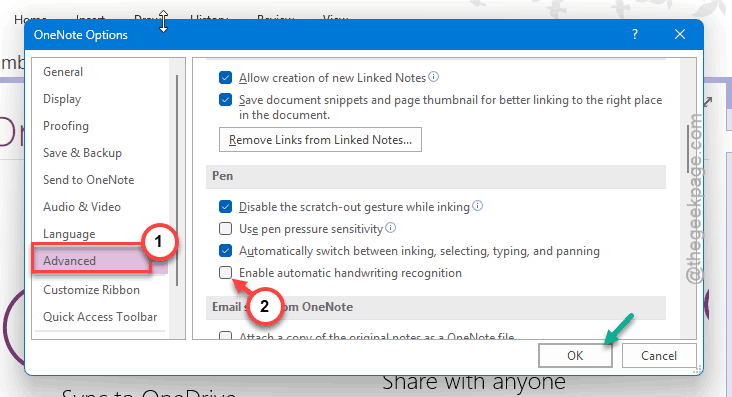
6 – Restart OneNote normally (no /safe this time).
For desktop users who never use a stylus, this should honestly be off by default. Microsoft just doesn’t.
Fix 3 – Clear the Print Spooler Queue
Sounds completely unrelated. It isn’t. A stuck print job can wedge Office apps including OneNote. Quick clear-out.
1 – Press Windows + R.
2 – Type services.msc and press Enter.
3 – Scroll down to find Print Spooler.
4 – Right-click it. Click Stop.
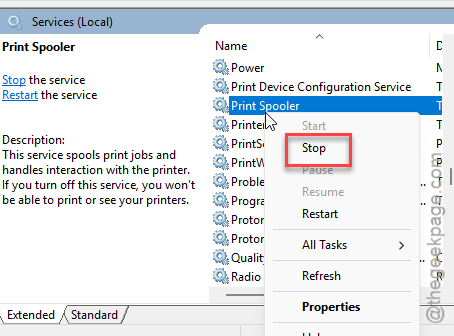
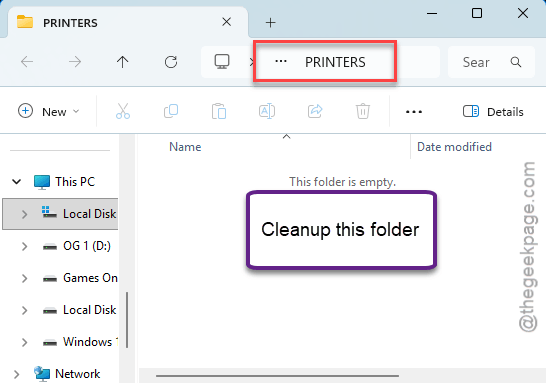
5 – Keep the Services window open. Open File Explorer.
6 – Go to –
C:\Windows\System32\spool\PRINTERS
7 – Select everything inside. Delete it.
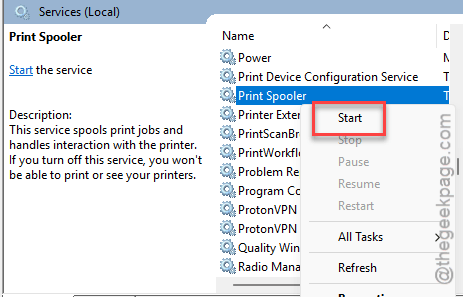
8 – Back in Services, right-click Print Spooler again. Click Start.
9 – Launch OneNote.
For a surprising number of people, that’s the entire fix. Weird, I know.
Fix 4 – Clear the OneNote Cache
Cache corruption causes more OneNote crashes than anything else. Wipe it.
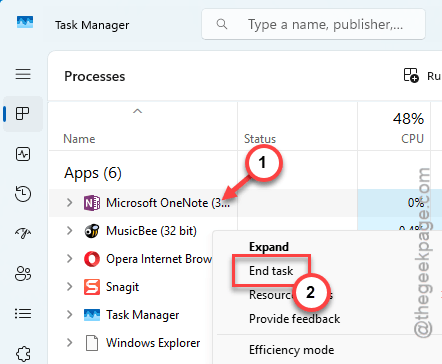
1 – Close OneNote completely. Also close Sticky Notes — it shares files with OneNote.
2 – Open Task Manager with Ctrl + Shift + Esc. End any OneNote, ONENOTEM, or Sticky processes.
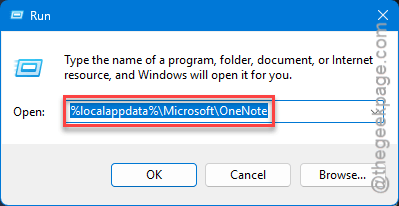
3 – Press Windows + R.
4 – Paste %localappdata%\Microsoft\OneNote and press Enter.
5 – Inside, open the folder named 16.0 (or 15.0 on older Office installs).
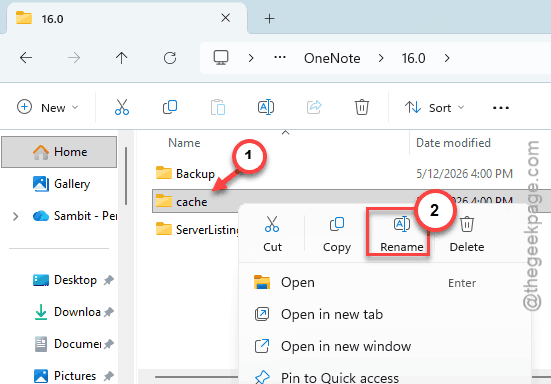
6 – Find the cache folder. Don’t delete it yet.
7 – Right-click it. Click Rename. Rename to cache_old.
8 – Restart your PC.
9 – Open OneNote.
It rebuilds the cache fresh from the server. Your notes are safe — they live in the cloud, not in this folder. Once everything’s working, you can delete cache_old to save space.
Fix 5 – Run a Quick Repair
This is Microsoft’s built-in fix-it. Works offline. Doesn’t redownload anything.
1 – Press Windows + I to open Settings.
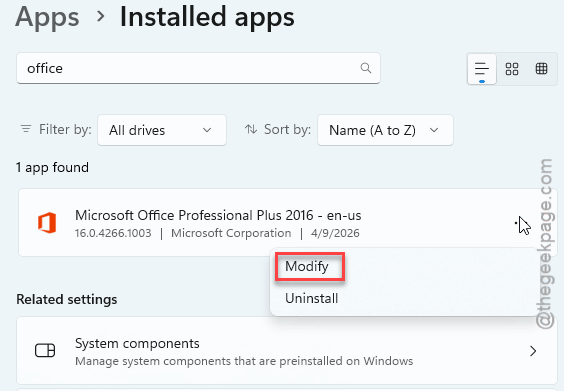
2 – Click Apps > Installed apps.
3 – Type Office in the search box at the top. Or Microsoft 365 if you have that.
4 – Click the three dots (⋯) next to the result. Click Modify.
5 – If a User Account Control prompt pops up, click Yes.
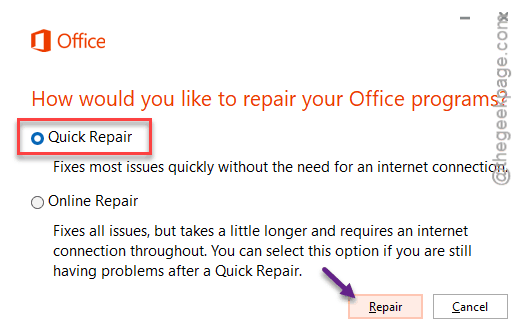
6 – Pick Quick Repair.
7 – Click Repair.
8 – Wait for the Done repairing message.
9 – Open OneNote.
Most minor crashes get sorted by Quick Repair. Takes a minute or two.
Fix 6 – Run an Online Repair
If Quick Repair didn’t work, the deeper version will. Takes longer. Needs internet. Almost always fixes what Quick missed.
1 – Repeat steps 1 through 5 from Fix 5.
2 – This time pick Online Repair.
3 – Click Repair.
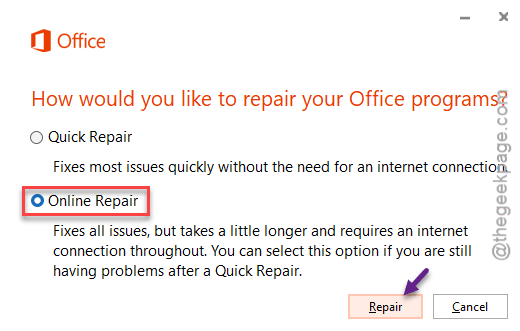
4 – Wait. It downloads and reinstalls every Office component. Can take 15–30 minutes.
5 – You’ll see a You’re all set screen when done.
6 – Restart your PC.
7 – Open OneNote.
Nuclear option for Office. But it doesn’t touch your notebooks or your account. Just the program files.
Fix 7 – Reset or Reinstall OneNote (Standalone Builds)
If you installed OneNote as a standalone Microsoft Store app (not part of Office), the fix is different.
1 – Press Windows + I.
2 – Click Apps > Installed apps.
3 – Search OneNote.
4 – Click the three dots next to it. Click Advanced options.
5 – Scroll down. Click Repair first.
6 – Still broken? Click Reset. This wipes the app’s local data but doesn’t delete cloud notebooks.
7 – Still broken after that? Go back, click Uninstall.
8 – Open Microsoft Store. Install OneNote fresh.
Fresh install. Fresh state. Usually clears whatever was stuck.
How to Prevent This
- You should clean up the OneNote cache regularly, is possible in an interval of 1-2 months. Especially after big Office or Windows updates.
- Keep Office and Windows updated together.
- No need to use OneNote and OneNote browser at the same time. They fight over the same notebook locks.
People Also Ask
What to do if OneNote keeps crashing?
You should try something basic, like launching the OneNote in Safe Mode and check. Otherwise, you should clear the OneNote cache to fix this problem.
How to fix a corrupted OneNote?
Start with the cache. Close OneNote and rename the cache folder at %localappdata%\Microsoft\OneNote\16.0\cache to cache_old. Restart OneNote — it rebuilds clean. Still broken? Run Online Repair from Settings > Apps > Installed apps > Office > Modify. That repairs the install without touching your notebooks.