Some Microsoft Teams users have run into an odd issue where the MS Teams just crashes while sharing the screen. Screen sharing is an advanced feature that mostly relies on GPU processing. While the modern GPU (integrated or dedicated) is capable enough of handling such screen sharing task without any struggle. The usage of obsolete GPU driver or corrupted GPU cache can lead you into such problems. Here are the resolutions that you can implement the solution.
Fix 1 – Update the GPU Drivers
If you have not updated the graphics driver for a long time, there is a high chance that you are using an obsolete GPU driver.
Step 1 – Right-click the Start icon, and tap Device Manager.
Step 2 – Then, expand the Display adapters section. Later, right-click the display driver there, and tap Update driver.
Step 3 – Select the Search automatically for latest driver to download and install the driver.
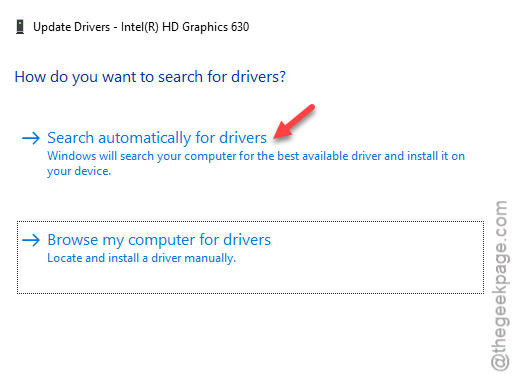
After installing the latest version of the graphics driver, you
Fix 2 – Cleanup the GPU Cache
Clearing the GPU cache stash should help you resolve this crash problem that you are having while sharing your screen.
Step 1 – You must close the Teams client completely. Make sure to close the app from the system tray as well.
Step 2 – Just right-click the Teams app in the tray of apps, and tap Quit Teams.
Step 3 – Then, open a Run box. Paste this address there, and click OK.
%localappdata%\Packages\MSTeams_8wekyb3d8bbwe\LocalCache
Step 4 – Delete all the contents of the Localcache folder.
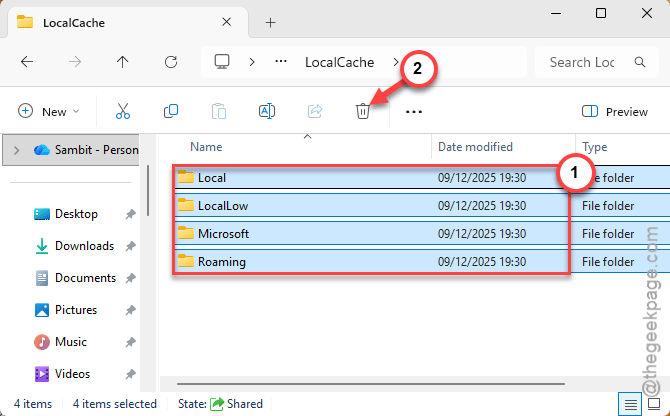
Step 5 – After this, restart the Microsoft Teams client.
MS Teams will automatically rebuild the GPU cache upon the initial startup.
Fix 3 – Share the Entire Screen Instead of Window
Microsoft Teams may run into UI freeze or crash if the user has opted for sharing only the particular window. So, instead of sharing just the window, you must share the entire screen with others.
Step 1 – Start or join the meeting in MS Teams.
Step 2 – In the meeting screen, tap the Share button.
Step 3 – Choose the Screen 1 or Screen 2 to share instead of the preferred windows.
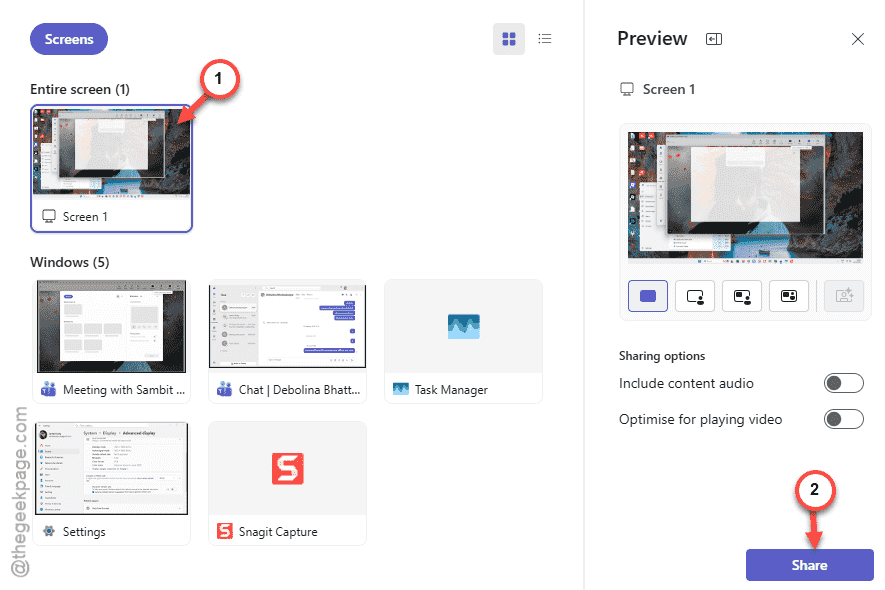
Microsoft Teams won’t crash while you share with others anymore.
Fix 4 – Turn off HDR and High Refresh Rate
The high refresh rate of your screen may interfere with the screen capturing process of MS Teams.
Step 1 – Go to the System settings on Windows.
Step 2 – Next, tap the Display settings.
Step 3 – Set the HDR settings to Off mode.
Step 4 – Later, go to the Advanced display tab. Then, choose a lower refresh rate (60 Hz) for the display.
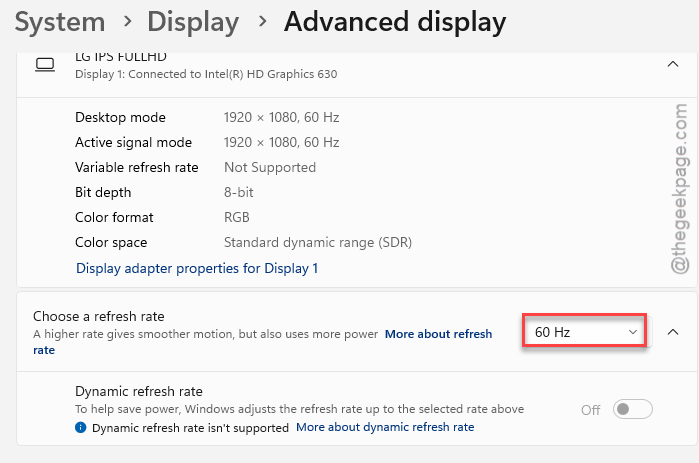
After setting the lower rate, your Teams crash
Fix 5 – Disable the Efficiency Mode for Teams
If Teams app is put on efficiency mode, it may cause instability or app crash in certain scenarios like, sharing the screen.
Step 1 – At first, right-click the Start button, and tap Task Manager.
Step 2 – Now, find the Microsoft Teams app in the Processes tab.
Step 3 – Next, right-click the Teams app and turn off the Efficiency mode from there, if it is turned on.
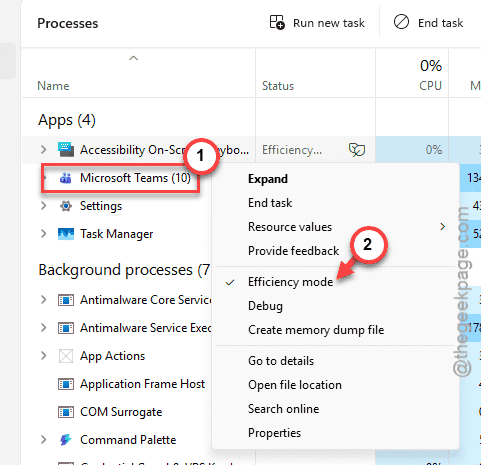
After disabling the efficiency mode, Microsoft Teams client won’t crash during screen sharing operation. Check whether this helps you out or not.