Launch the game. Loading screen. Then bam — desktop. Or it freezes mid-match and your entire system locks up. Happens every session. Unplayable.
Warzone crashing on PC is one of the most frustrating issues in gaming right now. Multiple causes. But there are fixes that actually work.
Why This Happens
Warzone is extremely sensitive to system configuration. Overclocked RAM (XMP profiles) can cause instability. Full-screen optimizations conflict with the game engine. Corrupted game files trigger crashes during map loads.
And Windows 11’s Kernel-mode Hardware-enforced Stack Protection — a security feature — conflicts with the anti-cheat. So you have crashes coming from multiple angles. Not just one thing.
Fix 1 – Disable Kernel-Mode Hardware-Enforced Stack Protection
This Windows security feature conflicts with Warzone’s anti-cheat. Turning it off fixes crashes for a lot of players.
1 – Click the Start button. Type Core Isolation in the search bar.
2 – Click Core Isolation to open it.
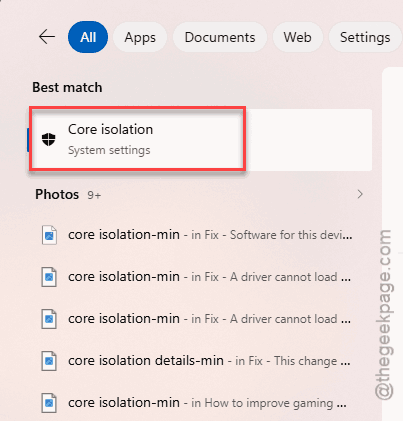
3 – Find Kernel-mode Hardware-enforced Stack Protection.
4 – Toggle it Off.
5 – Restart your computer.
And yeah, you are turning off a security feature. Not ideal. But if the game crashes every match, this is the trade-off. You can always turn it back on when you are done playing.
Fix 2 – Disable XMP in BIOS
XMP overclocks your RAM. Warzone hates overclocked RAM. The crashes always look like processor or RAM related — freezing, then crash to desktop.
1 – Restart your PC and press the BIOS key during boot. Usually Delete or F2 (depends on your motherboard).
2 – Find the XMP or EXPO setting. Usually under overclocking or memory settings.
3 – Set it to Disabled or Auto.
4 – Save and exit BIOS.
Your RAM will run at the default speed (probably 2133 MHz or 2666 MHz instead of 3600 MHz). But the game will stop crashing. One user dropped from 3600 MHz to 2666 MHz and said “everything magically works.” So it is worth testing.
Fix 3 – Set Compatibility Options for cod.exe
Disabling full-screen optimizations and running as admin prevents a bunch of rendering conflicts.
For Battle.net:
1 – Open the Battle.net launcher.
2 – Go to Call of Duty settings (the gear icon).
3 – Click Show in Explorer to open the game folder.
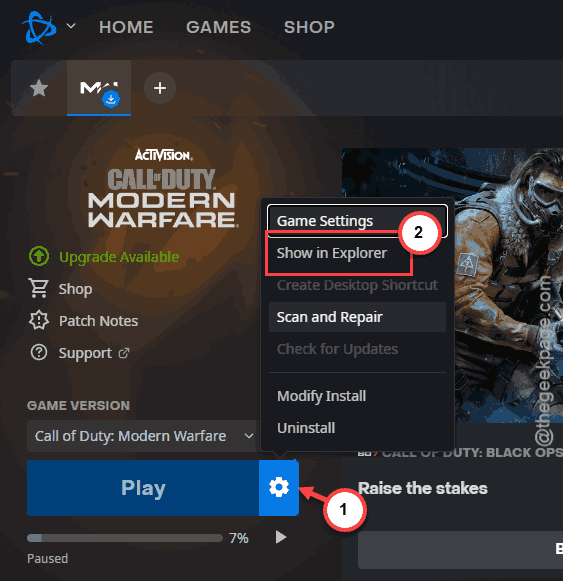
For Steam:
1 – Right-click Call of Duty in your library.
2 – Go to Properties, then Installed Files, then Browse.
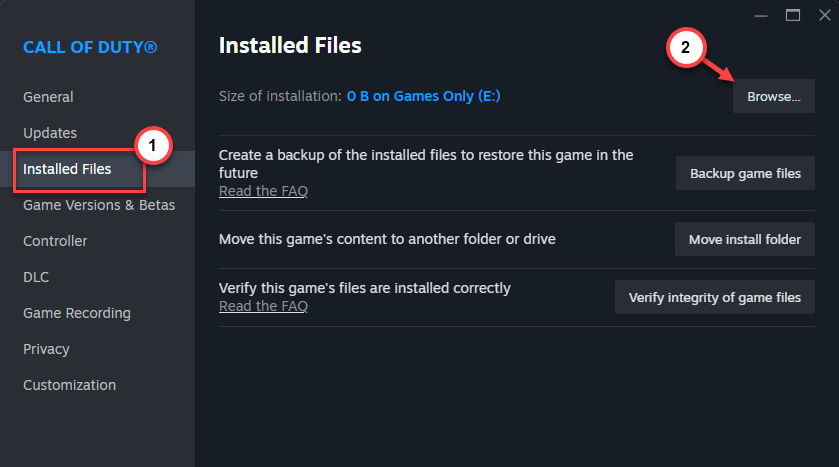
Then for either launcher:
1 – In the game folder, find cod.exe.
2 – Right-click it and click Properties.
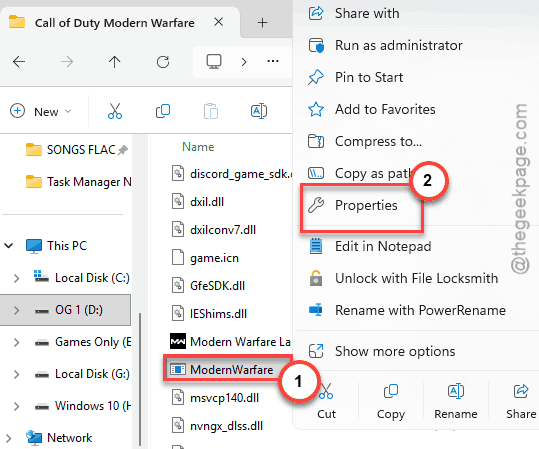
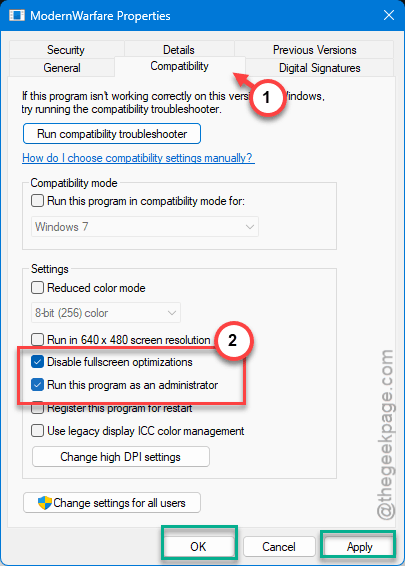
3 – Go to the Compatibility tab.
4 – Check Disable full-screen optimizations.
5 – Check Run this program as an administrator.
6 – Click Change settings for all users at the bottom. Make sure those same two boxes are checked there too.
7 – Click Apply, then OK.
Try to run the game and check.
Fix 4 – Force-Refresh Game Files (The Renaming Trick)
This forces the launcher to re-index game files without downloading the whole game again. Clever workaround.
For Battle.net:
1 – Close Battle.net completely.
2 – Go to the game’s installation folder.
3 – Rename the main folder. Something like “Call of Duty” to “Call of Duty New“.
4 – Open Battle.net. It will say “Install” for the game.
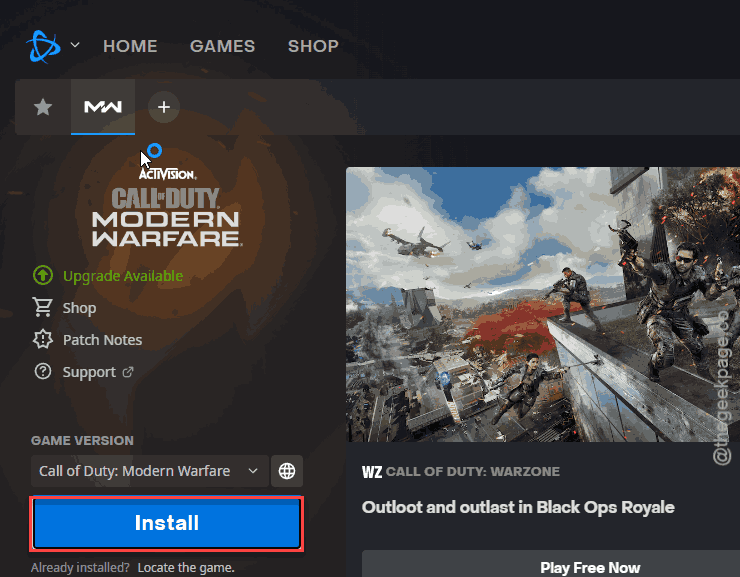
5 – Click Locate the game and point it to your renamed folder.
For Steam:
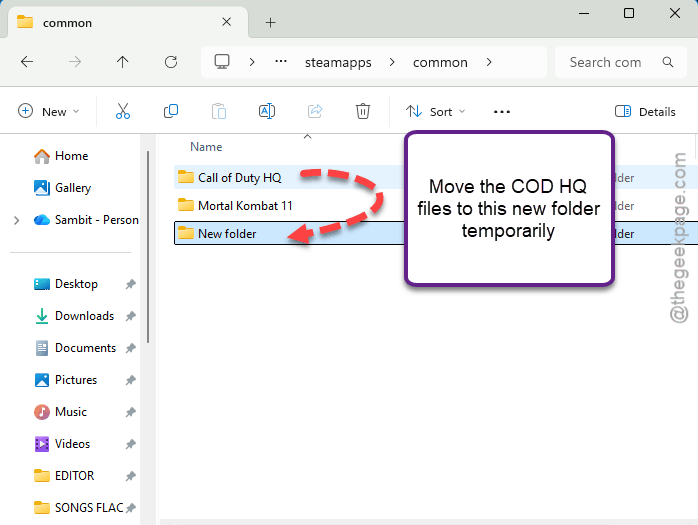
1 – Create a new folder in your Steam library directory.
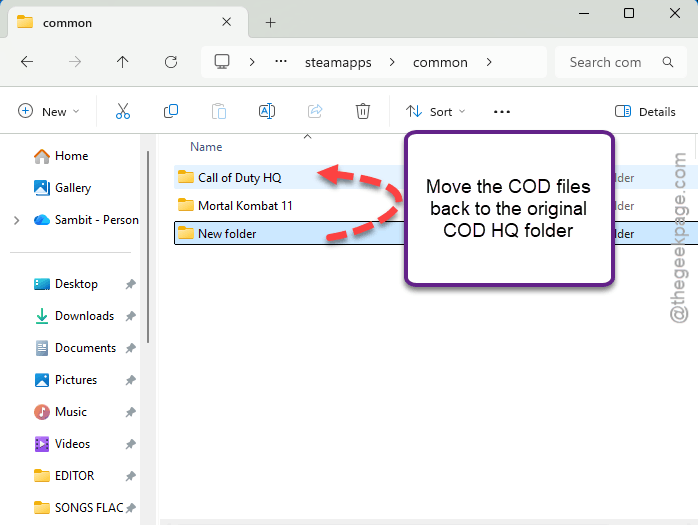
2 – Cut all files from the original Call of Duty HQ folder into that new folder.
3 – Uninstall the game in Steam. It will happen instantly since the folder is empty.
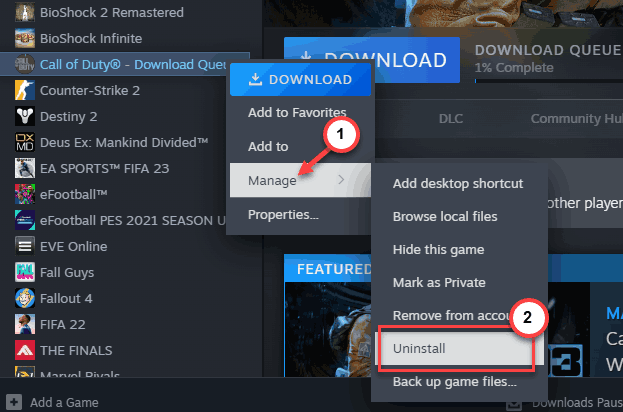
4 – Start a new install. Wait for 1% progress, then pause it.
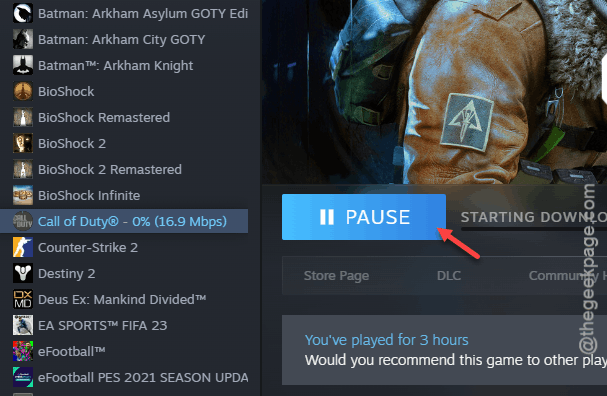
5 – Move the files back from your temporary folder into the newly created Call of Duty HQ folder.
6 – Resume the installation. Steam will validate instead of downloading.
Takes a while. But way faster than redownloading 150+ GB.
Fix 5 – Disable Steam Overlay
Quick fix for Steam users. The overlay sometimes conflicts with the game’s rendering.
1 – Open Steam.
2 – Right-click Call of Duty in your library.
3 – Click Properties.
4 – Under the General tab, toggle off Enable the Steam Overlay while in-game.
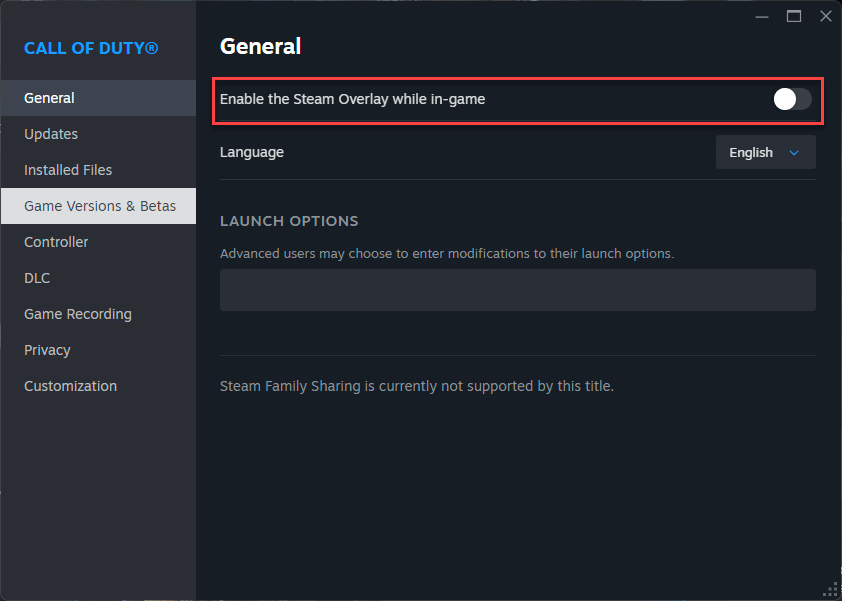
Not a guaranteed fix. But if the crash happens right after the overlay pops up, this is probably it.
How to Prevent This
- Disable XMP while playing Warzone. Re-enable it when you are done if you want.
- Keep Core Isolation’s stack protection off during gaming sessions.
- Always run cod.exe as administrator with full-screen optimizations disabled.
- After major game updates, verify game files to catch any corruption early.
People Also Ask
Why does my PC keep crashing when I play Warzone?
XMP is the most common cause. Your RAM is overclocked and Warzone cannot handle it. Go into BIOS and disable XMP. Also turn off Kernel-mode Stack Protection in Core Isolation settings. Those two fixes alone solve it for most players.
How to fix a game that keeps crashing on PC?
Start with the basics. Update GPU drivers. Verify game files. Run the game as admin. Disable overlays. If it still crashes, check your RAM settings in BIOS — XMP profiles cause more game crashes than people realize.
What to do if COD keeps crashing?
Disable XMP in BIOS first. Then disable full-screen optimizations on cod.exe. Turn off Core Isolation stack protection. And verify your game files. If none of that works, try the renaming trick to force the launcher to re-index everything.