When Microsoft Teams hits a deadlock between the authentication token and local cache, it can crash and show the ‘We’ve run into an issue‘ message. This problem is a generic one, and it should not take much effort to fix this issue. Clearing the Microsoft Teams cache should help you get the Teams app back on track. Here are some steps that you can follow to do that.
Quick Fix Table –
| Issue | Recommend Fix |
| Crashing on Splash Screen | Clean up the Microsoft Teams Cache |
| Restart Now button loop | Repair the WebView2 Runtime |
| Crashing after login | Delete corrupted Teams credentials. |
Fix 1 – Completely clean the MS Teams Cache
There is a possibility that the MS Teams cache is corrupt. You should clear up the Teams app cache from your local.
Step 1 – Quit the MS Teams client.
Step 2 – Then, go ahead and press the Win+R buttons. Paste this there, and click OK.
%localappdata%\Packages\MSTeams_8wekyb3d8bbwe\LocalCache\Microsoft\MSTeams
Step 3 – Delete everything inside that folder.
Step 4 – Restart the Microsoft Teams client.

Once you have rebooted the Teams app, relaunch the same app again. Then, check whether the Teams app is working or not.
Fix 2 – Reinstall the Edge WebView2 Runtime
Some users have fixed this issue simply by reinstalling the Edge WebView2 Runtime component in their system.
Step 1 – Go to the Settings tab. Tap the Apps console. Go to the Installed Apps.
Step 2 – Search for Microsoft Edge WebView2 Runtime app.
Step 3 – Tap the three-dots button there, and click Modify.
Step 4 – Choose to Repair the app.
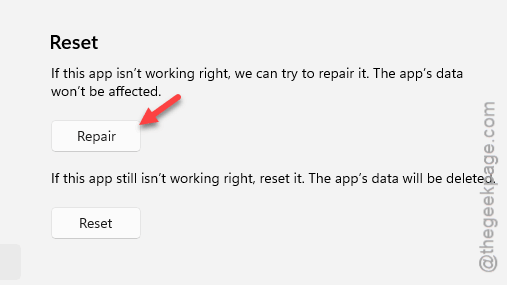
Once you have repaired it, reload the Teams client and check again.
NOTE –
If the ‘Modify’ button is greyed out, download the Evergreen Bootstrapper tool from Microsoft and run the setup file. It will give you the option to modify/ repair the app.
Fix 3 – Reset the Teams app via Store
If there is some corruption in the Microsoft Teams application package files, this may lead to such error messages.
Step 1 – To do this, press the Win+I buttons. Go to the Apps tab.
Step 2 – Then, go to the Installed Apps button.
Step 3 – Find out the Microsoft Teams app. Do a search to locate it first. Then, tap the three-dot button, and tap Advanced options.
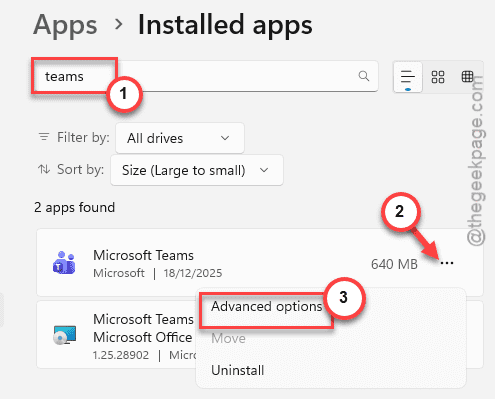
Step 4 – Then, tap the Repair button. Try to open the Teams app and check.
Step 5 – If the Teams app still crashes with the same error message, tap the Reset button to reset the Teams client.
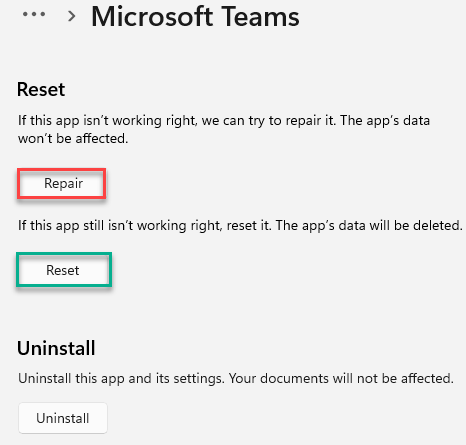
It won’t delete any of your personal data from the Teams app. Just keep in mind that you have to sign in using your Microsoft Teams credentials to log in at the next Microsoft Teams startup.
Fix 4 – Do the Teams app Credential Manager Refresh
Sometimes the ‘expired’ Teams credentials may fail to log you in to the Microsoft Teams app.
Step 1 – Close the stuck Microsoft Teams app client.
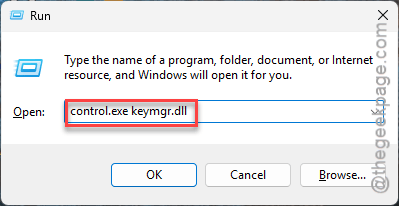
Step 2 – Then, press the Win+R buttons. Later, type control.exe keymgr.dll there and click OK.
Step 3 – Choose the Windows Credentials.
Step 4 – Look for any entries that contains the msteams or MicrosoftAccount:user= in the list of credentials. Select that particular credential and tap Remove to delete it from there.
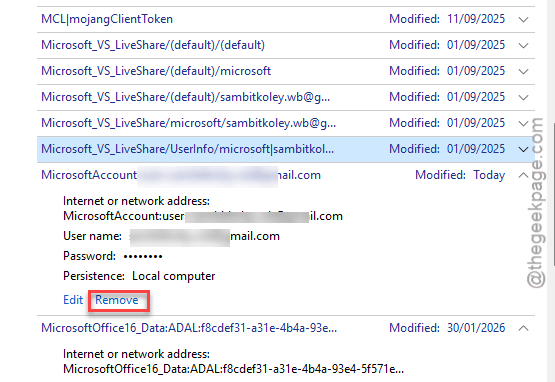
Step 5 – Restart the Microsoft Teams client.
Check whether the app is working properly or not.