When Word can’t recognize a particular font from the MS Word document, it will just show up blank squarers or gibberish symbols all over it. It generally means that a particular font file is not installed on your system or the fonts are hidden based on the system language. You can easily fix this problem, enacting these steps at your end.
Quick Troubleshooting Table:
| Issue | Recommend Fix |
| Fonts appear as squares or gibberish | Change the gibberish font to Ariel, and then reset to original font to reset |
| Fonts missing on other system | Embed the fonts while saving the document (Fix 1) |
| Installed fonts not appearing | Only TrueType(.ttf) or OpenType (.otf) font styles are supported |
Fix 1 – Choose to Embed fonts in the file
If the document appears good at your end, but the fonts are vanishing from the other end, you should just choose to embed the fonts with the file while saving it.
Step 1 – Go to the File menu in MS Word document. Then, tap the Options tab.
Step 2 – Next, go to the Save tab.
Step 3 – Check the Embed fonts in the file and the Embed only the characters used in document in the bottom of the Options tab.
Step 4 – Click OK to save the changes.
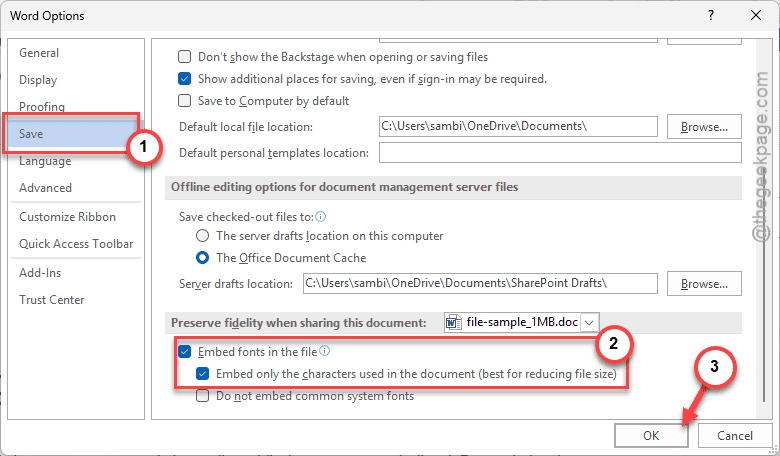
After saving the change, save the file once more. Then, share the same file with others and check.
Fix 2 – Turn Off the Hide Font Based on Language
[For Windows 10 users Only]
Some users have fixed this problem by turning off the settings that hide fonts based on the language settings of the device.
Step 1 – Simply, hit the Win+R buttons. Then, input this Run code in the box, and hit Enter.
control fonts
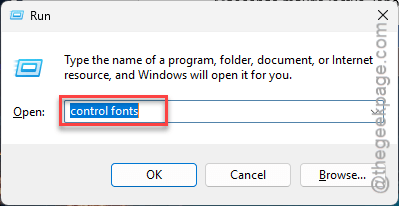
Step 2 – Tap the Font settings tab.
Step 3 – Uncheck the Hide fonts based on language settings box there. Click OK to save this.
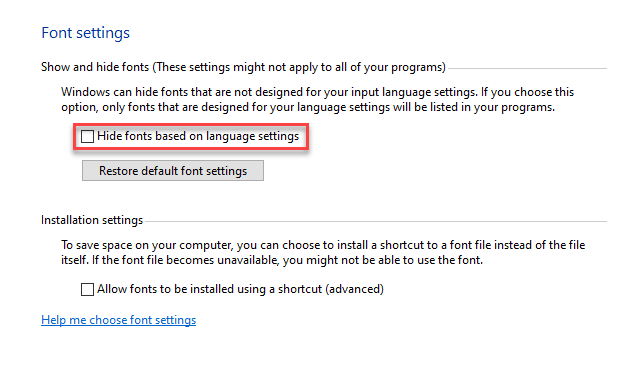
This should fix the fonts’ problem that you are having on the issue.
Fix 3 – Use the Font Substitution Tool
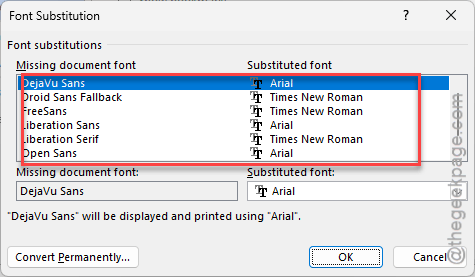
MS Word has a system where it can recognize the missing font from the document, which can be easily replaced by the end-user.
Step 1 – Get to the File tab on your document. Then, proceed to the Options tab.
Step 2 – Proceed to the Advanced tab. Find the Show document content section.
Step 3 – Use the Font Substitution button there.
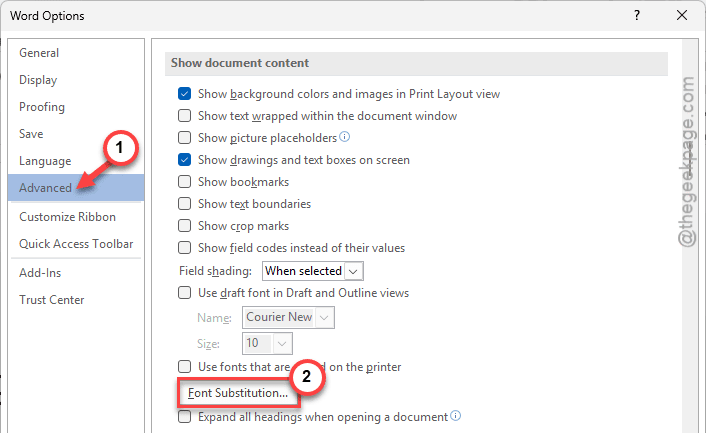
Step 4 – It will list you all the missing fonts in the document and allows you to map them properly with existing fonts.
Try to read the document again.
Fix 4 – Install the Font file manually for all users
If your device has multiple users, possibly the fonts are not installed for them.
Step 1 – If you have a font file (.otf or .ttf) file, it should be installed for all the users of the device.
Step 2 – Locate such .otf or .ttf file on your system. Right-click that file and tap Install for all users button.
Follow the on-screen steps to install the fonts manually for all the users of your device. It will place the fonts in the Fonts directory in root Windows drive.
Fix 5 – Clear the Windows Font Cache
If the fonts are still not appearing correctly on the MS Word, clearing the Windows Font Cache may help.
Step 1 – At first, close all the MS Office apps.
Step 2 – Then, proceed to this location –
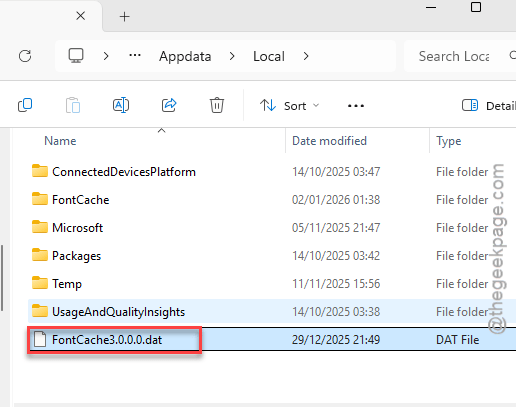
C:\Windows\ServiceProfiles\LocalService\AppData\Local
Step 3 – Locate any files ending with FontCache*.dat extension. Delete any such files from there.
After this, restart the device. Windows will automatically rebuild the font cache. Open the same document again, and check.