You’re at the login screen. No PIN field. No password box. No sign-in options at all. Just your name and a blank screen. Usually a Windows Hello setting or corrupted credential data. Fixable even if you’re locked out.
Why This Happens
Basically? Windows 11 has a setting called “Only allow Windows Hello sign-in for Microsoft accounts.” When that’s on, it hides the password option from the login screen. So if your PIN breaks? No fallback. You’re stuck.
Corrupted NGC folder data causes this too. NGC stores your PIN credentials. When it gets messed up after an update, Windows can’t load any sign-in options. And a registry value called DevicePasswordLessBuildVersion can hide the password field entirely.
Multiple things that can lock you out of your own PC. Frustrating. So yeah.
Fix 1 – Use an Alternate Sign-In Option
If any other method is available, use it to get in first.
1 – On the login screen, click Sign-in options (small icon below the PIN field area).
2 – Look for a key icon (password) or fingerprint icon.
3 – Click it.
4 – Enter your Microsoft account password.
5 – Once logged in, press Windows + I to open Settings.
6 – Click Accounts from the left sidebar.
7 – Click Sign-in options on the right side.
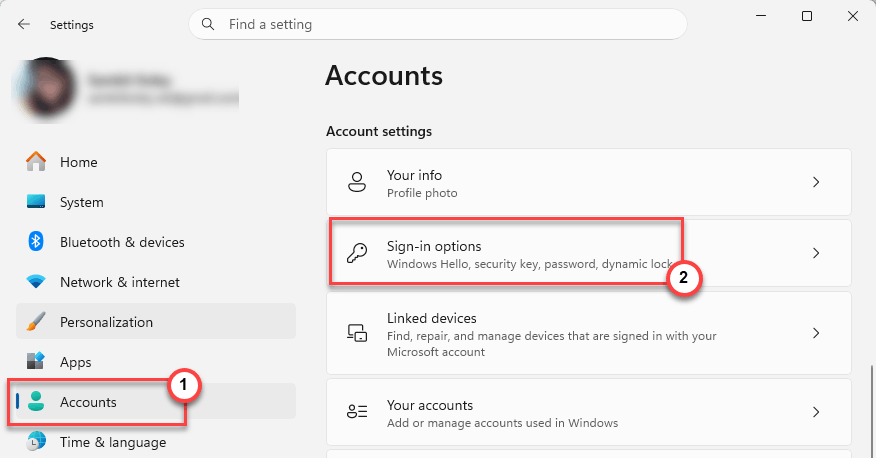
8 – Scroll down to Additional settings.
9 – Turn off the For improved security, only allow Windows Hello sign-in for Microsoft accounts on this device feature.
And that brings back the password option on the login screen as a fallback.
Fix 2 – Delete the NGC Folder via Recovery
If you can’t get in at all, boot into recovery and delete the corrupted PIN data.
1 – On the login screen, hold the Shift key on your keyboard.
2 – While holding Shift, click the Power icon in the bottom right.
3 – Click Restart.
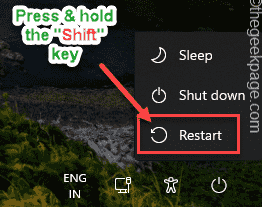
4 – Your PC boots into the recovery menu.
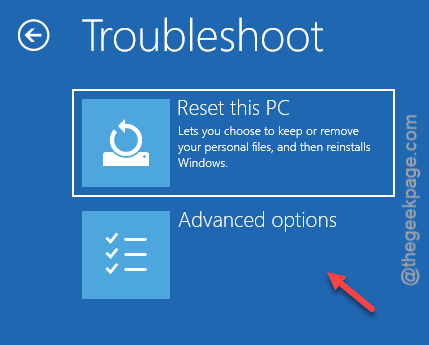
5 – Click Troubleshoot.
6 – Click Advanced Options.
7 – Click Command Prompt.
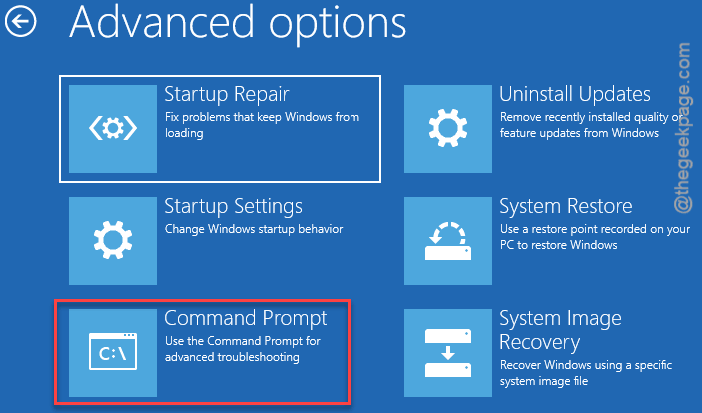
8 – Type this command and press Enter:
icacls C:\Windows\ServiceProfiles\LocalService\AppData\Local\Microsoft\NGC /T /Q /C /RESET
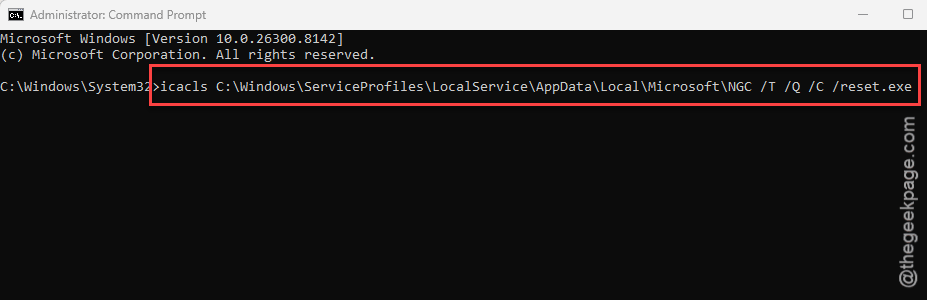
9 – Close Command Prompt.
10 – Click Continue to restart normally.
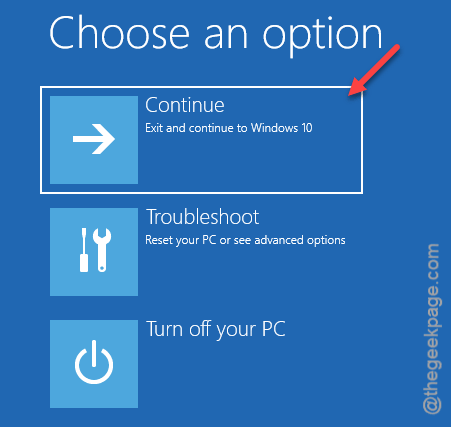
After restart, the password option should appear on the login screen. Sign in and set up a new PIN.
Fix 3 – Delete the NGC Folder Manually
If the permissions reset didn’t work, delete the entire NGC folder manually in the Recovery Mode.
1 – Boot into recovery again (Shift + click Power > Restart from the login screen).
2 – Open Command Prompt from Advanced Options.
3 – Type explorer.exe and press Enter. This opens File Explorer.
4 – Go to:
C:\Windows\ServiceProfiles\LocalService\AppData\Local\Microsoft\
5 – Find the NGC folder.
6 – Delete it.
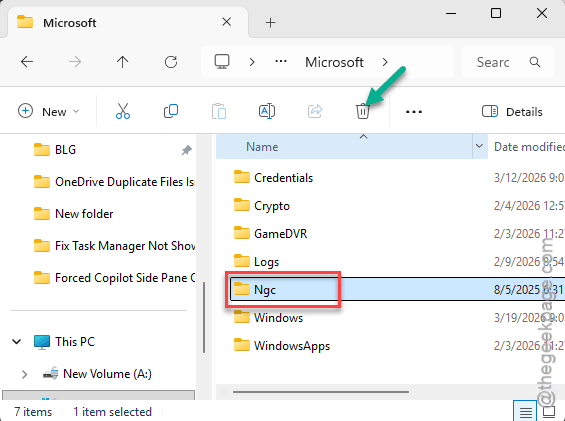
7 – Restart.
Windows recreates the NGC folder on boot. The old corrupted PIN data is gone. You’ll need to set up a new PIN after logging in with your password.
Fix 4 – Change the PasswordLess Registry Value
A registry value can hide the password sign-in option completely.
1 – Boot into recovery (Shift + Restart from login screen).
2 – Open Command Prompt from Advanced Options.
3 – Type regedit and press Enter.
4 – In the left panel, go to:
HKEY_LOCAL_MACHINE\SOFTWARE\Microsoft\Windows NT\CurrentVersion\PasswordLess\Device
5 – On the right side, find DevicePasswordLessBuildVersion.
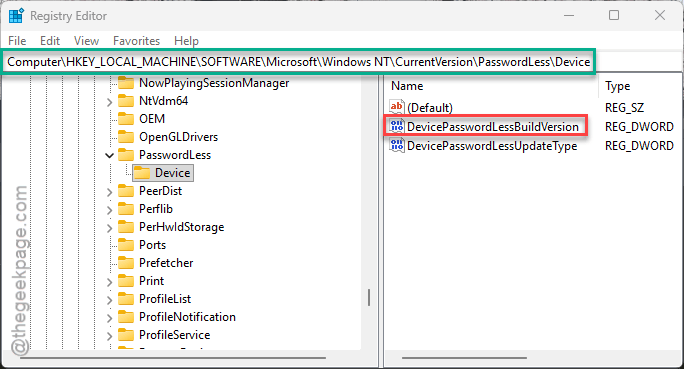
6 – Double-click it.
7 – Change the value to 0.
8 – Click OK.
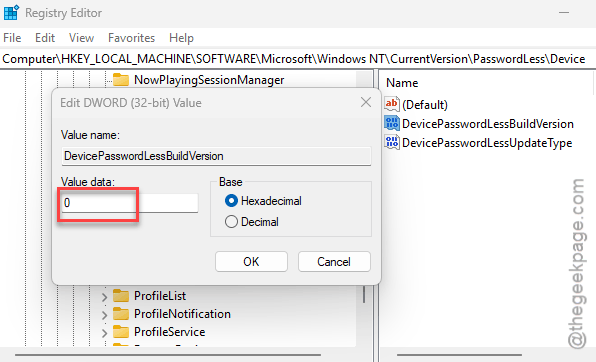
9 – Close everything.
10 – Restart.
Setting this to 0 forces Windows to show the traditional password field. And you can set up a new PIN once you’re in.
How to Prevent This
- Keep “Only allow Windows Hello sign-in” turned off. It sounds secure but locks you out if your PIN breaks.
- Always have your Microsoft account password memorized as a backup.
- After major Windows updates, test your PIN and password sign-in immediately.
- Create a password reset disk or recovery USB. Just in case.
People Also Ask
Why is my Windows 11 login screen blank?
Usually corrupted NGC data or the DevicePasswordLessBuildVersion registry value blocking the password field. Boot into recovery mode (Shift + Restart), open Command Prompt, and either delete the NGC folder or set the registry value to 0.
How do I get back to the password login screen?
Click “Sign-in options” on the login screen and look for the key icon. If it’s not there, boot into recovery and change DevicePasswordLessBuildVersion to 0 in the registry. That forces Windows to show the password field.
What if I can’t sign in to Windows at all?
Hold Shift, click Power > Restart from the login screen to get into recovery mode. Open Command Prompt, then either reset NGC folder permissions or delete the folder entirely. This brings back sign-in options so you can log in.