You open a folder. And everything is doubled. Two copies of every file. Same name. Same size. OneDrive just decided to duplicate everything. This is a sync issue. And it’s been plaguing Windows 11 users for a while now.
Why This Happens
Here’s the deal. OneDrive syncs files between your PC and the cloud. But when the sync process gets interrupted—bad internet, a crash, a Windows update — it sometimes creates duplicate copies instead of merging changes. Cached credentials can cause it too. OneDrive logs in with stale tokens. Gets confused. Creates duplicates. And the backup feature for Desktop, Documents, and Pictures? That thing is especially bad about this. It backs up a file, then syncs the original, and now you have two. Microsoft knows about this. Still hasn’t fully fixed it. So yeah.
Fix 1 – Clear OneDrive Cached Credentials
Stale login tokens cause sync conflicts that create duplicates. Clearing them forces a clean re-authentication.
1 – Click Start.
2 – Type credentials
3 – Click Credential Manager.
4 – Click the Windows Credentials tab.
5 – Under Generic Credentials, look for any entries containing “OneDrive Cached Credentials.”
6 – Click each one.
7 – Click Remove. Confirm it.
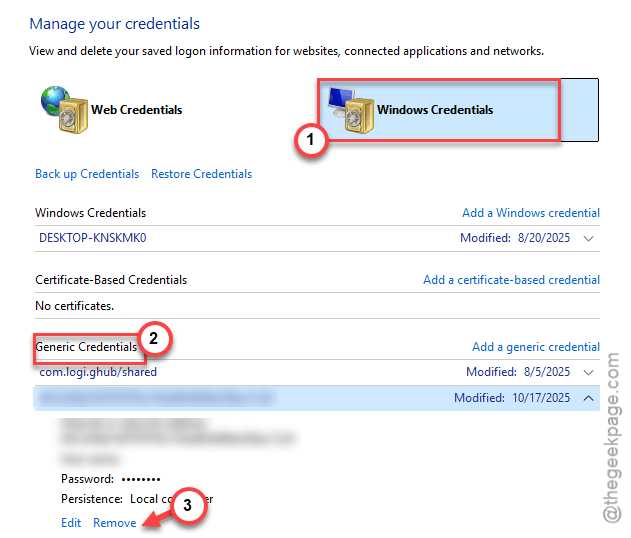
8 – Restart OneDrive. It’ll ask you to sign in again. That’s normal.
Fix 2 – Stop Folder Backup and Re-enable
The backup feature for Desktop, Documents, and Pictures is the biggest duplicate creator. Turning it off and back on can reset the sync state.
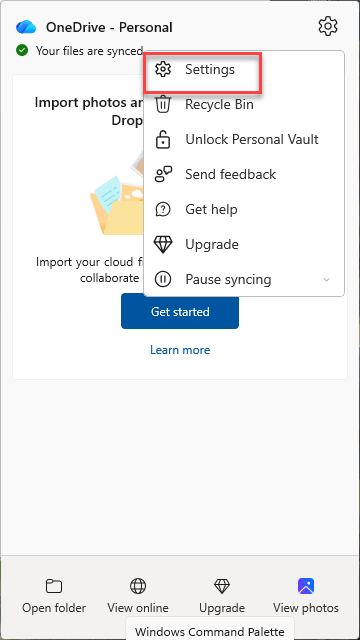
1 – Click the OneDrive cloud icon in the system tray (bottom right).
2 – Click the gear icon.
3 – Click Settings.
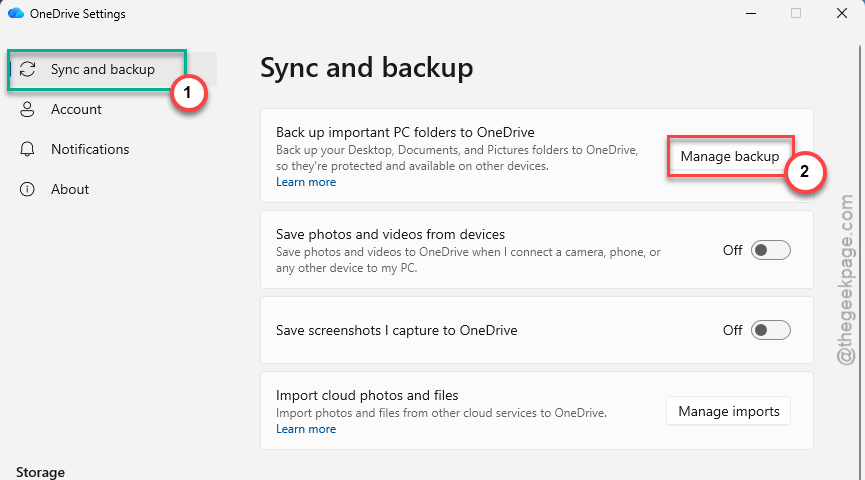
4 – Go to Sync and backup.
5 – Click Manage backup.
6 – Turn off the toggles for Desktop, Documents, and Pictures.
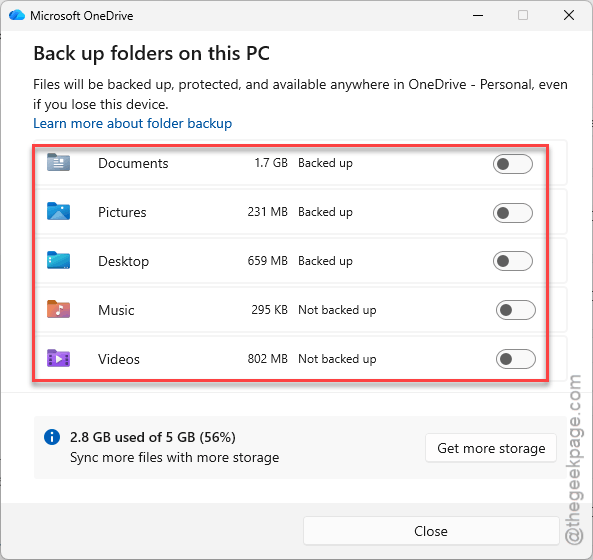
7 – Wait a few minutes for sync to settle.
8 – Delete the duplicate files manually.
9 – Turn the backup toggles back on if you still want backup.
Annoying, I know. But this forces OneDrive to rebuild its sync index from scratch for those folders.
Fix 3 – Delete the PreSignInSettingsConfig File
Quick fix. This config file sometimes causes sync conflicts.
1 – Press Win + R.
2 – Paste this path and press Enter:
%localappdata%\Microsoft\OneDrive\settings
3 – Look for a folder called Personal. Open it.
4 – Find PreSignInSettingsConfig.json. If you can’t find it there, do a search in the Settings folder to locate it.
5 – Delete it.
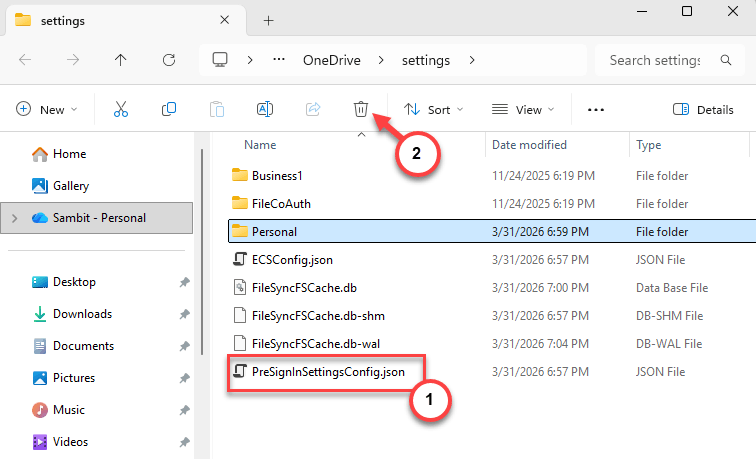
6 – Restart OneDrive.
This forces OneDrive to rebuild its settings from scratch. And sometimes that’s all it needs to stop creating duplicates.
Fix 4 – Reset OneDrive
Full reset. Doesn’t delete any files — just disconnects all sync connections and starts fresh.
1 – Press Win + R.
2 – Type wsreset.exe and press Enter. Wait for it to finish.
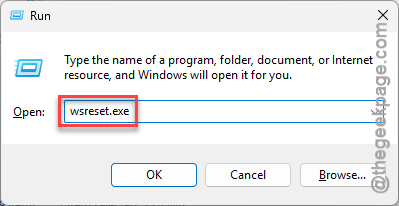
3 – Press Win + R again.
4 – Paste this and press Enter:
%localappdata%\Microsoft\OneDrive\onedrive.exe /reset
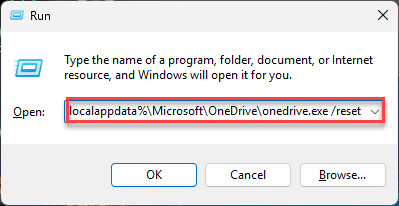
5 – If you see a “Windows cannot find…” error, try this instead:
C:\Program Files\Microsoft OneDrive\onedrive.exe /reset
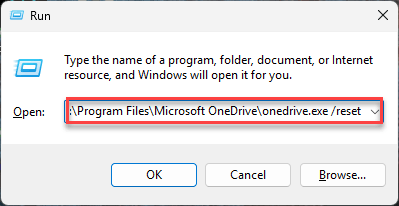
6 – Still getting the error? Try:
C:\Program Files (x86)\Microsoft OneDrive\onedrive.exe /reset
7 – Wait about 30 seconds.
8 – OneDrive should restart on its own. If it doesn’t, open it manually from the Start menu.
And yeah — you won’t lose any files. This just forces OneDrive to re-sync everything cleanly. But delete the duplicates first, or it’ll just sync them back up.
Fix 5 – Manually Delete Duplicates
After fixing the root cause, you still need to clean up the mess.
Open File Explorer. Sort files by name. Duplicates usually have the same name with a suffix like “(1)” or your computer name added. Delete the extras. Keep the originals.
Takes a while if there are a lot. But there’s no automated way to do this safely. Not ideal. But it works.
How to Prevent This
- Don’t edit the same file on two devices simultaneously. OneDrive handles this badly.
- Keep a stable internet connection when syncing. Interruptions cause duplicates.
- Clear OneDrive credentials periodically through Credential Manager.
- If folder backup keeps creating duplicates, consider turning it off and syncing manually.
People Also Ask
Why is my OneDrive duplicating files?
Usually sync conflicts. Bad internet, stale credentials, or the backup feature acting up. Clear credentials in Credential Manager. Reset OneDrive if it keeps happening.
How to get rid of duplicate files in Windows 11?
Sort by name in File Explorer. Look for files with “(1)” or your PC name appended. Delete the extras. No built-in duplicate finder though. Annoying.
How to fix OneDrive sync issues in Windows 11?
Reset OneDrive with the /reset command. Clear cached credentials. Make sure Windows and OneDrive are both updated. Usually one of those fixes it.