Does the music is playing in mono mode on your Windows 11 computer? If you are hearing the music in a single channel or side of your speaker, then it is playing in the mono mode. While in the majority of the cases, it is not a problem, but any 3D soundtrack, or left-right audio channel blended files will be disappointing to be heard in the mono audio mode. This is clearly a problem that needs resolution, and disabling the Mono audio mode from the Accessibility settings in the Windows should resolve the issue.
Fix 1 – Disable Mono in Accessibility Settings on Windows
The primary reason behind this mono audio on Windows is due to the Mono audio accessibility mode in Windows Settings.
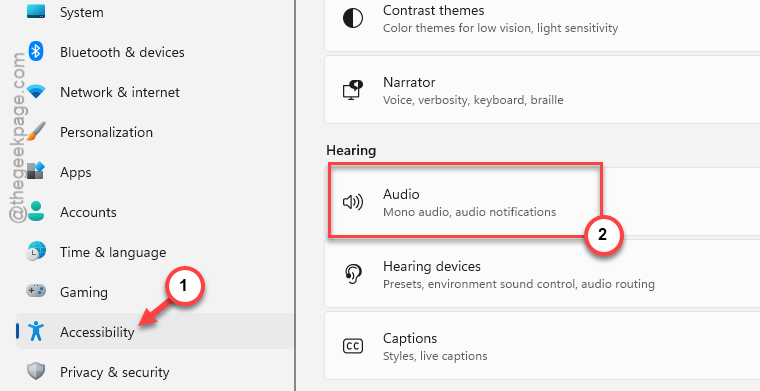
Step 1 – Hit the Win+I button together. Then, proceed to the Accessibility settings from there.
Step 2 – Go to the Audio section. Later, load up the Sound section.
Step 3 – Set the Mono audio option to Off mode.
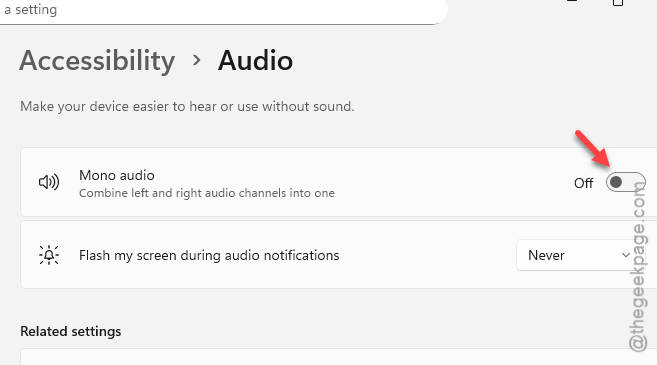
After turning off the mono audio feature, your headphone will sound perfectly normal. You will get stereo sound.
Fix 2 – Change the Left/Right channel Balance for audio equipment
A wrong balance of the left or right channel for the audio equipment may lead to such issues.
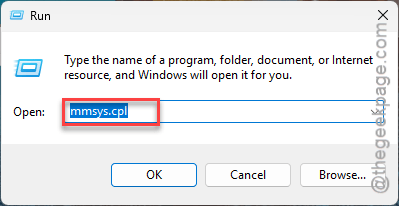
Step 1 – At first, right-click the Windows button and tap Run panel.
Step 2 – Next, type the mmsys.cpl. Click OK.
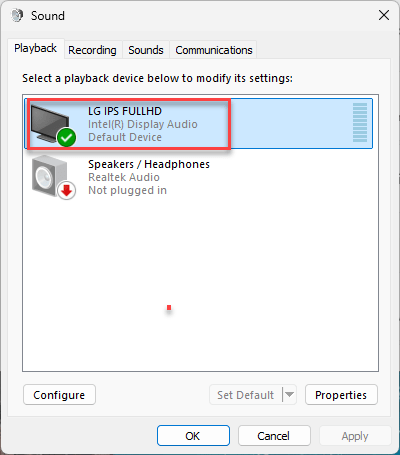
Step 3 – Next, proceed to find the audio equipment that you are using. Double-tap the sound device to load up its Properties.
Step 4 – Go to the Levels tab. Then, tap the Balance feature.
Here, L stands for the left channel, and the R stands for the right channel.
Step 5 – Adjust the associated slider for both the channels to balance it out. Make sure none of the slider is set to 0.
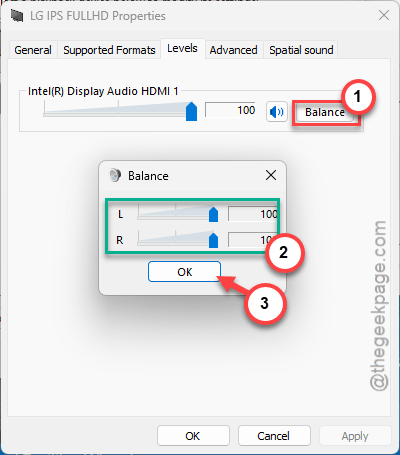
Now, you can enjoy stereo sound effects again.
Fix 3 – Toggle the Audio settings in media player
If you are experiencing this mono audio issue in a particular third-party media player like VLC, you must rectify the audio settins to fix the issue. Here is a generalized instructions on how to disable the mono audio mode ~
Step 1 – Load up the audio player where you are facing the issue.
Step 2 – Next, open the Preferences of the player.
Step 3 – Go to the Audio settings. Find any mono audio mode there, and disable it from there.
Step 4 – Save the changes there.
After disabling the feature, you can enjoy the stereo sound again.
Why the music is playing in mono mode on my PC?
Windows offers the Mono mode as an accessibility feature for those users whose hearing is restricted to only one ear. When the mono audio mode is activated, Windows combines both the left and right channel track into a single channel audio, which then plays on the headphone or device. This is an accessibility feature. So, if you are hearing the same sound in both your earphones, mono audio mode is activated in Windows Setting.
What is the mono audio mode on Windows?
The mono audio mode is an accessibility feature which combines the left and right audio channel into a single audio channel. Users with hearing disability in one of the ears can listen to both the channels of any audio track.
Why shouldn’t I play audio tracks in mono mode?
The mono mode combines both the left and right audio channels into a singular audio channel, which may lose any dimension or depth related data from track. While you can enjoy music in mono mode, watching movies or playing 3D games in mono mode does dillute the overall experience significantly.