Apps freeze. Taskbar stops responding. You wait 30 seconds. Maybe it comes back. Maybe you force a restart. And it keeps happening. There’s a Windows service called WpnUserService causing this. Disabling it fixes the problem.
Why This Happens
Here’s the deal. WpnUserService handles push notifications. Toast alerts. Badge updates. All that.
But on Windows 11 25H2, this service has a bug. It enters a deadlock after the system sits idle. And when that happens? Any app trying to send a notification freezes. Explorer hangs. Taskbar crashes. Sometimes the whole system locks up for 30 to 60 seconds. Microsoft knows about it. A full fix hasn’t shipped yet. But the workaround is solid.
Fix 1 – Disable WpnUserService via Command Line
This is the fix that actually works. Disables the service causing the freezing.
1 – Click Start.
2 – Type Terminal.
3 – Right-click Terminal and select Run as administrator.
4 – Type this command and press Enter:
sc config WpnService start= disabled
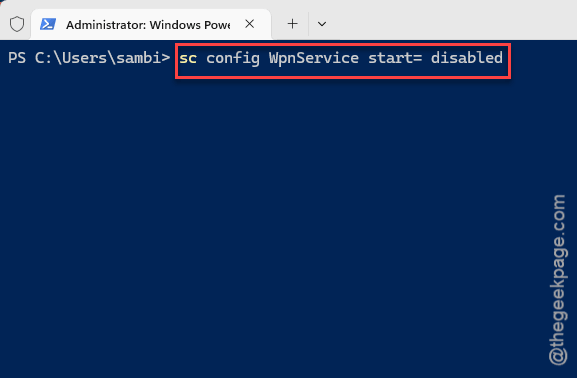
5 – Now type this and press Enter:
reg add "HKLM\SYSTEM\CurrentControlSet\Services\WpnUserService" /v Start /t REG_DWORD /d 4 /f
7 – And this one:
reg add "HKLM\SYSTEM\CurrentControlSet\Services\WpnUserService" /v UserServiceFlags /t REG_DWORD /d 0 /f
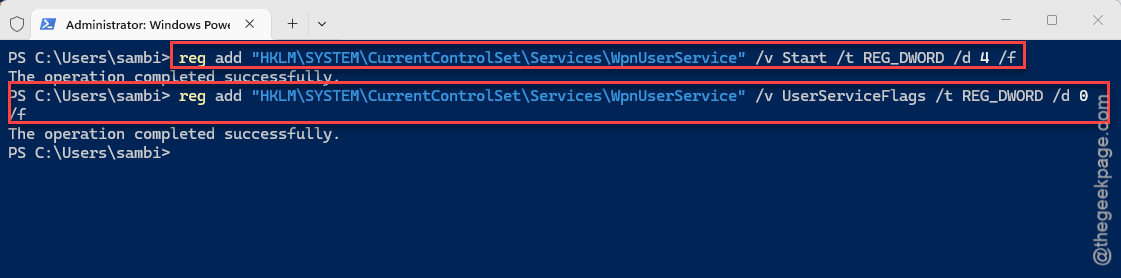
8 – Restart your PC.
And that’s it. Freezing stops. But this is a trade-off, you lose toast notifications. No popup alerts from any app. For most people dealing with constant freezes? Totally worth it.
Fix 2 – Disable via Registry Editor
Same thing, clicking instead of typing. If you prefer the GUI.
1 – Press Win + R.
2 – Type regedit
3 – Press Enter.
4 – Go to:
HKEY_LOCAL_MACHINE\SYSTEM\CurrentControlSet\Services\WpnService
5 – Double-click Start in the right pane.
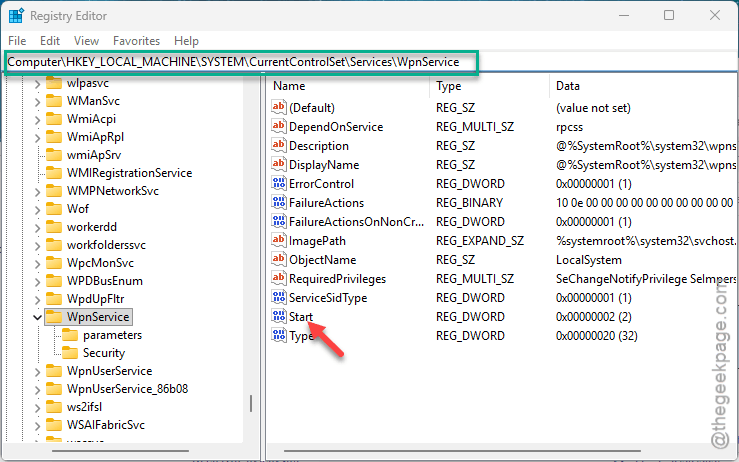
6 – Change the value to 4.
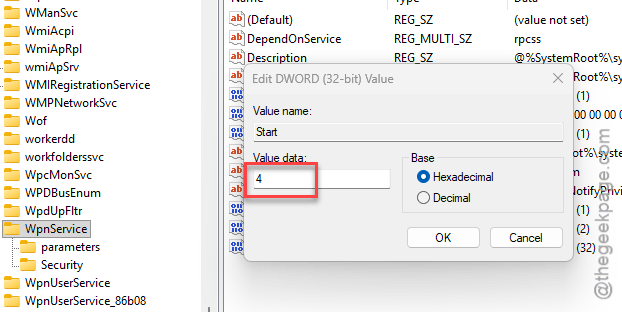
7 – Click OK.
8 – Now go to:
HKEY_LOCAL_MACHINE\SYSTEM\CurrentControlSet\Services\WpnUserService
9 – Same thing. Set Start to 4.
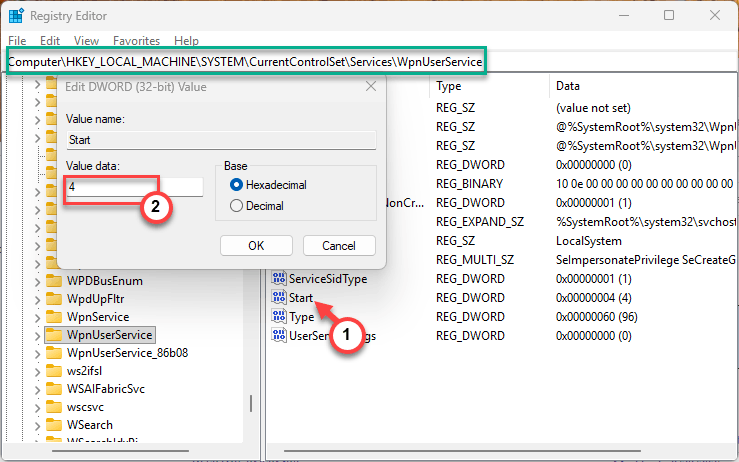
10 – Restart your PC.
Done. Want notifications back someday? Change both values back to 2 and restart.
Fix 3 – Check for Windows Updates
Microsoft has been pushing incremental fixes. A full patch might have shipped by now.
1 – Open Settings.
2 – Click Windows Update.
3 – Click Check for updates.
4 – Install everything. Check optional updates too. Tap the Restart now button to complete the process.
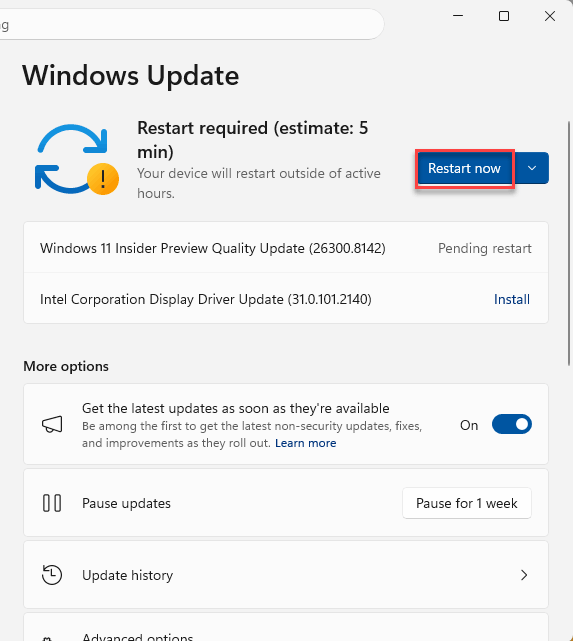
If they’ve fixed it, re-enable WpnUserService and see if freezing stays gone. But keep an eye on it.
Fix 4 – Restart Explorer During a Freeze
Band-aid for when a freeze hits and you do not want to reboot.
1 – Press Ctrl + Shift + Esc to open Task Manager. If it opens (sometimes it doesn’t during a freeze).
2 – Find Windows Explorer.
3 – Right-click it.
4 – Click Restart.
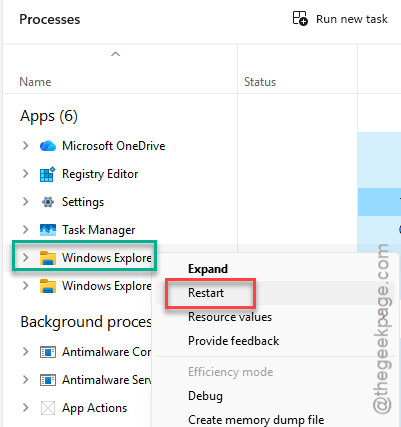
Unfreezes the taskbar. But temporary. Freeze comes back unless WpnUserService is disabled.
How to Prevent This
- If you disable WpnUserService, check after each Windows update to see if Microsoft fixed the root cause.
- Keep Windows updated. Patches have been improving this.
- If you re-enable notifications and freezing returns, disable the service again immediately.
- Watch for freezes after being idle—that’s when it hits.
People Also Ask
What is Windows WpnService?
Push notification service. Handles toasts, badges, live tiles. When it bugs out on 25H2, it freezes everything. Disable it to stop the freezing.
How to solve freezing problem in Windows 11?
If it freezes after idle? Probably WpnUserService. Disable it. For general freezing — SFC and DISM, update drivers, Windows updates.
How to fix notifications not working on Windows 11?
Settings > System > Notifications — make sure they’re on. Do Not Disturb off. If you disabled WpnUserService for freezing, that’s why notifications stopped.