You’re working. Or watching something. And the Action Center just opens on its own. Nobody clicked anything. It just pops up. Over and over.
Usually touchpad gestures or app notifications triggering it in the background. Annoying. But easy to stop.
Why This Happens
Long story short: Windows 11 has touchpad gestures. Three-finger swipe. Four-finger tap. They open the Action Center. And if you’re on a laptop, your palm is probably triggering them without you knowing.
But it’s not always the touchpad. Some apps send hidden notifications that pop the panel open. And certain updates—no idea which ones—introduced a bug where it opens on its own after being idle. Microsoft never acknowledged it.
Fix 1 – Disable Touchpad Gestures
Most common cause on laptops. Your fingers are doing it without you realizing.
1 – Open Settings.
2 – Click Bluetooth & devices.
3 – Click Touchpad.
4 – Click Three and four-finger gestures.
5 – Set all swipe actions to Nothing.
6 – Also uncheck the box for four-finger tapping if it’s there.
And that should stop the random popups. Most people don’t even know these gestures exist. For some reason they’re enabled by default.
Fix 2 – Disable Notifications for Noisy Apps
Some apps send constant hidden alerts. They trigger the Action Center every time.
1 – Open Settings.
2 – Click System.
3 – Click Notifications.
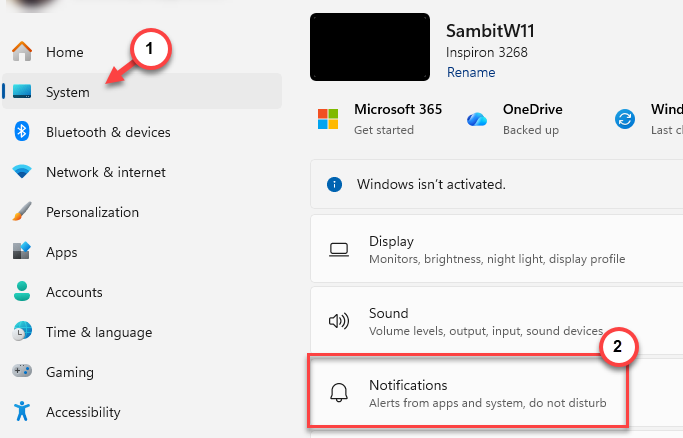
4 – Scroll through the app list.
5 – Turn off notifications for any apps you don’t need.
6 – Also turn off Allow notifications to play sounds.
7 – And turn off Allow notifications to flash the taskbar.
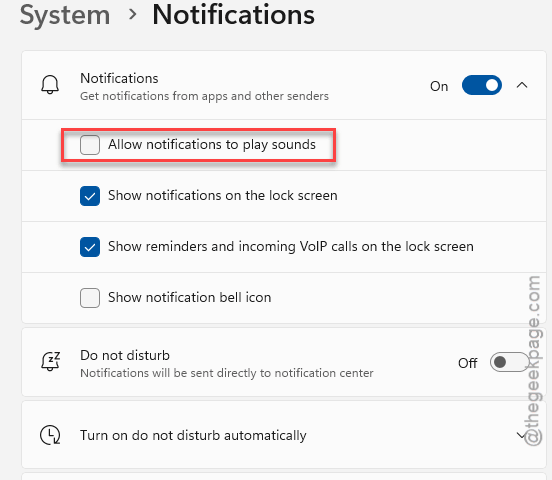
Honestly? Most app notifications are useless. Turn off everything except what you actually need.
Fix 3 – Restart Windows Explorer
Quick fix. Sometimes Explorer gets into a loop where it keeps triggering the panel.
1 – Press Ctrl + Shift + Esc to open Task Manager.
2 – Find Windows Explorer in the Processes tab.
3 – Right-click it.
4 – Click Restart.
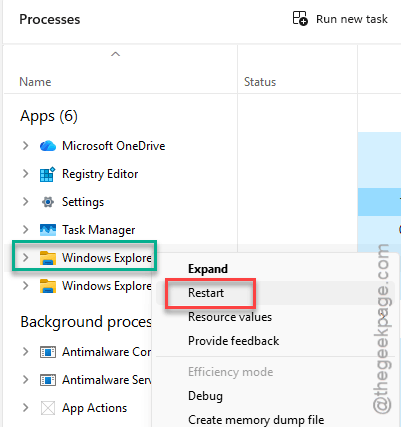
Takes five seconds. If the random popping stops, it was a temporary shell glitch.
Fix 4 – Disable Action Center Completely
Nuclear option. Don’t want it at all? Kill it.
1 – Press Win + R.
2 – Type:
gpedit.msc
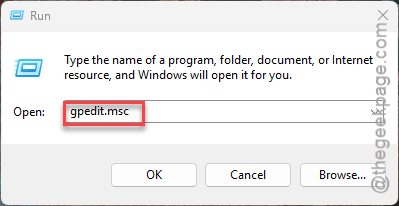
3 – Press Enter. This only works on Pro and Enterprise editions.
4 – Go to User Configuration.
5 – Open Administrative Templates.
6 – Open Start Menu and Taskbar.
7 – Double-click Remove Notifications and Action Center.
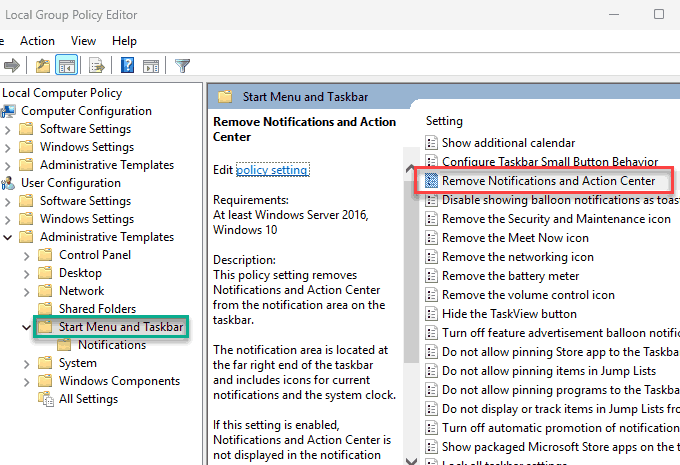
8 – Set it to Enabled.
9 – Click Apply.
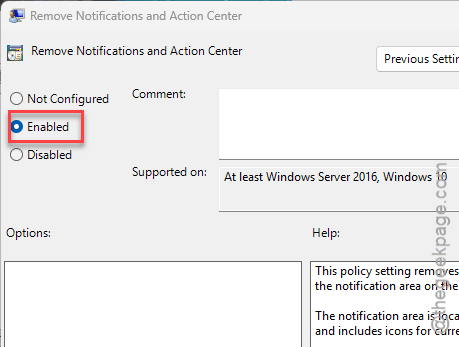
Done. No more random popups. But also no notification panel at all. Not for everyone. But if it’s driving you crazy, this kills it.
Fix 5 – Check for Windows Updates
Some updates caused this. Some fixed it. Stay current.
1 – Open Settings.
2 – Click Windows Update.
3 – Click Check for updates. If the updates are already downloaded and installed, tap Restart now option to install it.
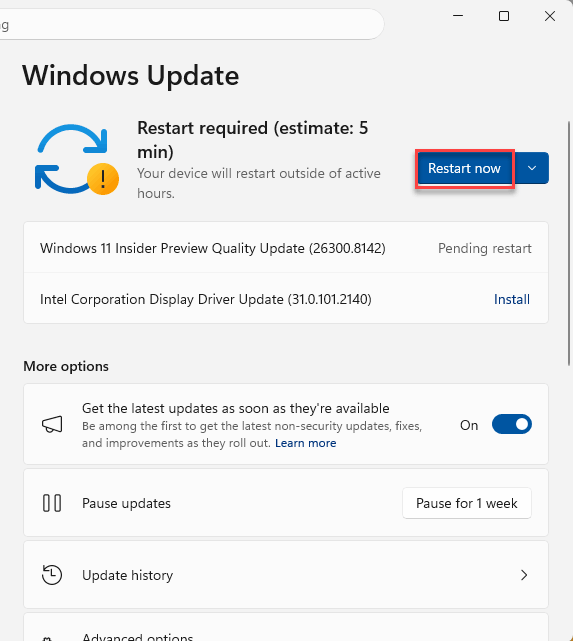
4 – Install everything.
5 – Restart.
Fix 6 – Run a Malware Scan
Rare. But some malware triggers system panels to distract you.
1 – Open Windows Security from the Start menu.
2 – Click Virus & threat protection. Tap the Scan Options.
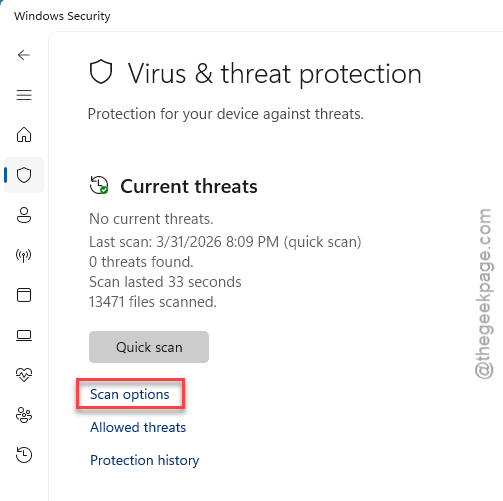
3 – Select the Full Scan option and tap Scan now.
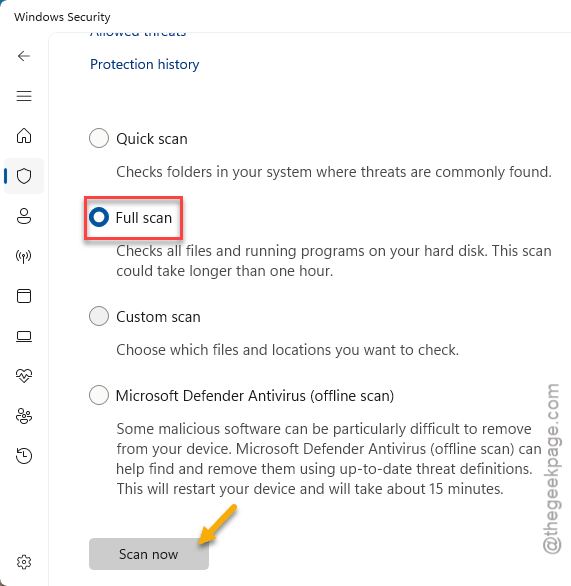
4 – Let it run.
If it finds something — well. There’s your answer.
How to Prevent This
- Disable touchpad gestures you don’t use.
- Keep app notifications trimmed.
- After updates, watch for new random behaviors.
- Run security scans regularly.
People Also Ask
How do I stop the Action Center from popping up?
Disable touchpad gestures first. Settings > Bluetooth & devices > Touchpad. Set everything to Nothing. Not the touchpad? Disable noisy app notifications.
How do I disable the Action Center in Windows 11?
Group Policy Editor. gpedit.msc. Enable “Remove Notifications and Action Center.” Pro and Enterprise only.
How to fix Action Center in Windows 11?
Restart Explorer. Re-register Shell Experience Host via PowerShell. SFC and DISM. Usually one of those.