You press Win + Tab. Nothing. Then a half-second later, the whole screen stutters and Task View limps open.
Or it just freezes. Sometimes explorer.exe crashes outright. On a dual-monitor setup it’s so much worse. Laggy and broken-feeling.
Why This Happens
Basically? Task View has to render thumbnails of every window across every screen. Two monitors means double the work. And the Windows compositor doesn’t always handle it gracefully.
And hidden virtual desktops pile up. And, there’s the Hardware-Accelerated GPU Scheduling. Sounds great on paper. In practice? It’s a known cause of UI stutter on Windows 11 multi-monitor rigs. Annoying, but easy to turn off.
Fix 1 – Restart Windows Explorer
Quick fix. Try restarting the Explorer process.
Press Ctrl + Shift + Esc to open Task Manager. Find Windows Explorer in the list. Right-click it. Click Restart.
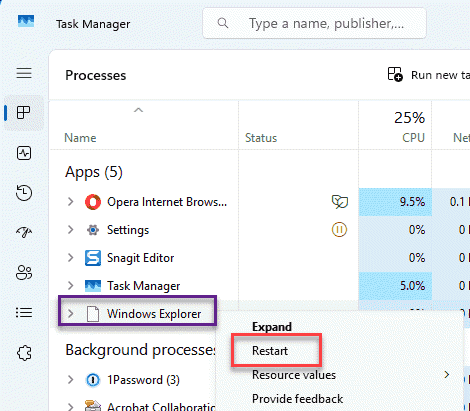
Your taskbar blinks out and comes back. Now try Win + Tab again.
Smooth now? Good. If the lag creeps back after every reboot, you need one of the deeper fixes below.
Fix 2 – Close Your Hidden Virtual Desktops
This is the one nobody thinks of. You’ve probably got a stack of forgotten virtual desktops dragging Task View down.
1 – Press Win + Tab to open Task View (if it’ll open).
2 – Look at the top of the screen. See thumbnails of extra desktops up there?
3 – Hover over each extra one and click the X to close it. Leave only Desktop 1.
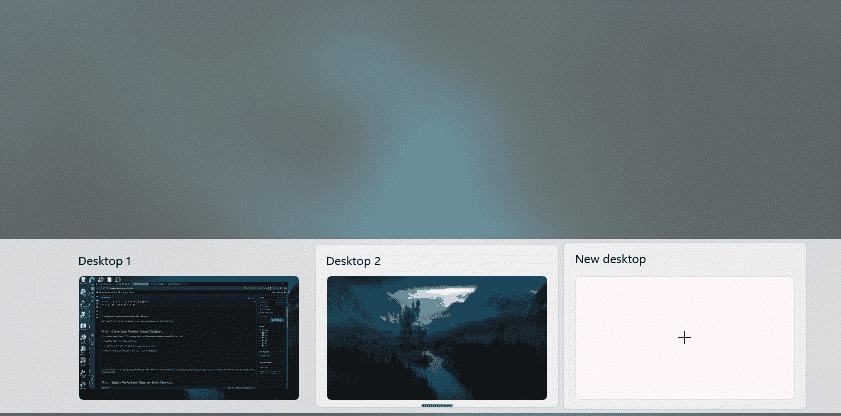
Can’t even get Task View open? Use the keyboard. Press Ctrl + Win + F4 over and over. Each press closes one desktop. Keep going until you’re down to a single desktop. One user closed dozens this way and the crashing stopped completely.
Fix 3 – Match the Refresh Rates on Both Monitors
Got two screens with different refresh rates? That’s a classic stutter trigger. Forcing them to match often kills the lag instantly.
1 – Right-click an empty spot on your desktop.
2 – Click Display settings.
3 – Scroll down and click Advanced display.
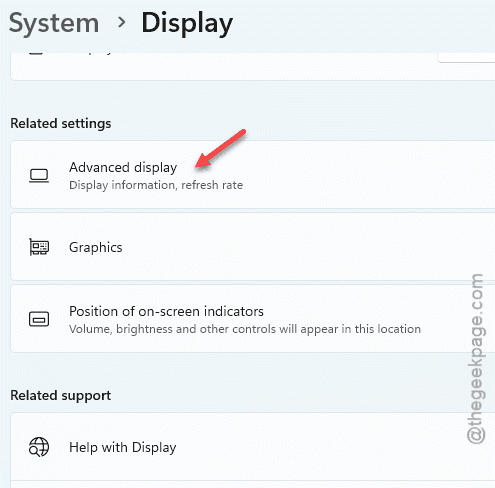
4 – Use the drop-down at the top to pick each monitor.
5 – Set both displays to the same refresh rate. Try 60Hz on both first.
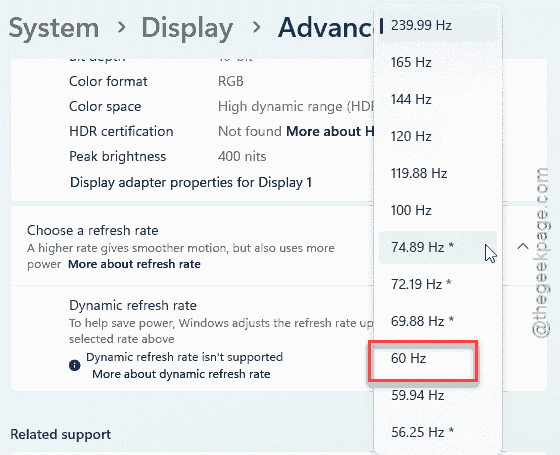
Test Task View. If 60Hz fixes it, bump them both up to the highest rate they share (like 120Hz) and test again. You want them equal — not necessarily slow.
Fix 4 – Turn Off Hardware-Accelerated GPU Scheduling
HAGS causes UI stutter on a lot of Windows 11 multi-monitor setups. Switching it off is a common fix. No downside for most people.
1 – Press Windows + I to open Settings.
2 – Click System, then Display.
3 – Scroll down and click Graphics.
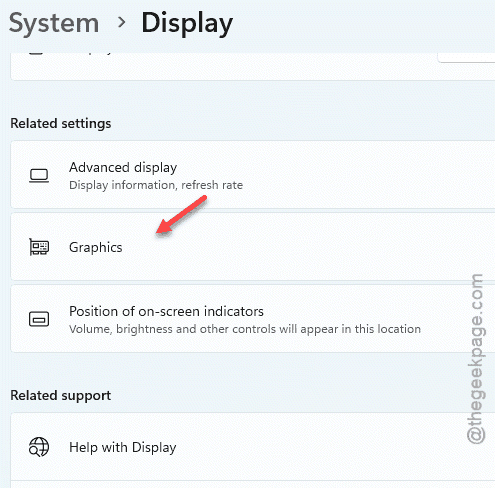
4 – Click Change default graphics settings.
5 – Toggle off Hardware-accelerated GPU scheduling.
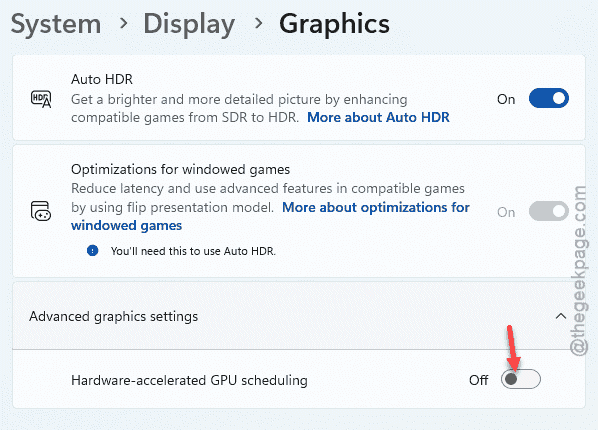
6 – Restart your PC. This one needs a reboot to take effect.
Fix 5 – Force Task View to Rebuild With Alt + F4
More of a workaround than a fix. But it’s instant.
When Task View is open and being slow, just press Alt + F4. That closes and recreates its overlay window. Next time you open it, it’s fresh. Handy when you don’t want to restart Explorer mid-task. Not permanent — but quick.
Fix 6 – Check for a Stuck Key
Sounds odd, I know. But hear me out.
Task View triggers on Win + Tab. If your Win or Tab key is physically sticking, Windows thinks you’re hammering the shortcut — and Task View flickers or lags. One person has reportedly fixed this issue with the Task View by opening their keyboard, cleaning under the keys, and reassembling it.
Quick test: unplug your keyboard for a minute, or try a different one. If the lag vanishes? It was a stuck key all along. Weird, but it happens.
How to Prevent This
– Don’t let virtual desktops pile up. Close ones you’re done with — they quietly slow Task View down.
– Run both the monitors on the same refresh rate.
– If HAGS gave you trouble once, leave it off. It rarely helps on multi-monitor rigs anyway.
People Also Ask
Why does my computer lag when I use two monitors?
Often it’s mismatched refresh rates — say 144Hz on one screen and 60Hz on the other. The compositor stutters trying to sync them. Set both to the same rate in Display settings. Hardware-Accelerated GPU Scheduling is another common culprit, so try turning that off too.
How do I fix Task View not opening?
You should try the basic fixes like, restarting the File Explorer process. If the Task View is still feeling laggy, terminate the extra virtual desktops.