You click the G Hub icon. The loading screen appears. Spins forever. Or it opens to a black window with nothing in it. Or it just refuses to launch at all.
And your mouse buttons stop working the way you set them up. Annoying.
Why This Happens
Honestly? G Hub is fragile. It always has been. The Logitech subreddit is full of people complaining about it.
Few things cause the freezing. A bad update interrupted halfway. A corrupted config in your AppData folder. A clash with another RGB app like SignalRGB or Razer Synapse — both fight for hardware control. And sometimes a Windows Update breaks G Hub’s background service silently.
And when it breaks? It really breaks. The auto-updater stops working. The repair tool doesn’t always fix it. You end up needing to wipe it manually and reinstall.
Worth a shot before you go nuclear though. Try the easy fixes first.
Fix 1 – Kill All G Hub Processes, Then Restart
Sometimes G Hub gets stuck with multiple background processes fighting each other. Kill them all. Start fresh.
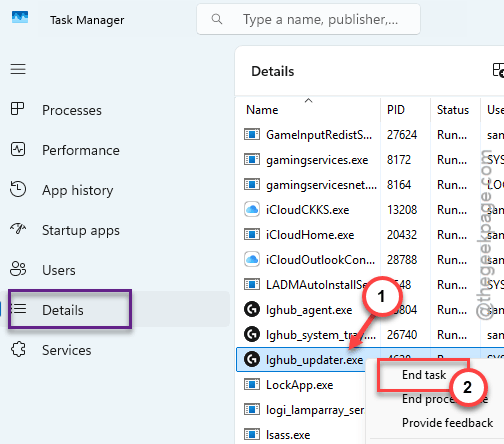
1 – Press Ctrl + Shift + Esc to open Task Manager.
2 – Click the Details tab.
3 – Sort by name (click the Name column header).
4 – Find every process starting with lghub — there’ll be several.
5 – Right-click each one and click End task.
6 – Don’t miss lghub_updater.exe — that’s the sneaky one that hangs.
7 – Now right-click the G Hub shortcut on your desktop.
8 – Click Run as administrator.
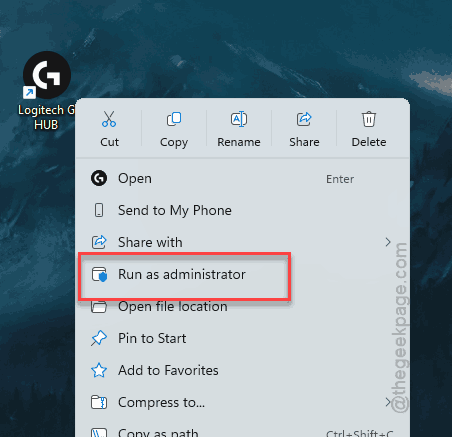
Sometimes that’s all it takes. If G Hub opens cleanly now, you’re done.
Fix 2 – Repair G Hub From Settings
Windows has a built-in repair tool for G Hub. Most people don’t know it’s there.
1 – Press Windows + I to open Settings.
2 – Click Apps on the left sidebar.
3 – Click Installed apps.
4 – Type Logitech in the search box at the top.
5 – Click the three dots (⋯) next to Logitech G HUB.
6 – Click Modify.
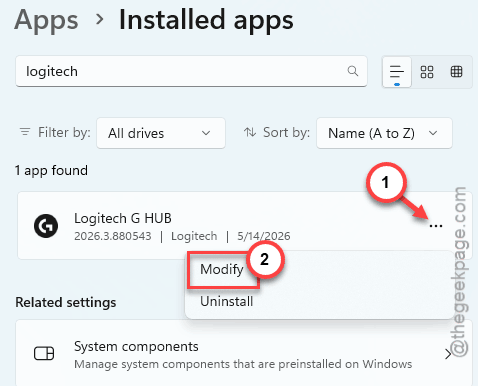
7 – If the Logitech menu opens with options, click Reinstall Logitech G Hub.
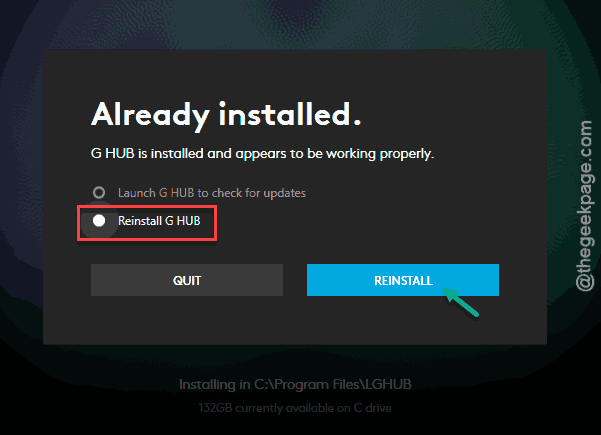
8 – Tick the option to transfer your settings so you don’t lose your profiles.
9 – Let it run. Don’t touch anything.
Takes about 5 minutes. Way better than a full uninstall.
Fix 3 – Turn Off Conflicting RGB Software
Got SignalRGB installed? Or OpenRGB? Or Razer Synapse? They fight G Hub for hardware control. Only one app can own your devices at a time.
If you use SignalRGB:
1 – Open SignalRGB.
2 – Click the gear icon in the bottom left to open Settings.
3 – Find Automatically close conflicting programs.
4 – Toggle it off.
5 – Restart your PC.
For Razer Synapse — open it and disable Auto-start with Windows if you only need it occasionally.
G Hub should now keep working in the background instead of getting silently killed.
Fix 4 – Clean Wipe and Reinstall (The Real Fix)
If the easy fixes didn’t work, time to wipe G Hub completely. This is the one that actually works when nothing else does. But back up your profiles first.
Step A — back up your profiles:
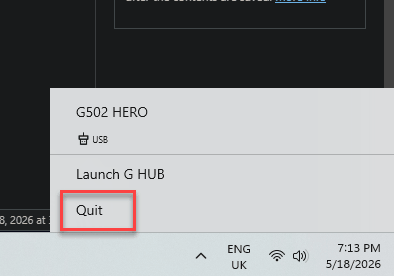
1 – Right-click the G Hub icon in the system tray.
2 – Click Quit.
3 – Press Windows + R.
4 – Type %appdata% and press Enter.
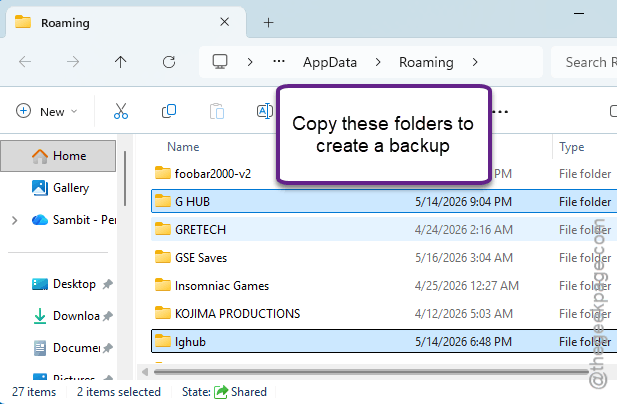
5 – You’ll land in the Roaming folder.
6 – Copy these three folders to your Desktop or anywhere safe:
G HUB, lghub, and LGHUB_BKP
Step B — wipe the install:
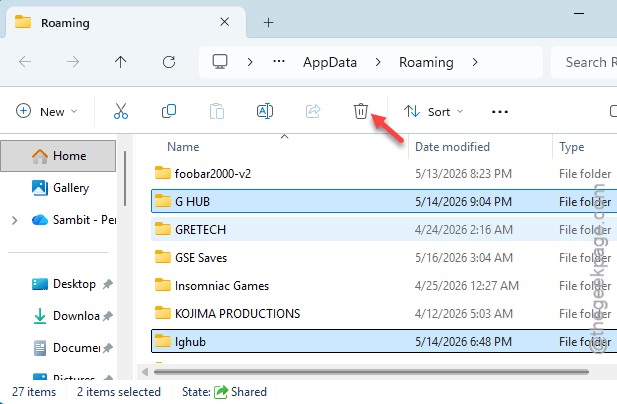
7 – Delete those same three folders from Roaming.
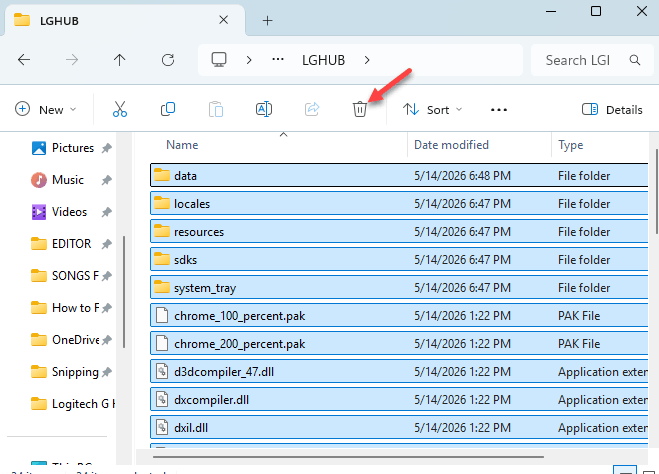
8 – Open File Explorer and go to C:\Program Files\LGHUB (or Program Files (x86)\LGHUB — check both).
9 – Delete everything inside.
10 – If a file refuses to delete, open Task Manager and end lghub_updater.exe.
Step C — reinstall:
11 – Go to Logitech.
12 – Download the fresh installer.
13 – Run it. Let it finish.

14 – Open G Hub once. Confirm it works.
15 – Quit G Hub from the system tray.
16 – Paste your backed-up folders back into Roaming.
17 – Open G Hub. Your profiles and settings are back.
Annoying. But this is the most reliable fix.
Fix 5 – Restart the Logitech Service
G Hub depends on a background Windows service. If that service hangs, G Hub does too.
1 – Press Windows + R.
2 – Type services.msc and press Enter.
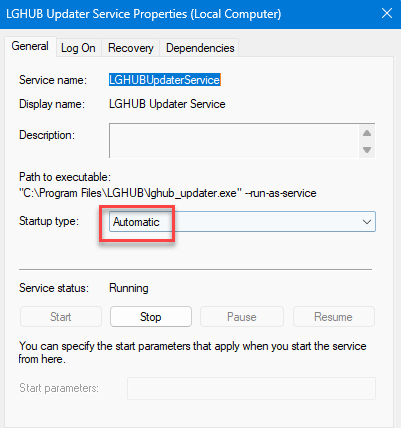
3 – Scroll down to LGHUB Updater Service.
4 – Right-click it and click Restart.
5 – Double-click it.
6 – Set Startup type to Automatic.
7 – Click Apply, then OK.
G Hub launches faster now too. Bonus.
Fix 6 – Roll Back a Bad Windows Update
If G Hub broke right after a Windows Update, that update is probably the cause. Microsoft pushed a few in late 2025 that hosed Logitech drivers.
1 – Press Windows + I to open Settings.
2 – Click Windows Update on the left.
3 – Click Update history.
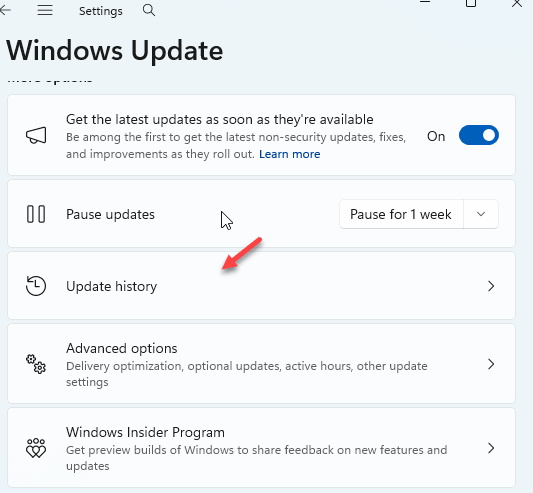
4 – Scroll down. Click Uninstall updates.
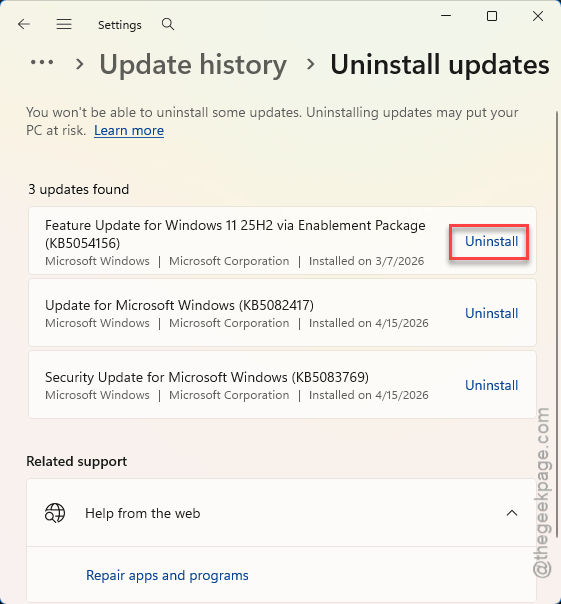
5 – Find the most recent quality update (KB number).
6 – Click Uninstall next to it.
7 – Reboot.
G Hub should work again. Then pause Windows Updates for a couple weeks until Microsoft ships a fix.
How to Prevent This
- Run G Hub as administrator by default. Right-click the shortcut, go to Properties > Compatibility, and tick Run this program as administrator.
- Pick one RGB app and stick with it. Two RGB apps fighting for control? Recipe for crashes.
- Back up your G Hub profile folders every couple months. Takes 30 seconds. Saves you hours later.
People Also Ask
How to reset Logitech G Hub?
Two ways. The easy one: Settings > Apps > Installed apps > Logitech G HUB > Modify > Reinstall. Tick the option to transfer settings. The hard one: quit G Hub, delete the three folders in %appdata%\Roaming (G HUB, lghub, LGHUB_BKP), then reinstall from Logitech’s site.
Is G Hub service down?
Sometimes, yes. Logitech’s update servers go offline now and then. Check status.logitechg.com if available. Or peek at r/LogitechG on Reddit — outages always trend there fast. If servers are down, just wait a few hours and try again.