You drag a file into Nearby Sharing. Expect a quick transfer. And then? 5 KB/sec. A 100 MB file takes hours. Sometimes it gives up entirely.
Feels broken.
Why This Happens
Here’s the deal. Nearby Sharing is supposed to pick the fastest available connection. Wi-Fi first. Bluetooth as a fallback. Sounds smart.
And if Windows thinks your Wi-Fi network is Public instead of Private, it throttles Nearby Sharing on purpose. Security theater. Annoying.
Other things that slow it down. Power-saving on the Wi-Fi adapter. Sometimes — for some reason — pending Windows Updates kill performance until you install them.
Fix 1 – Set Your Wi-Fi to Private (The Big One)
This is the fix most people miss.
1 – Press Windows + I to open Settings.
2 – Click Network & internet on the left.
3 – Click Wi-Fi.
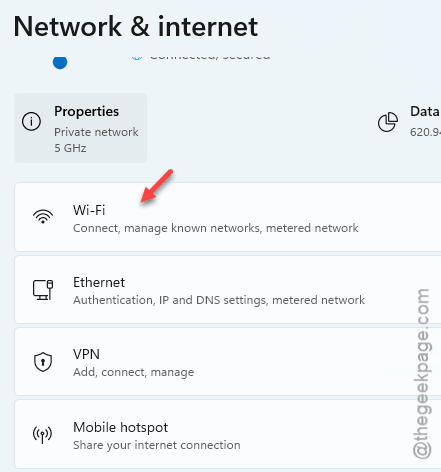
4 – Click your connected network name.
5 – Under Network profile type, pick Private network.
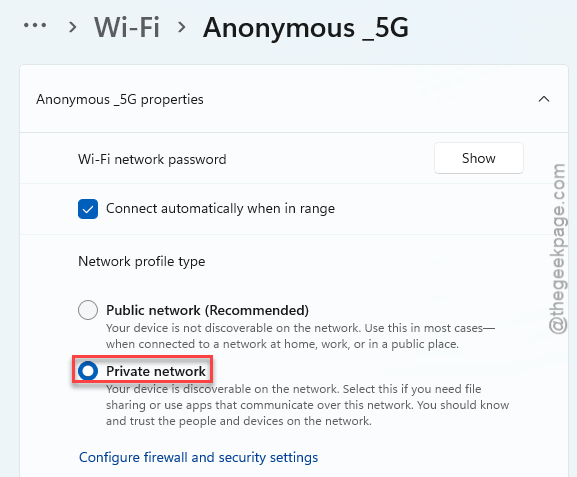
6 – Do the same on the other device.
Try Nearby Sharing again. Should be blazing fast now.
Fix 2 – Disable Bluetooth During Big Transfers
Sounds counterintuitive. Bluetooth is part of Nearby Sharing, right? Yes. But for large files, you want it to use Wi-Fi only.
Turning Bluetooth off forces Wi-Fi.
1 – Click the network icon in the bottom-right of the taskbar.
2 – Find the Bluetooth tile.
3 – Click to turn it off.
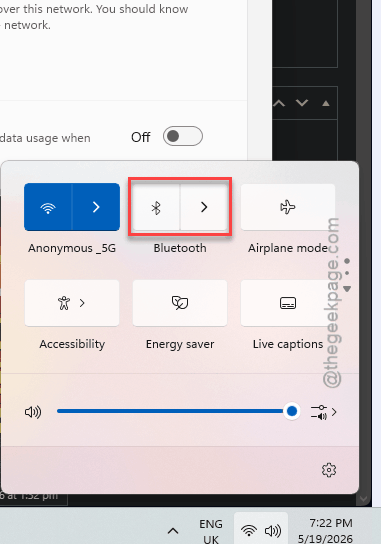
4 – Start your Nearby Share.
5 – Turn Bluetooth back on after.
Quick fix. Takes ten seconds. Big difference.
Fix 3 – Disable MIMO Power Save on the Wi-Fi Adapter
Your Wi-Fi adapter has a power saver. It’s on by default. And it cripples Nearby Sharing transfers because it idles the adapter when nothing’s happening — except Nearby Sharing’s setup phase looks like nothing’s happening.
1 – Press Windows + X to open the Quick Link menu.
2 – Click Device Manager.
3 – Expand Network adapters.
4 – Right-click your main Wi-Fi adapter (Intel, Realtek, Broadcom — whatever yours is).
5 – Click Properties.
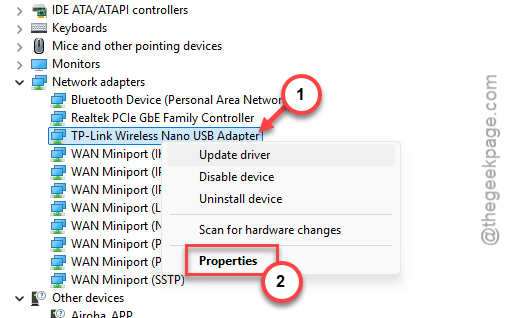
6 – Click the Advanced tab.
7 – Scroll the property list and find MIMO Power Save Mode.
8 – Change the value to No SMPS or Disabled.
9 – Click OK.
Reconnect to Wi-Fi. Try Nearby Sharing again.
Fix 4 – Get Both Devices on 5GHz Wi-Fi
This one trips up homes with mesh networks. Nearby Sharing goes through your router for the handoff. That’s slow.
Same band, same channel? Direct device-to-device. Way faster.
1 – Click the network icon on both devices.
2 – Confirm they’re connected to the same network name.
3 – If your network has separate 2.4GHz and 5GHz names (like MyWiFi-2G and MyWiFi-5G) — connect both devices to the 5GHz one.
5GHz on both sides. Try the transfer again.
Fix 5 – Disable USB Selective Suspend (For Tethered Transfers)
If you’re using Nearby Sharing through USB tethering, Windows throttles USB to save power. That throttles the transfer too.
1 – Open Control Panel.
2 – Click Hardware and Sound.
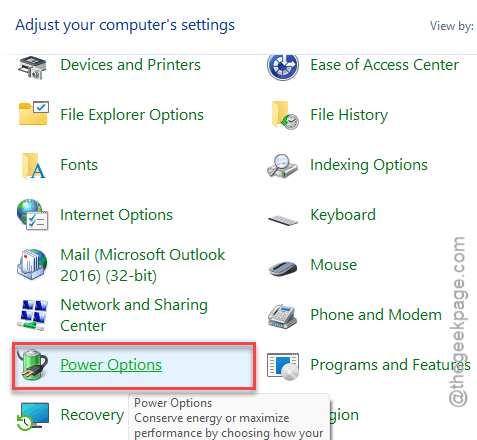
3 – Click Power Options.
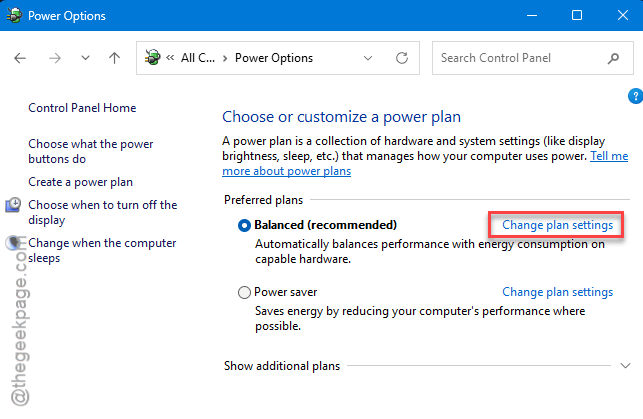
4 – Click Change plan settings next to your active plan.
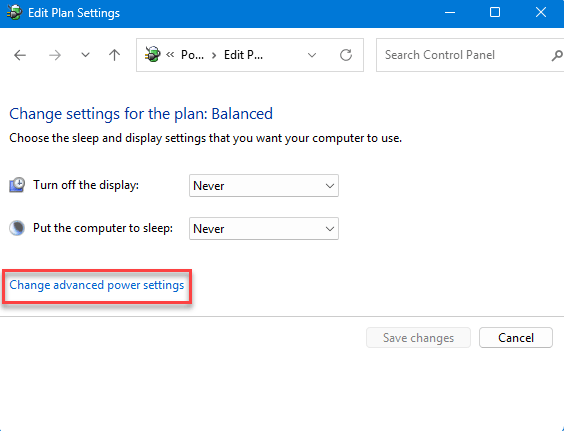
5 – Click Change advanced power settings.
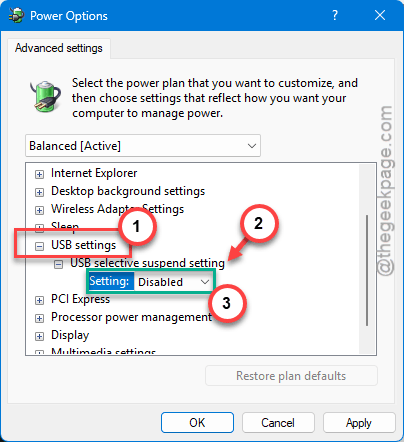
6 – Expand USB settings.
7 – Expand USB selective suspend setting.
8 – Change both On battery and Plugged in to Disabled.
9 – Click Apply, then OK.
And while you’re in there — switch to the High performance power plan if it’s available. Better USB throughput across the board.
Fix 6 – Install Pending Windows Updates
Microsoft has shipped multiple Nearby Sharing performance fixes in the last six months. If your Windows 11 build is behind, you’re running on broken code.
1 – Press Windows + I to open Settings.
2 – Click Windows Update on the left sidebar.
3 – Click Check for updates.
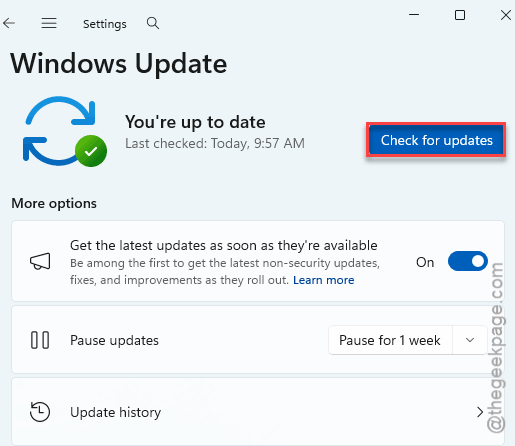
4 – Install everything that shows up. Optional updates too — sometimes performance fixes land in optional first.
5 – Reboot when prompted.
Bonus tip – You can compress small files into a single ZIP into a big, single file. Nearby Sharing handles one 200 MB ZIP way faster than 200 separate 1 MB files. The overhead per file kills throughput.
How to Prevent This
- Set every trusted Wi-Fi network to Private. Single biggest performance lever.
- Turn off Wi-Fi adapter power saving on laptops. Battery life takes a tiny hit. Nearby Sharing gets way faster.
- Zip small files before sending. Per-file overhead is real.
People Also Ask
Why is nearby sharing so slow Windows 11?
It is either your Wi-Fi is set to Public mode or the Nearby Sharing system is reverting to the Bluetooth mode that causes this issue. Set the network to Private first — it fixes most cases.
Why is my local file transfer so slow?
Most common culprit? Wi-Fi adapter power saving. It idles the adapter mid-transfer. Disable MIMO Power Save Mode in Device Manager under the adapter’s Advanced tab. And confirm both devices are on the same Wi-Fi band — mixed 2.4GHz / 5GHz transfers go through the router, which is slower than direct device-to-device.