You sign in. The desktop shows up. But it’s only half-awake. Click an icon — nothing. Right-click — nothing.
Then about 30 seconds later it suddenly wakes up and everything works. Every single boot.
Why This Happens
Here’s what’s going on. When you log in, the shell tries to load everything at once. Icons, recent files, pinned folders, startup apps. All of it.
And if any one of those things is slow to respond, the whole shell sits and waits. That’s your frozen 30 seconds.
The biggest culprit? A dead network drive. Not a coincidence.
But heavy startup apps do it too. So does a bloated File Explorer history. Different causes, same annoying symptom.
Fix 1 – Disconnect Dead Network Drives
This is the big one. If a mapped drive points to a server that’s no longer there, the shell hangs waiting on it. Cut it loose and the freeze usually disappears.
1 – Open File Explorer (Windows + E).
2 – Click This PC on the left sidebar.
3 – Look under Network locations. Any drive with a red X or that says “disconnected”?
4 – Right-click it. Click Disconnect.
5 – Do this for every mapped drive you don’t actually use anymore.
Restart and time the login. If the 30-second freeze is gone — that was it. A ghost drive was holding everything up.
Fix 2 – Unpin Offline Folders From Quick Access
Same idea, different spot. A folder pinned to Quick Access that lives on an offline server causes the exact same wait.
1 – Open File Explorer.
2 – Look at the Quick Access list at the top of the left sidebar.
3 – Right-click any folder that points to a network or external location you’re not using.
4 – Click Unpin from Quick Access.
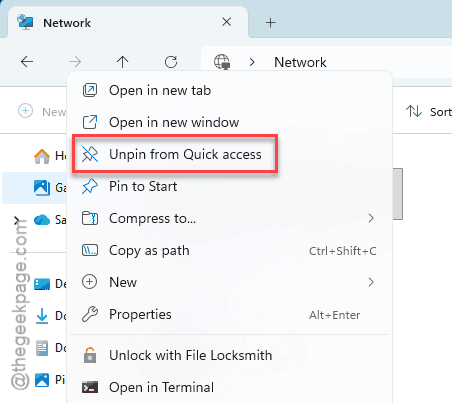
5 – While you’re there, clear out old entries in the Recent files list too — same problem if they’re on offline drives.
Fix 3 – Clear File Explorer History
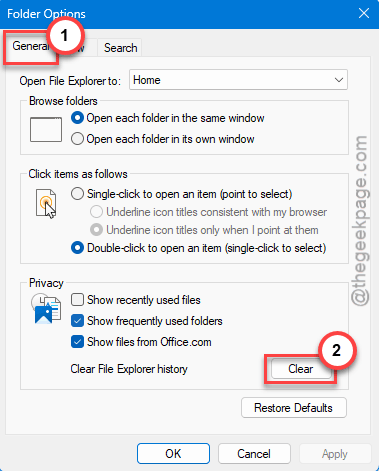
Simple one. A bloated history makes the shell churn through old entries at startup. Wiping it fixed this instantly for some people.
1 – Open File Explorer.
2 – Click the three dots (⋯) on the top toolbar.
3 – Click Options.
4 – On the General tab, find the Privacy section.
5 – Click Clear, then OK.
Fix 4 – Trim Your Startup Apps
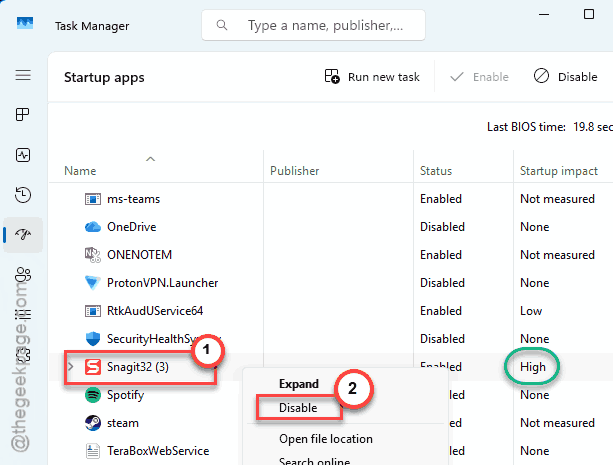
Too many apps launching at login? They all fight for the disk in those first few seconds. The shell loses, and you get the freeze.
Press Ctrl + Shift + Esc to open Task Manager. Click the Startup apps tab on the left. Look at the Startup impact column. Anything marked High that you don’t need right away — right-click it and click Disable.
Dropbox, Spotify, Teams, game launchers. Disable the ones you don’t need at boot.
Restart.
Fix 5 – Restart Windows Explorer When It Hangs
Not a permanent fix, but a fast escape when you’re stuck mid-freeze.
Hit the Ctrl + Shift + Esc keys together. Then, find Windows Explorer under the Processes tab, right-click, and click Restart.
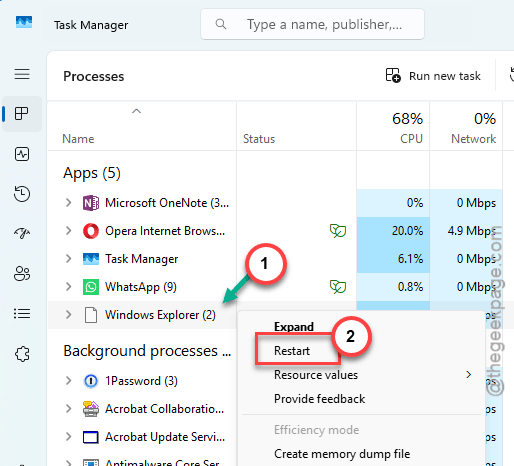
The shell reloads and usually responds right away. Buys you time while you sort out the real cause above.
Fix 6 – Roll Back the Last Windows Update
If the freeze showed up right after an update, the update’s likely the cause. Rolling it back fixed it for several folks.
1 – Press Windows + I, go to Windows Update.
2 – Click Update history.
3 – Scroll down, click Uninstall updates.
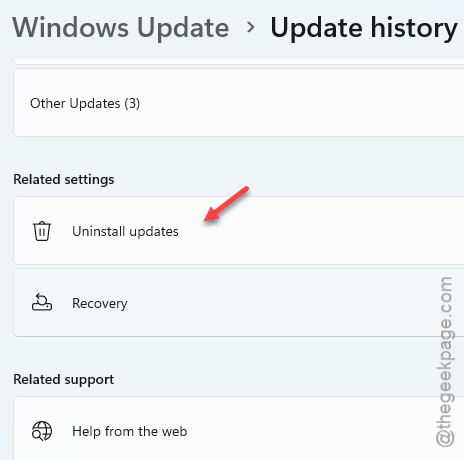
4 – Remove the most recent one. Restart.
And if that helps, pause Windows Update for a week or two so it doesn’t immediately reinstall the same broken patch.
How to Prevent This
– Disconnect mapped network drives the moment you stop using them. A dead drive is the number-one cause of this freeze.
– Keep your startup app list lean. Every High-impact app at boot adds to the wait.
– Don’t pin folders from external or network drives to Quick Access unless they’re always available.
– Clear File Explorer history occasionally. Stops it from bloating and slowing the login.
People Also Ask
Why is my desktop unresponsive for the first 30 seconds after login?
Almost always a dead network drive. The shell waits for a disconnected mapped drive to time out — and that timeout runs about 30 seconds. Disconnect any offline mapped drives in File Explorer and unpin offline folders from Quick Access. The freeze usually vanishes after that.
How do I fix a slow login on Windows 11?
Trim your startup programs first, then disconnect any mapped network drives you don’t use. Clear File Explorer history too. If the slowdown started after a Windows update, uninstall that update from Update history.