You’re gaming or just working. And bam — blue screen. KERNEL_SECURITY_CHECK_FAILURE. The PC reboots itself.
Then it does it again. And again. Sometimes every few minutes. Painfully disruptive. Let’s stop it.
Why This Happens
Short version: Windows caught something that doesn’t add up. A core file, a driver, or your RAM failed an integrity check. So it panics and reboots to protect itself.
Most of the time it’s a driver. A graphics or network driver gone stale or corrupt. And DirectX 12 games hammer the GPU driver hard, which is why it often shows up mid-game.
But it’s not always software. Bad RAM throws this too. So does overclocking — push your CPU or memory too far and the numbers stop checking out. Annoying, because it looks like a Windows bug when it’s really your hardware.
So we’ll work through both. Software first. Then hardware.
Fix 1 – Repair Corrupted System Files
Start here. If a core Windows file went bad, this rebuilds it from a clean cloud copy. Fixes a surprising number of these.
1 – Press the Windows key, type cmd, then right-click Command Prompt and choose Run as administrator. Click Yes on the prompt.
2 – Type this and press Enter:
Dism /Online /Cleanup-Image /RestoreHealth
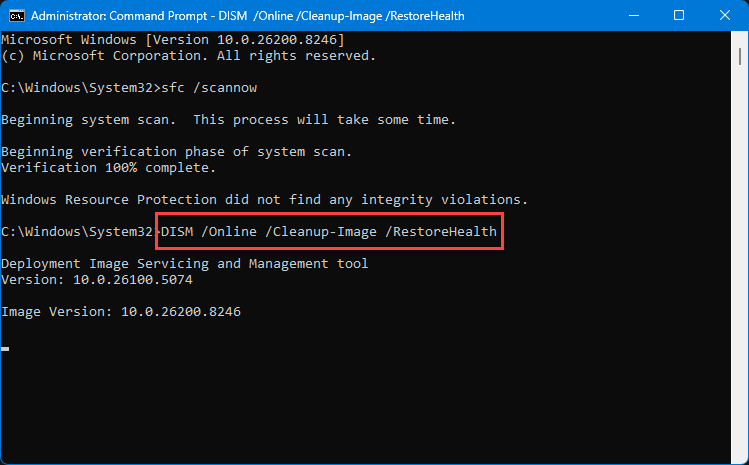
3 – Let it run all the way to 100%. It can sit at 20% for a while. That’s normal — don’t close it.
4 – Now type this and press Enter:
sfc /scannow
5 – Wait for the verification to finish.
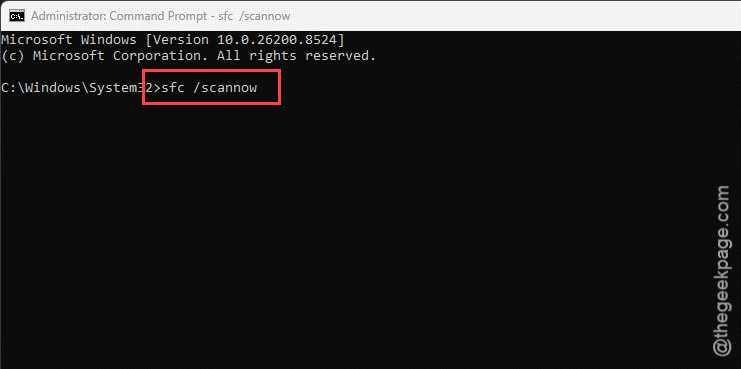
6 – Restart your PC.
And run them in that order. DISM first, then SFC. Doing it backwards sometimes doesn’t take.
Fix 2 – Update or Roll Back Your Drivers
Drivers are the usual culprit. Especially display and network ones.
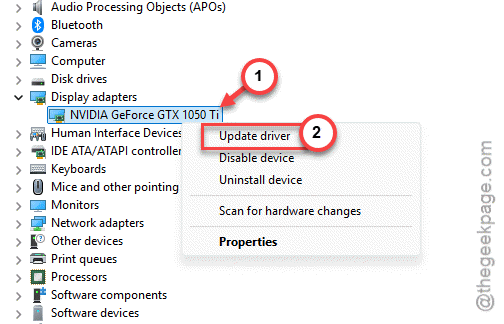
1 – Right-click the Start button and choose Device Manager.
2 – Look for anything with a yellow warning triangle. That’s a problem driver flagging itself.
3 – Also expand Display adapters and Network adapters — the two biggest troublemakers.
4 – Right-click the device and choose Update driver.
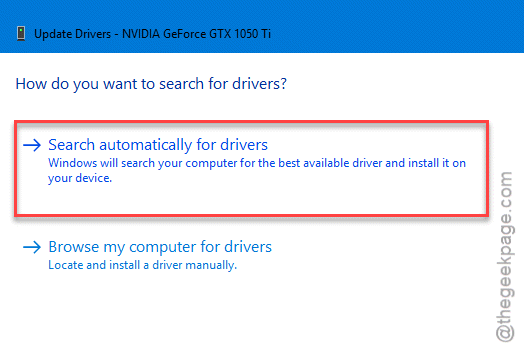
5 – Click Search automatically for drivers. Let Windows grab the latest one.
Check if this works.
Fix 3 – Test Your RAM
If files keep going corrupt no matter what you do, suspect the memory. Bad RAM scrambles data, and that trips this exact error.
1 – Press the Windows key, type Windows Memory Diagnostic, and open it.
2 – Click Restart now and check for problems (recommended). Save your work first — it reboots immediately.
3 – Your PC restarts into a blue testing screen. Let it run. It stress-tests your RAM sticks. Takes a while.
4 – It reboots on its own when done, then pops a result in the system tray.
If it finds errors? One of your RAM sticks is likely failing.
Fix 4 – Turn Off Overclocking and XMP
This one trips a lot of people. If you’ve ever sped up your CPU, GPU, or RAM — even just flipping on XMP — that can be the cause. Unstable speeds break integrity checks.
1 – Restart and tap the BIOS key as it boots (usually Delete, F2, or F10 — watch the startup screen).
2 – Find any overclock settings and set them back to factory defaults.
3 – Look for XMP (or DOCP on AMD boards). If it’s On, turn it Off.
4 – Save and exit (usually F10).
XMP is technically an overclock, even though it feels like a normal setting. Turning it off costs you a tiny bit of RAM speed. Worth it if it stops the blue screens.
Fix 5 – Roll Back With System Restore
Still crashing? And it all started recently? Roll the whole PC back to before it began.
Quick one. Press Windows + R, type rstrui.exe, and hit Enter.
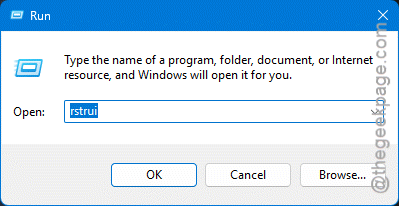
Pick a restore point dated before the crashes started, then follow the prompts. This undoes recent driver and software changes — but leaves your personal files alone. Nuclear-ish, but clean.
How to Prevent This
– Get your graphics drivers straight from NVIDIA, AMD, or Intel. Not just Windows Update. The bundled ones lag behind. Always.
– Leave overclocking and XMP off unless you actually need the speed and your system’s rock stable. Not worth random reboots.
– Run a quick memory test once in a while, especially on an older PC. Catches a dying stick before it corrupts something important.
– Don’t ignore the first blue screen. One is a fluke. Two is a pattern. Trust me.
People Also Ask
What is the cause of KERNEL_SECURITY_CHECK_FAILURE?
It means Windows found data that failed a safety check. Usually a corrupt or outdated driver. Sometimes a damaged system file. And fairly often, faulty RAM or an unstable overclock. The trick is figuring out which — that’s why you work through both software and hardware.
What is Dell stop code KERNEL_SECURITY_CHECK_FAILURE 0x139?
The 0x139 code is just the technical ID for this same crash. On Dell machines it’s frequently a driver issue, so check Dell’s support site for updated chipset and storage drivers for your exact model. The fixes here apply too — repair system files, test RAM, and drop any overclock.