You restart your PC. Task Manager opens on its own. Every single time. This particular issue has been reported by some users as a side effect of KB5067036 and KB5070773. They added a hidden startup task. Easy to fix once you find it.
Why This Happens
Basically? Those KB updates added a hidden “Interactive” startup entry for Task Manager. Not clear if Microsoft meant to do this or not. But the result is Task Manager launching on every boot.
Some people also have a shortcut or batch file in their startup folder from an old workaround. Either way — find the trigger, kill it. That’s why.
Fix 1 – Disable in Startup Apps
Easiest fix. Ten seconds.
1 – Press Ctrl + Shift + Esc to open Task Manager. It’s probably already open anyway.
2 – Click the Startup apps icon on the left sidebar. Looks like a gauge.
3 – Find Task Manager in the list.
4 – Right-click it.
5 – Click Disable.
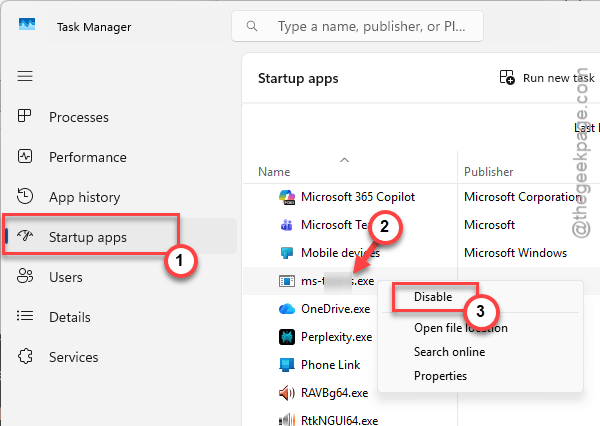
Done. Restart to confirm. If Task Manager isn’t in the startup list, the trigger is somewhere else. Keep going.
Fix 2 – Check the Startup Folder
Might be a shortcut or script someone left in there.
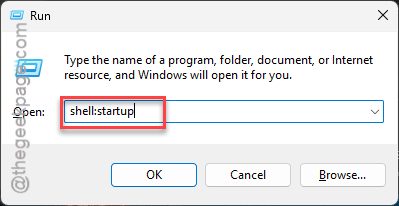
1 – Press Win + R.
2 – Type shell:startup
3 – Press Enter.
4 – Look for any Task Manager shortcut or .bat file.
5 – Delete it.
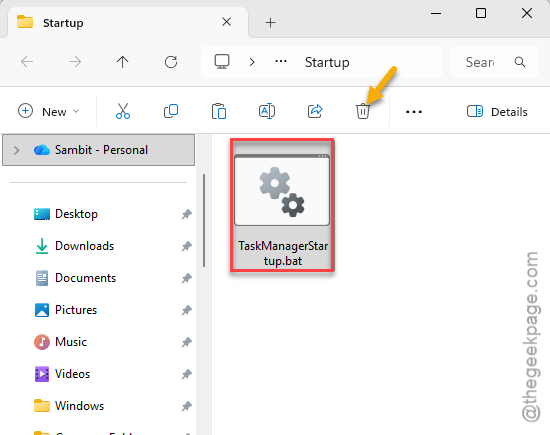
6 – Also check the all-users folder: press Win + R, type shell:common startup, press Enter.
7 – Delete any Task Manager shortcuts there too.
Check again.
Fix 3 – Check Task Scheduler
The KB updates may have added a scheduled task. Most people miss this one.
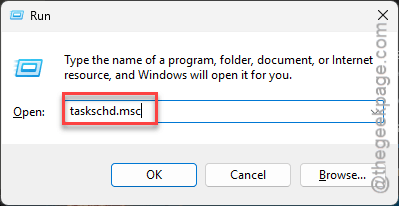
1 – Press Win + R.
2 – Type
taskschd.msc
3 – Press Enter.
4 – Click Task Scheduler Library in the left pane.
5 – Look through the list for anything related to Task Manager or taskmgr.
6 – Right-click it.
7 – Click Disable or Delete.
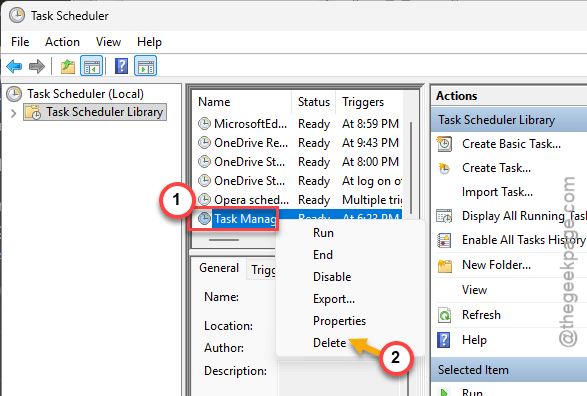
If nothing obvious, check inside Microsoft > Windows folders in the tree. Hidden tasks love living in there. For some reason, Microsoft buries stuff where nobody looks.
Fix 4 – Check Registry Run Keys
Programs can auto-start through registry entries.
1 – Press Win + R.
2 – Type regedit
3 – Press Enter.
4 – Go to:
HKEY_CURRENT_USER\Software\Microsoft\Windows\CurrentVersion\Run
5 – Look for any entry pointing to taskmgr.exe.
6 – If you find one, right-click it and click Delete.
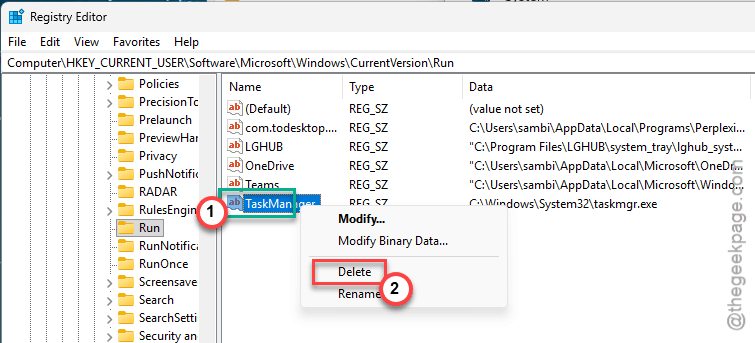
7 – Also check:
HKEY_LOCAL_MACHINE\SOFTWARE\Microsoft\Windows\CurrentVersion\Run
8 – Same thing. Delete any Task Manager entries.
9 – Restart.
Fix 5 – Uninstall the Problematic Update
If nothing above works, the update might be forcing it.
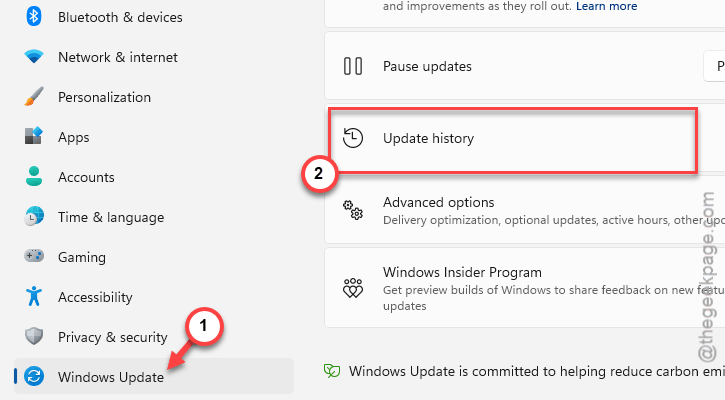
1 – Open Settings.
2 – Click Windows Update.
3 – Click Update history.
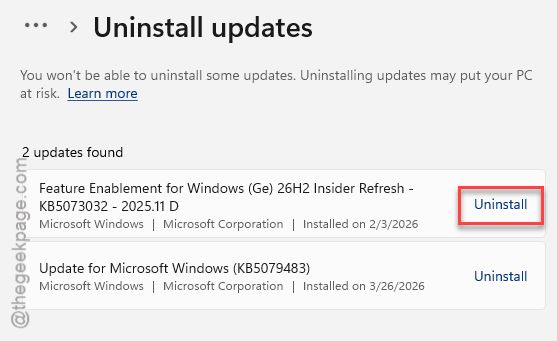
4 – Click Uninstall updates.
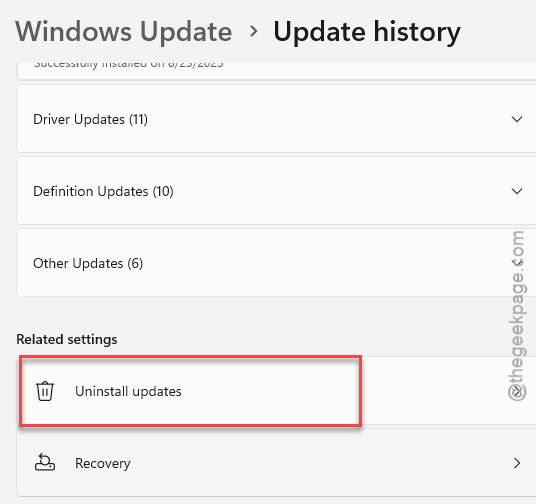
5 – Find KB5067036 or KB5070773.
6 – Click Uninstall.
7 – Restart.
How to Prevent This
- After updates, check Startup apps for new entries.
- Check startup folder periodically for unexpected shortcuts.
- Don’t install preview builds unless you’re okay with bugs.
- Task Scheduler is where hidden triggers hide. Check there first after the updates.
People Also Ask
Why does Task Manager open on startup?
KB5067036 or KB5070773 added a hidden trigger. Disable it in Startup apps. Also check startup folder and Task Scheduler.
How do I stop programs from opening on startup Windows 11?
You can follow these steps to do it – Task Manager > Startup apps. Simply, right-click any of the programs > Disable. Also check shell:startup folder and Task Scheduler.
How to fix Task Manager not closing properly?
KB5067036 ghost bug. Use taskkill /im taskmgr.exe /f to kill all instances. Wait for Microsoft to patch it.