Adrenalin just closes on its own. Or your game freezes solid and dumps you to the desktop. Sometimes both.
You’re on an RX 9000 card running driver 26.5.1. And it’s been rough. Crashes. Stutters. The whole Adrenalin panel vanishing for no reason.
Why This Happens
Basically? The 26.5.1 driver shipped with bugs. And RX 9000 cards caught the worst of it.
It’s not one single thing, though. Some crashes come from the driver itself. Others come from features stacked on top — frame generation, Anti-Lag, FSR. Pile them on and something snaps.
RoadCraft is the headline crasher on this combo. But it’s not alone. Plenty of other DX12 games trip over it too.
And there’s leftover gunk. Install a new driver over a messy old one and you drag the old problems forward. Why ship a driver this shaky? AMD does this sometimes. Not ideal.
Fix 1 – Roll Back to the Stable 26.3.1 Driver
This is the move most people swear by. The 26.3.1 driver is the last rock-solid one before things got wobbly. Going back fixes the majority of crashes.
1 – Go to AMD and open the drivers and support page.
2 – Search for your exact RX 9000 card.
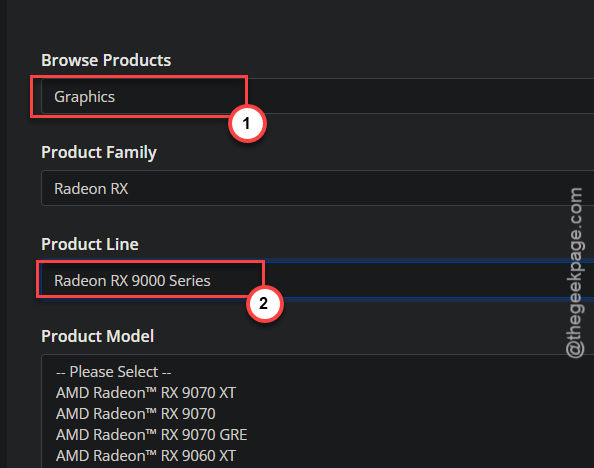
3 – Scroll to Previous Drivers.
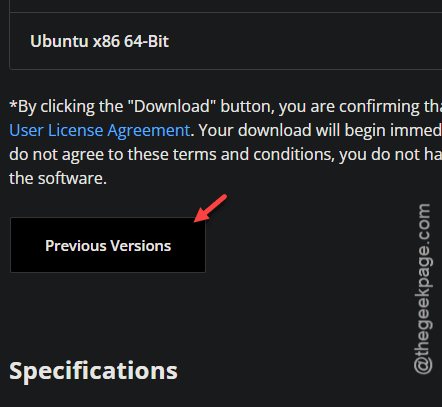
4 – Download Adrenalin 26.3.1.
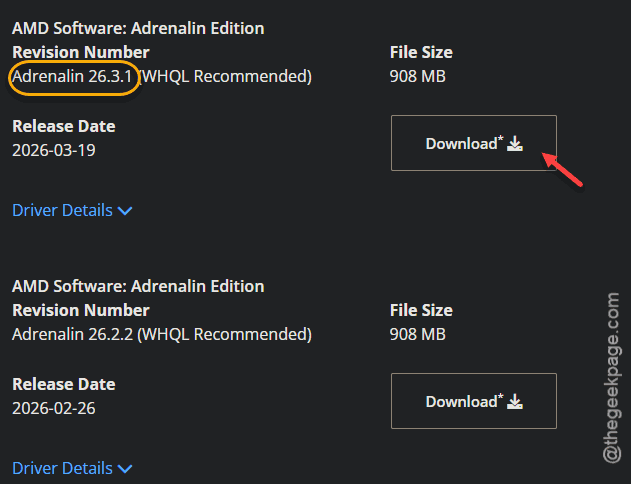
5 – Run the installer. For best results, do the cleanup in Fix 2 first.
5 – Restart when it’s done.
Yeah, you give up the newest features. But a driver that doesn’t crash beats a driver that does. Every time.
Fix 2 – Do a Clean Install With AMD Cleanup Utility
Whether you roll back to 26.3.1 or jump to 26.5.2, do it clean. Old driver leftovers cause half these crashes on their own.
1 – Download the AMD Cleanup Utility.
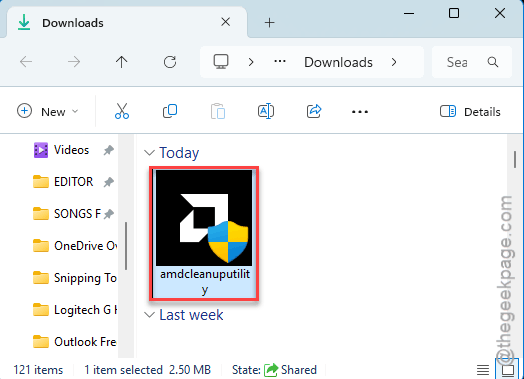
2 – Run it. It’ll ask to reboot into Safe Mode — say yes.
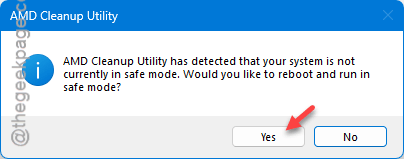
3 – Let it strip out every trace of the current driver.
4 – Reboot normally.
5 – Now install the driver you picked (26.3.1 or 26.5.2). Fresh slate.
And this step alone fixes a ton of weird Adrenalin behavior. Don’t skip it.
Fix 3 – Turn Off HAGS and Game Mode
Two Windows settings make Adrenalin crashes worse.
1 – Press Windows + I to open Settings.
2 – Go to System > Display > Graphics > Default graphics settings.
3 – Turn off Hardware-accelerated GPU scheduling.
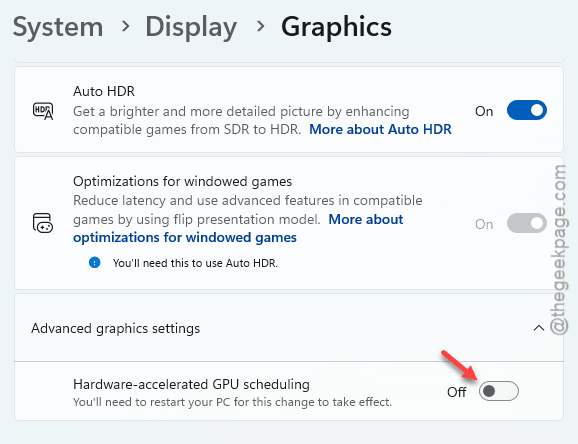
4 – Now go to Gaming > Game Mode and turn that off too.
5 – Reboot.
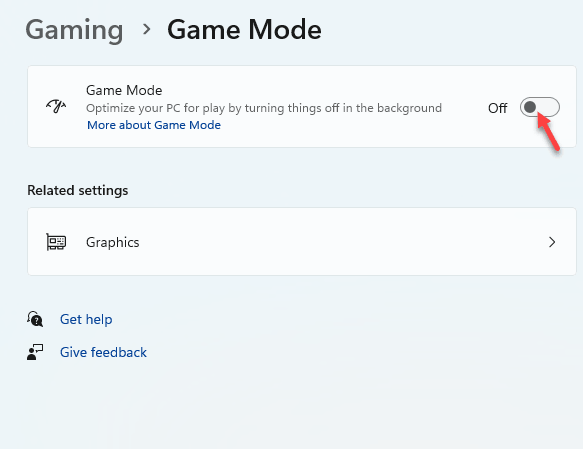
Game Mode is supposed to help. On RX 9000 right now? It often hurts. Go figure.
Fix 4 – Turn Off FSR and Anti-Lag in Adrenalin
These two features are great when they work. They’re also prime suspects for the crashing. Disable them and test.
1 – Open AMD Software: Adrenalin Edition.
2 – Click the Gaming tab at the top.
3 – Find the AMD FSR (the global upscaling toggle) and switch it off.
4 – Find Radeon Anti-Lag and turn that off too.
5 – Launch your game and see if it’s stable.
If the crashing stops, you found your culprit.
Fix 5 – Enable ReBAR and Above 4G Decoding in BIOS
RX 9000 cards expect Resizable BAR to be on. If it’s off, you get instability and lost performance. Double-check it in the BIOS.
1 – Restart and tap Delete or F2 at boot to enter the BIOS.
2 – Find Above 4G Decoding (usually under Advanced or PCIe settings). Set it to Enabled.
3 – Find Resizable BAR and set it to Enabled too. Above 4G usually has to be on first.
4 – Save and exit (often F10).
Both on. That’s how AMD expects these cards to run.
Fix 6 – Try Updating to 26.5.2
If you’d rather stay current than roll back, AMD did patch some of this in 26.5.2. It specifically targets the RoadCraft instability. Worth a shot — but only after a clean install.
1 – Run the AMD Cleanup Utility first (Fix 2). Carrying over 26.5.1’s mess defeats the point.
2 – Download Adrenalin 26.5.2 from amd.com.
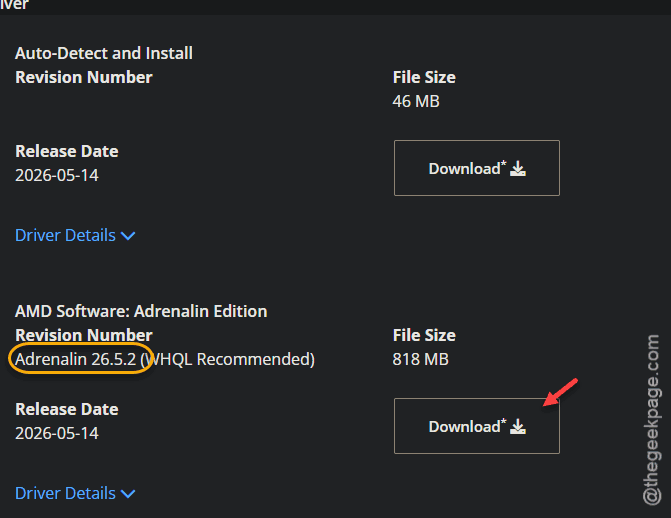
3 – Install it. Restart.
Check if you are experiencing the same problem or not.
How to Prevent This
- Don’t jump on every new Adrenalin release the day it drops. Wait a week and read the feedback first.
- Keep a known-stable driver like 26.3.1 noted down. So you always have something to fall back to.
- Turn features like FSR and Anti-Lag on one at a time. Then you know which one broke things if it does.
People Also Ask
Can AMD Adrenalin cause crashes?
Absolutely. A buggy driver release or a messy install is one of the most common causes of game and app crashes on AMD cards. A clean reinstall, or rolling back to a stable version of the graphics driver usually sorts it out.
Can the AMD Adrenalin app interfere with the NVIDIA app?
Only if you’ve got both brands of GPU in one system, which is rare. On a normal single-AMD setup, there’s no conflict — the NVIDIA app isn’t even installed. If you do run both, keep each vendor’s software updated and they generally stay out of each other’s way.