OneDrive says “Looking for changes.” It has been saying that for hours. Nothing is syncing. Your files are stuck in limbo.
This is a sync issue. OneDrive lost track of what changed and is stuck in a loop trying to figure it out. It happens after updates, after large file operations, or sometimes just randomly. Because OneDrive.
Why This Happens
OneDrive monitors your files for changes and syncs them to the cloud. But sometimes the monitoring process gets stuck. A file might be locked by another application. Or the sync database got corrupted. Or there are too many files in one folder and OneDrive cannot process them all. Windows updates can also break the sync engine. And if you have both iCloud and OneDrive installed, they can conflict with each other. Both try to manage your files at the same time. Neither handles it well.
Fix 1 – Uninstall iCloud if Installed
If you have iCloud for Windows installed alongside OneDrive, they fight over file sync. Multiple users have confirmed this causes the stuck state.
1 – Go to Settings > Apps > Installed apps.
2 – Find iCloud and uninstall it.
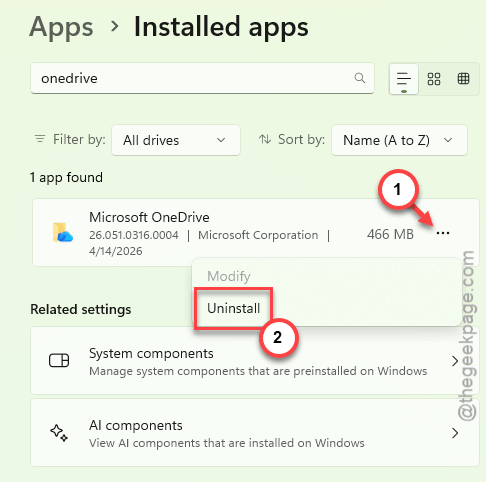
3 – Restart your computer.
4 – Check if OneDrive starts syncing again.
Not great if you need iCloud. But if you can live without it, removing it often fixes OneDrive immediately.
Fix 2 – Reset OneDrive Using the Run Command
The official reset method. Clears the sync state without deleting your files.
1 – Press Windows + R to open the Run dialog.
2 – Type this and press Enter:
wsreset.exe
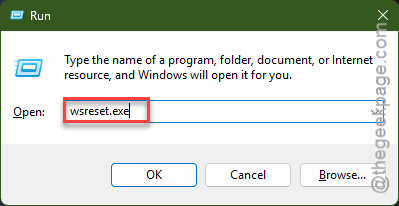
A blank command window flashes briefly. That is normal. Wait for it to close.
3 – Press Windows + R again. This time type:
%localappdata%\Microsoft\OneDrive\onedrive.exe /reset

4 – Press Enter. OneDrive will close and restart.
5 – If you see a “Windows cannot find” error, try this path instead:
C:\Program Files\Microsoft OneDrive\onedrive.exe /reset
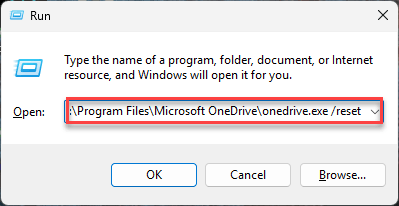
6 – Still getting the error? Try: C:\Program Files (x86)\Microsoft OneDrive\onedrive.exe /reset
After the reset, OneDrive re-scans everything from scratch. Takes a few minutes depending on how many files you have. But it usually fixes the stuck state.
Fix 3 – Unlink and Relink Your PC
If the reset did not work, a full unlink forces OneDrive to start fresh on your machine.
1 – Right-click the OneDrive cloud icon in the system tray (bottom-right corner of the taskbar).
2 – Click the gear icon and select Settings.
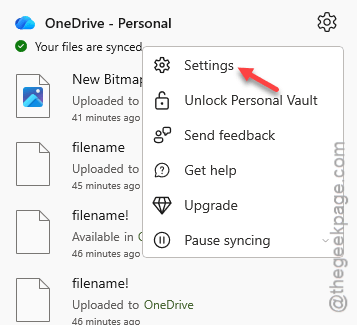
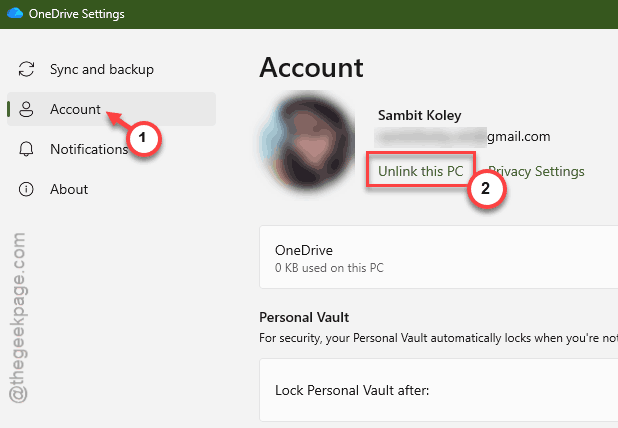
3 – Go to the Account tab.
4 – Click Unlink this PC. Confirm when prompted.
5 – Restart your computer.
6 – Open OneDrive again and sign back in.
This forces a complete resync. Your cloud files are safe. Nothing gets deleted. But it might take a while to re-download everything depending on your library size.
Fix 4 – Rename the OneDrive Folder
This is the more aggressive version of Fix 2. Some users had to do this when unlinking alone was not enough.
1 – Unlink OneDrive (follow Fix 2 steps 1 through 4).
2 – Restart your computer.
3 – Open File Explorer. Go to
C:\Users\YourUsername\
4 – Find the OneDrive folder. Rename it to OneDrive.old.
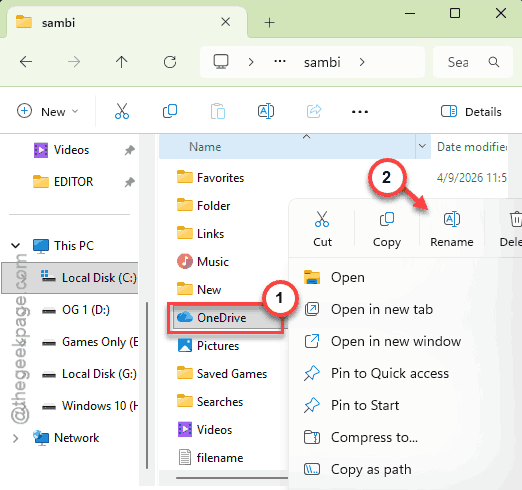
5 – Also rename C:\Users\YourUsername\AppData\Local\Microsoft\OneDrive to OneDrive.old if it exists.
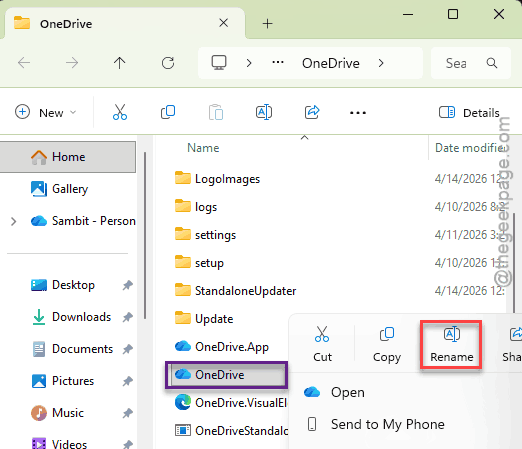
6 – Relink your account. OneDrive creates a fresh folder and resyncs.
Your old files are still in the .old folder if you need them. But OneDrive starts completely fresh with no corrupted sync data.
Fix 5 – Check for File Locks
Sometimes a single file is locked by another application, and OneDrive is stuck waiting for it.
1 – Look at the OneDrive icon in the system tray. Hover over it to see if it mentions a specific file.
2 – If a file is listed, close any application that might be using it.
3 – Try right-clicking the OneDrive icon and selecting Resume syncing if it shows a pause option.
One locked Excel file can hold up the entire sync queue. Close Excel, and suddenly everything moves again.
Fix 6 – Re-download OneDrive and Set to Files On-Demand
Fresh install of the OneDrive client. Only download when you actually need the file.
1 – Uninstall OneDrive from Settings > Apps > Installed apps.
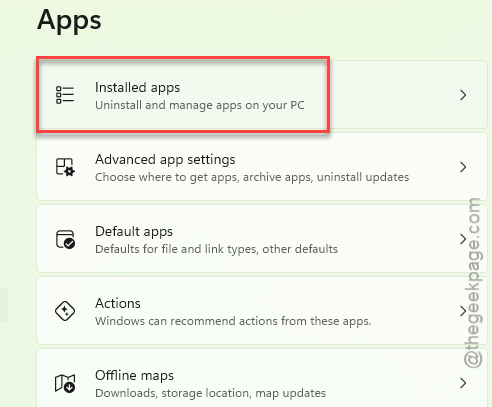
2 – Seach and uninstall the OneDrive app from there.
3 – Download the latest version from Microsoft’s website.

4 – Install it. Sign in with your account.
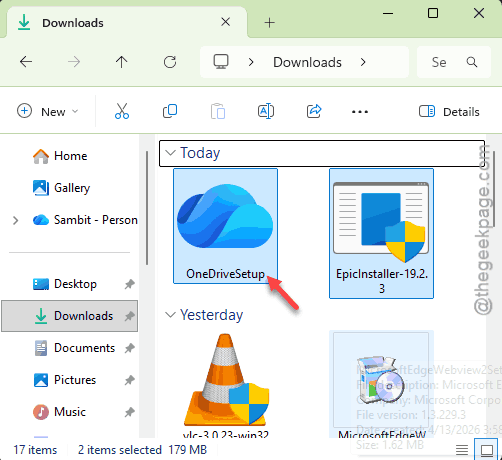
5 – During setup, select Files On-Demand (recommended). This means files stay in the cloud and only download when you open them.
6 – Let it sync. It should go faster since it is only syncing metadata, not full files.
Worth a shot if the reset methods did not help.
How to Prevent This
– Close large files (especially Excel) before leaving your computer. Locked files stall sync.
– Avoid having both iCloud and OneDrive managing the same folders.
– Keep OneDrive updated. Microsoft releases sync bug fixes regularly.
– Use Files On-Demand to reduce the sync load. Less data to track means fewer issues.
People Also Ask
Why is OneDrive stuck on processing changes?
A file is probably locked. Or the sync database is corrupted. Close all Office apps first. Then try resetting OneDrive with the /reset command. If that does not work, unlink your PC and relink it. Usually one of those fixes it.
How do I unfreeze my OneDrive?
Press Windows + R. Type %localappdata%\Microsoft\OneDrive\onedrive.exe /reset and hit Enter. Wait a minute. OneDrive restarts and rescans your files. If it stays frozen, unlink and relink your account through OneDrive Settings.
How to fix a corrupted OneDrive?
Reset it first with the /reset command. If that is not enough, unlink your PC, rename the OneDrive folder to OneDrive.old, and relink. OneDrive will create a fresh sync folder. Your cloud files are never deleted by this process.