Your PC reboots after the KB5094126 update. Then it asks for your BitLocker recovery key. You type it in… and it asks again. Or it just blue-screens on a loop.
Maddening. And it’s not your hardware dying. It’s the update fighting with Secure Boot and your TPM chip. Let’s break the loop.
Why This Happens
Basically? KB5094126 ships a mandatory Secure Boot certificate refresh.
Your TPM — the little security chip that guards your BitLocker key — checks the boot setup every time you power on. The update changes that setup. The TPM spots the mismatch, panics, and locks the drive. So Windows demands the recovery key to prove it’s really you.
And on some machines it’s worse. The EFI partition (a tiny hidden area where boot files live) is too small to fit the new certificate. When the update can’t write it, you get a 0xc0430001 blue screen instead. Same update. Two different failures.
Fix 1 – Get Your Recovery Key Ready First
Before anything else, find your key. You’ll need that 48-digit BitLocker recovery key for almost every step below. It’s saved to your Microsoft account — go to Microsoft Devices on your phone or another PC and look under your device’s details.
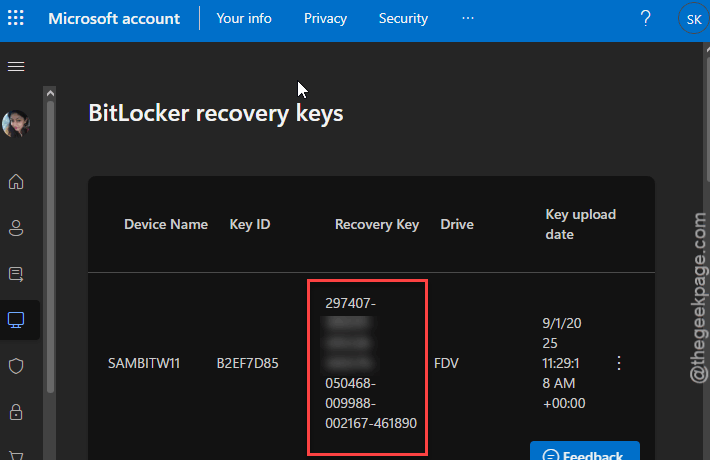
On a work machine? Your IT admin has it. Don’t skip this. Locked out without the key is a much worse afternoon.
Fix 2 – Make Room in the EFI Partition (0xc0430001 BSOD)
Getting that 0xc0430001 blue screen instead of a key prompt? Then your EFI partition is too cramped for the new certificate.
1 – If you can reach the desktop, press Windows + X and open Command Prompt (Admin).
Stuck on the blue screen? Follow this path –
- Boot to Advanced Startup, then choose Troubleshoot > Advanced options
- Finally, choose the Command Prompt.
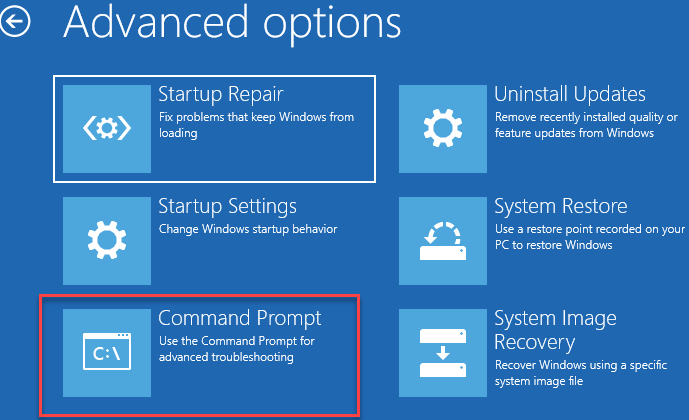
2 – Type this command exactly and press Enter:
reg add "HKLM\SYSTEM\CurrentControlSet\Control\Bfsvc" /v EspPaddingPercent /t REG_DWORD /d 0 /f
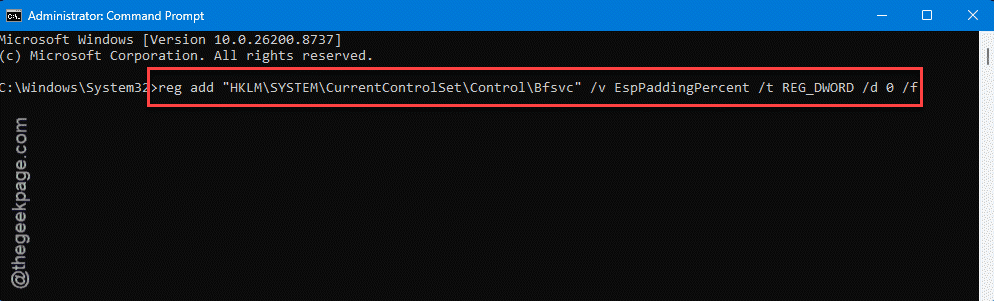
3 – Restart your PC.
With the padding limit gone, the update can write cleanly into the partition. The blue screen should stop.
Fix 3 – Force the Certificate In via Registry
Different symptom: you reach the desktop fine, but every single cold boot demands the recovery key again. That means the firmware never registered the update. You can force it.
1 – Press Windows + R, type regedit, and press Enter.
2 – Go to this path in the left pane:
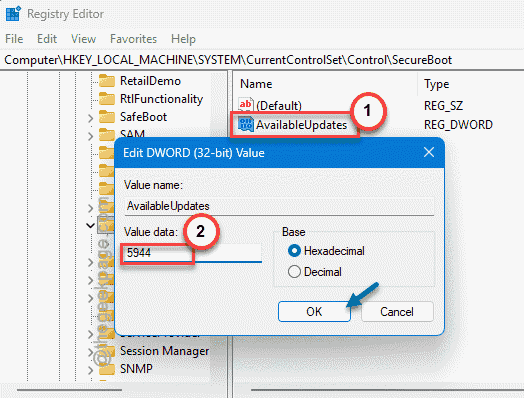
HKEY_LOCAL_MACHINE\SYSTEM\CurrentControlSet\Control\SecureBoot
3 – Look for a value named AvailableUpdates. Not there? Right-click, choose New, then DWORD (32-bit) Value, and name it AvailableUpdates.
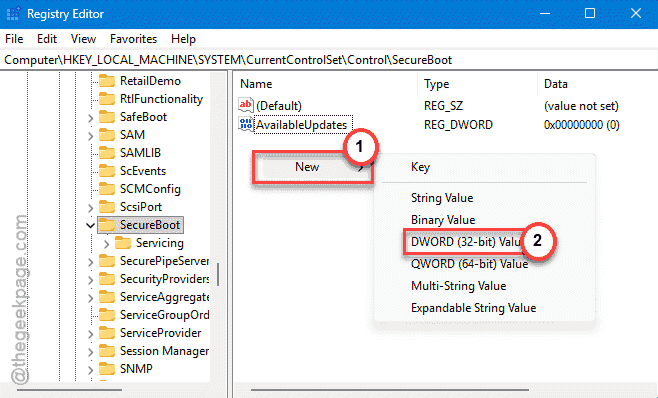
4 – Double-click it. Set the Base to Hexadecimal, type 5944 in the value box, and click OK.
5 – Restart.
On the next boot, Windows manually injects the pending certificate. After that, the endless key prompts usually stop.
Fix 4 – Temporarily Turn Off Secure Boot
You should temporarily disable the secure boot mode to fix the issue.
1 – Restart your PC. As it boots, tap the BIOS key — usually Esc, F10, or F2. The screen often flashes which one for a second.
2 – Go to the Boot or Security tab.
3 – Find Secure Boot and set it to Disabled.
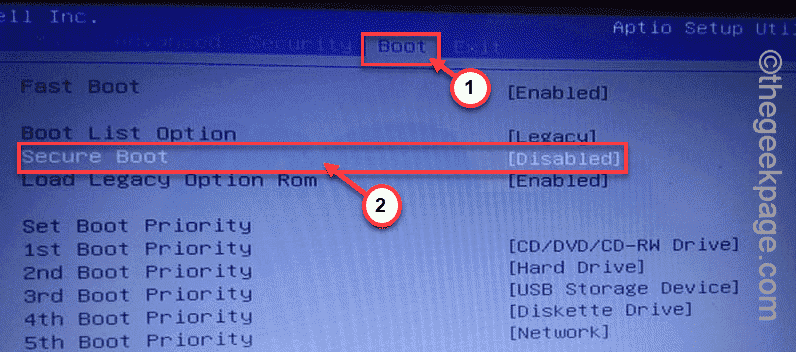
4 – Save and exit. Your PC reboots.
5 – Let Windows load all the way to the desktop.
6 – Restart once more, go back into the BIOS, and set Secure Boot back to Enabled.
Leaving Secure Boot off long-term isn’t ideal — it’s a real security feature. So flip it back on once the update settles.
Fix 5 – Uninstall KB5094126 and Pause Updates
Nothing above worked? Pull the update. On a work PC or a setup you can’t risk, this is the reliable move.
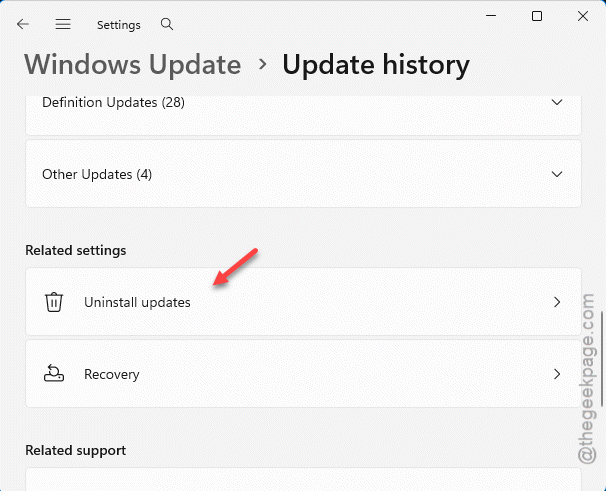
1 – If Windows boots, open Settings, go to Windows Update, then Update history.
2 – Scroll to the bottom and click Uninstall updates.
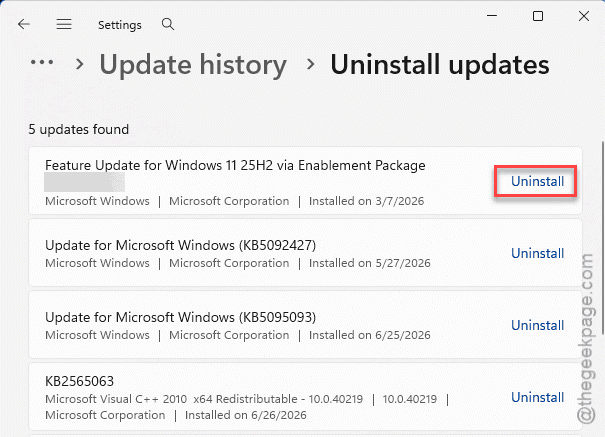
3 – Find KB5094126 in the list and click Uninstall.
4 – After it restarts, go back to Windows Update and click Pause updates so it doesn’t reinstall the same payload overnight.
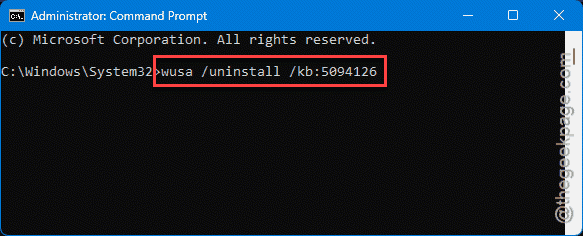
NOTE – Can’t boot at all? Then, follow these steps –
1 – Use Advanced Startup in the Recovery Mode.
2 – Then Command Prompt.
3 – FInally, run this code –
wusa /uninstall /kb:5094126
Microsoft will likely re-release a fixed version later. Pausing just buys you time until then.
How to Prevent This
– Save your BitLocker recovery key somewhere off this PC. Your phone, another device, a printout — anywhere but the machine that locks you out.
– Before a big Patch Tuesday update, check that your EFI partition isn’t crammed. The cramped-partition crash hits a lot of HP and Dell business laptops.
– Keep your BIOS firmware current. Outdated firmware is what makes the Secure Boot refresh choke in the first place.
– On managed work machines, let IT stage these updates. They can catch the BitLocker conflict before it spreads to everyone.
People Also Ask
How do I fix a BSOD loop on Windows 11?
If the blue screen shows 0xc0430001 after KB5094126, your EFI partition is too small for the new certificate. Boot into Advanced Startup, open Command Prompt, and run the Bfsvc EspPaddingPercent registry command to free up room. Restart and the update writes cleanly. Still looping? Uninstall the update.
Will I lose my data fixing this?
No. Disabling Secure Boot, freeing the EFI partition, and the registry edits don’t touch your files. Just make sure you have your BitLocker recovery key before you start — that’s the one thing that locks you out if it goes missing. Uninstalling the update is data-safe too.